> ## Documentation Index
> Fetch the complete documentation index at: https://docs.goguardian.com/llms.txt
> Use this file to discover all available pages before exploring further.
# Review the Admin Dashboard
> Filter dashboard data, review activity cards, and export reports in GoGuardian Admin.
Use the GoGuardian Admin Dashboard to get a high-level view of user activity across your organization, identify web usage trends, review recent alerts, and export activity data.
## Filter Dashboard Data
By default, the dashboard displays data from the last 5 days for all organizational units (OUs). Use the dropdown menus at the top of the page to filter by OU and date range.
For the date range, select a beginning and end date up to a maximum 30-day range.
 ## Review Dashboard Cards
### View Students Currently Online
The Students Currently Online count shows the number of users connected to GoGuardian services at that moment.
### View Top Websites and More
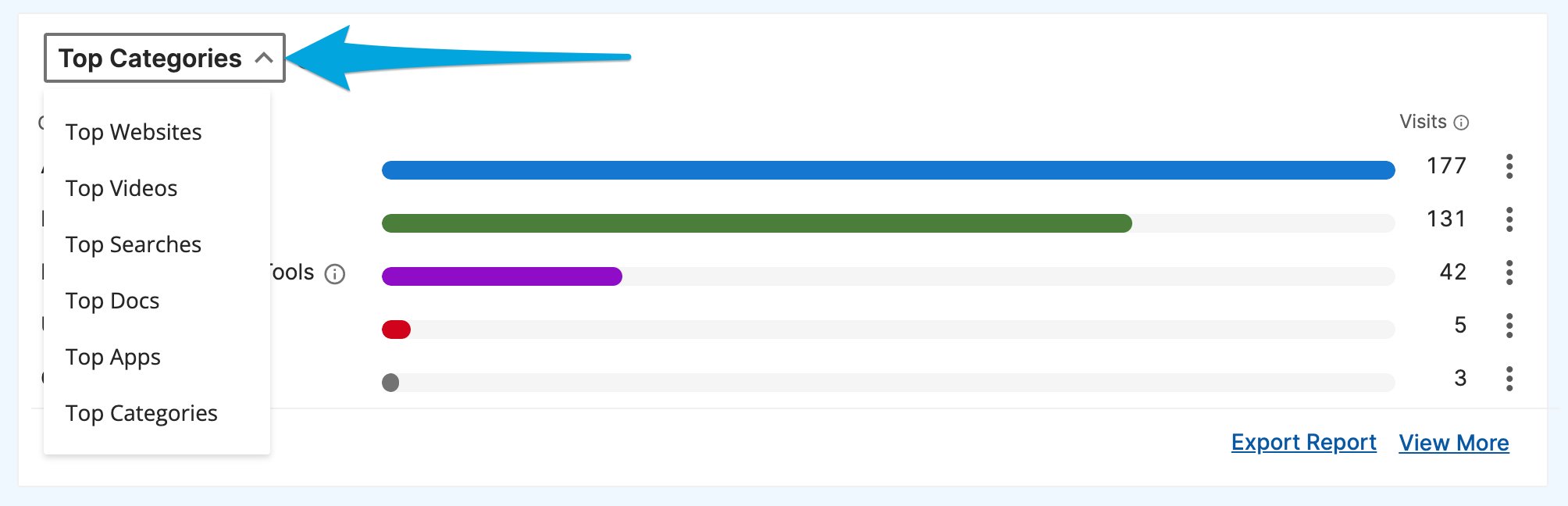
The Top Websites card shows the top 5 websites for users in the selected date and OU range. Use the dropdown menu to filter by the following data types:
* **Videos**: top YouTube videos viewed
* **Searches**: top Google searches performed
* **Docs**: top Google Docs accessed
* **Apps**: top Chrome Apps used
* **Categories**: top website categories visited
Click **View More** to open a side drawer with more than the top 5 results for the selected data type. Each View More drawer includes its own export function.
Click **Export Report** to download a CSV of the currently selected data.
Top Categories data is available from March 6, 2024 onward. When filtering by Categories, the date range is limited to 1-week increments.
## Review Dashboard Cards
### View Students Currently Online
The Students Currently Online count shows the number of users connected to GoGuardian services at that moment.
### View Top Websites and More
The Top Websites card shows the top 5 websites for users in the selected date and OU range. Use the dropdown menu to filter by the following data types:
* **Videos**: top YouTube videos viewed
* **Searches**: top Google searches performed
* **Docs**: top Google Docs accessed
* **Apps**: top Chrome Apps used
* **Categories**: top website categories visited
Click **View More** to open a side drawer with more than the top 5 results for the selected data type. Each View More drawer includes its own export function.
Click **Export Report** to download a CSV of the currently selected data.
Top Categories data is available from March 6, 2024 onward. When filtering by Categories, the date range is limited to 1-week increments.
 ### Review Activity Timeline
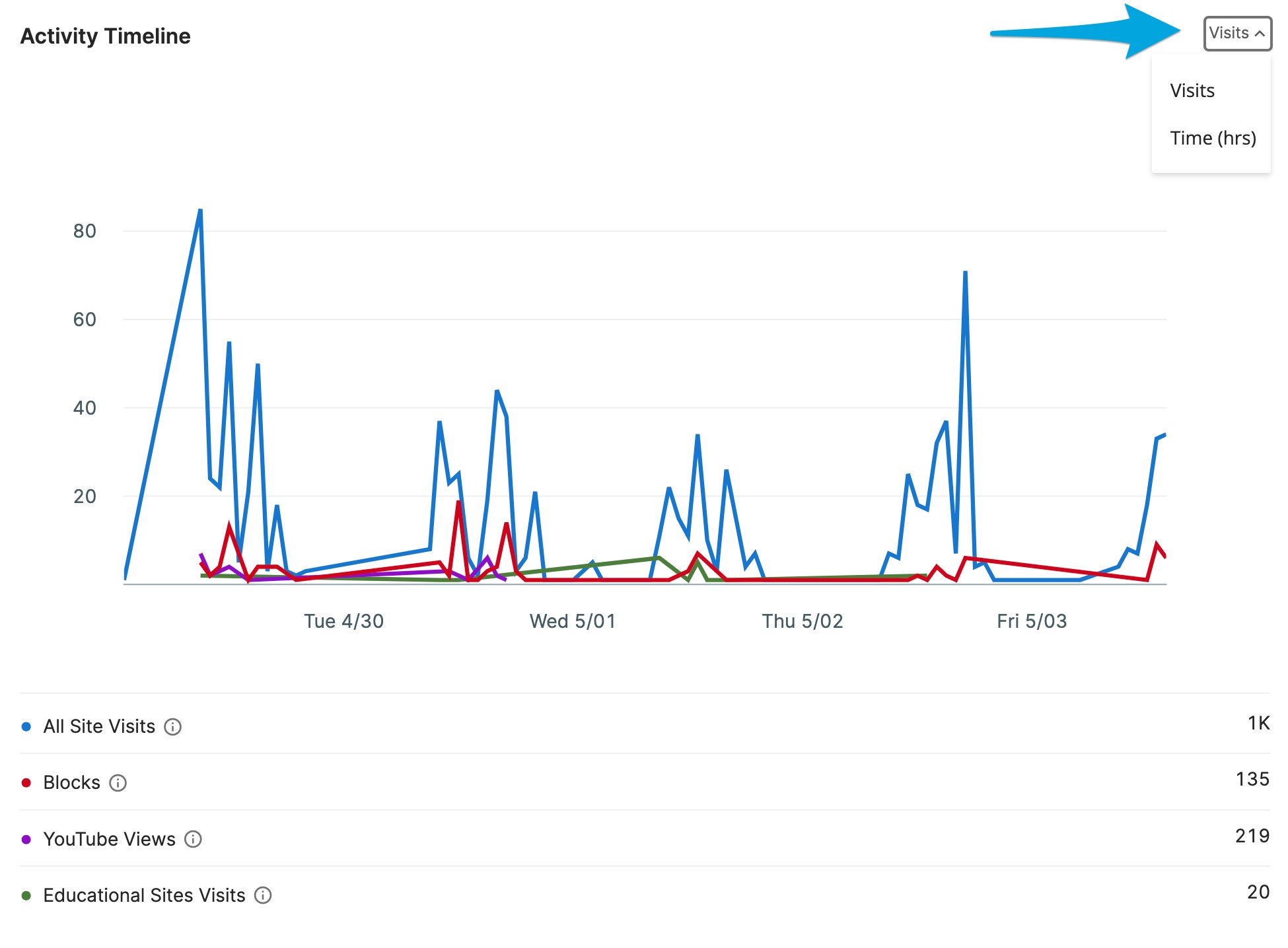
The Activity Timeline shows browsing activity for the selected date range and OU filters. It displays the following data series:
* **All Site Visits**: the number of web pages viewed
* **Blocks**: the number of pages blocked by GoGuardian Admin filtering rules
* **YouTube Views**: the number of YouTube videos viewed
* **Educational Site Visits**: the number of visits to websites GoGuardian has categorized as Educational or Educational Games
Use the dropdown on the timeline to switch the display between **Visits** and **Time (hrs)**.
### Review Activity Timeline
The Activity Timeline shows browsing activity for the selected date range and OU filters. It displays the following data series:
* **All Site Visits**: the number of web pages viewed
* **Blocks**: the number of pages blocked by GoGuardian Admin filtering rules
* **YouTube Views**: the number of YouTube videos viewed
* **Educational Site Visits**: the number of visits to websites GoGuardian has categorized as Educational or Educational Games
Use the dropdown on the timeline to switch the display between **Visits** and **Time (hrs)**.
 ### Check Smart Alerts
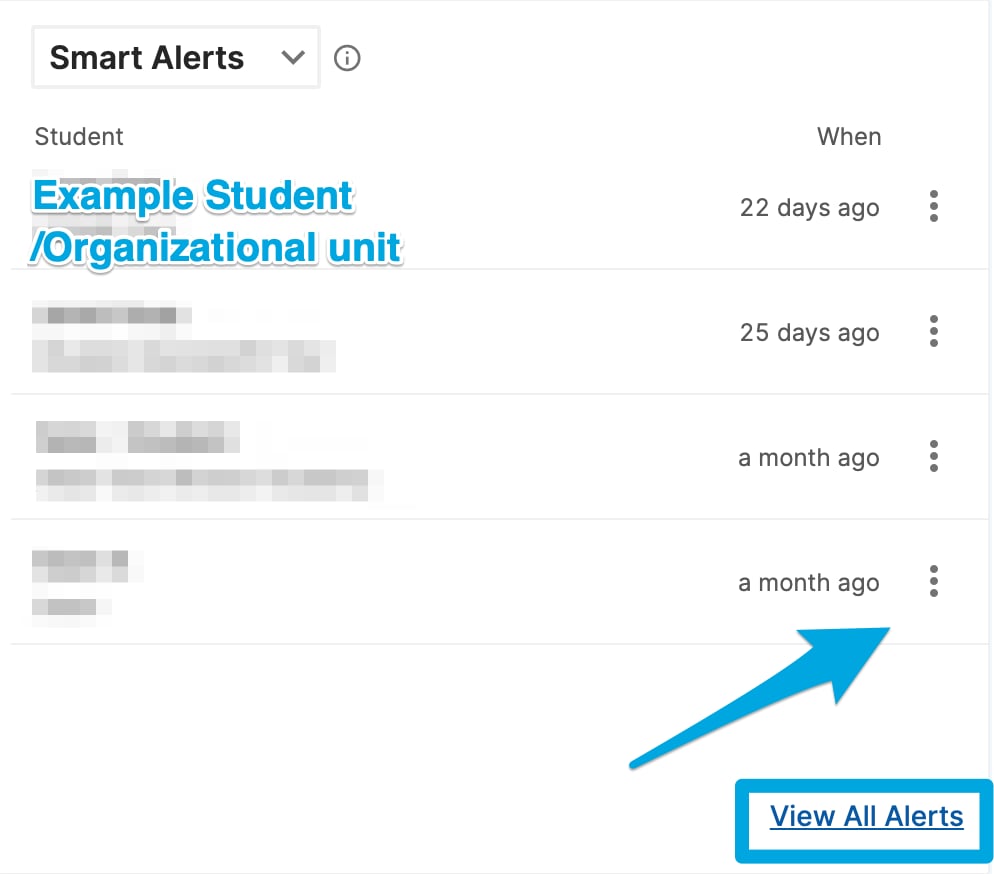
The Smart Alerts card shows the most recent alerts, including the student's name and their OU. Use the three-dot (kebab) menu on any alert to view the alert details or open that student's report page. Click **View All Alerts** to open the main Smart Alerts page.
### Check Smart Alerts
The Smart Alerts card shows the most recent alerts, including the student's name and their OU. Use the three-dot (kebab) menu on any alert to view the alert details or open that student's report page. Click **View All Alerts** to open the main Smart Alerts page.
 ### Access Documentation Resources
The Documentation Resources card provides direct links to GoGuardian Admin help articles. By default, Filtering Best Practices articles are displayed. Use the dropdown to switch to Installation Resources for articles related to deploying GoGuardian.
## Export Dashboard Data
Export a CSV of any dashboard data using one of two methods:
* Click **Export Report** in the Top Websites card to export the currently selected data type (Websites, Videos, Searches, Docs, Apps, or Categories).
* Click **View More** on any data type, then use the export function within the side drawer to download a CSV of the expanded result set.
### Access Documentation Resources
The Documentation Resources card provides direct links to GoGuardian Admin help articles. By default, Filtering Best Practices articles are displayed. Use the dropdown to switch to Installation Resources for articles related to deploying GoGuardian.
## Export Dashboard Data
Export a CSV of any dashboard data using one of two methods:
* Click **Export Report** in the Top Websites card to export the currently selected data type (Websites, Videos, Searches, Docs, Apps, or Categories).
* Click **View More** on any data type, then use the export function within the side drawer to download a CSV of the expanded result set.
 ## Resources
Filter, export, and investigate browsing activity data in GoGuardian Admin.
Review how filtering policies are structured and applied across your organization.
Review and act on flagged activity generated by Smart Alerts and filtering rules.
Set YouTube access levels and content restrictions for your organization.
## Resources
Filter, export, and investigate browsing activity data in GoGuardian Admin.
Review how filtering policies are structured and applied across your organization.
Review and act on flagged activity generated by Smart Alerts and filtering rules.
Set YouTube access levels and content restrictions for your organization.