> ## Documentation Index
> Fetch the complete documentation index at: https://docs.goguardian.com/llms.txt
> Use this file to discover all available pages before exploring further.
# Review AI Activity with Prompt Visibility
> Use the Prompt Visibility beta in GoGuardian Admin to review student AI tool usage and read full conversation transcripts.
Prompt visibility captures student prompts and the AI-generated responses that follow, groups them into conversation histories, and ties each one to a student, AI tool, date, and time.
Prompt visibility is in beta from July 9 to July 24, 2026. This beta focuses on text-based prompts and responses. Images, audio, files, and other multimodal content are not captured during the initial beta and are planned for a future release. Please note the following for the beta:
* **Prompt visibility does not block prompts.** The initial beta is focused on visibility, reporting, and investigation. Prompt visibility categorizes prompts to help you prioritize review, but it does not block a prompt, redirect a student, or prevent an AI platform from responding.
* **Prompt visibility does not capture native AI apps.** The beta captures supported AI platforms accessed through a browser. Interactions inside native mobile or desktop AI applications are not captured at this time.
## In This Article
* Review Supported Data and Tools
* Navigate the AI Activity Table
* Analyze the AI Conversation Details Drawer
* Export AI Activity Data
* FAQ
* Resources
## Review Supported Data and Tools
Prompt visibility adds two layers of visibility into AI that GoGuardian Admin did not have before:
* District-level utilization metrics
* Full content of individual AI conversations
### AI Tool Utilization Metrics
The AI Activity page opens on a row of summary cards that describe AI use across the organizational units and date range you select. An organizational unit selector and a date range picker at the top of the page control the scope of every card and the table below. The cards include:
* **Total Interactions**: the volume of captured prompts and responses, with the change from the previous period
* **Top AI Tool**: the most-used AI platform and its share of all interactions
* **Active Students**: how many students used a supported AI tool in the selected range
* **Top OU**: the organizational unit with the most AI activity
* **Top Classroom**: the classroom with the most AI activity
* **Top User**: the student with the most AI activity
Use these cards to see which tools, organizational units, and classrooms drive the most AI use before you drill into individual interactions.
 ### Supported AI Platforms
The initial beta focuses on these browser-based platforms:
* ChatGPT
* Claude
* Google AI Mode
* Google Gemini
* Google Search
* Microsoft Copilot
* NotebookLM
Support for additional platforms will be added after the beta.
### Data Captured Per Interaction
For each supported interaction, prompt visibility may capture:
* The text of a student's prompt
* The text of the AI-generated response
* The AI platform used
* The student associated with the interaction
* The date and time of the interaction
* The OU information needed to associate the interaction with the correct student
* A conversation identifier used to group related prompts and responses
## Navigate the AI Activity Table
Below the summary cards, the AI Activity table lists individual interactions. By default it shows these columns:
| Column | What It Shows |
| ----------------- | --------------------------------------------------------------------------------- |
| Users | The student's name and email |
| OU | The student's organizational unit |
| Category | How the prompt is classified, which you can use to prioritize review (filterable) |
| AI Tool | The AI platform used (filterable) |
| Interaction Count | The number of prompts and responses in the interaction (sortable) |
| Time Spent | How long the interaction lasted (sortable) |
| Date and Time | When the interaction occurred (sortable) |
Additional columns are hidden by default and can be shown, and the results-per-page control sets how many rows appear at once.
### Supported AI Platforms
The initial beta focuses on these browser-based platforms:
* ChatGPT
* Claude
* Google AI Mode
* Google Gemini
* Google Search
* Microsoft Copilot
* NotebookLM
Support for additional platforms will be added after the beta.
### Data Captured Per Interaction
For each supported interaction, prompt visibility may capture:
* The text of a student's prompt
* The text of the AI-generated response
* The AI platform used
* The student associated with the interaction
* The date and time of the interaction
* The OU information needed to associate the interaction with the correct student
* A conversation identifier used to group related prompts and responses
## Navigate the AI Activity Table
Below the summary cards, the AI Activity table lists individual interactions. By default it shows these columns:
| Column | What It Shows |
| ----------------- | --------------------------------------------------------------------------------- |
| Users | The student's name and email |
| OU | The student's organizational unit |
| Category | How the prompt is classified, which you can use to prioritize review (filterable) |
| AI Tool | The AI platform used (filterable) |
| Interaction Count | The number of prompts and responses in the interaction (sortable) |
| Time Spent | How long the interaction lasted (sortable) |
| Date and Time | When the interaction occurred (sortable) |
Additional columns are hidden by default and can be shown, and the results-per-page control sets how many rows appear at once.
 ### Filter the Table
Use the controls above and within the table to narrow the list to the interactions you want to review.
1. Go to **Reporting** > **AI Activity** in GoGuardian Admin.
2. Set the **date range** and **organizational unit** at the top of the page to scope the data.
3. To find a specific student, enter a name or email in **Search by User name or email**.
4. Click **Search**.
5. To filter by classification or platform, select the filter icon on the **Category** or **AI Tool** column header.
6. Sort the results by selecting a sortable column header, such as **Interaction Count**, **Time Spent**, or **Date and Time**.
### Open a Conversation
Open the AI Conversation Details drawer to read a single interaction in full.
1. In the AI Activity table, find the interaction's row.
2. Click on the row's kebab menu.
3. Choose **View Details** to open the AI Conversation Details drawer. To jump to the student's full activity report instead, choose **View User Report**.
4. Review the AI Conversation Details to see the student's interaction with the AI tool.
## Analyze the AI Conversation Details Drawer
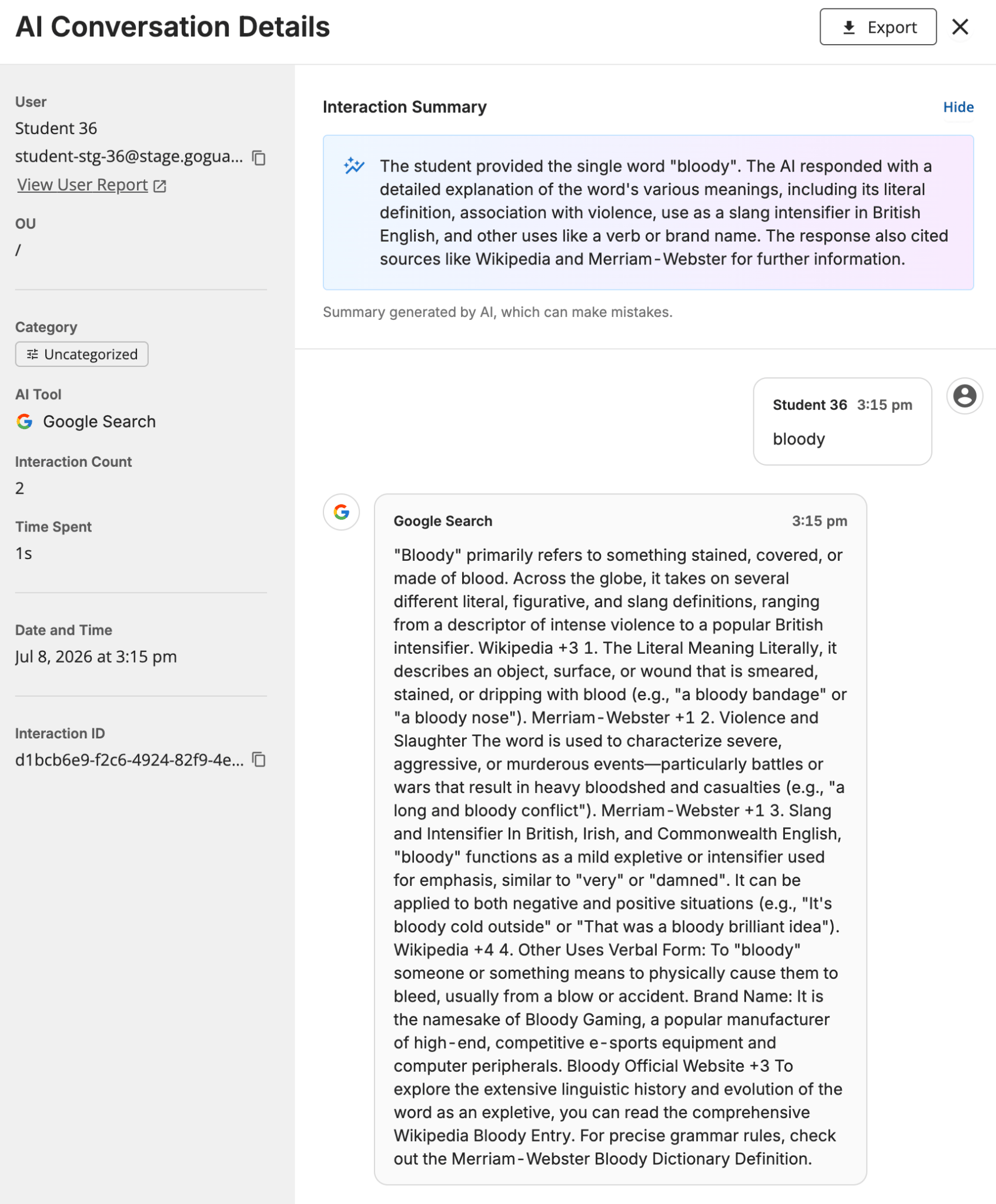
The AI Conversation Details drawer is where you read a single student's conversation with an AI tool in full. It opens on the right side of the page and is organized into user and interaction details, an AI-generated summary, and the conversation transcript.
### Filter the Table
Use the controls above and within the table to narrow the list to the interactions you want to review.
1. Go to **Reporting** > **AI Activity** in GoGuardian Admin.
2. Set the **date range** and **organizational unit** at the top of the page to scope the data.
3. To find a specific student, enter a name or email in **Search by User name or email**.
4. Click **Search**.
5. To filter by classification or platform, select the filter icon on the **Category** or **AI Tool** column header.
6. Sort the results by selecting a sortable column header, such as **Interaction Count**, **Time Spent**, or **Date and Time**.
### Open a Conversation
Open the AI Conversation Details drawer to read a single interaction in full.
1. In the AI Activity table, find the interaction's row.
2. Click on the row's kebab menu.
3. Choose **View Details** to open the AI Conversation Details drawer. To jump to the student's full activity report instead, choose **View User Report**.
4. Review the AI Conversation Details to see the student's interaction with the AI tool.
## Analyze the AI Conversation Details Drawer
The AI Conversation Details drawer is where you read a single student's conversation with an AI tool in full. It opens on the right side of the page and is organized into user and interaction details, an AI-generated summary, and the conversation transcript.
 ### User and Interaction Details
The left side of the drawer shows the context for the conversation so you can confirm you are reviewing the correct student and interaction before you act:
| Field | What It Shows |
| ----------------- | ------------------------------------------------------------------------- |
| User | The student's name and email, with a link to the user report |
| OU | The student's organizational unit |
| Category | How the prompt is classified |
| AI Tool | The AI platform used |
| Interaction Count | The number of prompts and responses in the interaction |
| Time Spent | How long the interaction lasted |
| Date and Time | When the interaction occurred |
| Interaction ID | A unique identifier for the interaction, which you can copy for reference |
### Interaction Summary
The Interaction Summary gives you a short overview of the conversation so you can prioritize which interactions need a closer look without reading every exchange in full. You can hide the summary if you prefer to read the transcript on its own.
The Interaction Summary is generated by AI and can make mistakes. Read the full conversation transcript before you act on a summary, and follow your district's review and escalation process for any conversation that indicates a student may be at risk.
### Conversation Transcript
The conversation transcript shows the exchange itself. Each student prompt appears with the AI response that followed, in the order the exchange occurred, along with the student's name and a timestamp, so you can read the full context rather than an isolated prompt.
## Export AI Activity Data
You can export AI activity to keep a record or to review it outside GoGuardian Admin. Two export options are available:
* **Export the filtered table.** Set the date range, organizational unit, and any column filters, then click **Export** in the top-right of the AI Activity page. The export reflects your filtered view.
* **Export a single conversation.** Open the AI Conversation Details drawer for an interaction, then click **Export** in the drawer.
## FAQ
**Can prompt visibility capture Google's AI Mode?**
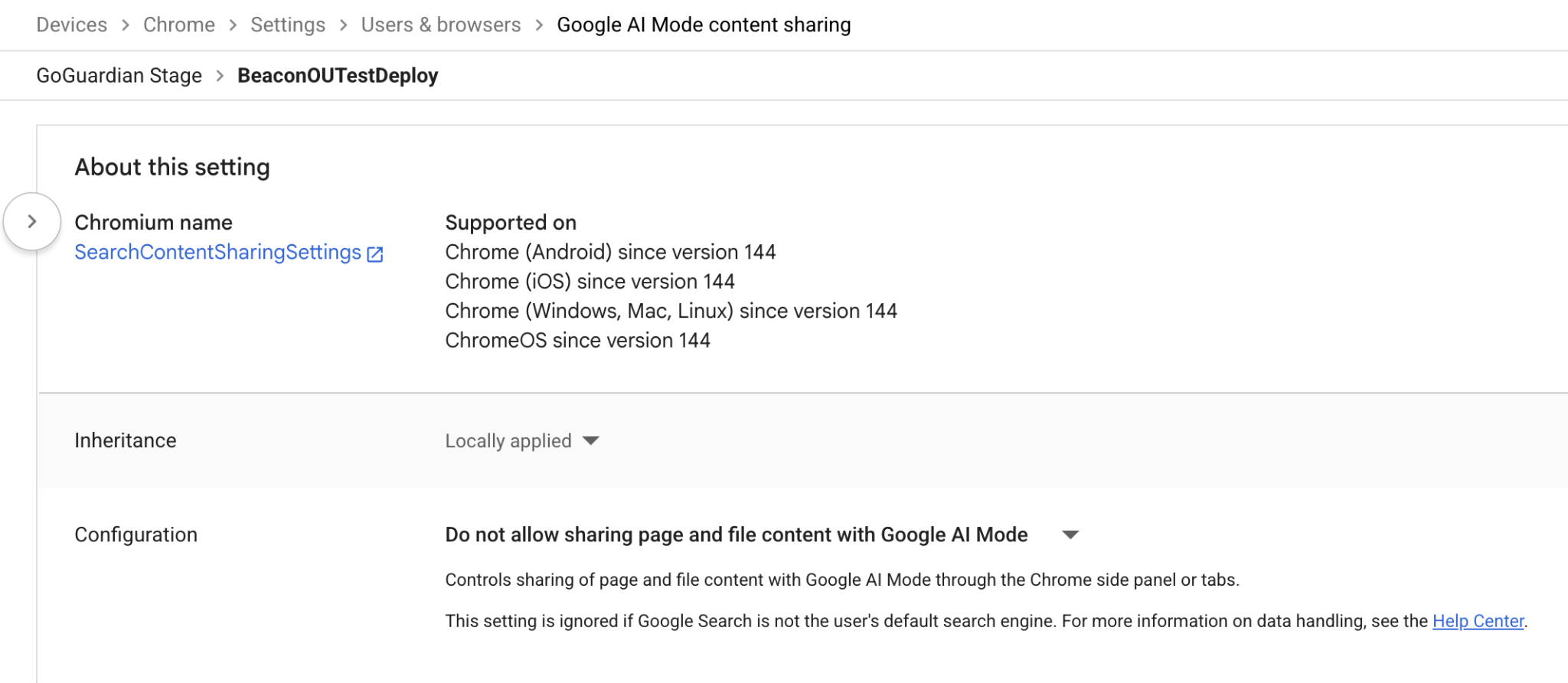
Prompt visibility can capture AI Mode when content sharing via AI Mode is blocked in Google Admin console. You can set this up by visiting the [Google AI Mode content sharing setting](https://admin.google.com/u/1/ac/chrome/settings/user/details/search_content_sharing_settings_setting_group?journey=218\&ac_ouid=03ph8a2z1bsxk8w) and changing the configuration to "Do not allow sharing page and file content with Google AI Mode."
### User and Interaction Details
The left side of the drawer shows the context for the conversation so you can confirm you are reviewing the correct student and interaction before you act:
| Field | What It Shows |
| ----------------- | ------------------------------------------------------------------------- |
| User | The student's name and email, with a link to the user report |
| OU | The student's organizational unit |
| Category | How the prompt is classified |
| AI Tool | The AI platform used |
| Interaction Count | The number of prompts and responses in the interaction |
| Time Spent | How long the interaction lasted |
| Date and Time | When the interaction occurred |
| Interaction ID | A unique identifier for the interaction, which you can copy for reference |
### Interaction Summary
The Interaction Summary gives you a short overview of the conversation so you can prioritize which interactions need a closer look without reading every exchange in full. You can hide the summary if you prefer to read the transcript on its own.
The Interaction Summary is generated by AI and can make mistakes. Read the full conversation transcript before you act on a summary, and follow your district's review and escalation process for any conversation that indicates a student may be at risk.
### Conversation Transcript
The conversation transcript shows the exchange itself. Each student prompt appears with the AI response that followed, in the order the exchange occurred, along with the student's name and a timestamp, so you can read the full context rather than an isolated prompt.
## Export AI Activity Data
You can export AI activity to keep a record or to review it outside GoGuardian Admin. Two export options are available:
* **Export the filtered table.** Set the date range, organizational unit, and any column filters, then click **Export** in the top-right of the AI Activity page. The export reflects your filtered view.
* **Export a single conversation.** Open the AI Conversation Details drawer for an interaction, then click **Export** in the drawer.
## FAQ
**Can prompt visibility capture Google's AI Mode?**
Prompt visibility can capture AI Mode when content sharing via AI Mode is blocked in Google Admin console. You can set this up by visiting the [Google AI Mode content sharing setting](https://admin.google.com/u/1/ac/chrome/settings/user/details/search_content_sharing_settings_setting_group?journey=218\&ac_ouid=03ph8a2z1bsxk8w) and changing the configuration to "Do not allow sharing page and file content with Google AI Mode."
 **Can prompt visibility block inappropriate prompts?**
No. The initial beta is focused on visibility, reporting, and investigation. It categorizes prompts to help you prioritize review, but it does not block or redirect activity.
**Does prompt visibility capture activity from native AI apps?**
No. The beta captures supported AI platforms accessed through a browser. Native mobile and desktop AI applications are not captured at this time.
**Why don't I see any Google AI Mode conversations?**
Google AI Mode conversations are only captured when the SearchContentSharingSettings Chrome policy is set to 1 in the Google Admin Console. See "Enable Google AI Mode Capture in the Google Admin Console" above.
**Does prompt visibility capture images, audio, or files?**
Not during the initial beta. Prompt visibility focuses on text-based prompts and responses. Multimodal content is planned for a future release.
## Resources
* [Share Prompt Visibility Beta Feedback](https://docs.google.com/forms/d/e/1FAIpQLSfmU-oasdFGyLu18mjYntLr3ZRGBGJWnJwkh730HW81O8nkLg/viewform?usp=sharing\&ouid=113422902654439705466)
**Can prompt visibility block inappropriate prompts?**
No. The initial beta is focused on visibility, reporting, and investigation. It categorizes prompts to help you prioritize review, but it does not block or redirect activity.
**Does prompt visibility capture activity from native AI apps?**
No. The beta captures supported AI platforms accessed through a browser. Native mobile and desktop AI applications are not captured at this time.
**Why don't I see any Google AI Mode conversations?**
Google AI Mode conversations are only captured when the SearchContentSharingSettings Chrome policy is set to 1 in the Google Admin Console. See "Enable Google AI Mode Capture in the Google Admin Console" above.
**Does prompt visibility capture images, audio, or files?**
Not during the initial beta. Prompt visibility focuses on text-based prompts and responses. Multimodal content is planned for a future release.
## Resources
* [Share Prompt Visibility Beta Feedback](https://docs.google.com/forms/d/e/1FAIpQLSfmU-oasdFGyLu18mjYntLr3ZRGBGJWnJwkh730HW81O8nkLg/viewform?usp=sharing\&ouid=113422902654439705466)