> ## Documentation Index
> Fetch the complete documentation index at: https://docs.goguardian.com/llms.txt
> Use this file to discover all available pages before exploring further.
# Review the Admin Audit Log
> Use the GoGuardian Admin Audit Log to view and filter a history of changes made to policies, configuration settings, custom groups, and Exported Reports.
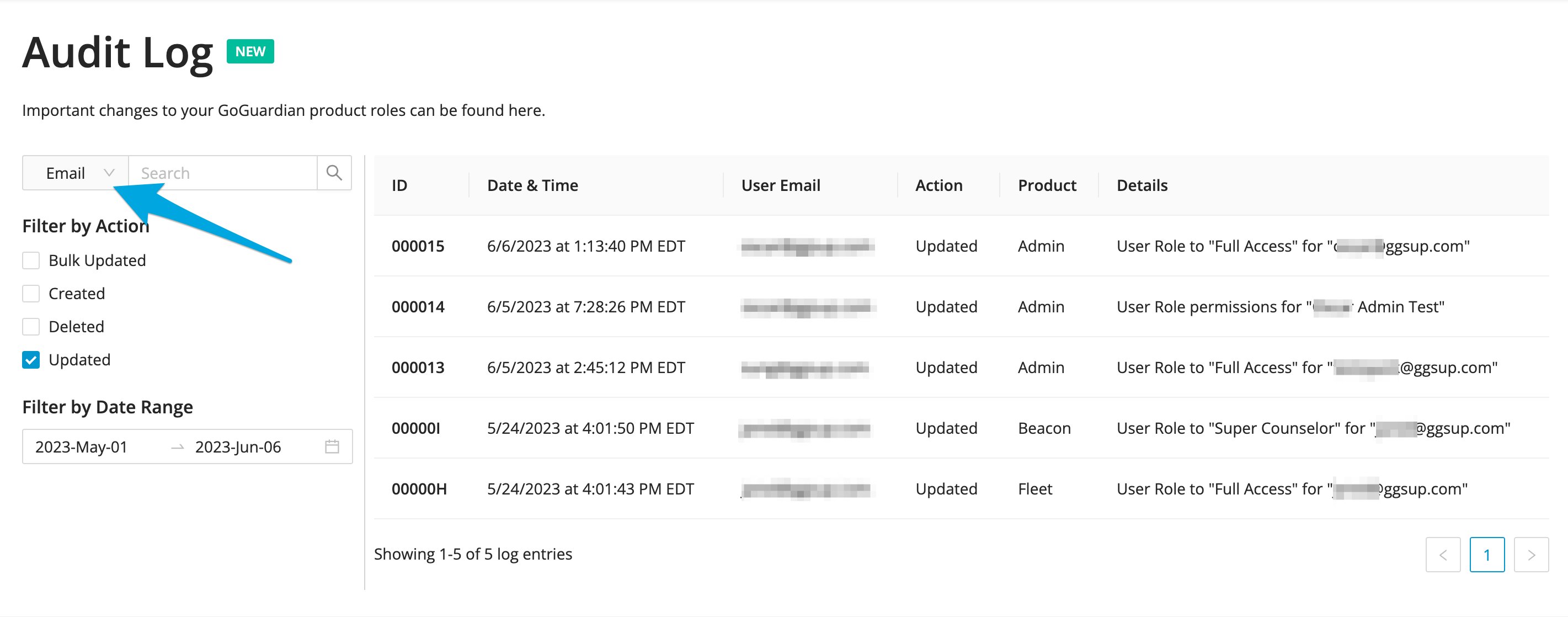
Use the Audit Log to view a history of changes made to filtering policies, global configuration settings, custom groups, and Exported Reports in GoGuardian Admin. To open the Audit Log, navigate to **Reporting** > **Audit Log** in GoGuardian Admin.
By default, the Audit Log displays results in reverse chronological order (most recent changes first).
## Filter Audit Log Results
Use the filter icons on the Audit Log table to narrow results by location or action type. Both filters can be applied together for more specific results.
**Filter by location**: Select the funnel icon on the right side of the **Location** column to filter results by the specific GoGuardian Admin feature where the change was made.
**Filter by action**: Select the funnel icon to the left of the **Target** column to filter results by action type, the kind of change that was made.
After selecting a location or action, check the box for the item you want and select **Apply** to see the filtered results.
The search bar supports searches for **Policies** and **Custom Groups** data only. Select and apply the Policies or Groups location filter before using the search tool.
 ## Resources
View student-level web activity by date range, content type, and result.
Review custom group settings. Changes to groups appear in the Audit Log.
## Resources
View student-level web activity by date range, content type, and result.
Review custom group settings. Changes to groups appear in the Audit Log.