> ## Documentation Index
> Fetch the complete documentation index at: https://docs.goguardian.com/llms.txt
> Use this file to discover all available pages before exploring further.
# Allow and Block Websites
> Add Website URL rules to a filtering policy to block or allow specific sites, paths, subdomains, search terms, and Google Images, and close common bypass routes in GoGuardian Admin and Google Admin Console.
Website URL rules let you directly control access to specific sites, paths, and subdomains within a filtering policy. Rules are managed in the **Website URLs** section of any policy in [GoGuardian Admin](https://admin.goguardian.com/policy/assign/policies).
## Understand URL Rule Basics
Before adding rules, review how GoGuardian Admin interprets URL entries.
**No protocol or prefix needed.** Enter a domain in plain format: `youtube.com`, not `https://www.youtube.com`. The `www` prefix, `http://`, `https://`, and trailing slashes are not required and should be omitted.
**Paths are included, but subdomains are not.** A rule for `google.com` also covers `google.com/search`, `google.com/maps`, and any other path under that domain. It does not cover `shopping.google.com` or `mail.google.com`. Those subdomains must be added as separate rules.
**Subdomains require their own rules.** To block or allow a subdomain, add it directly: `sites.google.com`, `help.goguardian.com`.
**Allow rules override block rules at the same URL.** If a URL is blocked by a rule or a category, adding an allow rule for a specific path creates an exception. For example, if `youtube.com` is blocked, adding `youtube.com/kids` as an allow rule permits access to that path while keeping the rest of the domain blocked.
All URL rules have an implicit wildcard at the end. Blocking `website.com` is equivalent to blocking `website.com*`, which means the rule also covers all paths and query strings under that domain. To restrict a rule to an exact URL, use a wildcard pattern that does not extend past the intended endpoint.
## Add a Website URL Rule
1. In GoGuardian Admin, go to **Filtering** > **Policies**, then open the policy you want to edit.
2. In the policy, select the **Website URLs** section.
3. Type the domain, subdomain, or path you want to filter, for example, `instagram.com` or `sites.google.com`.
4. Choose **Block** to prevent access or **Allow** to permit it.
5. Click **Save** to add the rule to the policy.
6. The new rule appears in the **Website URLs** list. The rule takes effect immediately for all users assigned to that policy.
Wildcard rules use asterisks to match patterns across multiple URLs, for example, `*.mlb.com` to block all team subdomains. For full wildcard syntax and examples, see [Use Wildcard Rules in Policies](/products/admin/filtering-with-wildcards).
## Filter Search Results
To block search results for a specific term on Google or YouTube, add a block rule using this pattern:
```text theme={null}
*search*term
```
Replace `term` with the keyword you want to filter. For example, `*search*guns` blocks searches for that term across both Google and YouTube.
Avoid search terms of 3 to 4 characters. Short terms produce unintended matches because the pattern `*search*term` matches any URL containing that string anywhere after the search parameter. For example, `*search*tit` would match URLs containing "title," "subtitle," and similar words.
`google.com` is not blocked by GoGuardian Admin's category filtering, so you do not need to add it as an allow rule in most policies. Adding `google.com` as an allow rule is appropriate only when the policy uses Restrictive Mode, where all sites are blocked by default and specific domains must be explicitly allowed. In any other policy, adding a direct allow for `google.com` disables search filtering, including `*search*term` rules and Google Images blocks.
## Block Google Images
To block Google Image searches without blocking all of Google, add both of the following as block rules in the **Website URLs** section:
```text theme={null}
*udm=2
*tmb=isch
```
One of these two strings appears in every Google Images request. Adding both rules ensures complete coverage.
## Block Categories of Websites
GoGuardian has categorized millions of websites and adds hundreds of new sites daily. In the **Website Categories** section of a policy, you can block a category or sub-category to block the thousands of websites that belong to it, without adding each URL by hand.
An allowed **Website URL** rule creates an exception to a category block. If a site is blocked by its category, add an allow rule for that site to permit it.
For example, `instagram.com` belongs to two categories, Social Networking and Photography. If your organization blocks the Social Networking category but wants to allow Instagram, add `instagram.com` as an allowed Website URL rule. The allow rule creates an exception and permits Instagram despite its blocked category.
To block any site that GoGuardian has not yet categorized, such as new proxy, gaming, or inappropriate sites, block the **Uncategorized** category. For details on category filtering and the Uncategorized category, see [Website Categories](/products/admin/website-categories).
## Understand Policy Priority
When two or more policies apply to a user's org unit, the policy type affects the filtering outcome:
* **Assigned (locally applied) policies outrank Inherited policies.** This is the one exception to the rule that an allow rule always beats a block rule. If an Assigned policy blocks a site that an Inherited policy allows, the site is blocked.
* **Same-type policies fall back to allow-beats-block.** When two Assigned policies or two Inherited policies are in effect, an allow rule supersedes a conflicting block rule.
If you apply more than one policy per org unit, keep Inherited policies less restrictive and make Assigned policies more targeted to the org units they cover. For the full precedence model, including the Restrictive Mode exception, see [How Filtering Rules Interact](/products/admin/how-filtering-rules-interact).
If a policy appears greyed out, your account does not have org unit access to the org unit the policy is assigned to. A GoGuardian Super User can adjust account permissions and OU access.
## Import Rules via CSV
To add a large number of URL rules at once, import a CSV file directly into the policy.
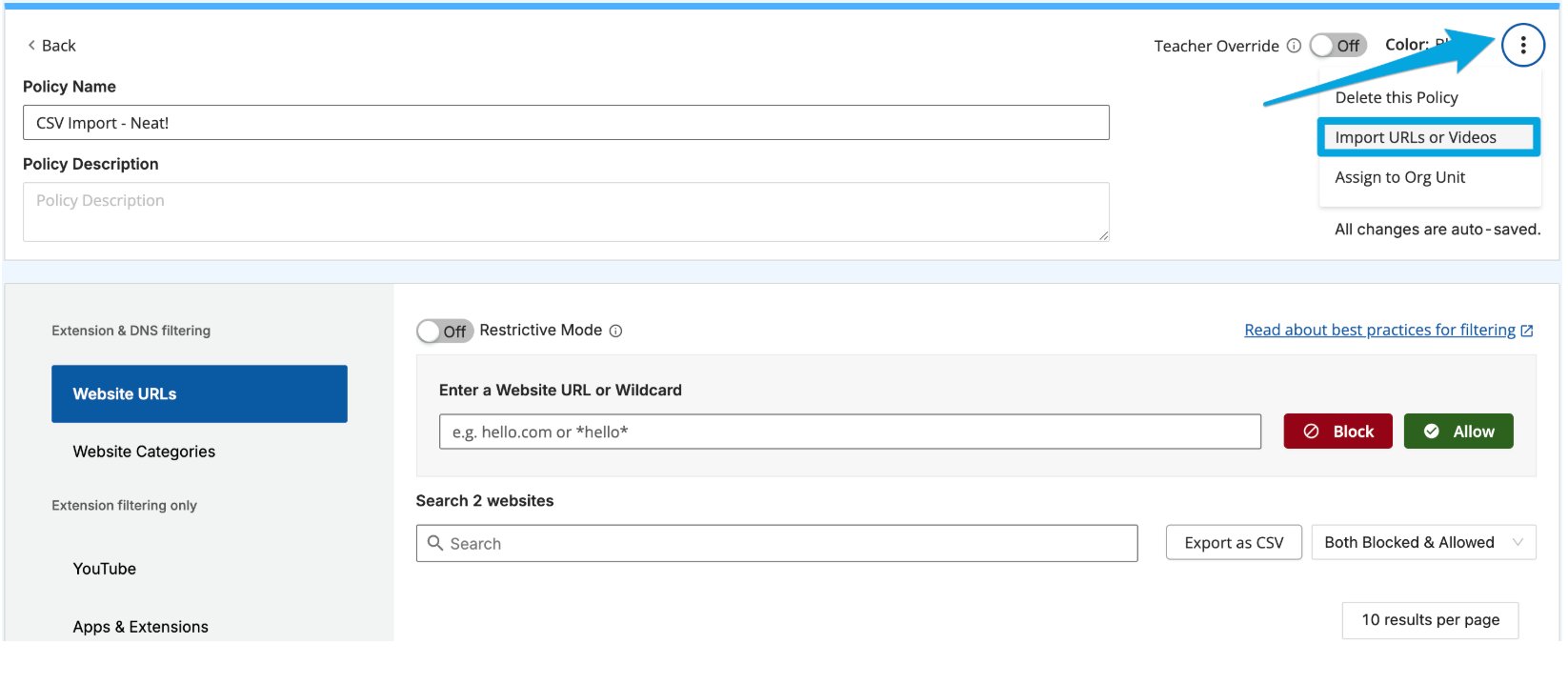
1. In the policy, click the **3-dot menu** in the top-right corner.
2. Select **Import CSV of URLs** from the menu.
3. Select a CSV file or drag and drop it into the upload area. To download a CSV template or review formatting requirements, click the **Need help?** dropdown.
4. After the import completes, the imported rules appear in the **Website URLs** list. Review the list to confirm all rules were added correctly.
**CSV requirements:**
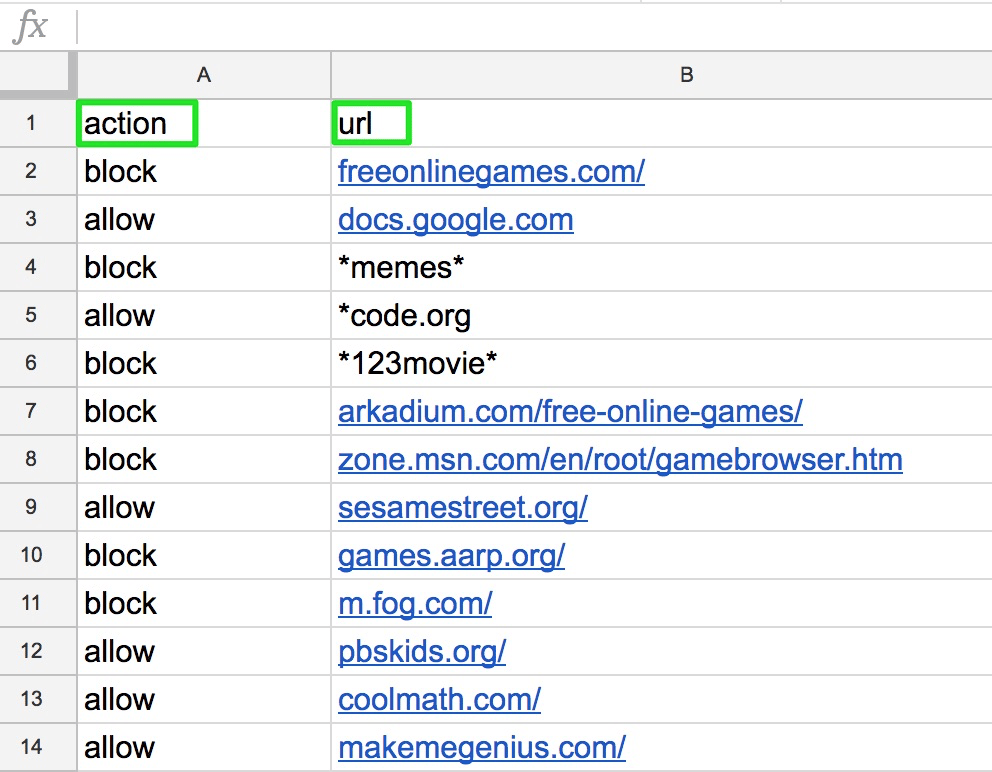
* Two required columns: `action` and `url`
* Use `block` or `allow` in the `action` column
* The optional `type` column is required when importing YouTube video rules. Without it, every entry is treated as a website URL rule and YouTube video-specific entries will not behave as intended.
* Maximum file size: 3 MB
* Maximum URL length: 255 characters per entry
* Maximum rules per import: 10,000
URL format in the CSV follows the same rules as manual entry — `google.com` and `http://www.google.com` are treated the same.

 ## Close Bypass Routes in GoGuardian Admin
Students who want to work around policy-based filtering often rely on a small set of browser modes and account types. The settings below close the most common bypass routes. Some live in GoGuardian Admin; others live in Google Admin Console (covered in the next section). Apply them together to give your filtering policies the best chance of holding.
### Block Consumer Google Accounts
This setting locks each device to the Google account used during initial device sign-in, typically the student's school email. When enabled, it blocks:
* Adding new accounts at `accounts.google.com`
* Signing out of Google
* Switching between Google accounts
* Signing out of YouTube
* Switching between YouTube accounts
This is a global setting. It applies to all users who have GoGuardian installed and only affects access to Google Apps accounts.
1. In GoGuardian Admin, go to **Filtering** > **Advanced Config**.
2. Find the **Block Consumer Google Accounts** toggle. Turn it on. The toggle turns green when the setting is active.
3. Verify the result: The toggle displays green. Students on devices with GoGuardian installed can no longer sign into or switch to personal Gmail accounts.
### Restrict YouTube Live Chat
YouTube Live Chat allows real-time interaction on live streams that falls outside standard YouTube content filtering. This setting disables Live Chat within YouTube for users in the policy you select.
The Block Live Chat toggle is disabled by default. You must enable it for each policy where you want to restrict Live Chat.
1. In GoGuardian Admin, go to **Configuration** > **My Policies**, then select the policy you want to update.
2. Within the policy, select **YouTube**.
3. Turn on the **Block Live Chat** toggle.
4. Verify the result: The toggle is on. Users assigned to this policy can no longer participate in or view YouTube Live Chat.
## Close Bypass Routes in GoGuardian Admin
Students who want to work around policy-based filtering often rely on a small set of browser modes and account types. The settings below close the most common bypass routes. Some live in GoGuardian Admin; others live in Google Admin Console (covered in the next section). Apply them together to give your filtering policies the best chance of holding.
### Block Consumer Google Accounts
This setting locks each device to the Google account used during initial device sign-in, typically the student's school email. When enabled, it blocks:
* Adding new accounts at `accounts.google.com`
* Signing out of Google
* Switching between Google accounts
* Signing out of YouTube
* Switching between YouTube accounts
This is a global setting. It applies to all users who have GoGuardian installed and only affects access to Google Apps accounts.
1. In GoGuardian Admin, go to **Filtering** > **Advanced Config**.
2. Find the **Block Consumer Google Accounts** toggle. Turn it on. The toggle turns green when the setting is active.
3. Verify the result: The toggle displays green. Students on devices with GoGuardian installed can no longer sign into or switch to personal Gmail accounts.
### Restrict YouTube Live Chat
YouTube Live Chat allows real-time interaction on live streams that falls outside standard YouTube content filtering. This setting disables Live Chat within YouTube for users in the policy you select.
The Block Live Chat toggle is disabled by default. You must enable it for each policy where you want to restrict Live Chat.
1. In GoGuardian Admin, go to **Configuration** > **My Policies**, then select the policy you want to update.
2. Within the policy, select **YouTube**.
3. Turn on the **Block Live Chat** toggle.
4. Verify the result: The toggle is on. Users assigned to this policy can no longer participate in or view YouTube Live Chat.
 ## Close Bypass Routes in Google Admin Console
These settings require Google Workspace administrator access and are configured in Google Admin Console, not in GoGuardian Admin.
### Disable Guest Mode
Guest Mode allows users to browse without signing in to a Google account. Because GoGuardian extensions do not run in Guest Mode, filtering is inactive for any student browsing in that session.
1. In Google Admin Console, go to **Devices** > **Chrome** > **Settings** > **Device**.
2. Select **Sign-in Settings**.
3. Under **Guest mode**, select **Disable guest mode**.
4. Click **Save**.
5. Verify the result: Guest mode is no longer available on managed Chrome devices. Students must sign in with a recognized account before browsing.
## Close Bypass Routes in Google Admin Console
These settings require Google Workspace administrator access and are configured in Google Admin Console, not in GoGuardian Admin.
### Disable Guest Mode
Guest Mode allows users to browse without signing in to a Google account. Because GoGuardian extensions do not run in Guest Mode, filtering is inactive for any student browsing in that session.
1. In Google Admin Console, go to **Devices** > **Chrome** > **Settings** > **Device**.
2. Select **Sign-in Settings**.
3. Under **Guest mode**, select **Disable guest mode**.
4. Click **Save**.
5. Verify the result: Guest mode is no longer available on managed Chrome devices. Students must sign in with a recognized account before browsing.
 ### Turn Off Incognito Mode
GoGuardian browser extensions do not load in Incognito mode, which means GoGuardian Admin does not filter an Incognito browser session. Disabling Incognito mode through Google Admin Console prevents students from opening a session that bypasses filtering entirely.
1. In Google Admin Console, go to **Devices** > **Chrome** > **Settings** > **Users & browsers**.
2. Under **Security**, find the **Incognito mode** setting.
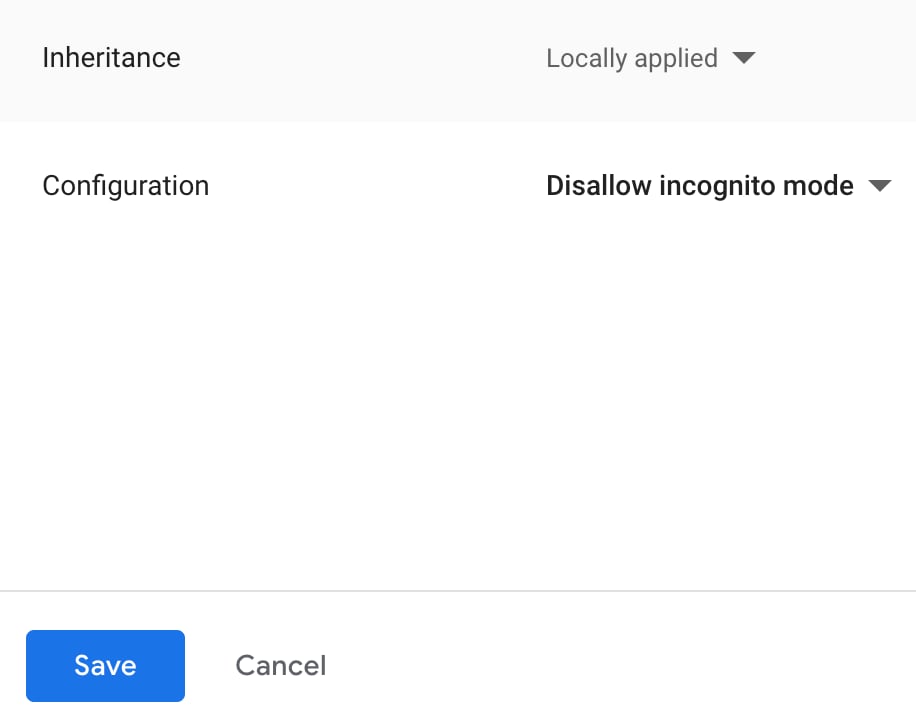
3. Select **Disallow incognito mode**.
4. Click **Save**.
5. Verify the result: The Incognito option is no longer available to users on managed devices. New Chrome windows open in standard mode only.
### Prevent Access to Developer Tools
Chrome Developer Tools can be used to interfere with GoGuardian Admin filtering. Blocking access to Developer Tools removes a technical bypass route that more technically adept students may attempt.
1. In Google Admin Console, go to **Devices** > **Chrome** > **Settings** > **Users & browsers**.
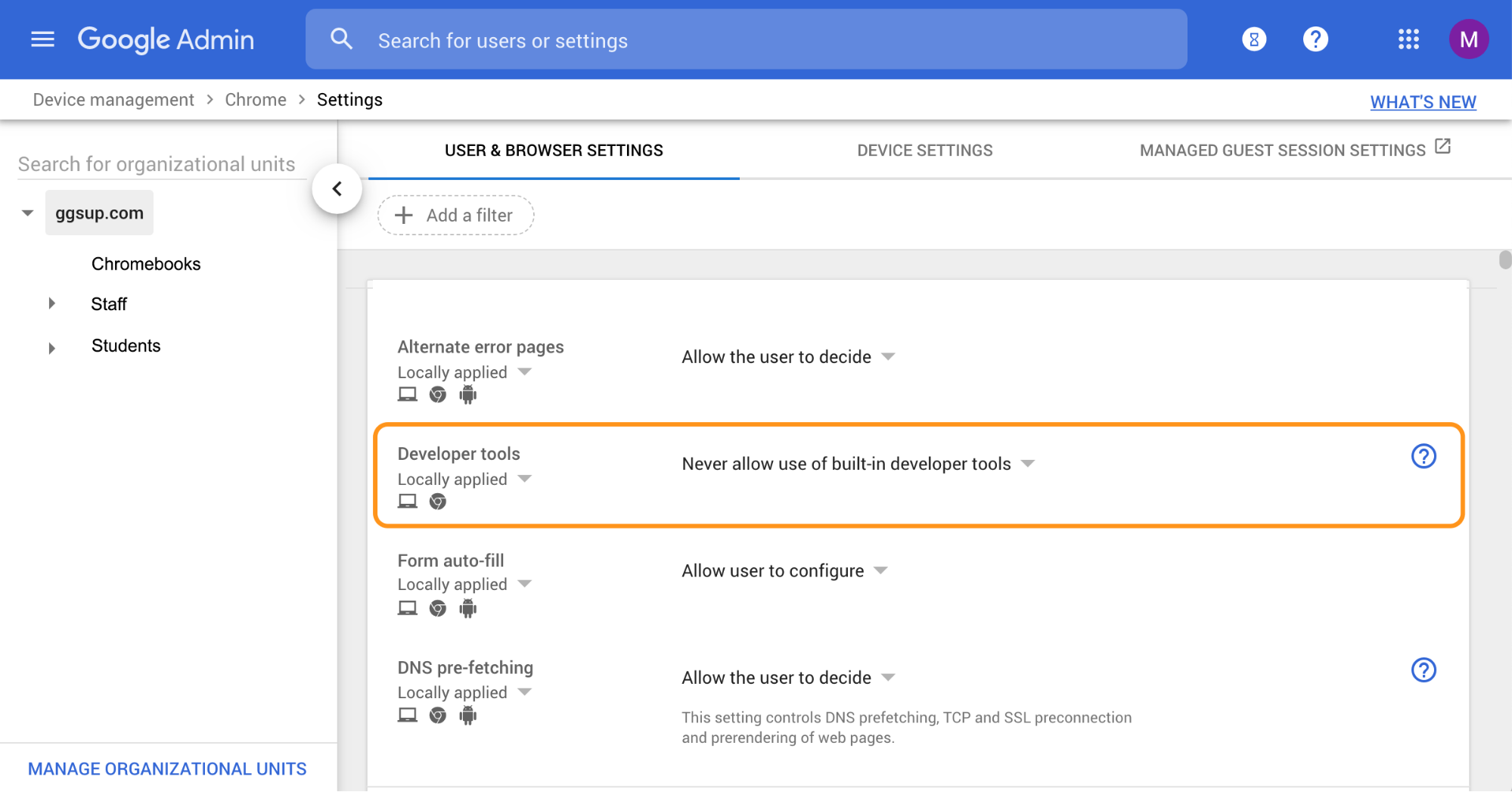
2. Under **User Experience**, find the **Developer Tools** setting.
3. Select **Never allow use of built-in developer tools**.
### Turn Off Incognito Mode
GoGuardian browser extensions do not load in Incognito mode, which means GoGuardian Admin does not filter an Incognito browser session. Disabling Incognito mode through Google Admin Console prevents students from opening a session that bypasses filtering entirely.
1. In Google Admin Console, go to **Devices** > **Chrome** > **Settings** > **Users & browsers**.
2. Under **Security**, find the **Incognito mode** setting.
3. Select **Disallow incognito mode**.
4. Click **Save**.
5. Verify the result: The Incognito option is no longer available to users on managed devices. New Chrome windows open in standard mode only.
### Prevent Access to Developer Tools
Chrome Developer Tools can be used to interfere with GoGuardian Admin filtering. Blocking access to Developer Tools removes a technical bypass route that more technically adept students may attempt.
1. In Google Admin Console, go to **Devices** > **Chrome** > **Settings** > **Users & browsers**.
2. Under **User Experience**, find the **Developer Tools** setting.
3. Select **Never allow use of built-in developer tools**.
 4. Click **Save**.
5. Verify the result: Developer Tools are disabled for users on managed devices. Keyboard shortcuts and menu options that open Developer Tools are no longer functional.
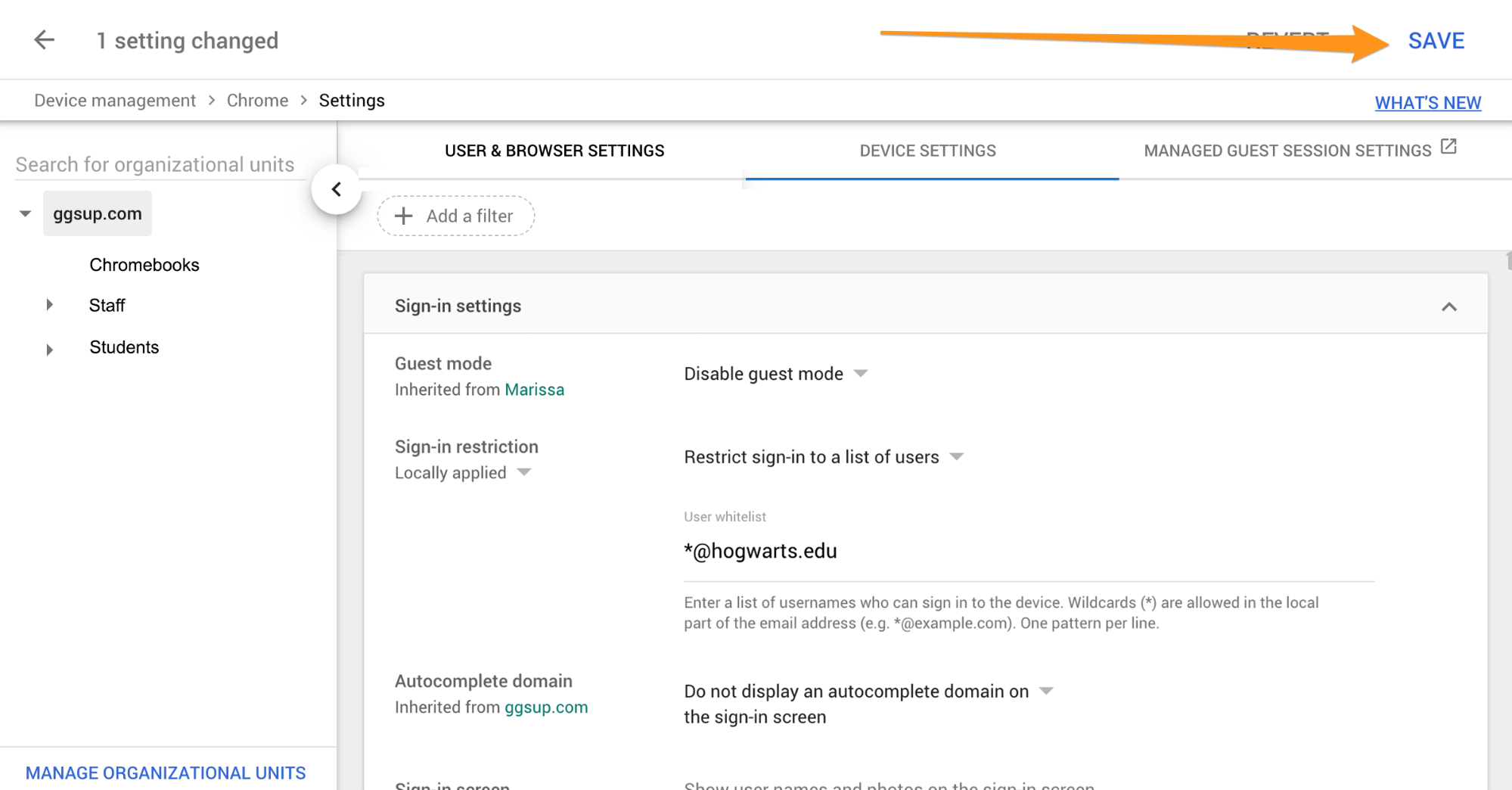
### Restrict Device Sign-In to School Accounts
Students who sign in to a school Chrome device with a personal Google account bypass the filtering and policies applied to student accounts. Restricting device sign-in to approved accounts ensures GoGuardian Admin policies apply to everyone who uses the device.
1. In Google Admin Console, go to **Devices** > **Chrome** > **Settings** > **Device**.
2. Select an OU containing student accounts.
3. Using the **Restrict sign-in** dropdown, select **Restrict sign-in to list of users**. In the text field, enter your school's domain using a wildcard, for example, `*@yourschool.edu`. Add multiple domains or subdomains as needed, separated by commas.
4. Click **Save**.
5. Verify the result: Students can no longer sign into school Chrome devices with accounts outside the approved domain list.
4. Click **Save**.
5. Verify the result: Developer Tools are disabled for users on managed devices. Keyboard shortcuts and menu options that open Developer Tools are no longer functional.
### Restrict Device Sign-In to School Accounts
Students who sign in to a school Chrome device with a personal Google account bypass the filtering and policies applied to student accounts. Restricting device sign-in to approved accounts ensures GoGuardian Admin policies apply to everyone who uses the device.
1. In Google Admin Console, go to **Devices** > **Chrome** > **Settings** > **Device**.
2. Select an OU containing student accounts.
3. Using the **Restrict sign-in** dropdown, select **Restrict sign-in to list of users**. In the text field, enter your school's domain using a wildcard, for example, `*@yourschool.edu`. Add multiple domains or subdomains as needed, separated by commas.
4. Click **Save**.
5. Verify the result: Students can no longer sign into school Chrome devices with accounts outside the approved domain list.

 ## Resources
Block or allow URLs by pattern using asterisk wildcards.
Set up a new policy and apply it to an org unit or custom group.
Set up filtering rules specifically for YouTube content and categories.
See how GoGuardian Admin applies filtering across different network environments.
## Resources
Block or allow URLs by pattern using asterisk wildcards.
Set up a new policy and apply it to an org unit or custom group.
Set up filtering rules specifically for YouTube content and categories.
See how GoGuardian Admin applies filtering across different network environments.