> ## Documentation Index
> Fetch the complete documentation index at: https://docs.goguardian.com/llms.txt
> Use this file to discover all available pages before exploring further.
# Block Multiple Google Account Sign-Ins
> Prevent students from signing in to multiple Google accounts at once with Multiple Sign-in Access and secondary account restrictions in Google Admin Console.
GoGuardian Admin applies filtering and safety settings to each student's managed school account. When a student signs in to a second Google account on the same device, they can move activity outside those managed-account protections. Two settings in Google Admin Console close this bypass route: Multiple Sign-in Access and Sign-in to secondary accounts.
These are Google Admin Console settings, not GoGuardian Admin settings. You need a Google Workspace administrator account to configure them. For GoGuardian Admin bypass-prevention settings and the full list of common bypass routes, see [Allow and Block Websites](/products/admin/block-and-allow-websites).
## Block Multiple Sign-In Access and Secondary Accounts
Both settings below live on the same Google Admin Console page. Apply them together so students cannot add or switch to a second account.
1. Sign in to **admin.google.com** with a Google Workspace administrator account.
2. Go to **Devices** > **Chrome** > **Settings**.
3. In the **Users & browsers** settings section, select the organizational unit (OU) you want to configure. To apply the settings to every account, select the top-level OU.
4. Find the **Multiple Sign-in Access** setting. Using the dropdown, select **Block multiple sign-in access for users in this organization**.
5. Find the **Sign-in to secondary accounts** setting. Using the dropdown, select **Block users from signing in to or out of secondary Google Accounts**.
The **Sign-in to secondary accounts** setting appears in Google Admin Console's legacy view.
6. Click **Save** at the top of the page.
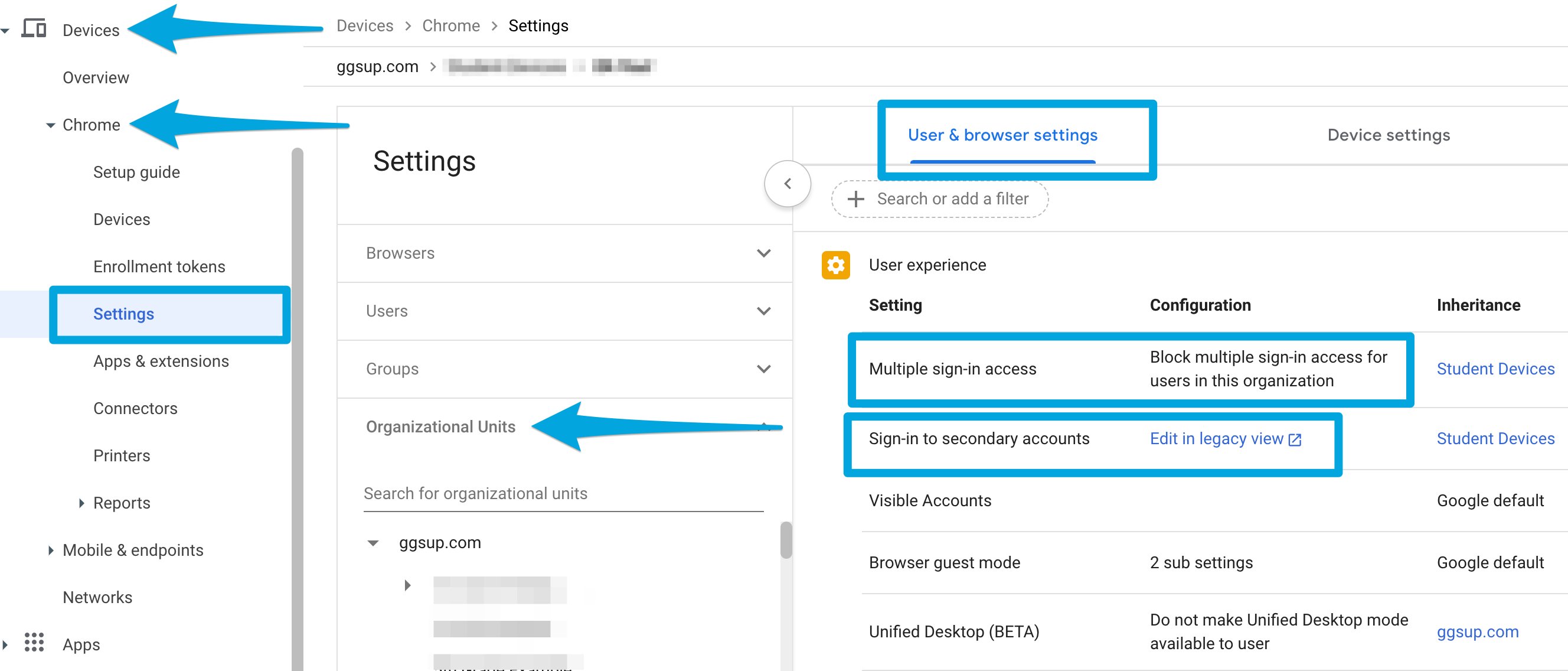 7. Verify the result: Both settings display the blocked options you selected for the chosen OU. Students in that OU can no longer add a second Google account or switch between accounts on a managed device.
## Apply the Settings to Specific Organizational Units
You do not have to apply these restrictions to every account. Both settings can target all accounts or a specific OU, so you can tailor multiple sign-in access to your organization's needs.
* Apply the settings to OUs that contain student accounts, where a second account creates a bypass route.
* Skip the settings for OUs that contain staff accounts, where teachers and administrators may need to sign in to more than one Google account.
* Move any student who needs access to additional Google accounts into an OU that does not have these settings in place.
## FAQ
**Do these settings apply to staff and teacher accounts?**
Only if you apply them to an OU that contains those accounts. Configure the settings on student OUs and leave staff OUs unchanged so teachers and administrators keep access to multiple accounts.
**Is this the same as blocking consumer Google accounts?**
No. Blocking consumer Google accounts is a GoGuardian Admin setting that locks a device to the account used at initial sign-in. Multiple Sign-in Access and Sign-in to secondary accounts are Google Admin Console settings that prevent adding or switching to a second account. See [Allow and Block Websites](/products/admin/block-and-allow-websites) for the GoGuardian Admin setting.
## Resources
Close the most common filtering bypass routes across GoGuardian Admin and Google Admin Console.
Authorize GoGuardian's OAuth access to Google Workspace for SSO, OU sync, and Classroom.
7. Verify the result: Both settings display the blocked options you selected for the chosen OU. Students in that OU can no longer add a second Google account or switch between accounts on a managed device.
## Apply the Settings to Specific Organizational Units
You do not have to apply these restrictions to every account. Both settings can target all accounts or a specific OU, so you can tailor multiple sign-in access to your organization's needs.
* Apply the settings to OUs that contain student accounts, where a second account creates a bypass route.
* Skip the settings for OUs that contain staff accounts, where teachers and administrators may need to sign in to more than one Google account.
* Move any student who needs access to additional Google accounts into an OU that does not have these settings in place.
## FAQ
**Do these settings apply to staff and teacher accounts?**
Only if you apply them to an OU that contains those accounts. Configure the settings on student OUs and leave staff OUs unchanged so teachers and administrators keep access to multiple accounts.
**Is this the same as blocking consumer Google accounts?**
No. Blocking consumer Google accounts is a GoGuardian Admin setting that locks a device to the account used at initial sign-in. Multiple Sign-in Access and Sign-in to secondary accounts are Google Admin Console settings that prevent adding or switching to a second account. See [Allow and Block Websites](/products/admin/block-and-allow-websites) for the GoGuardian Admin setting.
## Resources
Close the most common filtering bypass routes across GoGuardian Admin and Google Admin Console.
Authorize GoGuardian's OAuth access to Google Workspace for SSO, OU sync, and Classroom.