> ## Documentation Index
> Fetch the complete documentation index at: https://docs.goguardian.com/llms.txt
> Use this file to discover all available pages before exploring further.
# Block Uncategorized Websites
> Block websites and web requests that GoGuardian Admin has not categorized, configure the required permissions, and allow exceptions.
Turn on **Uncategorized** in a filtering policy to block websites and web requests that are not in the GoGuardian categorization database. This setting can help block newly created or less-visited sites, but it can also block legitimate sites, sign-in pages, and page resources until they are categorized or explicitly allowed.
## Review Permission Requirements
Your GoGuardian Admin role must have **View/Edit** access for both **Block Uncategorized** and **Custom Policies**. A Super User can configure these permissions in [Org Management](https://manage.goguardian.com/roles) by selecting **Manage Roles** and editing the applicable GoGuardian Admin role.
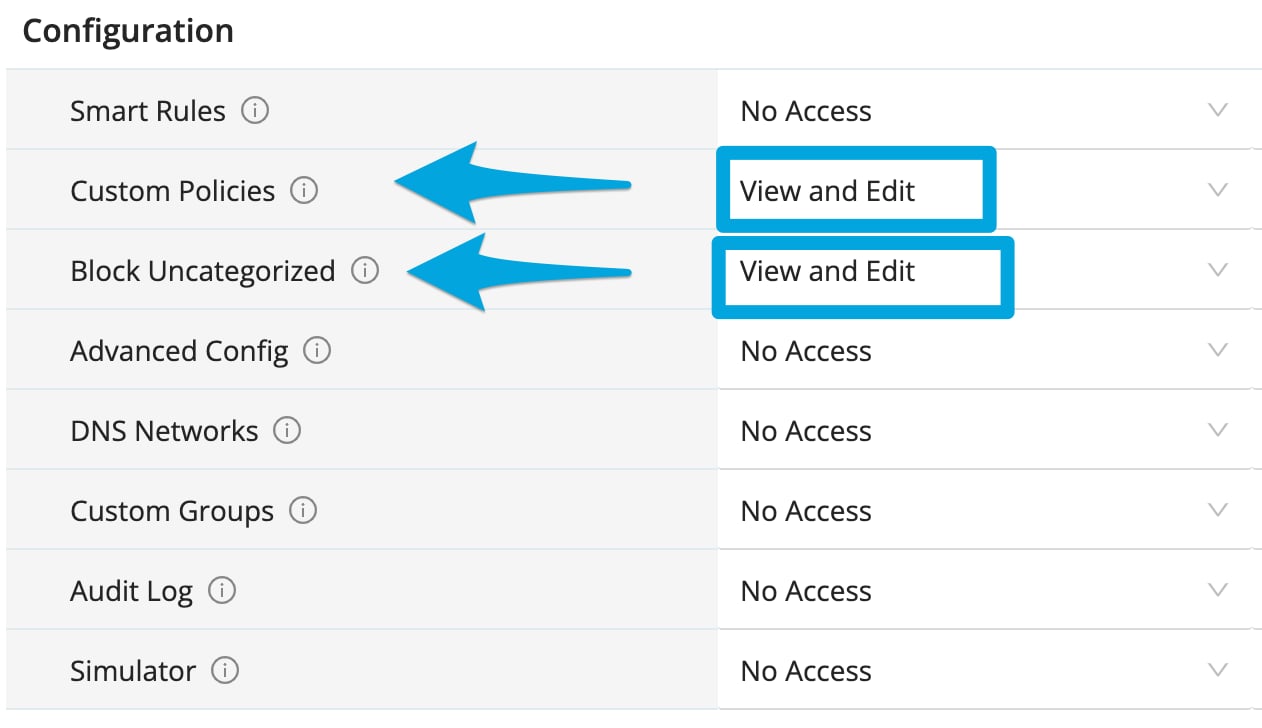 For complete role setup instructions, see [Set Up Granular Access Control with RBAC](/products/org-management/granular-access-control).
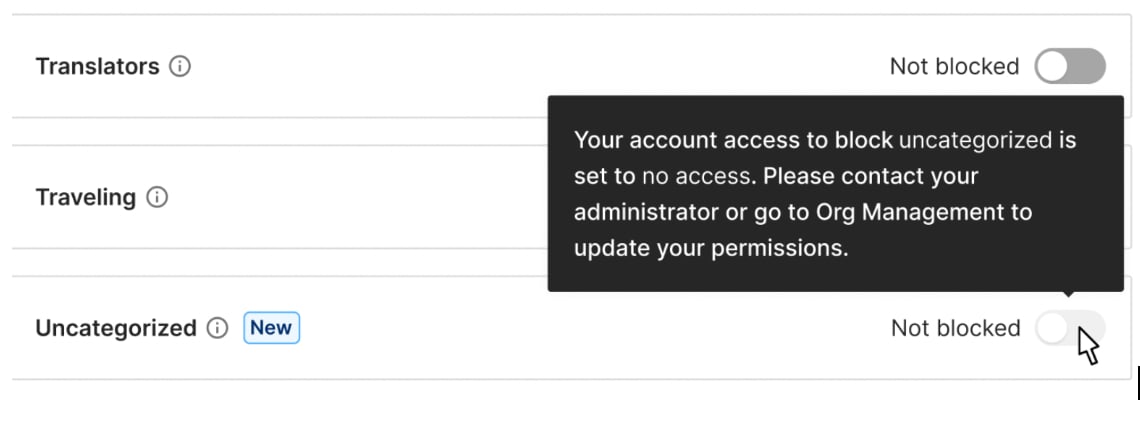
If your role does not have the required permissions, the policy displays **No Access** for Block Uncategorized. Contact a Super User to update your role.
For complete role setup instructions, see [Set Up Granular Access Control with RBAC](/products/org-management/granular-access-control).
If your role does not have the required permissions, the policy displays **No Access** for Block Uncategorized. Contact a Super User to update your role.
 ## Turn On Uncategorized Blocking
1. In [GoGuardian Admin](https://admin.goguardian.com/policy/assign/policies), go to **Filtering** > **Policies**, then open the policy you want to edit.
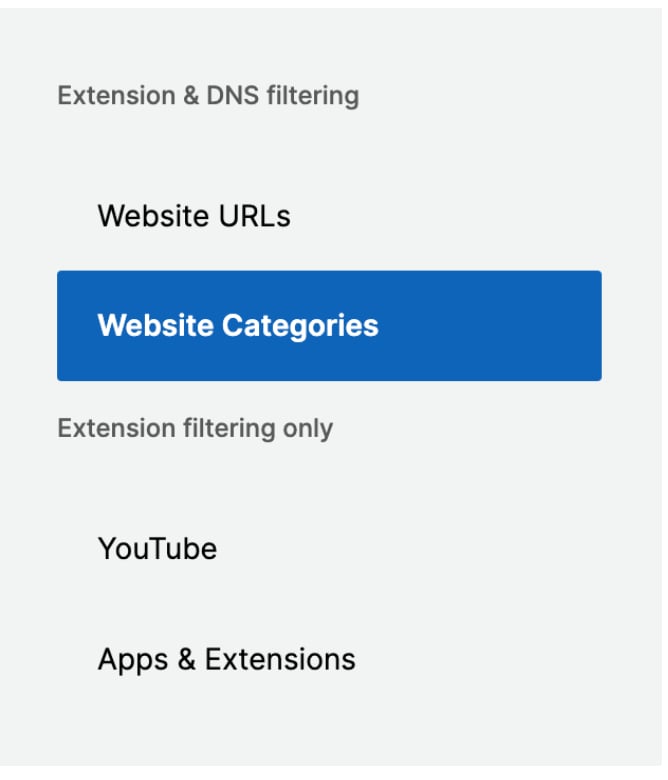
2. Select **Website Categories**, then find **Uncategorized**.
## Turn On Uncategorized Blocking
1. In [GoGuardian Admin](https://admin.goguardian.com/policy/assign/policies), go to **Filtering** > **Policies**, then open the policy you want to edit.
2. Select **Website Categories**, then find **Uncategorized**.
 3. Turn on **Uncategorized**.
 4. In the confirmation prompt, click **Block Uncategorized Websites**.
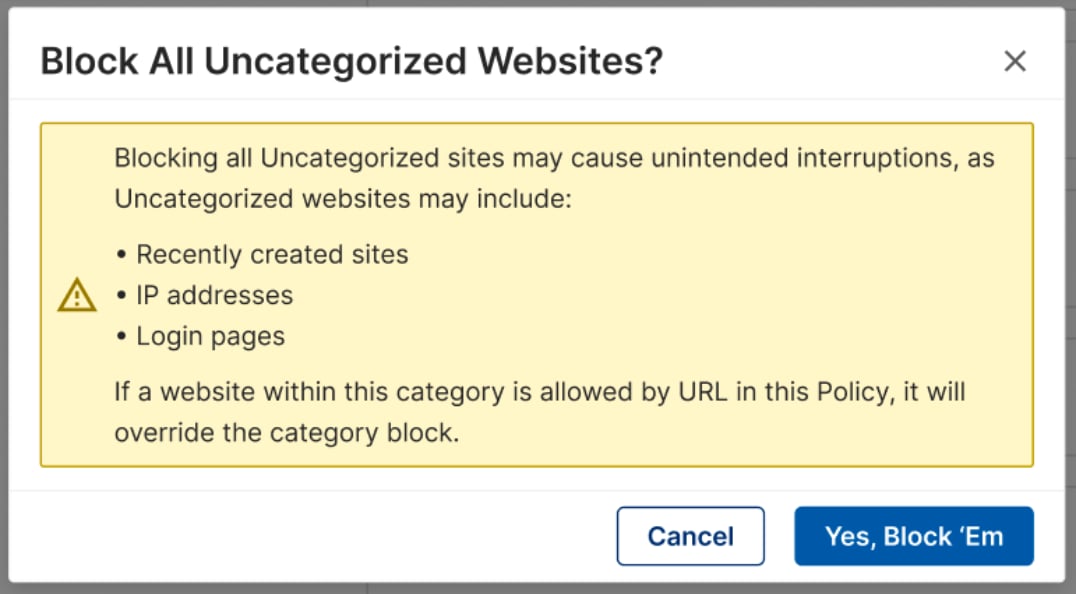 5. Verify the result: **Uncategorized** remains on in the policy. Users assigned to the policy see a GoGuardian block page when they try to access an uncategorized website or web request.
 ## Allow Website Blocked as Uncategorized
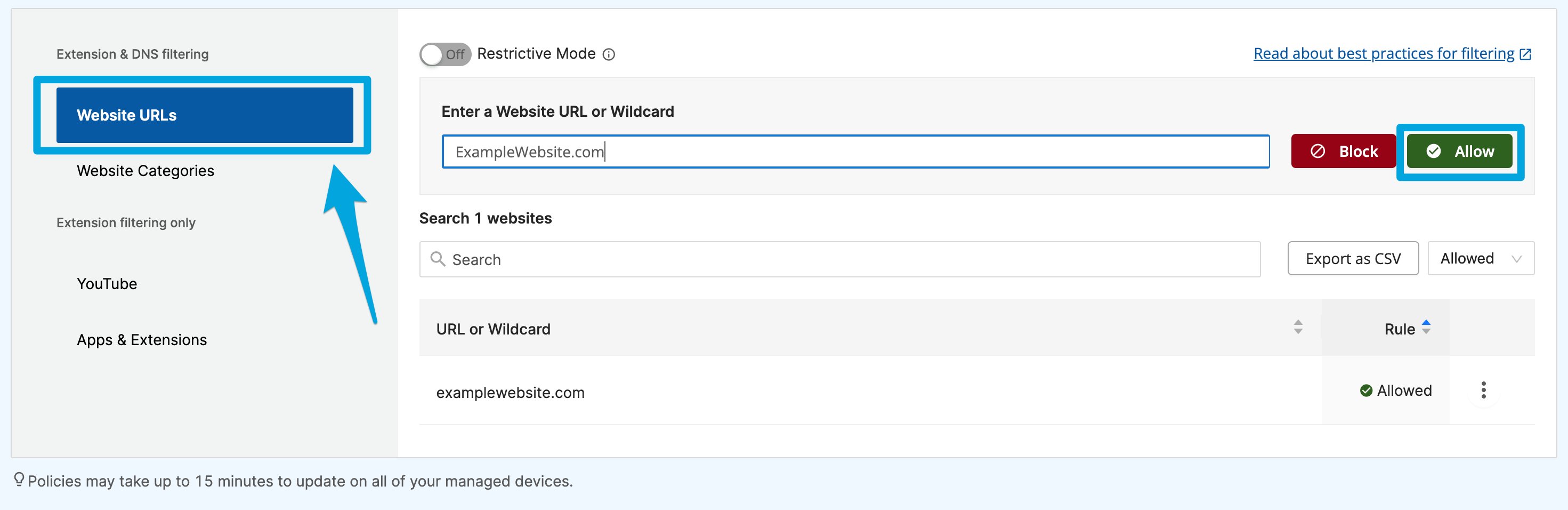
Add an **Allow** rule in the policy's **Website URLs** section when a legitimate website is blocked as Uncategorized. For steps, see [Allow and Block Websites](/products/admin/block-and-allow-websites#add-a-website-url-rule).
You can also submit a categorization update request if a website is uncategorized or assigned to the wrong category. A submitted request does not immediately change filtering, so add an allow rule when users need access right away. See [Review Website Categories](/products/admin/website-categories#suggest-a-website-category).
## Understand GoGuardian DNS Behavior
Policies assigned to organizational units filter top-level domains and can also filter embedded content when **Filter Embedded Content** is on. GoGuardian DNS evaluates traffic across configured networks, including top-level domains, content delivery network requests, and page resources.
When **Uncategorized** is on for a GoGuardian DNS policy, any uncategorized web request can be blocked. A page may not load completely if one of its required resources is uncategorized. Add an allowed **Website URL** rule for a legitimate resource that needs an exception.
For more information about network-level filtering, see [Understand GoGuardian DNS](/products/dns/understand-goguardian-dns).
## Resources
Review available categories and submit category feedback.
Add a Website URL allow rule for a blocked site or resource.
Create and assign a role with the required permissions.
Review how GoGuardian DNS applies network-level filtering.
## Allow Website Blocked as Uncategorized
Add an **Allow** rule in the policy's **Website URLs** section when a legitimate website is blocked as Uncategorized. For steps, see [Allow and Block Websites](/products/admin/block-and-allow-websites#add-a-website-url-rule).
You can also submit a categorization update request if a website is uncategorized or assigned to the wrong category. A submitted request does not immediately change filtering, so add an allow rule when users need access right away. See [Review Website Categories](/products/admin/website-categories#suggest-a-website-category).
## Understand GoGuardian DNS Behavior
Policies assigned to organizational units filter top-level domains and can also filter embedded content when **Filter Embedded Content** is on. GoGuardian DNS evaluates traffic across configured networks, including top-level domains, content delivery network requests, and page resources.
When **Uncategorized** is on for a GoGuardian DNS policy, any uncategorized web request can be blocked. A page may not load completely if one of its required resources is uncategorized. Add an allowed **Website URL** rule for a legitimate resource that needs an exception.
For more information about network-level filtering, see [Understand GoGuardian DNS](/products/dns/understand-goguardian-dns).
## Resources
Review available categories and submit category feedback.
Add a Website URL allow rule for a blocked site or resource.
Create and assign a role with the required permissions.
Review how GoGuardian DNS applies network-level filtering.