> ## Documentation Index
> Fetch the complete documentation index at: https://docs.goguardian.com/llms.txt
> Use this file to discover all available pages before exploring further.
# Configure At-Home Filtering
> Enable, schedule, and scope GoGuardian Admin filtering for students working off campus.
GoGuardian Admin can apply filtering to students whether they are on campus or working from home. This article covers how to enable or disable at-home filtering, set a schedule for off-campus hours, remove IP ranges so filtering applies off campus, and restrict filtering to Chromebooks only.
Before changing any scheduling or IP settings, record your current configuration. You will need it to restore the original settings when students return to campus.
## Understand the Default Behavior
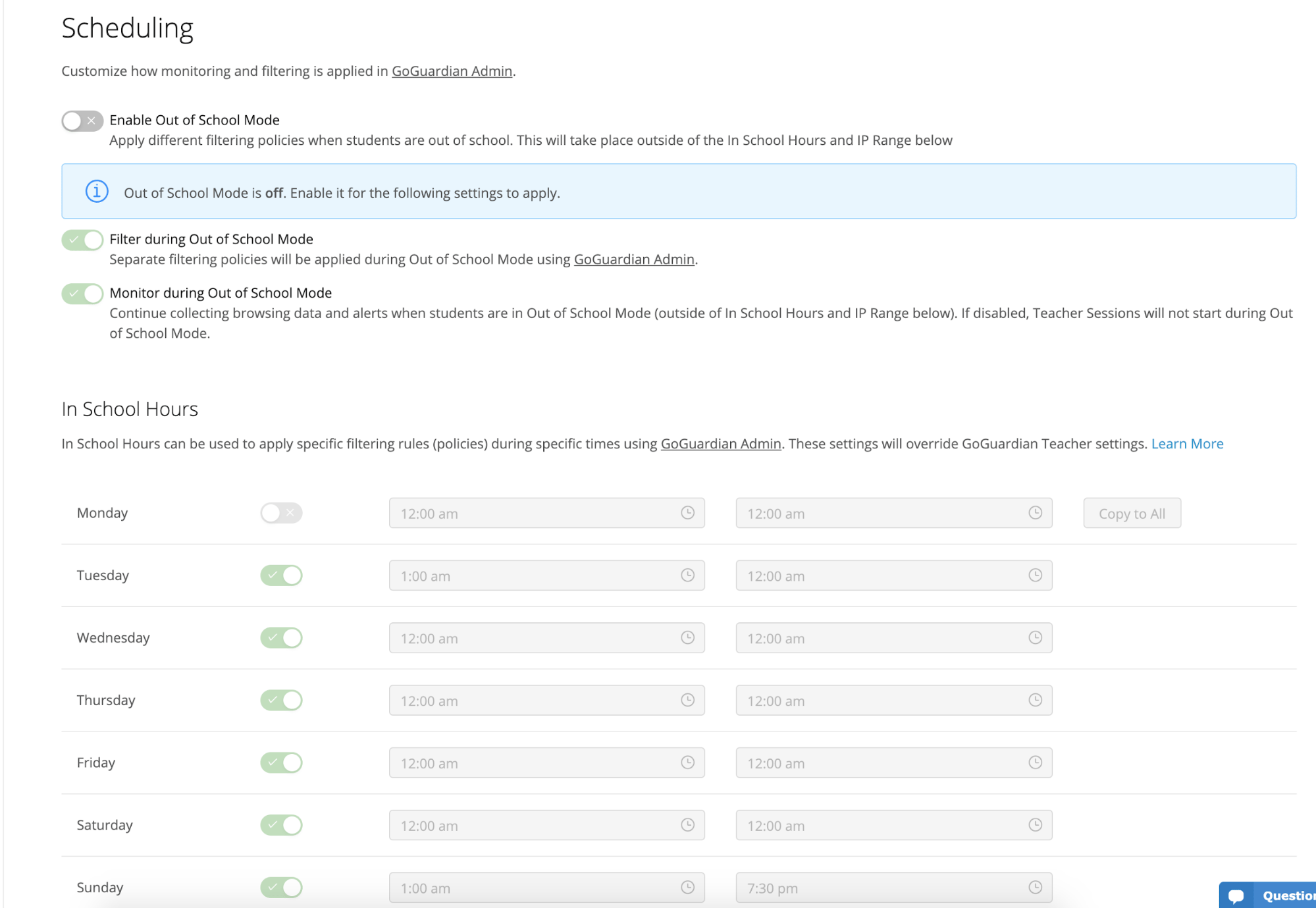
By default, GoGuardian Admin has out-of-school mode turned off. With that default in place, filtering applies 24 hours a day, 7 days a week, regardless of where the student is located.
When out-of-school mode is turned on with an IP range configured, filtering applies only when the device is outside that IP range. Removing the IP range causes filtering to apply on any network, including home networks, without any location restriction.
## Enable or Disable At-Home Filtering
1. Go to [manage.goguardian.com](https://manage.goguardian.com), then select **Products** > **General**.
2. Scroll down to the **Scheduling** section.
3. Turn on the at-home filtering toggle to extend filtering to off-campus devices. Turn it off to limit filtering to on-campus devices only.
4. The toggle reflects your selection. Filtering now applies according to the scope you set.
 ## Remove an IP Range to Apply Filtering Off Campus
If out-of-school mode is configured with a school IP range, filtering applies only when devices leave that range. Deleting the IP range removes the location restriction and causes filtering to apply on all networks.
1. Go to [manage.goguardian.com](https://manage.goguardian.com), then select **Products** > **General**.
2. In the **Scheduling** section, find the field where your school IP range is entered.
3. Clear the IP range from the field and save your changes.
4. With the IP range removed, filtering applies to student devices on all networks, including home and remote networks, based on the days and times you have configured.
## Set a Filtering Schedule for Off-Campus Hours
After removing the IP range, you can still limit the days and hours when filtering is active. This lets you align off-campus filtering with your district's remote learning policy.
1. In GoGuardian Admin, go to **Products** > **General** and scroll to the **Scheduling** section.
2. Select the days of the week when filtering applies. Enter the start and end times for each active day.
3. Save your changes.
4. Filtering is now active only during the days and times you configured, with no IP restriction applied.
## Remove an IP Range to Apply Filtering Off Campus
If out-of-school mode is configured with a school IP range, filtering applies only when devices leave that range. Deleting the IP range removes the location restriction and causes filtering to apply on all networks.
1. Go to [manage.goguardian.com](https://manage.goguardian.com), then select **Products** > **General**.
2. In the **Scheduling** section, find the field where your school IP range is entered.
3. Clear the IP range from the field and save your changes.
4. With the IP range removed, filtering applies to student devices on all networks, including home and remote networks, based on the days and times you have configured.
## Set a Filtering Schedule for Off-Campus Hours
After removing the IP range, you can still limit the days and hours when filtering is active. This lets you align off-campus filtering with your district's remote learning policy.
1. In GoGuardian Admin, go to **Products** > **General** and scroll to the **Scheduling** section.
2. Select the days of the week when filtering applies. Enter the start and end times for each active day.
3. Save your changes.
4. Filtering is now active only during the days and times you configured, with no IP restriction applied.
 ## Restrict Filtering to Chromebooks Only
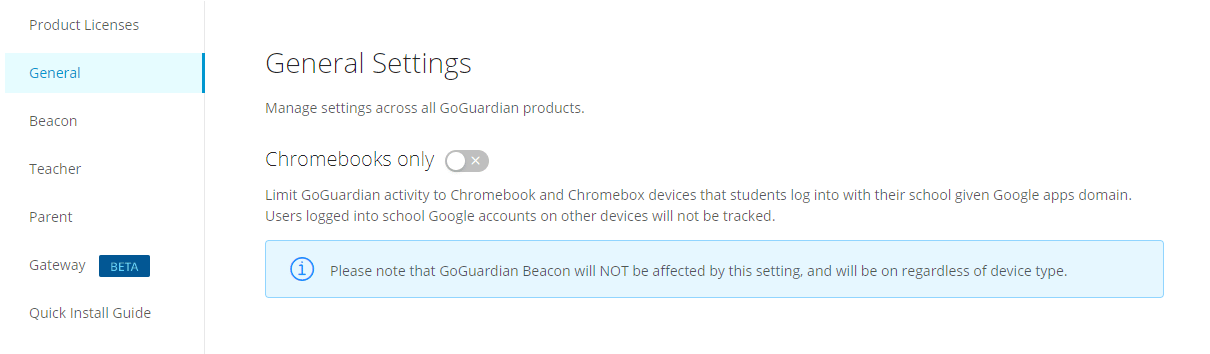
By default, GoGuardian Admin filtering applies only to Chromebooks. If students are completing assignments on personal Windows or macOS computers with the Chrome browser installed, a Super User can turn off the Chromebooks Only setting to extend filtering to those devices.
Modifying the Chromebooks Only setting requires Super User access. Filtering does not extend to mobile devices (phones and tablets), because the mobile Chrome browser app does not support extensions.
1. Go to [manage.goguardian.com](https://manage.goguardian.com), then select **Products** > **General**.
2. Find the **Chromebooks Only** toggle on the General settings page.
3. Turn off the **Chromebooks Only** toggle to allow filtering on other Chrome-extension-compatible devices, including Windows and macOS computers.
4. Filtering now applies to all devices running a supported Chrome extension, not only Chromebooks.
## Restrict Filtering to Chromebooks Only
By default, GoGuardian Admin filtering applies only to Chromebooks. If students are completing assignments on personal Windows or macOS computers with the Chrome browser installed, a Super User can turn off the Chromebooks Only setting to extend filtering to those devices.
Modifying the Chromebooks Only setting requires Super User access. Filtering does not extend to mobile devices (phones and tablets), because the mobile Chrome browser app does not support extensions.
1. Go to [manage.goguardian.com](https://manage.goguardian.com), then select **Products** > **General**.
2. Find the **Chromebooks Only** toggle on the General settings page.
3. Turn off the **Chromebooks Only** toggle to allow filtering on other Chrome-extension-compatible devices, including Windows and macOS computers.
4. Filtering now applies to all devices running a supported Chrome extension, not only Chromebooks.
 ## Restore On-Campus Settings
When students return to campus, restore your original scheduling configuration so filtering behaves as expected on the school network.
* Re-enter your school IP range in the **Scheduling** section.
* Reset the days and hours to match your on-campus schedule.
* Turn the **Chromebooks Only** toggle back on if your organization uses only Chromebooks on campus.
Set a calendar reminder for the day before school resumes to complete this step.
## Troubleshoot GoGuardian on Personal Devices
If students report that GoGuardian is not loading on a home or personal device, check the following common causes.
* **Browser is out of date.** GoGuardian requires a current version of Chrome. Ask the student to update the browser and restart.
* **Network or firewall is blocking GoGuardian.** Some home routers and ISP-level firewalls block the domains GoGuardian uses. Ask the student to try a different network, such as a mobile hotspot, to confirm whether the issue is network-related.
* **Student is not signed into Chrome.** GoGuardian filtering applies through the Chrome profile associated with the student's school account. The student must be signed into Chrome with that account, not a personal account.
* **Student is not online.** GoGuardian requires an active internet connection. Confirm the device has network access.
* **Computer is off or sleeping.** Filtering cannot apply to a device that is powered off or in a sleep state with no network activity.
Not all students will have a reliable home network. GoGuardian functionality may be limited for students with poor or inconsistent connectivity.
## FAQ
**What happens if I leave at-home filtering on after students return to campus?**
Filtering continues to apply off campus in addition to on campus. If no IP range is set, there is no location restriction, and filtering runs on all networks at all times within the configured schedule.
**Does off-campus filtering apply to phones and tablets?**
No. Filtering relies on the Chrome extension. The mobile Chrome browser app does not support extensions, so phones and tablets are not covered regardless of your settings.
**Who can change the Chromebooks Only setting?**
Only Super Users can modify the Chromebooks Only toggle. Administrators without Super User access will not see this control.
## Resources
Understand how device, network, and location context affect which filtering path is active.
Build and assign filtering policies that control what students can access.
## Related: GoGuardian Teacher Configuration
Configuring GoGuardian Admin is one part of a complete remote learning setup. GoGuardian Teacher also requires review before students work off campus.
Specifically, the Teacher scheduling by day setting and any IP restrictions in Teacher settings affect whether teachers can view student activity outside the school network. Refer to the GoGuardian Teacher documentation for steps to enable scheduling by day and remove school IP restrictions so that off-campus visibility works as expected.
## Restore On-Campus Settings
When students return to campus, restore your original scheduling configuration so filtering behaves as expected on the school network.
* Re-enter your school IP range in the **Scheduling** section.
* Reset the days and hours to match your on-campus schedule.
* Turn the **Chromebooks Only** toggle back on if your organization uses only Chromebooks on campus.
Set a calendar reminder for the day before school resumes to complete this step.
## Troubleshoot GoGuardian on Personal Devices
If students report that GoGuardian is not loading on a home or personal device, check the following common causes.
* **Browser is out of date.** GoGuardian requires a current version of Chrome. Ask the student to update the browser and restart.
* **Network or firewall is blocking GoGuardian.** Some home routers and ISP-level firewalls block the domains GoGuardian uses. Ask the student to try a different network, such as a mobile hotspot, to confirm whether the issue is network-related.
* **Student is not signed into Chrome.** GoGuardian filtering applies through the Chrome profile associated with the student's school account. The student must be signed into Chrome with that account, not a personal account.
* **Student is not online.** GoGuardian requires an active internet connection. Confirm the device has network access.
* **Computer is off or sleeping.** Filtering cannot apply to a device that is powered off or in a sleep state with no network activity.
Not all students will have a reliable home network. GoGuardian functionality may be limited for students with poor or inconsistent connectivity.
## FAQ
**What happens if I leave at-home filtering on after students return to campus?**
Filtering continues to apply off campus in addition to on campus. If no IP range is set, there is no location restriction, and filtering runs on all networks at all times within the configured schedule.
**Does off-campus filtering apply to phones and tablets?**
No. Filtering relies on the Chrome extension. The mobile Chrome browser app does not support extensions, so phones and tablets are not covered regardless of your settings.
**Who can change the Chromebooks Only setting?**
Only Super Users can modify the Chromebooks Only toggle. Administrators without Super User access will not see this control.
## Resources
Understand how device, network, and location context affect which filtering path is active.
Build and assign filtering policies that control what students can access.
## Related: GoGuardian Teacher Configuration
Configuring GoGuardian Admin is one part of a complete remote learning setup. GoGuardian Teacher also requires review before students work off campus.
Specifically, the Teacher scheduling by day setting and any IP restrictions in Teacher settings affect whether teachers can view student activity outside the school network. Refer to the GoGuardian Teacher documentation for steps to enable scheduling by day and remove school IP restrictions so that off-campus visibility works as expected.