> ## Documentation Index
> Fetch the complete documentation index at: https://docs.goguardian.com/llms.txt
> Use this file to discover all available pages before exploring further.
# Configure Smart Alert Triggers
> Set up Triggers in GoGuardian Admin to automatically block content, notify administrators, or message students when a Smart Alert matches your conditions.
Smart Alert Triggers let you automate responses to Smart Alerts based on the organizational unit (OU) and confidence level you define. When a student generates a Smart Alert that matches a Trigger's conditions, the Trigger fires its configured Actions with no manual review required to initiate the response.
Smart Alerts are still generated regardless of whether any Triggers are configured.
## Create a Trigger
1. Go to **Triggers** in GoGuardian Admin.
2. Click **Add New Trigger**.
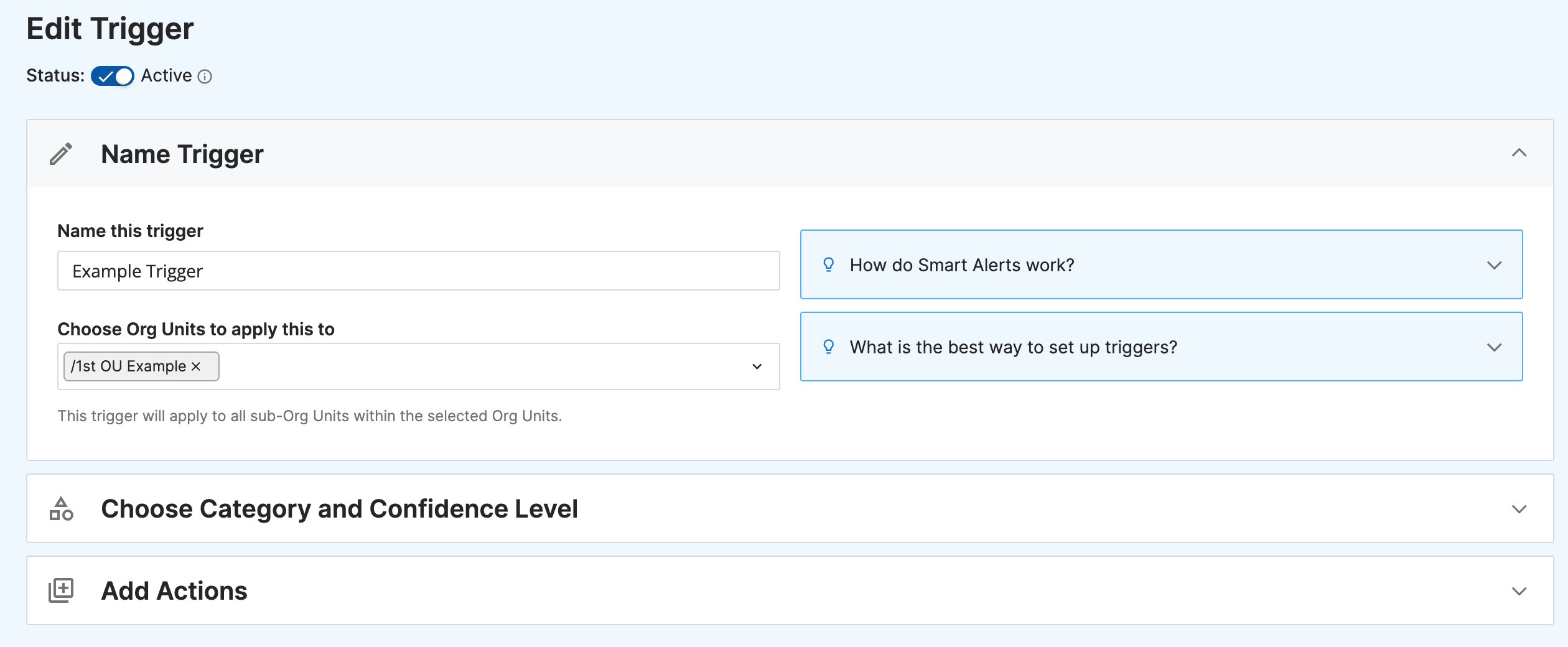
3. Enter a name for the Trigger. Choose one or more OUs to apply it to.
OU coverage cascades to child OUs. A Trigger applied to a parent OU (such as "Middle School") also covers all child OUs beneath it, such as 6th Grade, 7th Grade, and 8th Grade. To apply a Trigger to all users in your organization, select the root OU, displayed as "/".
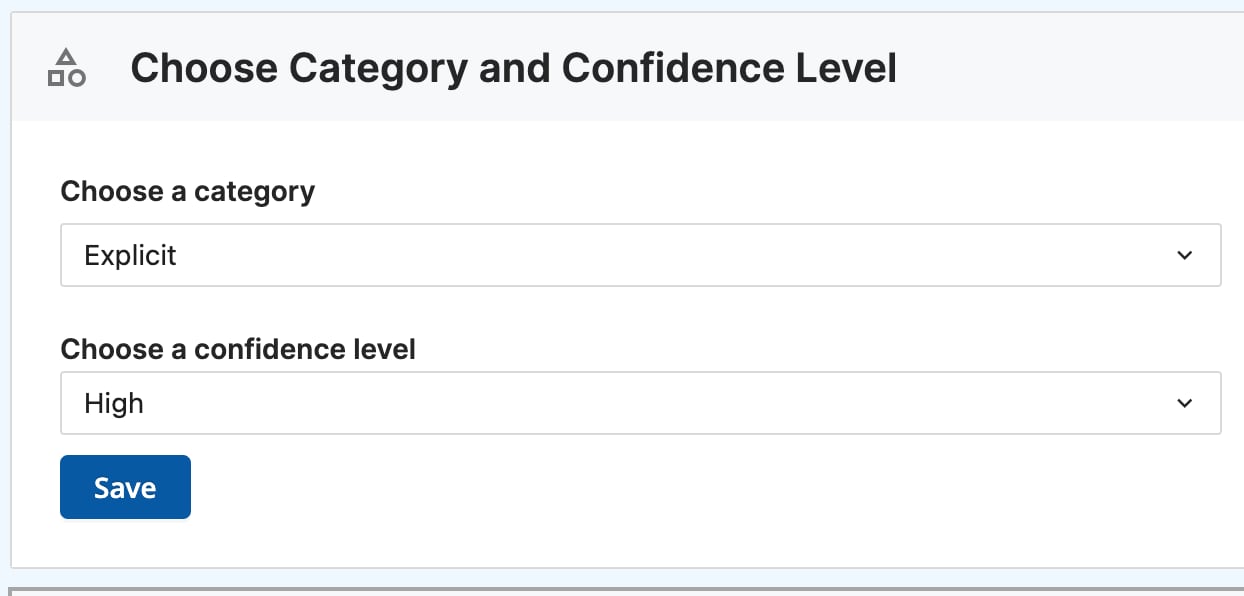
4. Choose a category: **Explicit** or **Proxy**. Each Trigger supports one category. To cover both, create a separate Trigger for each.
Proxy services route student traffic through the proxy's own URL instead of the destination site's URL. Because GoGuardian sees only the proxy's URL, blocked destination sites may remain accessible through the proxy. The Proxy category identifies this behavior so you can act on it directly.
5. Choose the confidence threshold for the Trigger:
| Level | Threshold | When to use |
| --------- | --------- | ------------------------------------------------------------------------ |
| Medium | 50% | Applies to all Smart Alerts; higher chance of inaccurate classifications |
| High | 70% | More likely to classify alerts accurately |
| Very High | 90% | Applies only to alerts that are very likely to be accurate |
If your Trigger is producing too many responses to inaccurate alerts, increase the confidence level. For Proxy triggers, start at Medium confidence and raise the threshold if false positives are common.
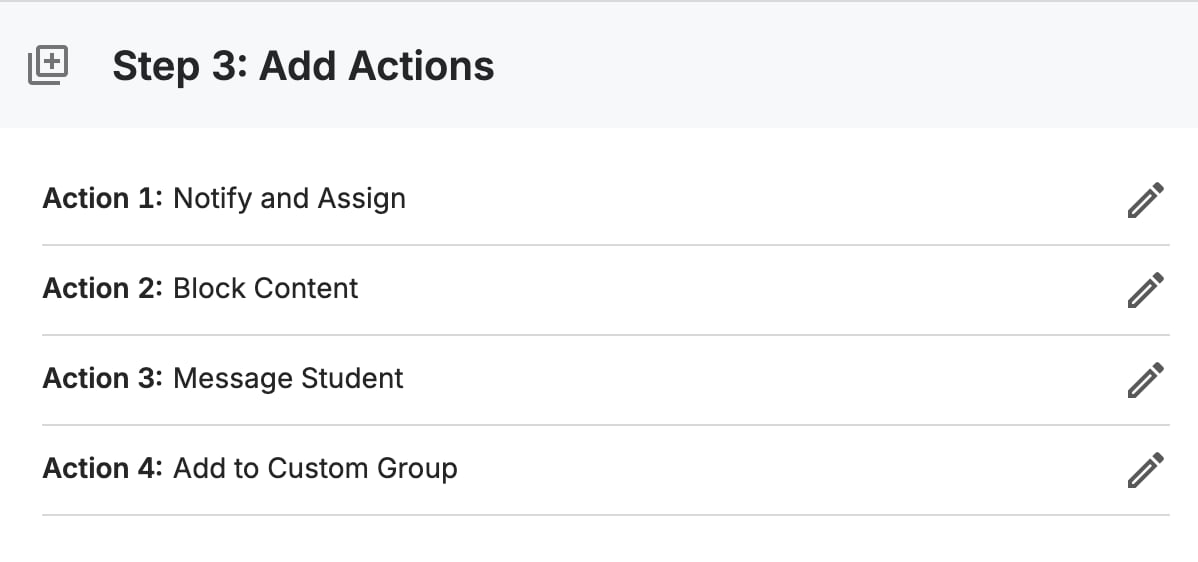
6. Select one or more Actions to fire when a Smart Alert meets the Trigger conditions. Actions can be combined in any configuration. See [Understand Trigger Actions](#understand-trigger-actions) below for a description of each option.
7. Click **Save** to activate the Trigger.
8. The new Trigger appears in your Triggers list with its assigned OUs, category, and confidence level. Confirm that the correct OUs and confidence level are displayed. The Trigger is now active and will fire its Actions when a matching Smart Alert is generated.
 ## Understand Trigger Actions
Each Action fires automatically when a Smart Alert meets the Trigger's conditions. Select one or more Actions when configuring a Trigger.
| Action | What It Does |
| ----------------------- | ------------------------------------------------------------------------------------------------------------------------------------------------------------------------------------------------------------------ |
| **Notify and assign** | Sends an email notification to one or more GoGuardian Administrators when a matching alert is generated. Emails come from `noreply@goguardian.com` with the subject line "You have a new GoGuardian notification." |
| **Block page** | Automatically blocks the website that generated the alert. The student sees a default block page at `blocked.goguardian.com/x3`. GoGuardian provides a customizable default block page message. |
| **Message student** | Sends the student a message via an in-browser Chrome notification. GoGuardian provides a customizable default message. |
| **Add to Custom Group** | Automatically adds the student to a specified Custom Group after a set number of alerts within a chosen timeframe. An optional Auto-Removal toggle removes the student from the group after a defined period. |
Administrators receiving **Notify and assign** notifications must have an active GoGuardian Admin account registered at manage.goguardian.com with Admin access enabled.
Each student may only be in one Custom Group at a time. Students already in a different Custom Group are not added when the **Add to Custom Group** Action fires.
## Enable Image Filtering
Image filtering extends Smart Alerts' Explicit category to scan images containing sexually explicit content on pages students visit. When a matching image is detected, it is blurred rather than the full page being blocked, unless a Block page Action is also configured.
Image filtering requires a Trigger assigned to the student's OU with the Explicit category selected. GoGuardian Admin does not scan images on sites it categorizes as Appropriate or Educational (including Google, Wikipedia, and YouTube). Images may take a few seconds to process after a page loads.
1. In GoGuardian Admin, go to the **Triggers** page and select **Edit** on the Trigger you want to update. The Trigger must use the **Explicit** category.
2. Under **Choose Category and Confidence Level**, turn on the **Include images** toggle.
3. For Triggers with the **Block page** Action, you can set a separate block page message for images. Enter the message in the image-specific text field. The default message applies if you leave this blank.
4. Click **Save**.
5. The Trigger now scans images on pages visited by students in the assigned OUs. Matching images appear blurred with a GoGuardian padlock symbol. Clicking the blurred area shows the block message, the URL, and the name of the Trigger.
Explicit alerts generated from image filtering appear in the Smart Alerts list with the sub-category **Image** or **Text** to indicate the source. Use the **Category** filter on the alerts list to filter by sub-category.
Administrators added to a Trigger's **Notify and assign** Action also receive email notifications for image alerts.
## Resources
Review how Custom Groups work before using the Add to Custom Group Action.
Customize the block page message students see when a Trigger blocks a site.
## Understand Trigger Actions
Each Action fires automatically when a Smart Alert meets the Trigger's conditions. Select one or more Actions when configuring a Trigger.
| Action | What It Does |
| ----------------------- | ------------------------------------------------------------------------------------------------------------------------------------------------------------------------------------------------------------------ |
| **Notify and assign** | Sends an email notification to one or more GoGuardian Administrators when a matching alert is generated. Emails come from `noreply@goguardian.com` with the subject line "You have a new GoGuardian notification." |
| **Block page** | Automatically blocks the website that generated the alert. The student sees a default block page at `blocked.goguardian.com/x3`. GoGuardian provides a customizable default block page message. |
| **Message student** | Sends the student a message via an in-browser Chrome notification. GoGuardian provides a customizable default message. |
| **Add to Custom Group** | Automatically adds the student to a specified Custom Group after a set number of alerts within a chosen timeframe. An optional Auto-Removal toggle removes the student from the group after a defined period. |
Administrators receiving **Notify and assign** notifications must have an active GoGuardian Admin account registered at manage.goguardian.com with Admin access enabled.
Each student may only be in one Custom Group at a time. Students already in a different Custom Group are not added when the **Add to Custom Group** Action fires.
## Enable Image Filtering
Image filtering extends Smart Alerts' Explicit category to scan images containing sexually explicit content on pages students visit. When a matching image is detected, it is blurred rather than the full page being blocked, unless a Block page Action is also configured.
Image filtering requires a Trigger assigned to the student's OU with the Explicit category selected. GoGuardian Admin does not scan images on sites it categorizes as Appropriate or Educational (including Google, Wikipedia, and YouTube). Images may take a few seconds to process after a page loads.
1. In GoGuardian Admin, go to the **Triggers** page and select **Edit** on the Trigger you want to update. The Trigger must use the **Explicit** category.
2. Under **Choose Category and Confidence Level**, turn on the **Include images** toggle.
3. For Triggers with the **Block page** Action, you can set a separate block page message for images. Enter the message in the image-specific text field. The default message applies if you leave this blank.
4. Click **Save**.
5. The Trigger now scans images on pages visited by students in the assigned OUs. Matching images appear blurred with a GoGuardian padlock symbol. Clicking the blurred area shows the block message, the URL, and the name of the Trigger.
Explicit alerts generated from image filtering appear in the Smart Alerts list with the sub-category **Image** or **Text** to indicate the source. Use the **Category** filter on the alerts list to filter by sub-category.
Administrators added to a Trigger's **Notify and assign** Action also receive email notifications for image alerts.
## Resources
Review how Custom Groups work before using the Add to Custom Group Action.
Customize the block page message students see when a Trigger blocks a site.