> ## Documentation Index
> Fetch the complete documentation index at: https://docs.goguardian.com/llms.txt
> Use this file to discover all available pages before exploring further.
# A Device Is Not Filtering on the School Network
> Troubleshoot missing DNS filtering coverage for devices on your school network.
Use this page when a device on your school network is not receiving the [DNS filtering](/products/admin/dns-filtering) behavior you expect.
 ## Gather the Exact Details First
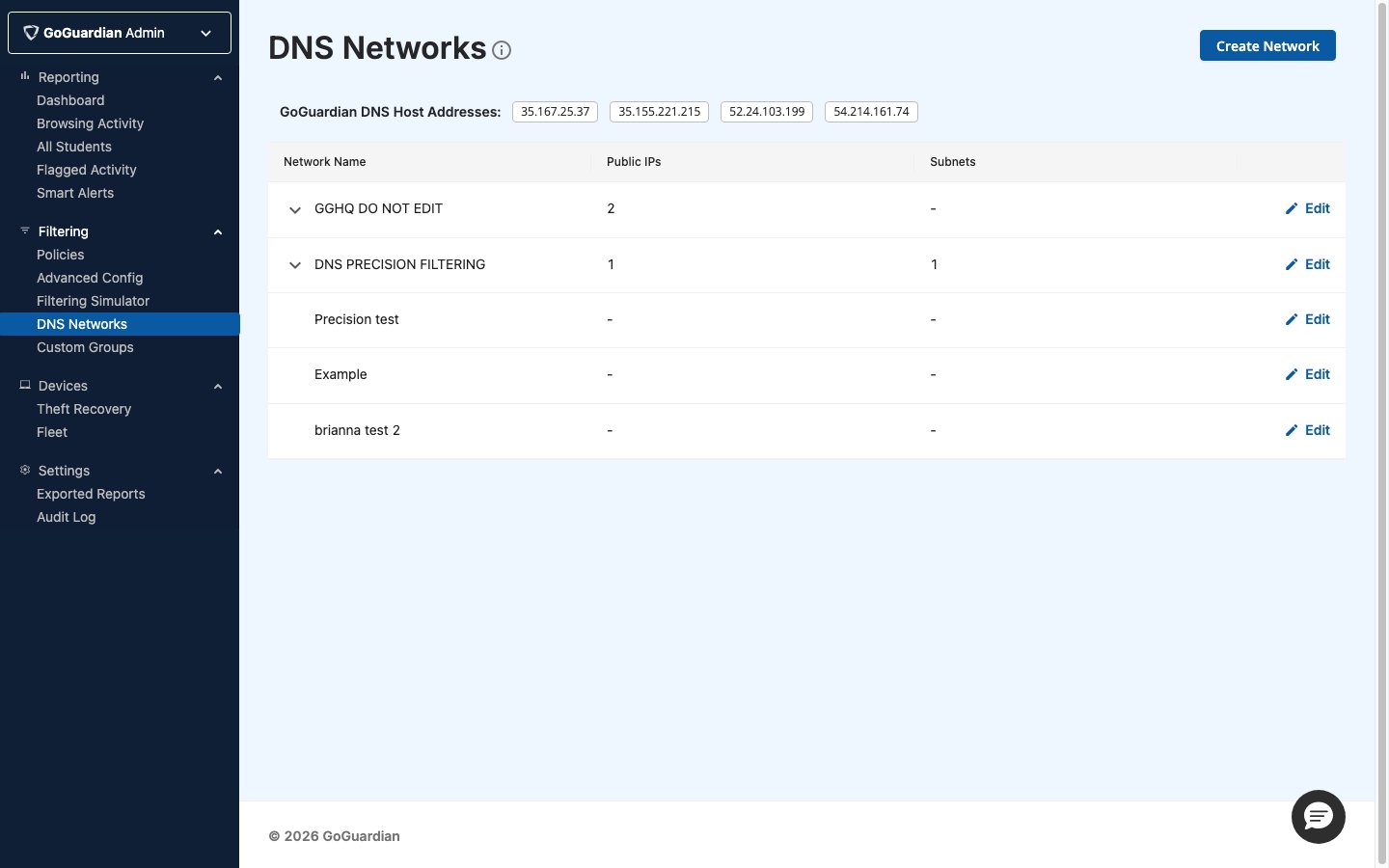
* The network name, subnet, or IP range involved
* Whether the device is district-managed, guest, BYOD, or otherwise unmanaged
* The device platform and approximate location on campus
* The exact URL or domain you used to test filtering
* The time of the test and, if available, any related DNS log entry
Start by confirming whether the device is expected to be covered by DNS filtering at all. On some networks, managed devices may be intentionally handled through a different [filtering context](/products/admin/filtering-contexts).
## Check the Filtering Path
1. Verify that the device is connected to the expected campus or guest network, not a cellular hotspot, VPN, or another path outside your filtered network design.
2. Check that the relevant subnet, IP range, or network segment is part of the DNS filtering configuration your district intended to protect.
3. Verify that the traffic is being evaluated as the correct user category, such as student, staff, or guest, and that the expected filtering behavior exists for that target.
4. If the device is managed, verify whether agent awareness or another Admin filtering path is changing the expected DNS result.
5. Look for the request in the DNS logs and review the user-level, IP-level, subnet, category, or alias-domain details available in Admin.
6. Test the device again with a known validation URL from the same network path so you can separate configuration issues from one-off site behavior.
## Identify Common Causes
| Cause | What to review |
| --------------------------------------------------------- | ---------------------------------------------------------- |
| The device is not on a covered network path | Network name, subnet, IP range, or DNS routing |
| The wrong user category is being evaluated | Student, staff, guest, or custom network grouping |
| A managed device is intentionally bypassing DNS filtering | Agent-awareness settings and filtering context |
| The request is visible only through an alias domain | DNS logs and CNAME reporting |
| The problem is site-specific rather than network-wide | A single blocked-site test versus known validation domains |
Do not assume a DNS problem and loosen network filtering broadly if the issue only affects one site or one policy target.
## Know When to Escalate
* The network and IP-range setup appears correct, but requests still do not show in DNS logs
* The device behavior changes unpredictably between managed and unmanaged devices
* DNS logs do not explain why the site is being allowed or bypassed
* You need help validating how DNS filtering should interact with your existing Admin deployment
## Resources
Review the feature model and configuration assumptions behind school-network filtering.
Use this concept page to identify which filtering path is actually active for the device.
Use this troubleshooting page when traffic is filtered, but the specific site result is wrong.
## Gather the Exact Details First
* The network name, subnet, or IP range involved
* Whether the device is district-managed, guest, BYOD, or otherwise unmanaged
* The device platform and approximate location on campus
* The exact URL or domain you used to test filtering
* The time of the test and, if available, any related DNS log entry
Start by confirming whether the device is expected to be covered by DNS filtering at all. On some networks, managed devices may be intentionally handled through a different [filtering context](/products/admin/filtering-contexts).
## Check the Filtering Path
1. Verify that the device is connected to the expected campus or guest network, not a cellular hotspot, VPN, or another path outside your filtered network design.
2. Check that the relevant subnet, IP range, or network segment is part of the DNS filtering configuration your district intended to protect.
3. Verify that the traffic is being evaluated as the correct user category, such as student, staff, or guest, and that the expected filtering behavior exists for that target.
4. If the device is managed, verify whether agent awareness or another Admin filtering path is changing the expected DNS result.
5. Look for the request in the DNS logs and review the user-level, IP-level, subnet, category, or alias-domain details available in Admin.
6. Test the device again with a known validation URL from the same network path so you can separate configuration issues from one-off site behavior.
## Identify Common Causes
| Cause | What to review |
| --------------------------------------------------------- | ---------------------------------------------------------- |
| The device is not on a covered network path | Network name, subnet, IP range, or DNS routing |
| The wrong user category is being evaluated | Student, staff, guest, or custom network grouping |
| A managed device is intentionally bypassing DNS filtering | Agent-awareness settings and filtering context |
| The request is visible only through an alias domain | DNS logs and CNAME reporting |
| The problem is site-specific rather than network-wide | A single blocked-site test versus known validation domains |
Do not assume a DNS problem and loosen network filtering broadly if the issue only affects one site or one policy target.
## Know When to Escalate
* The network and IP-range setup appears correct, but requests still do not show in DNS logs
* The device behavior changes unpredictably between managed and unmanaged devices
* DNS logs do not explain why the site is being allowed or bypassed
* You need help validating how DNS filtering should interact with your existing Admin deployment
## Resources
Review the feature model and configuration assumptions behind school-network filtering.
Use this concept page to identify which filtering path is actually active for the device.
Use this troubleshooting page when traffic is filtered, but the specific site result is wrong.