> ## Documentation Index
> Fetch the complete documentation index at: https://docs.goguardian.com/llms.txt
> Use this file to discover all available pages before exploring further.
# Enable GoGuardian in Google Admin Console
> Authorize GoGuardian's OAuth access to Google Workspace so Google SSO, OU sync, and Classroom integrations work correctly.
To use Google SSO, sync organizational units (OUs), or connect Google Classroom for GoGuardian Teacher, you must approve GoGuardian's App IDs in Google Admin Console. This grants GoGuardian the OAuth access it needs to read Google Workspace data. Until each App ID is set to trusted, the integrations that depend on it will not work.
## Review GoGuardian App IDs
Add each App ID in the table below when you complete the CSV upload. Each row maps to a specific integration. If you are unsure which integrations your organization uses, add all rows. Approving an unused App ID has no effect.
| App Name | App ID | Service | Purpose |
| ---------------- | --------------------------------------------------------------------------- | -------------------------------------- | -------------------------------------------------------------------- |
| GoGuardian | `1022294148666-eoi1ra4mqv9kgcf7sm2snl4oolfhcbcv.apps.googleusercontent.com` | Google Sign-In | GoGuardian user login via SSO |
| GoGuardian | `1022294148666-393p05kvfint8elhvpn7dlle48gopg1j.apps.googleusercontent.com` | Google Workspace Admin | Google OU sync |
| GoGuardian | `703444103148-javmmfqmdfg24fmd21pjjckjputiusta.apps.googleusercontent.com` | Google Classroom | Google Classroom and Coursework integration for GoGuardian Teacher |
| GoGuardian | `703444103148-2el54f15o8t22gdf5d8ptj7f2juo97i8.apps.googleusercontent.com` | Google Workspace Admin, Google Sign-In | GoGuardian Fleet sync with Google |
| GoGuardian | `1022294148666-pv1huq1klftfatranqqq8co51gimihe9.apps.googleusercontent.com` | Google Workspace Admin | Sign-up flow |
| GoGuardian | `703444103148-r69enb35v7mvbfferhhg1061qrt8hr0q.apps.googleusercontent.com` | Google Drive | Google Drive access for Pear Deck and GoGuardian Teacher integration |
| GoGuardian Agent | `544569167386-a09b2qc2gh4d26t1rvj93mo2u22k45i7.apps.googleusercontent.com` | Google Sign-In | GoGuardian app for iOS |
| GoGuardian Agent | `544569167386-kk8c5d9t38k7lpvqu6se61e13qh9dhrk.apps.googleusercontent.com` | Google Sign-In | GoGuardian app for Windows |
| GoGuardian Agent | `544569167386-butoa23q70m80ubcqvdo5pmpv66ev15o.apps.googleusercontent.com` | Google Sign-In | GoGuardian app for macOS |
Copy App IDs using **Ctrl+C** (Windows) or **Cmd+C** (Mac). Do not right-click and select **Copy Link Address** or **Copy Link to Highlight**, as those actions copy a URL, not the App ID string. Enter each ID exactly as shown, with no `http://` or `https://` prefix.
 ## Approve App Access via CSV Upload
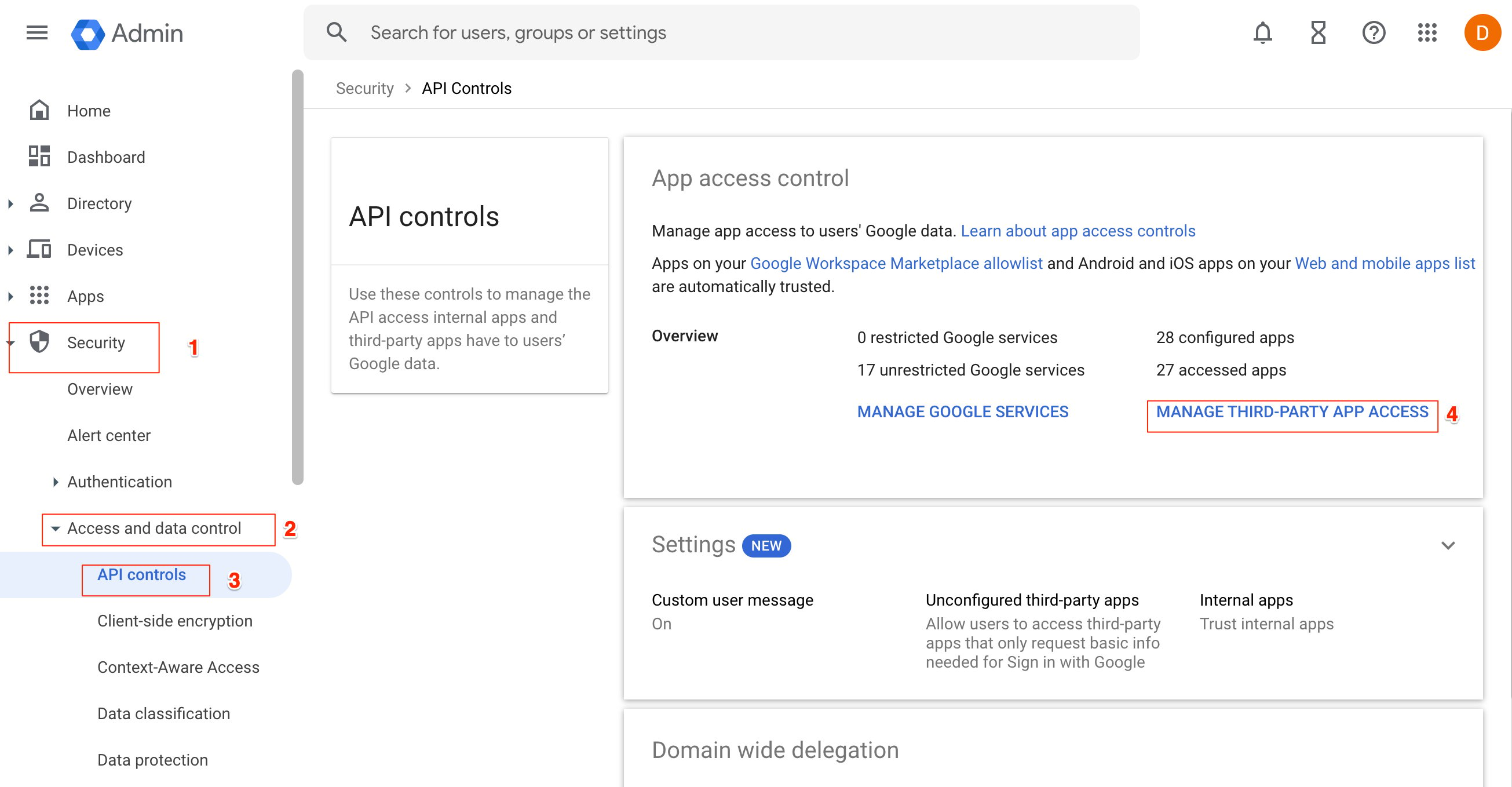
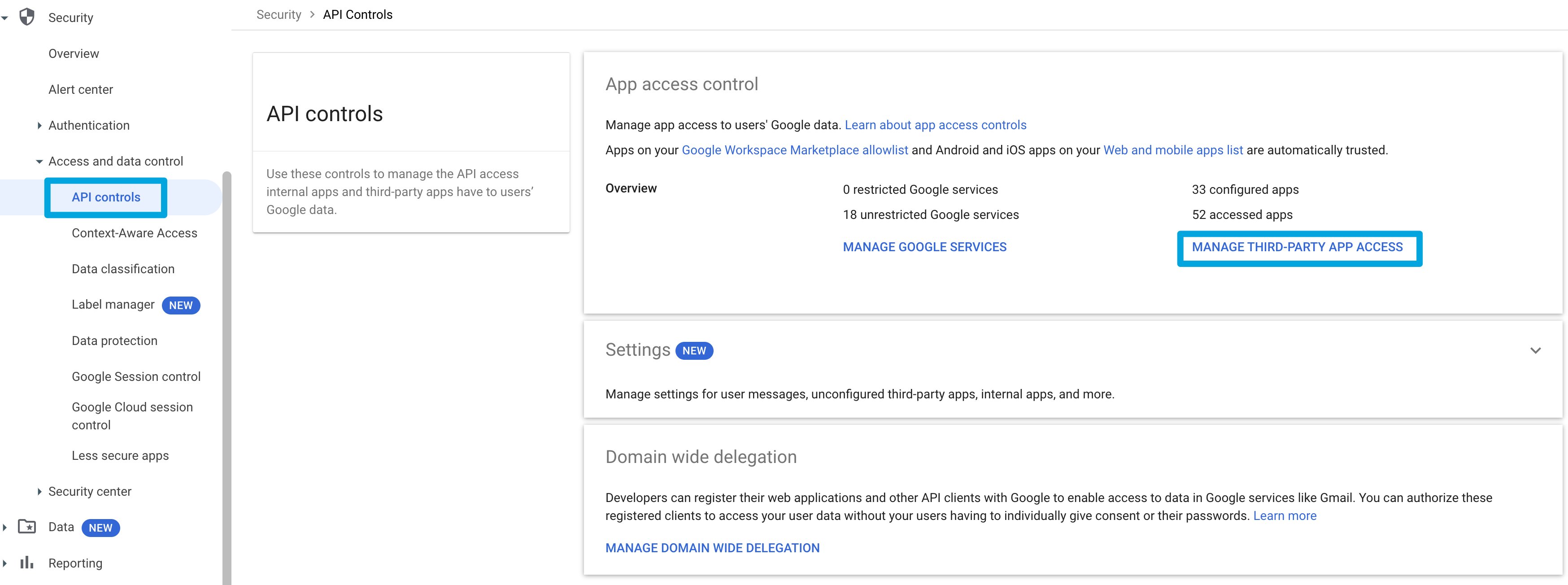
1. In Google Admin Console, go to **Security** > **Access and data control** > **API controls** > **Manage Third-Party App Access**.
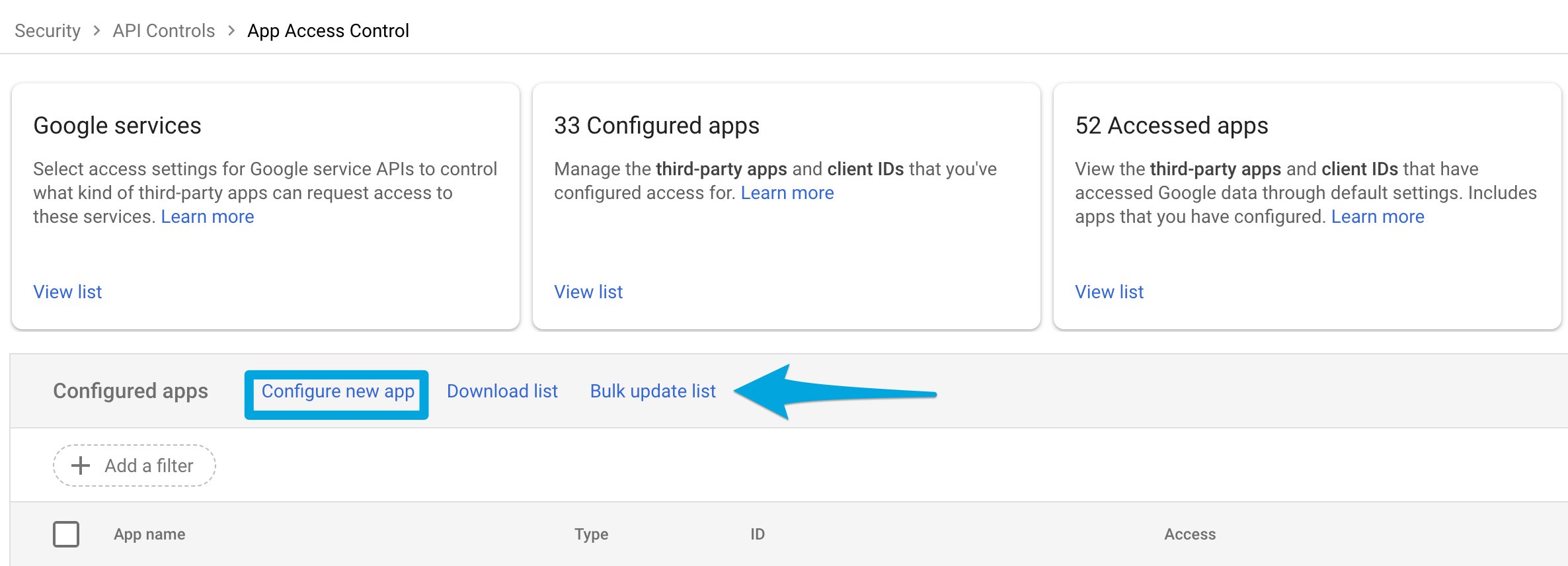
2. Click **Bulk update list**.
If you prefer to add apps individually, click **Configure new app** and search for "GoGuardian" to add each App ID one at a time.
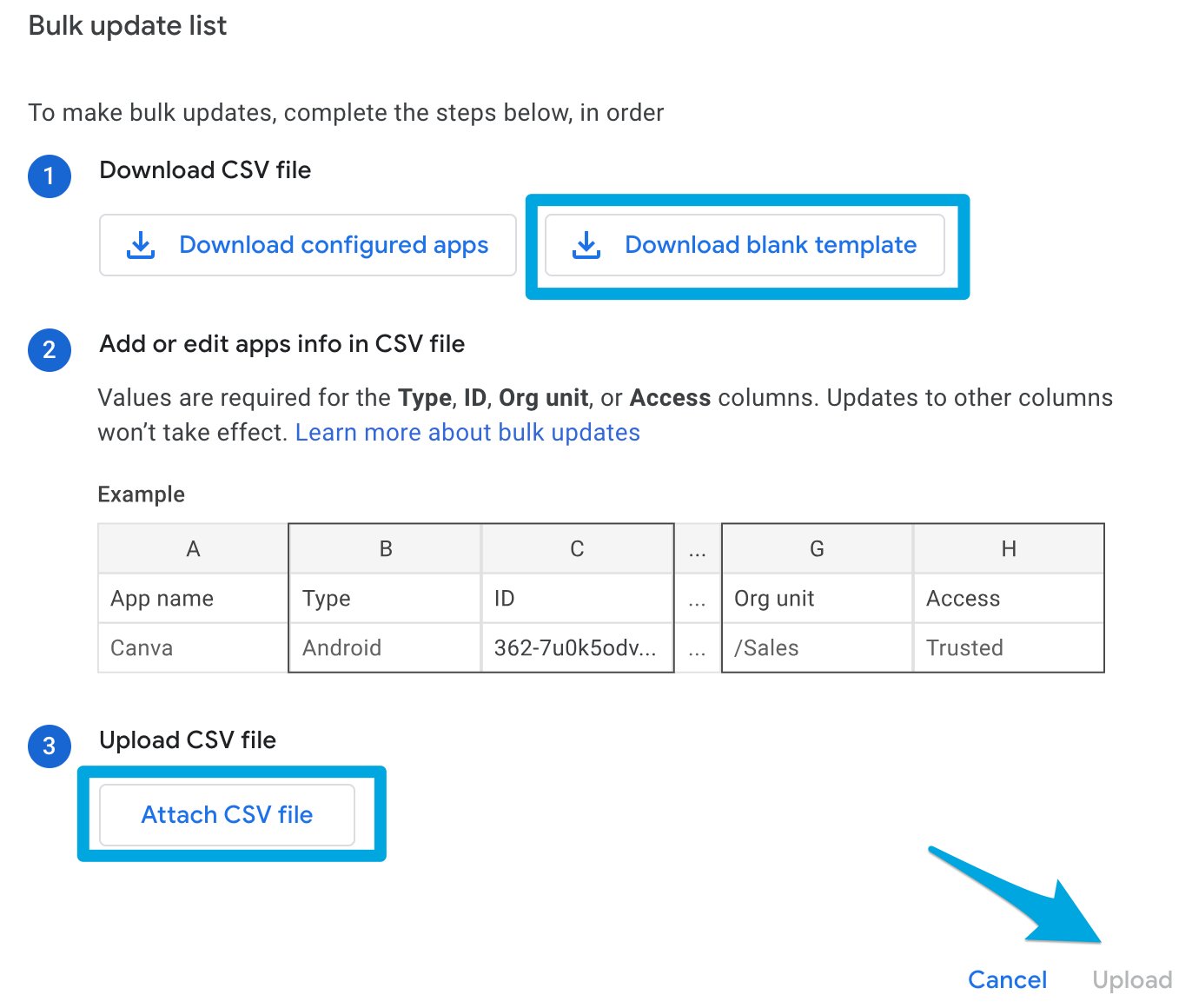
3. Download the blank CSV template and open it in a spreadsheet application. For each App ID in the table above, add a row with the App ID value, set **Type** to `web application`, and set **Access** to `trusted`.
4. Save the file and upload it to complete the bulk update.
5. Confirm the upload completed without errors. Google Admin Console displays a confirmation when the file is processed successfully. If the upload returns errors, see [Google's bulk-upload error reference](https://support.google.com/a/answer/12653991) for a list of error codes and how to resolve them.
If you prefer not to use a CSV, you can approve each App ID individually from the Manage Third-Party App Access page. See [Approve or block access to third-party apps](https://support.google.com/a/answer/13288950) in Google's documentation for step-by-step instructions.
## Approve App Access via CSV Upload
1. In Google Admin Console, go to **Security** > **Access and data control** > **API controls** > **Manage Third-Party App Access**.
2. Click **Bulk update list**.
If you prefer to add apps individually, click **Configure new app** and search for "GoGuardian" to add each App ID one at a time.
3. Download the blank CSV template and open it in a spreadsheet application. For each App ID in the table above, add a row with the App ID value, set **Type** to `web application`, and set **Access** to `trusted`.
4. Save the file and upload it to complete the bulk update.
5. Confirm the upload completed without errors. Google Admin Console displays a confirmation when the file is processed successfully. If the upload returns errors, see [Google's bulk-upload error reference](https://support.google.com/a/answer/12653991) for a list of error codes and how to resolve them.
If you prefer not to use a CSV, you can approve each App ID individually from the Manage Third-Party App Access page. See [Approve or block access to third-party apps](https://support.google.com/a/answer/13288950) in Google's documentation for step-by-step instructions.
 ## Confirm App Access Is Trusted
Use these steps to confirm that each App ID is set to trusted. Run this check after the initial setup, or when troubleshooting an OU sync failure or SSO error.
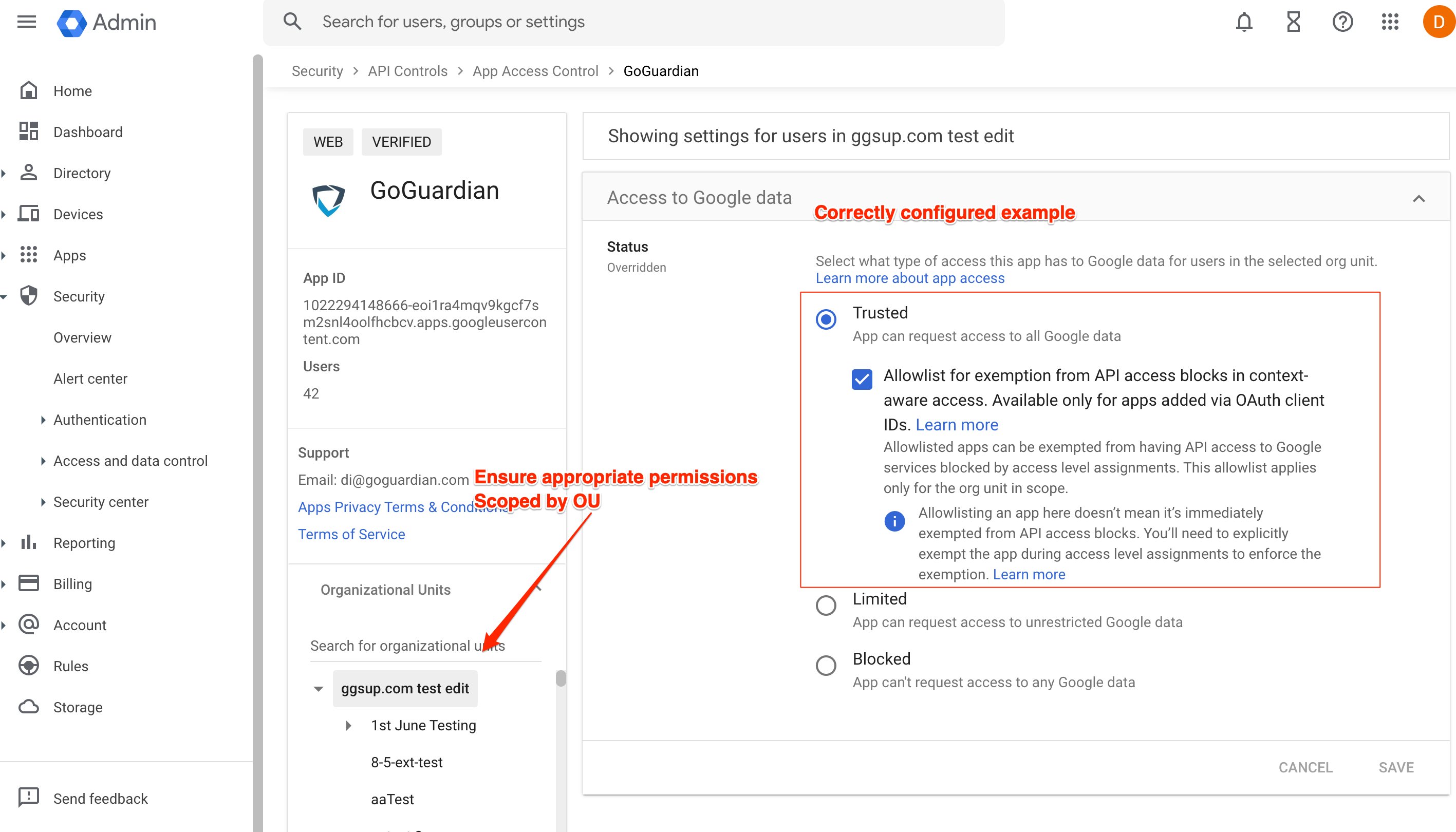
1. Go to **admin.google.com** > **Security** > **Access and data control** > **API controls** > **Manage Third-Party App Access**.
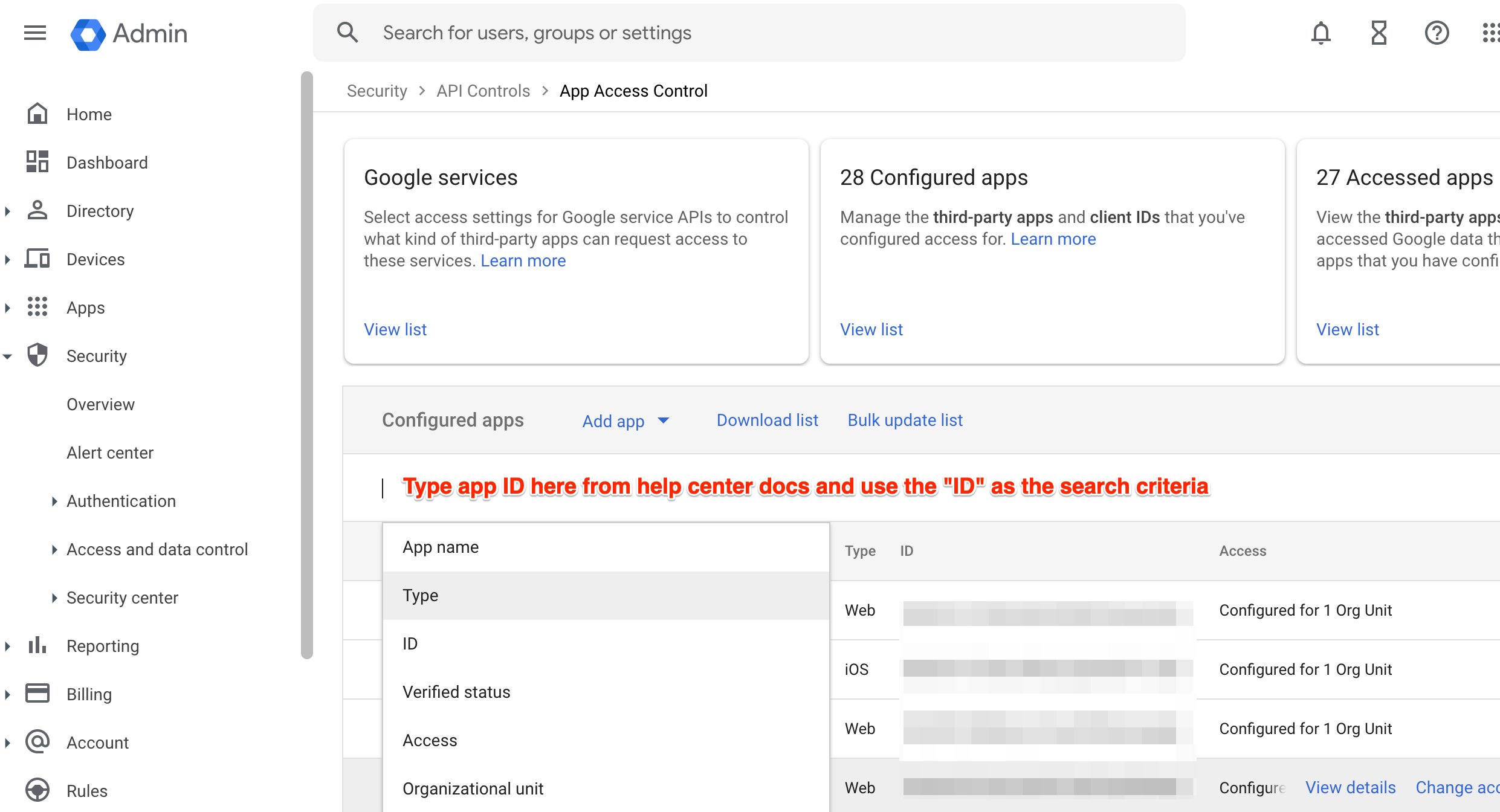
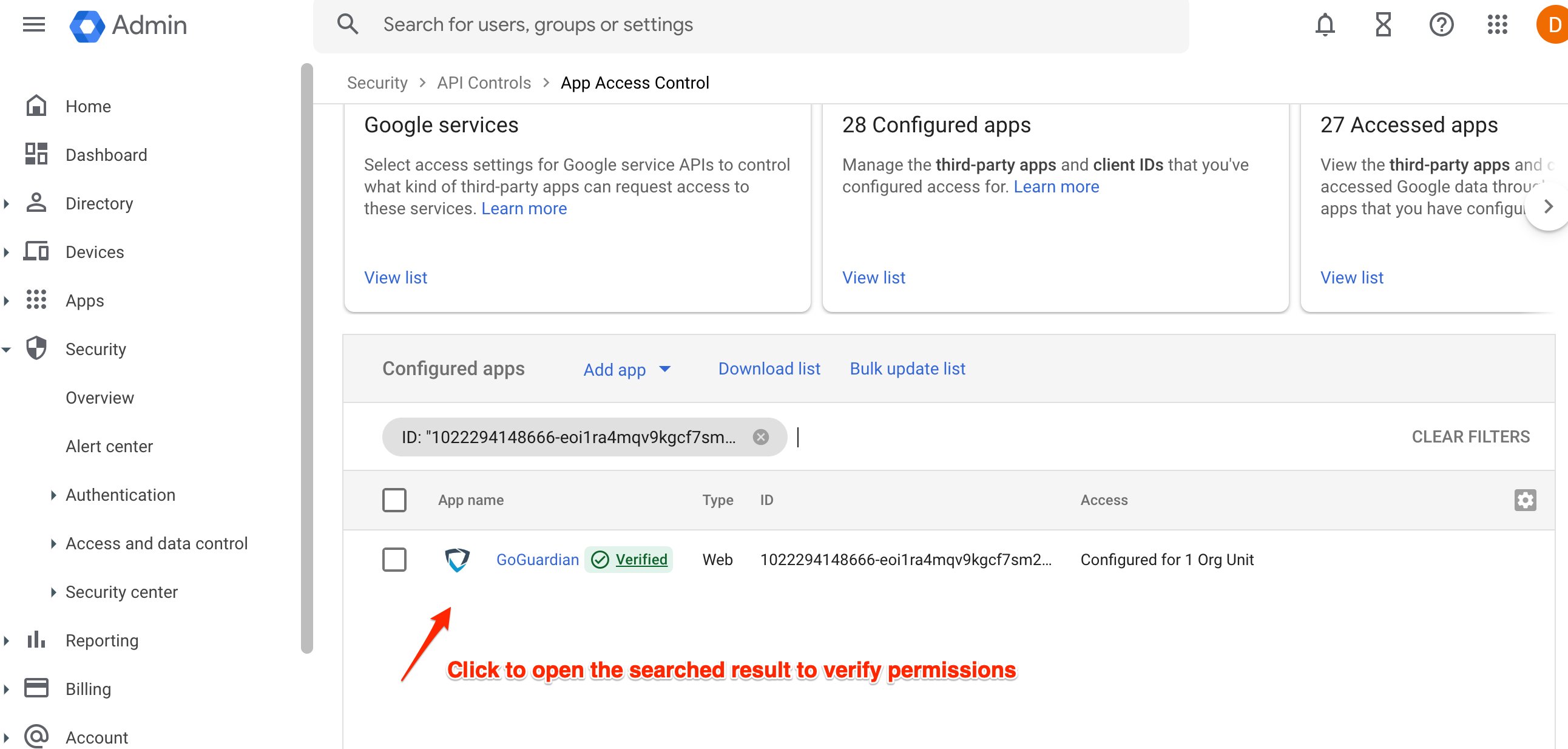
2. Enter the App ID you want to confirm in the search field and select the correct result.
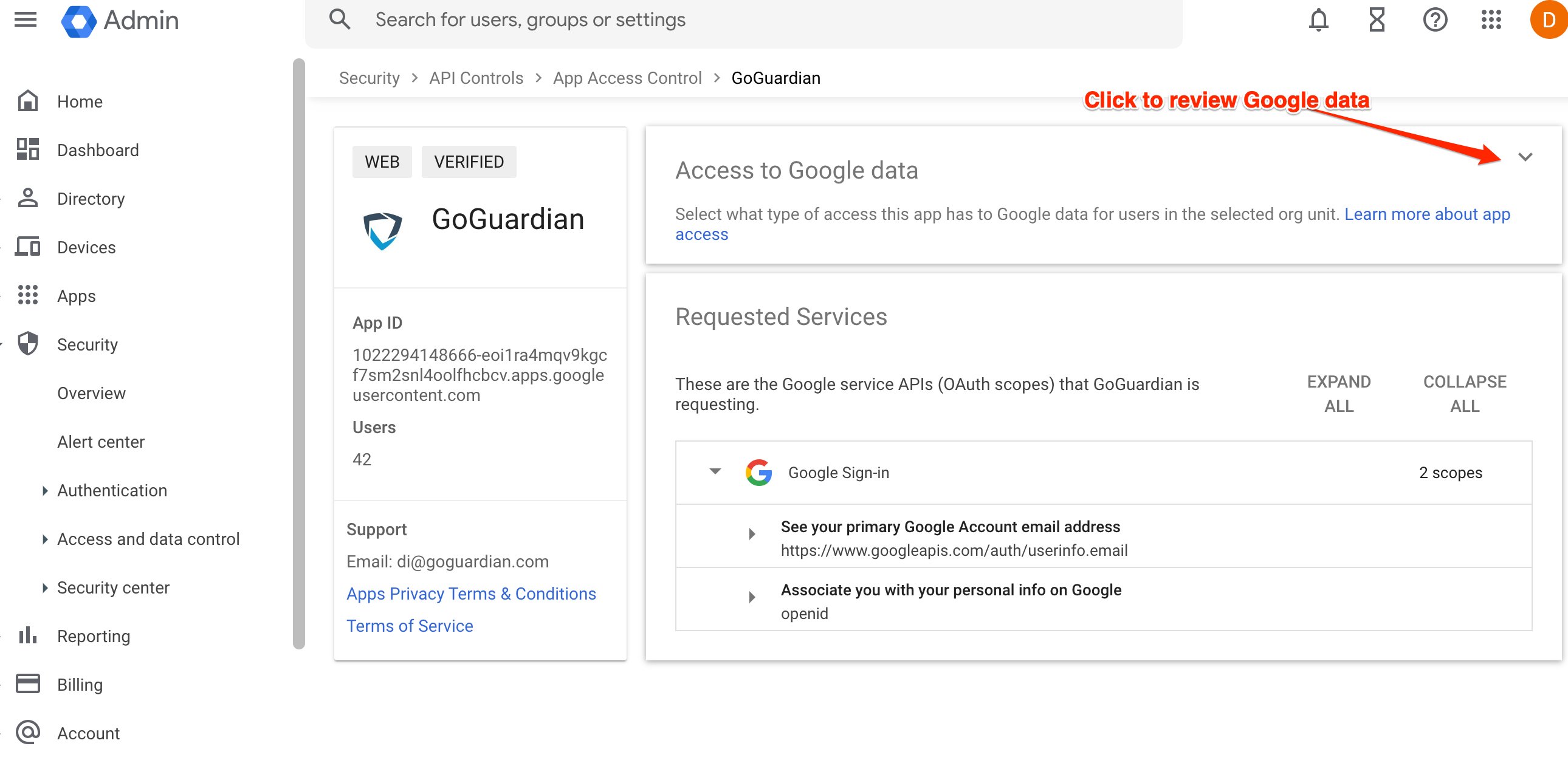
3. Click **Access to Google data** and confirm the access level is set to **Trusted** or **Allow list exemption**.
4. Repeat steps 1 through 3 for each App ID in the table above.
5. Each App ID shows **Trusted** or **Allow list exemption** in the access settings. GoGuardian integrations that depend on these App IDs (including SSO, OU sync, and Classroom) are now authorized to complete their OAuth handshake.
## Resources
Set up Google Admin Provisioning to automatically create GoGuardian Admin accounts by syncing Google Groups.
Deploy GoGuardian extensions to student devices through Google Admin Console.
## Confirm App Access Is Trusted
Use these steps to confirm that each App ID is set to trusted. Run this check after the initial setup, or when troubleshooting an OU sync failure or SSO error.
1. Go to **admin.google.com** > **Security** > **Access and data control** > **API controls** > **Manage Third-Party App Access**.
2. Enter the App ID you want to confirm in the search field and select the correct result.
3. Click **Access to Google data** and confirm the access level is set to **Trusted** or **Allow list exemption**.
4. Repeat steps 1 through 3 for each App ID in the table above.
5. Each App ID shows **Trusted** or **Allow list exemption** in the access settings. GoGuardian integrations that depend on these App IDs (including SSO, OU sync, and Classroom) are now authorized to complete their OAuth handshake.
## Resources
Set up Google Admin Provisioning to automatically create GoGuardian Admin accounts by syncing Google Groups.
Deploy GoGuardian extensions to student devices through Google Admin Console.