> ## Documentation Index
> Fetch the complete documentation index at: https://docs.goguardian.com/llms.txt
> Use this file to discover all available pages before exploring further.
# Review Exported Reports
> View, download, and manage previously exported CSV reports in GoGuardian Admin.
The Exported Reports page in GoGuardian Admin is a queue of all CSV reports that have been generated from reporting features across the product. Use it to check the status of a report, download completed reports, and delete reports you no longer need.
## Navigate to Exported Reports
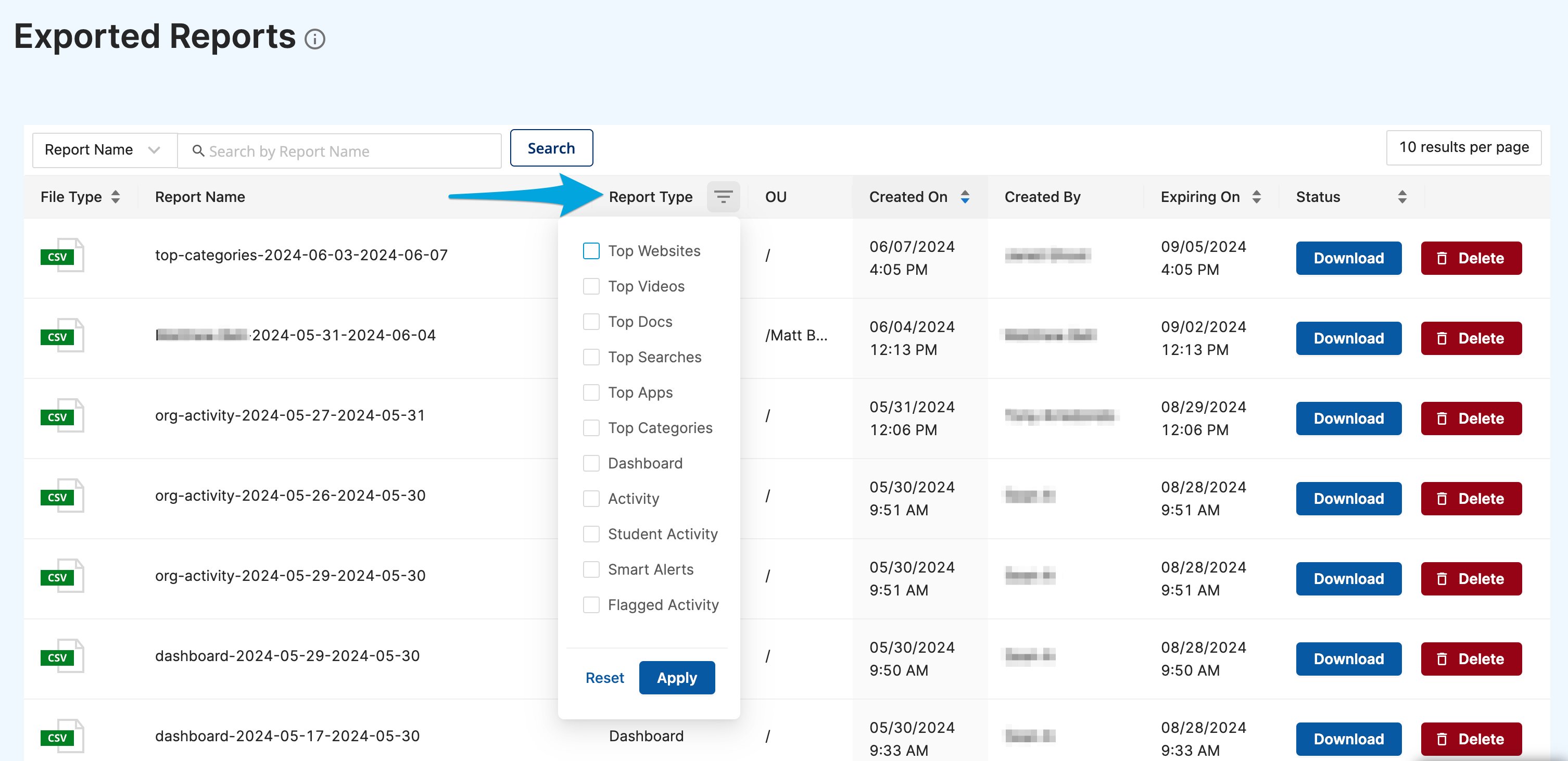
Go to GoGuardian Admin and select **Exported Reports** in the left-side navigation panel.
To narrow the list to a specific type, select the **Report Type** dropdown, choose a type, and click **Apply**.
 ## Understand Report Statuses
Each row in the Exported Reports queue shows the current status of the report. The possible statuses are:
| Status | What it means |
| -------- | ----------------------------------------------------- |
| Planned | The report is queued and being prepared. |
| Running | The report is actively being generated. |
| Download | The report is complete and ready to download. |
| Error | A problem occurred. Export the report again to retry. |
Reports are available for download for three months from the date of creation. After that period, they expire and can no longer be downloaded.
## Read the Report Details
Each row in the queue displays the following information:
| Column | What it shows |
| ----------- | --------------------------------------------------------------------------- |
| File Type | The file format (.CSV). |
| Report Name | The name GoGuardian assigns to the exported file. |
| Report Type | The source of the report, such as Student Activity or Top Videos. |
| OU | The org unit selected for the report. A value of `/` indicates the root OU. |
| Created On | The date the report was exported. |
| Created By | The administrator who exported the report. |
| Expiring On | The date the report will no longer be available for download. |
| Status | The current processing status of the report. |
## Download a Completed Report
1. Go to GoGuardian Admin and select **Exported Reports** in the left-side navigation.
2. Find the report you want to download in the queue. Confirm the status column shows **Download**, which indicates the report is ready.
3. Click the **Download** button next to the report.
4. The CSV file downloads to your device. Open the file to confirm the data is complete.
The Download button is not clickable if your GoGuardian Admin account does not have access to all org units included in the report. Contact your GoGuardian Super User to request access through Org Management. See [Understand OU Access Requirements](#understand-ou-access-requirements) below.
## Delete a Report
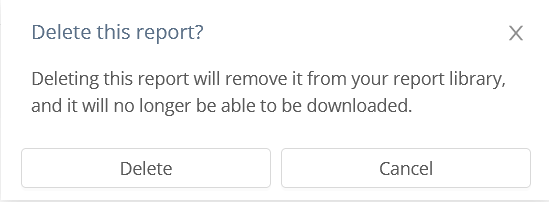
To remove a report from the queue, click the **Delete** button next to the report, then click **Delete** again on the confirmation page.
## Understand OU Access Requirements
An administrator can only download a report if their GoGuardian Admin account has access to every org unit included in that report. If access to one or more org units is missing, the Download button is not clickable.
A GoGuardian Super User can grant or update OU access through Org Management at `manage.goguardian.com`. For details, see [Review User Roles and Permissions](/products/org-management/user-roles-and-permissions).
## Understand the CSV Row Limit
All CSV export options in GoGuardian Admin are limited to 15,000 rows. If your report contains more data than the row limit allows, adjust your date range or org unit filter before exporting to reduce the result set.
## Resources
Filter and export browsing activity data across your organization.
Review how admin roles and org unit access are configured in GoGuardian Admin.
## Understand Report Statuses
Each row in the Exported Reports queue shows the current status of the report. The possible statuses are:
| Status | What it means |
| -------- | ----------------------------------------------------- |
| Planned | The report is queued and being prepared. |
| Running | The report is actively being generated. |
| Download | The report is complete and ready to download. |
| Error | A problem occurred. Export the report again to retry. |
Reports are available for download for three months from the date of creation. After that period, they expire and can no longer be downloaded.
## Read the Report Details
Each row in the queue displays the following information:
| Column | What it shows |
| ----------- | --------------------------------------------------------------------------- |
| File Type | The file format (.CSV). |
| Report Name | The name GoGuardian assigns to the exported file. |
| Report Type | The source of the report, such as Student Activity or Top Videos. |
| OU | The org unit selected for the report. A value of `/` indicates the root OU. |
| Created On | The date the report was exported. |
| Created By | The administrator who exported the report. |
| Expiring On | The date the report will no longer be available for download. |
| Status | The current processing status of the report. |
## Download a Completed Report
1. Go to GoGuardian Admin and select **Exported Reports** in the left-side navigation.
2. Find the report you want to download in the queue. Confirm the status column shows **Download**, which indicates the report is ready.
3. Click the **Download** button next to the report.
4. The CSV file downloads to your device. Open the file to confirm the data is complete.
The Download button is not clickable if your GoGuardian Admin account does not have access to all org units included in the report. Contact your GoGuardian Super User to request access through Org Management. See [Understand OU Access Requirements](#understand-ou-access-requirements) below.
## Delete a Report
To remove a report from the queue, click the **Delete** button next to the report, then click **Delete** again on the confirmation page.
## Understand OU Access Requirements
An administrator can only download a report if their GoGuardian Admin account has access to every org unit included in that report. If access to one or more org units is missing, the Download button is not clickable.
A GoGuardian Super User can grant or update OU access through Org Management at `manage.goguardian.com`. For details, see [Review User Roles and Permissions](/products/org-management/user-roles-and-permissions).
## Understand the CSV Row Limit
All CSV export options in GoGuardian Admin are limited to 15,000 rows. If your report contains more data than the row limit allows, adjust your date range or org unit filter before exporting to reduce the result set.
## Resources
Filter and export browsing activity data across your organization.
Review how admin roles and org unit access are configured in GoGuardian Admin.