> ## Documentation Index
> Fetch the complete documentation index at: https://docs.goguardian.com/llms.txt
> Use this file to discover all available pages before exploring further.
# Filter Chrome Apps and Extensions in GoGuardian Admin
> Block or allow Chrome apps and extensions in a policy by App ID or App URL, and understand what GoGuardian can and cannot filter on the Play Store.
GoGuardian Admin policies can filter Google Chrome apps and extensions, which are generally found in the [Chrome Web Store](https://chromewebstore.google.com/). Chrome apps not in the Web Store can also be blocked or allowed by App ID.
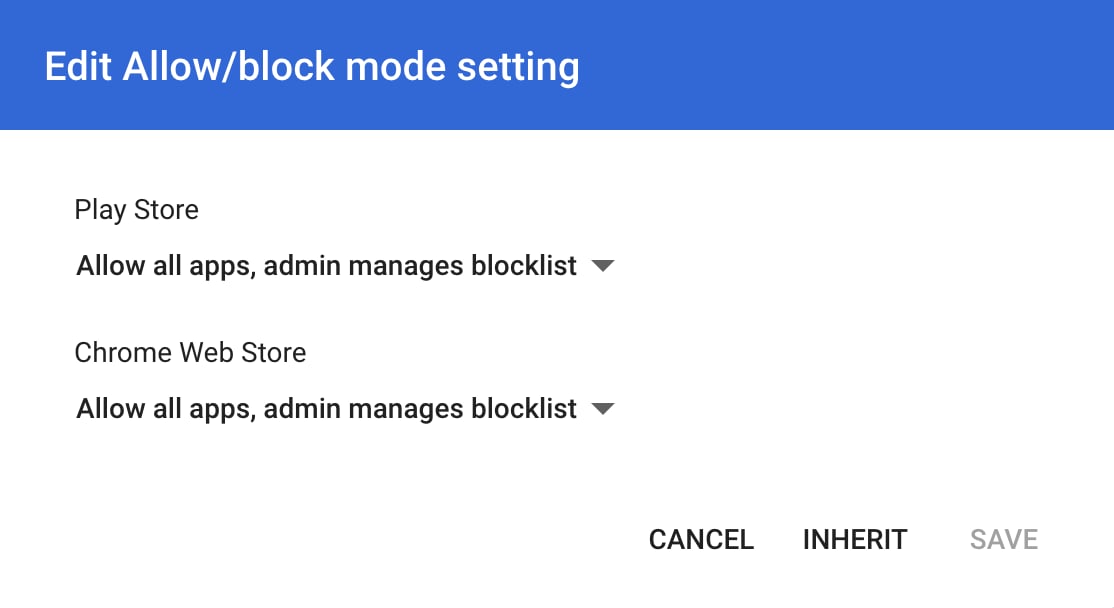
GoGuardian cannot directly filter apps on the Play Store. Play Store app controls are managed through Google Admin Console.
You can add filter rules in the **Apps & Extensions** section of a policy three ways: by App ID, by App URL, or via the Admin Dashboard Top Apps tile. App IDs and URLs can be pasted directly into the Apps & Extensions section of a policy applied to students.
## Add a Rule by App ID
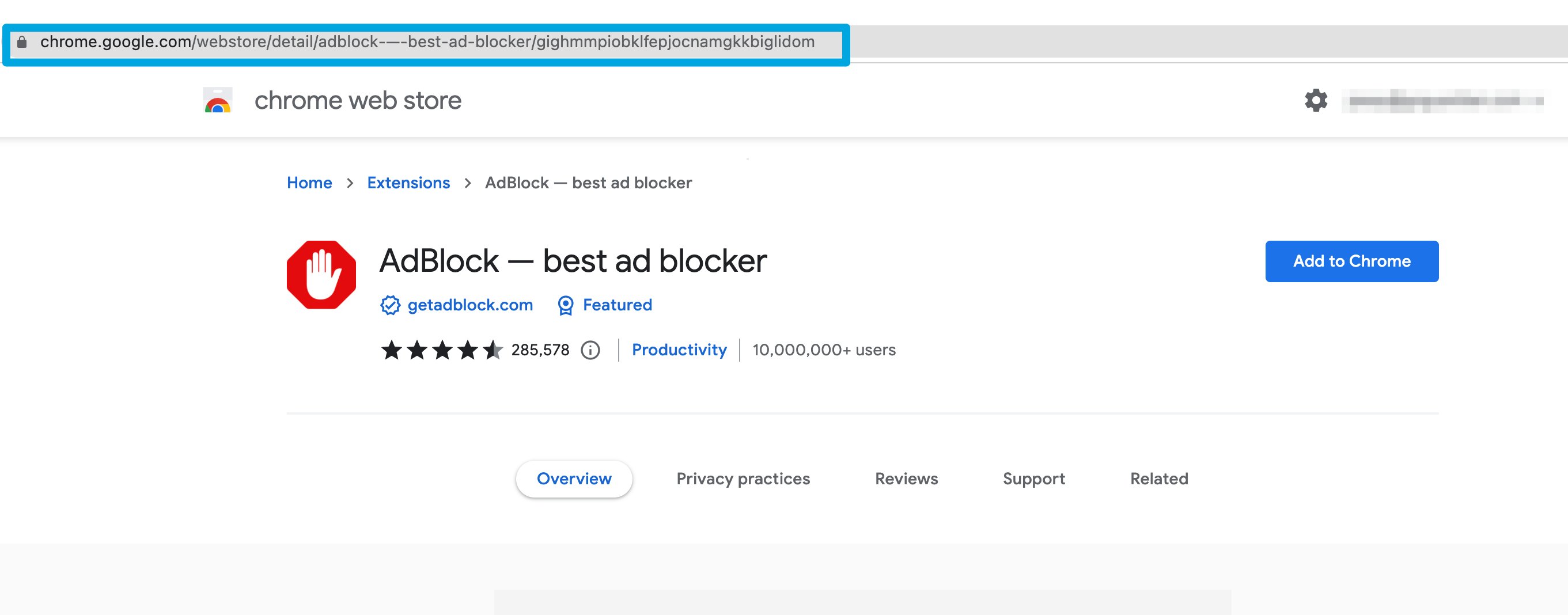
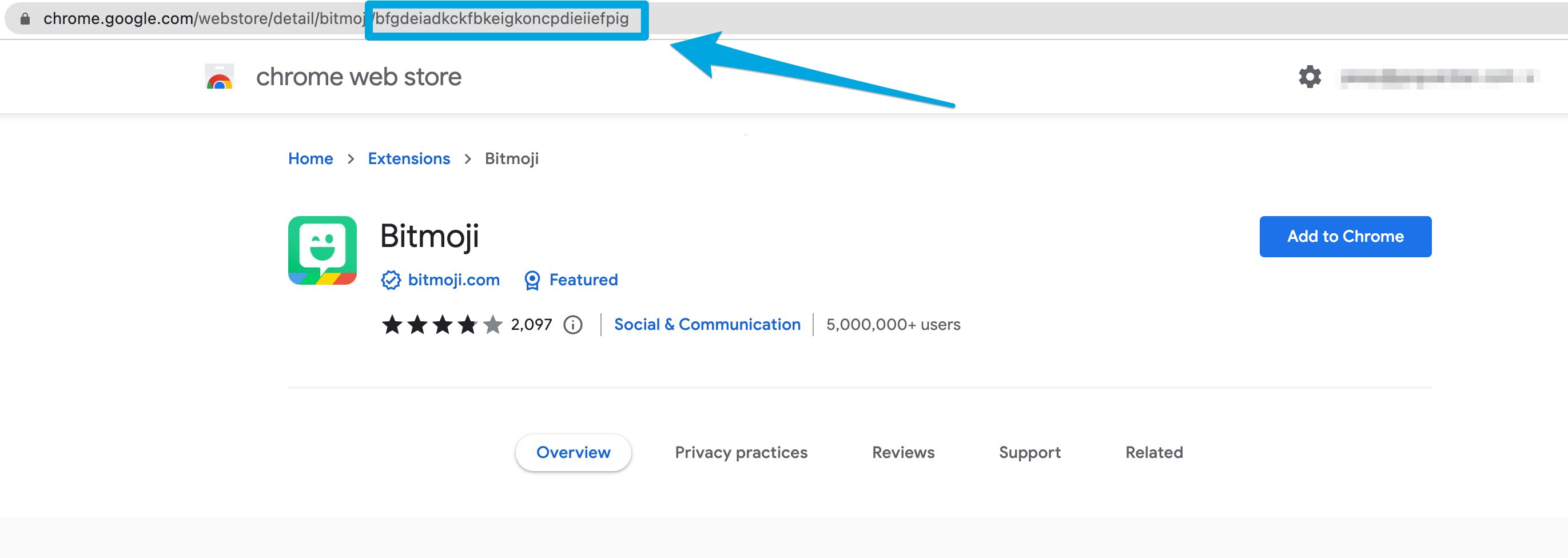
1. Locate the app's 32-character ID — the string after the `/` in the Chrome Web Store URL.
2. Copy and paste the ID into the policy's Apps & Extensions filter field.
3. Click **Block** or **Allow** to set the rule.

 ## Add a Rule by App URL
1. Go to the [Chrome Web Store](https://chromewebstore.google.com/).
2. Search for the app or extension and copy its Web Store URL.
3. Paste the URL into the policy's Apps & Extensions filter field and click **Block** or **Allow**.
## Add a Rule by App URL
1. Go to the [Chrome Web Store](https://chromewebstore.google.com/).
2. Search for the app or extension and copy its Web Store URL.
3. Paste the URL into the policy's Apps & Extensions filter field and click **Block** or **Allow**.