> ## Documentation Index
> Fetch the complete documentation index at: https://docs.goguardian.com/llms.txt
> Use this file to discover all available pages before exploring further.
# Simulate Policies
> Test how a URL or YouTube video would be filtered for a specific student or org unit without changing any live policies.
The Filtering Simulator (also called Policy Checker) lets you preview how GoGuardian Admin would handle a URL for a specific student or org unit. Use it to confirm a policy is working as intended, investigate an unexpected result, or verify a change before it reaches students.
The Filtering Simulator reads your current policy configuration. Running a simulation does not affect any live filtering rules or student access.
## Review Prerequisites
* Admin access to GoGuardian Admin
* The full URL you want to test
* The org unit (OU) or student you want to simulate
## Run a Simulation
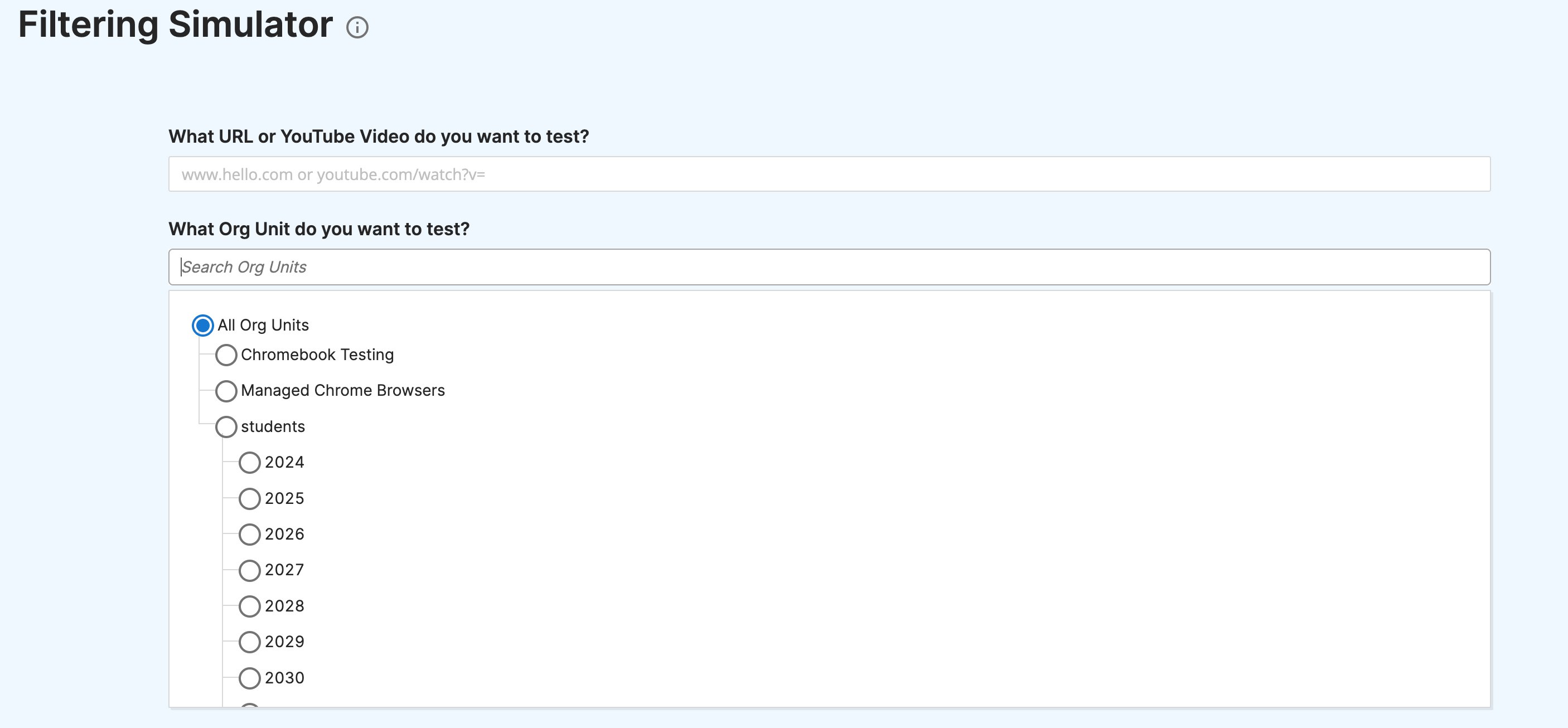
1. In GoGuardian Admin, go to **Filtering** > **Filtering Simulator**.
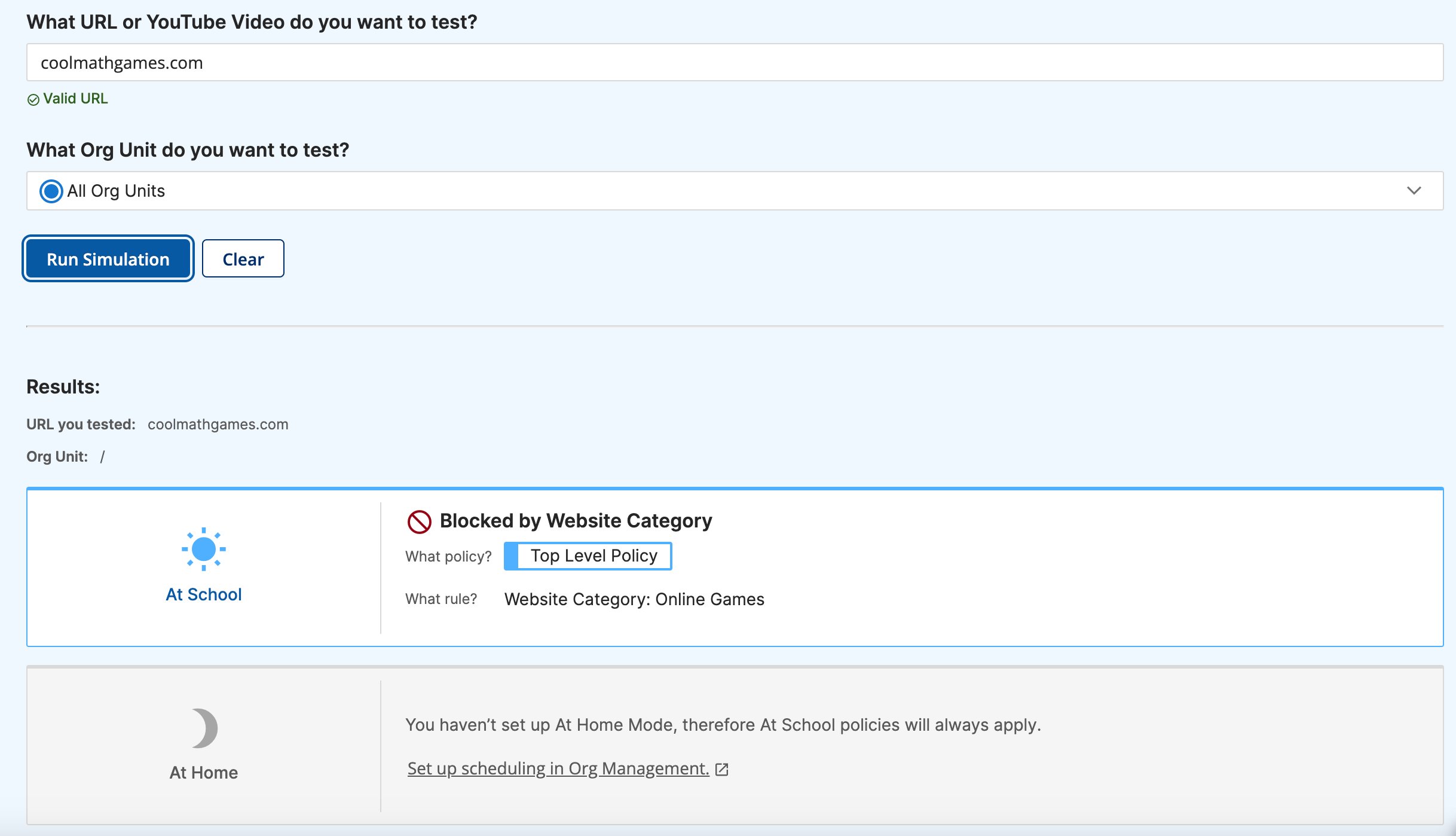
2. In the URL field, enter the full website address you want to test, for example, `coolmathgames.com` or a direct YouTube watch URL.
3. Choose **All org units** to test against every OU at once, or select one or more individual org units to narrow the result.
4. Click **Run Simulation**.
5. The results appear below the form. Each row shows the OU tested, whether the URL is blocked or allowed, which policy applied the rule, and the specific rule that produced the result. For category-based blocks, the result lists the category name. For URL-based blocks, the result lists the blocked URL entry.
 ## Interpret Simulation Results
Each result row covers the following:
| Result field | What it shows |
| ----------------- | --------------------------------------------------------------------------------------------- |
| URL tested | The URL you entered |
| Org unit | The OU evaluated in this row |
| Filtering context | Whether the result applies to in-school (At School) or out-of-school (At Home) hours |
| Policy | The name of the policy that produced the block or allow result |
| Rule | The specific rule responsible: a category name, a Website URL entry, or a YouTube filter rule |
| Outcome | Block or Allow |
Organizations that do not use At Home Mode see only At School filtering results. If At Home Mode is active, the simulator returns a separate result row for each context so you can compare the two.
## Test YouTube Content
The Filtering Simulator handles YouTube URLs and accounts for all YouTube-specific filtering layers in the applied policy, including Restrictive Mode, channel rules, video rules, category rules, and keyword filters.
1. In the URL field, enter a full `youtube.com/watch` URL for the video you want to test. The simulator requires a direct watch URL and does not support YouTube Shorts URLs or full channel URLs.
2. Choose the OU you want to test. YouTube filtering results reflect the policy assigned to that OU.
3. Click **Run Simulation**.
4. The result shows whether the video is blocked or allowed. If the video is blocked, the result identifies the YouTube filter rule responsible, for example, a Music category filter or a specific channel block from the applied policy.
YouTube Shorts URLs and full channel URLs are not supported in the simulator. Use a direct `youtube.com/watch` URL for individual video tests.
## Interpret Simulation Results
Each result row covers the following:
| Result field | What it shows |
| ----------------- | --------------------------------------------------------------------------------------------- |
| URL tested | The URL you entered |
| Org unit | The OU evaluated in this row |
| Filtering context | Whether the result applies to in-school (At School) or out-of-school (At Home) hours |
| Policy | The name of the policy that produced the block or allow result |
| Rule | The specific rule responsible: a category name, a Website URL entry, or a YouTube filter rule |
| Outcome | Block or Allow |
Organizations that do not use At Home Mode see only At School filtering results. If At Home Mode is active, the simulator returns a separate result row for each context so you can compare the two.
## Test YouTube Content
The Filtering Simulator handles YouTube URLs and accounts for all YouTube-specific filtering layers in the applied policy, including Restrictive Mode, channel rules, video rules, category rules, and keyword filters.
1. In the URL field, enter a full `youtube.com/watch` URL for the video you want to test. The simulator requires a direct watch URL and does not support YouTube Shorts URLs or full channel URLs.
2. Choose the OU you want to test. YouTube filtering results reflect the policy assigned to that OU.
3. Click **Run Simulation**.
4. The result shows whether the video is blocked or allowed. If the video is blocked, the result identifies the YouTube filter rule responsible, for example, a Music category filter or a specific channel block from the applied policy.
YouTube Shorts URLs and full channel URLs are not supported in the simulator. Use a direct `youtube.com/watch` URL for individual video tests.
 ## Understand Simulator Limitations
The simulator reads policy rules assigned to org units. It does not account for all filtering sources in your district configuration.
| Limitation | Detail |
| ---------------------- | ----------------------------------------------------------------------------------------------------------------------------- |
| Global Filter Settings | The simulator does not reflect Global Filter Settings, such as iFrame filtering or consumer Google account blocking. |
| Custom Group rules | Custom Group filtering is applied separately from OU policy filtering. Custom Group rules do not appear in simulator results. |
| DNS filtering | Any GoGuardian DNS filtering rules your organization has configured are not included in simulation results. |
For the most accurate validation, test a URL from a real student account in the same OU after confirming the expected result in the simulator. The simulator reflects policy configuration; a real device test confirms the full filtering stack.
## FAQ
**Can I test a specific student rather than an entire org unit?**
The simulator targets org units, not individual students. To simulate filtering for a specific student, select the OU that student belongs to. \\
**Why does the simulator show a different result than what a student actually sees?**
The simulator does not account for Global Filter Settings, Custom Group rules, or DNS filtering. If the simulated result and the observed result do not match, check those sources next.
**Where can I find a URL that was recently blocked?**
Go to **Activity** > **Browsing Activity** in GoGuardian Admin to review blocked and allowed site activity by student or OU.
## Resources
Review the policy model before interpreting simulator results.
Learn how YouTube filtering layers interact when you need to interpret a YouTube simulation result.
Use this troubleshooting flow when the simulator result does not match the observed behavior.
Use this concept page when an unexpected policy is winning in the simulation result.
## Understand Simulator Limitations
The simulator reads policy rules assigned to org units. It does not account for all filtering sources in your district configuration.
| Limitation | Detail |
| ---------------------- | ----------------------------------------------------------------------------------------------------------------------------- |
| Global Filter Settings | The simulator does not reflect Global Filter Settings, such as iFrame filtering or consumer Google account blocking. |
| Custom Group rules | Custom Group filtering is applied separately from OU policy filtering. Custom Group rules do not appear in simulator results. |
| DNS filtering | Any GoGuardian DNS filtering rules your organization has configured are not included in simulation results. |
For the most accurate validation, test a URL from a real student account in the same OU after confirming the expected result in the simulator. The simulator reflects policy configuration; a real device test confirms the full filtering stack.
## FAQ
**Can I test a specific student rather than an entire org unit?**
The simulator targets org units, not individual students. To simulate filtering for a specific student, select the OU that student belongs to. \\
**Why does the simulator show a different result than what a student actually sees?**
The simulator does not account for Global Filter Settings, Custom Group rules, or DNS filtering. If the simulated result and the observed result do not match, check those sources next.
**Where can I find a URL that was recently blocked?**
Go to **Activity** > **Browsing Activity** in GoGuardian Admin to review blocked and allowed site activity by student or OU.
## Resources
Review the policy model before interpreting simulator results.
Learn how YouTube filtering layers interact when you need to interpret a YouTube simulation result.
Use this troubleshooting flow when the simulator result does not match the observed behavior.
Use this concept page when an unexpected policy is winning in the simulation result.