> ## Documentation Index
> Fetch the complete documentation index at: https://docs.goguardian.com/llms.txt
> Use this file to discover all available pages before exploring further.
# Configure Global Filter Settings
> A reference for Global Config settings in GoGuardian Admin Advanced Config: Force SafeSearch, Safe Translator, Block Direct IP Access, and Block iFrame Content.
Global Config settings are a group of filtering rules in the Advanced Config section of GoGuardian Admin. They apply to all users filtered by GoGuardian and cannot be scoped to specific users or groups.
Global Config settings honor your In School and Out of School Mode schedule. A setting enabled here applies only during the scheduled filtering window for each context.
## Review Available Settings
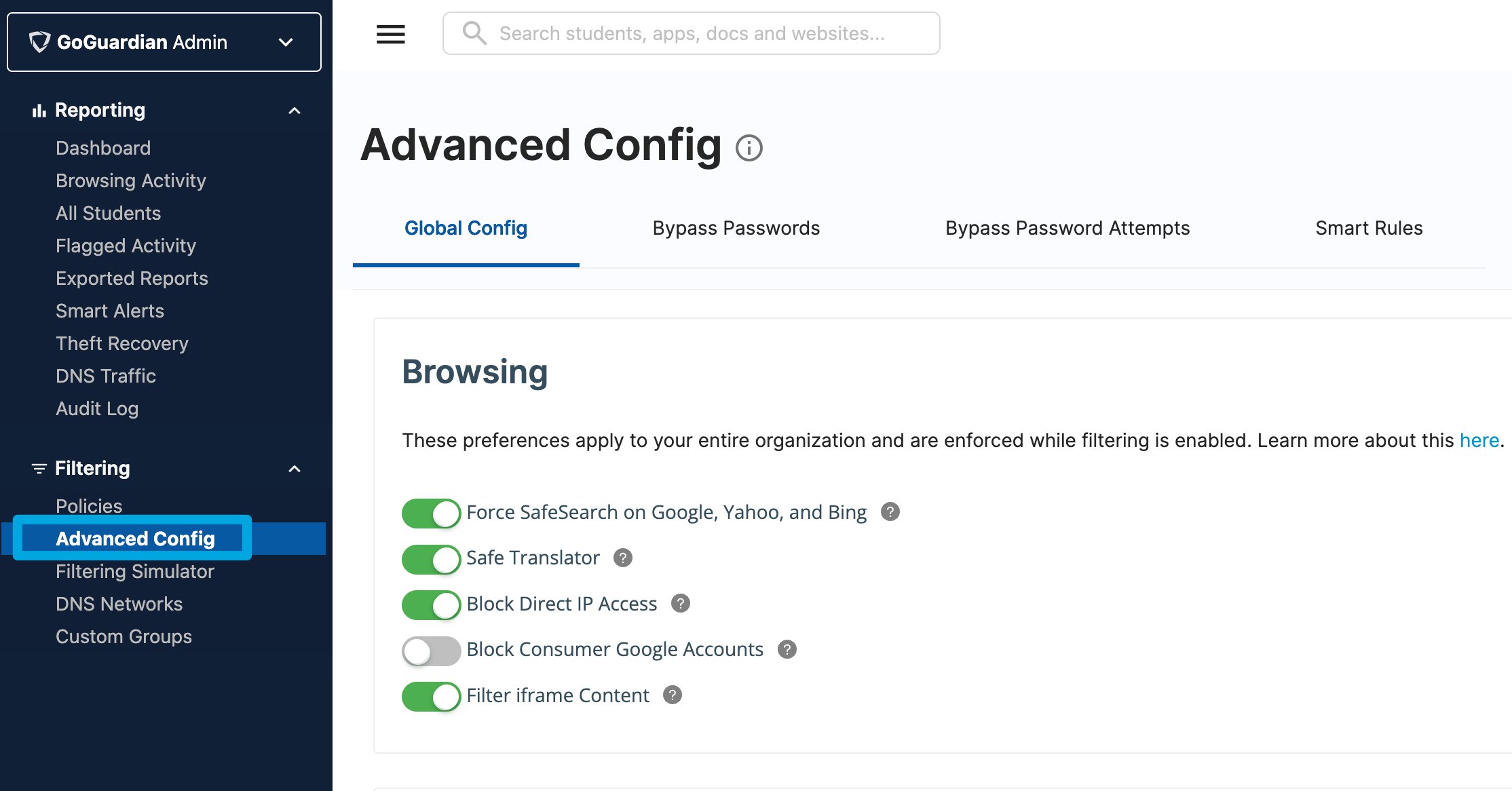
The following settings are available under **Filtering** > **Advanced Config** in GoGuardian Admin.
| Setting | What It Does |
| ------------------------------ | ------------------------------------------------------------------------------------------------------------------------- |
| Force SafeSearch | Enforces SafeSearch on Google, Bing, and Yahoo search results for all users |
| Safe Translator | Applies content filtering policies to sites accessed through Google Translate and blocks the Translators website category |
| Block Direct IP Access | Prevents users from accessing websites by entering a direct IP address in the browser |
| Block iFrame Content | Enforces policy filtering rules on iFrame-embedded content, not just top-level domains |
| Block Consumer Google Accounts | Locks each device to the school Google account used at sign-in |
Block Consumer Google Accounts is covered in [Allow and Block Websites](/products/admin/block-and-allow-websites). For steps and behavior details, see that article.
If your organization uses Restrictive Mode, add `*mail.google.com*` as an allowed site so users can still sign into their managed Gmail accounts. Restrictive Mode blocks all sites not explicitly allowed, which includes Google sign-in pages unless you add the allow rule.
Users who added a personal Google account to their device before this toggle was enabled are not automatically removed. To remediate existing personal accounts, remove them from the device manually or force a first-time sign-in through Google Admin Console.
## Enable a Global Config Setting
All Global Config settings follow the same steps. Repeat this procedure for each setting you want to turn on.
1. In GoGuardian Admin, go to **Filtering** > **Advanced Config**.
2. Find the toggle for the setting you want to enable: **Force SafeSearch**, **Safe Translator**, **Block Direct IP Access**, or **Block iFrame Content**.
3. Turn on the toggle. The toggle turns green when the setting is active.
4. Verify the result: The toggle displays green and the setting is listed as active. The change takes effect for all users filtered by GoGuardian.
 ## Understand Each Setting
### Force SafeSearch
Force SafeSearch removes explicit content from search results on Google, Bing, and Yahoo. Each of these services offers its own SafeSearch toggle, but users can disable it on their own. Enabling Force SafeSearch through GoGuardian Admin enforces the setting regardless of what users do in their account preferences.
This setting applies globally to all users. It cannot be restricted to a subset of users or policies.
### Safe Translator
Translation tools like Google Translate can load a full webpage through a translated URL, which can route users around URL-level filtering. Enabling Safe Translator applies your content filtering policies to sites accessed through `translate.google.com` and blocks all sites in the Translators website category for all users, regardless of whether that category is blocked in a specific policy.
If a legitimate translator site is blocked after you enable this setting, add an allow rule for that site in the relevant policy. Use a wildcard pattern — for example, `*spanishdict.com*` — to ensure the allow rule overrides the global block. For wildcard syntax, see [Use Wildcard Rules in Policies](/products/admin/filtering-with-wildcards).
### Block Direct IP Access
Websites can be reached by hostname or by their public IP address. A user who enters a raw IP address — for example, `74.125.224.72` — into a browser can bypass hostname-based filtering rules. Enabling Block Direct IP Access prevents access to websites via direct IP entry.
If specific IP addresses need to remain accessible, add them as allowed sites in the relevant policy. You can use a wildcard pattern to allow a range: for example, `*74.125.224*` allows any IP address containing that segment.
### Block iFrame Content
An iFrame is an HTML element that embeds content from an external source inside a webpage. Because GoGuardian Admin policy rules filter by top-level domain, iFrame content from a different domain can load even when the source domain is blocked. Enabling Block iFrame Content extends policy filtering rules to cover embedded iFrame sources, not just top-level domains.
Block iFrame Content does not apply to users whose assigned policy is set to Restrictive Mode. If a policy uses Restrictive Mode, iFrame content is not blocked for users on that policy. For more information, see the Restrictive Mode exception in [Review Policy Precedence](/products/admin/how-filtering-rules-interact).
## Resources
Close additional bypass routes, including Block Consumer Google Accounts, Guest Mode, and Incognito Mode.
Add allow rules for specific sites or IP ranges within a policy.
Review how GoGuardian Admin resolves conflicts between global settings and policy-level rules.
Learn how In School and Out of School Mode affects when Global Config settings are active.
## Understand Each Setting
### Force SafeSearch
Force SafeSearch removes explicit content from search results on Google, Bing, and Yahoo. Each of these services offers its own SafeSearch toggle, but users can disable it on their own. Enabling Force SafeSearch through GoGuardian Admin enforces the setting regardless of what users do in their account preferences.
This setting applies globally to all users. It cannot be restricted to a subset of users or policies.
### Safe Translator
Translation tools like Google Translate can load a full webpage through a translated URL, which can route users around URL-level filtering. Enabling Safe Translator applies your content filtering policies to sites accessed through `translate.google.com` and blocks all sites in the Translators website category for all users, regardless of whether that category is blocked in a specific policy.
If a legitimate translator site is blocked after you enable this setting, add an allow rule for that site in the relevant policy. Use a wildcard pattern — for example, `*spanishdict.com*` — to ensure the allow rule overrides the global block. For wildcard syntax, see [Use Wildcard Rules in Policies](/products/admin/filtering-with-wildcards).
### Block Direct IP Access
Websites can be reached by hostname or by their public IP address. A user who enters a raw IP address — for example, `74.125.224.72` — into a browser can bypass hostname-based filtering rules. Enabling Block Direct IP Access prevents access to websites via direct IP entry.
If specific IP addresses need to remain accessible, add them as allowed sites in the relevant policy. You can use a wildcard pattern to allow a range: for example, `*74.125.224*` allows any IP address containing that segment.
### Block iFrame Content
An iFrame is an HTML element that embeds content from an external source inside a webpage. Because GoGuardian Admin policy rules filter by top-level domain, iFrame content from a different domain can load even when the source domain is blocked. Enabling Block iFrame Content extends policy filtering rules to cover embedded iFrame sources, not just top-level domains.
Block iFrame Content does not apply to users whose assigned policy is set to Restrictive Mode. If a policy uses Restrictive Mode, iFrame content is not blocked for users on that policy. For more information, see the Restrictive Mode exception in [Review Policy Precedence](/products/admin/how-filtering-rules-interact).
## Resources
Close additional bypass routes, including Block Consumer Google Accounts, Guest Mode, and Incognito Mode.
Add allow rules for specific sites or IP ranges within a policy.
Review how GoGuardian Admin resolves conflicts between global settings and policy-level rules.
Learn how In School and Out of School Mode affects when Global Config settings are active.