> ## Documentation Index
> Fetch the complete documentation index at: https://docs.goguardian.com/llms.txt
> Use this file to discover all available pages before exploring further.
# Use Global Search
> Search for students, websites, Google Docs, and Chrome Apps across your organization in GoGuardian Admin.
Global Search in GoGuardian Admin lets administrators find student browsing reports and review organizational usage for websites, Google Docs, and Chrome Apps in one place. Enter a name, email address, or resource name and GoGuardian Admin returns matching results as you type.
## Access Global Search
Global Search is available from the top navigation bar in GoGuardian Admin.
1. Go to [GoGuardian Admin](https://admin.goguardian.com) and sign in with your administrator account.
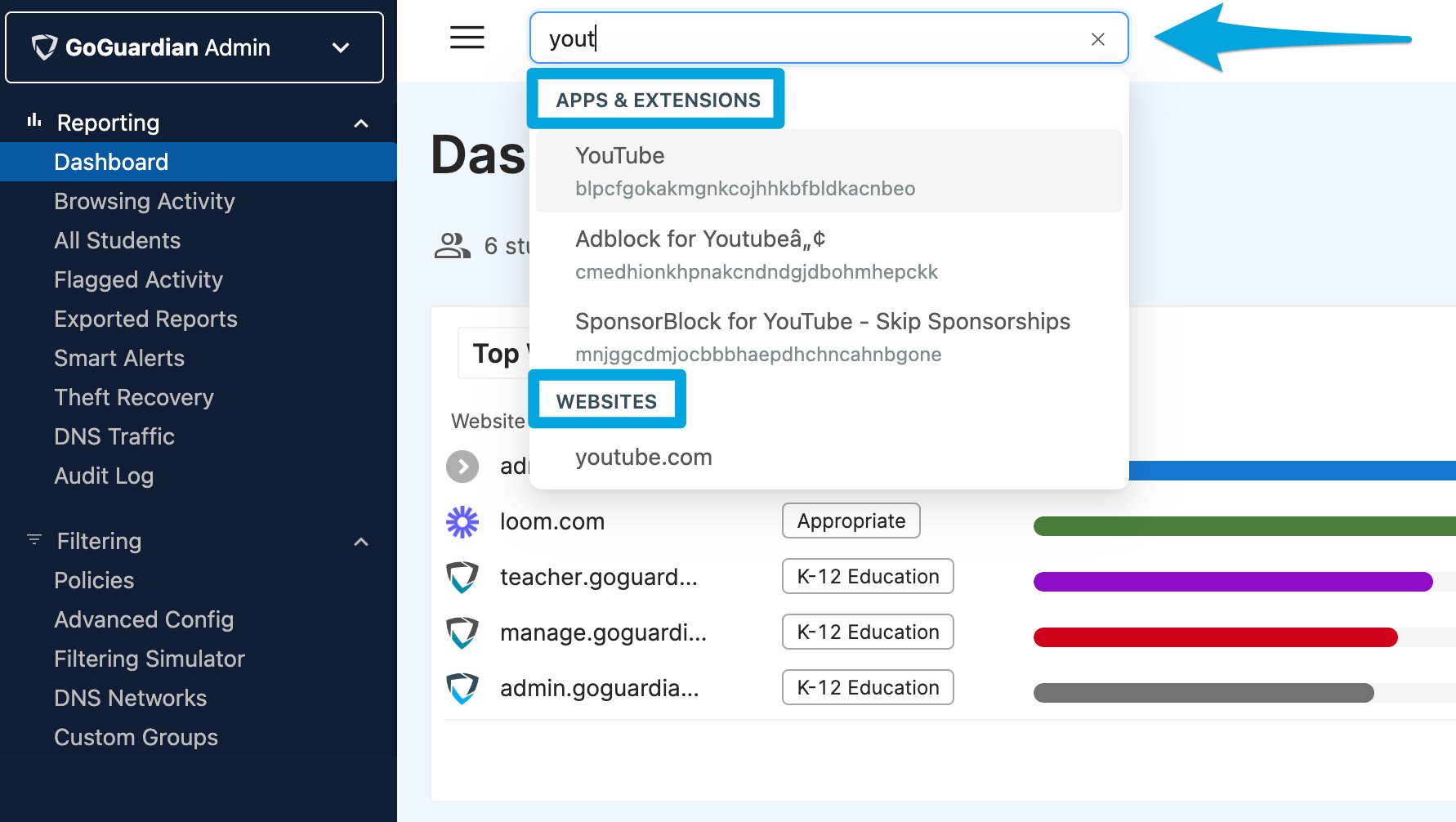
2. Find the **Global Search** bar at the top of the page.
3. Enter a student name, email address, website domain, Google Doc name, or app name. Results appear automatically as you type.
4. A list of matching results appears below the search bar, grouped by result type. Select any result to open its detail page.
 ## Search for a Student
Enter a student's name or email address to open their individual browsing report.
1. In the **Global Search** bar, enter the student's full name or email address.
2. Select the student's name from the search results list.
3. The student's report opens and displays their general information, browsing activity, top content, and reporting export options.
## Search for a Website
Enter a website domain to see which students have accessed it, including recent users, top users, and an activity chart. From the website detail page, you can add a filtering rule directly to one of your policies.
Global Search finds websites by top-level domain only. Searching for a full URL is not supported. For example, enter `example.com` rather than `https://example.com/page`.
1. In the **Global Search** bar, enter the website domain you want to review, such as `example.com`.
2. Select the website from the search results list.
3. The website detail page displays recent users, top users, and an activity chart showing access over time.
4. To block or allow the website in a policy, click **Block** or **Allow** on the detail page, then select the target policy.
5. The rule appears in the selected policy. Navigate to the policy to confirm the rule is active.
## Search for a Google Doc
Enter a Google Doc, Sheet, or Form name to see an activity chart and the top users of that document.
1. In the **Global Search** bar, enter the name of the Google Doc, Sheet, or Form you want to find.
2. Select the document from the search results list.
3. The document detail page opens and displays an activity chart and a list of top users.
## Search for a Chrome App or Extension
Enter an app or extension name to see the number of installs and top users. From the app detail page, you can add a filtering rule to a policy.
1. In the **Global Search** bar, enter the name of the Chrome App or extension.
2. Select the app or extension from the search results list.
3. The detail page displays the total number of installs and a list of top users.
4. To block or allow the app in a policy, click **Block** or **Allow**, then select the target policy.
5. The rule appears in the selected policy. Navigate to the policy to confirm the rule is active.
## Navigate to a Detailed Report from Results
Every result in Global Search links directly to a detail page. Select any result to open a full report for that student, website, document, or app. From the detail page, you can review usage data, export reports, or update filtering policies without returning to the main navigation.
## Resources
Filter, export, and investigate browsing activity data across your organization.
Add allow or block rules to filtering policies for specific websites and apps.
## Search for a Student
Enter a student's name or email address to open their individual browsing report.
1. In the **Global Search** bar, enter the student's full name or email address.
2. Select the student's name from the search results list.
3. The student's report opens and displays their general information, browsing activity, top content, and reporting export options.
## Search for a Website
Enter a website domain to see which students have accessed it, including recent users, top users, and an activity chart. From the website detail page, you can add a filtering rule directly to one of your policies.
Global Search finds websites by top-level domain only. Searching for a full URL is not supported. For example, enter `example.com` rather than `https://example.com/page`.
1. In the **Global Search** bar, enter the website domain you want to review, such as `example.com`.
2. Select the website from the search results list.
3. The website detail page displays recent users, top users, and an activity chart showing access over time.
4. To block or allow the website in a policy, click **Block** or **Allow** on the detail page, then select the target policy.
5. The rule appears in the selected policy. Navigate to the policy to confirm the rule is active.
## Search for a Google Doc
Enter a Google Doc, Sheet, or Form name to see an activity chart and the top users of that document.
1. In the **Global Search** bar, enter the name of the Google Doc, Sheet, or Form you want to find.
2. Select the document from the search results list.
3. The document detail page opens and displays an activity chart and a list of top users.
## Search for a Chrome App or Extension
Enter an app or extension name to see the number of installs and top users. From the app detail page, you can add a filtering rule to a policy.
1. In the **Global Search** bar, enter the name of the Chrome App or extension.
2. Select the app or extension from the search results list.
3. The detail page displays the total number of installs and a list of top users.
4. To block or allow the app in a policy, click **Block** or **Allow**, then select the target policy.
5. The rule appears in the selected policy. Navigate to the policy to confirm the rule is active.
## Navigate to a Detailed Report from Results
Every result in Global Search links directly to a detail page. Select any result to open a full report for that student, website, document, or app. From the detail page, you can review usage data, export reports, or update filtering policies without returning to the main navigation.
## Resources
Filter, export, and investigate browsing activity data across your organization.
Add allow or block rules to filtering policies for specific websites and apps.