> ## Documentation Index
> Fetch the complete documentation index at: https://docs.goguardian.com/llms.txt
> Use this file to discover all available pages before exploring further.
# Install GoGuardian Extensions and Configure Google Admin Console
> Force-install the GoGuardian and GoGuardian License extensions through Google Admin Console, configure the required user, app, and device settings, enable Manifest V2, import OUs, and verify deployment.
This guide walks GoGuardian Super Users through installing the GoGuardian extensions in Google Admin Console, along with the key Google Admin Console settings. The extensions must be installed for any user you intend to filter and review with GoGuardian Admin, Teacher, or Beacon.
GoGuardian *users* (teachers, admins, and staff) only need an account registered at [manage.goguardian.com](https://manage.goguardian.com/) with product access enabled to sign in and use GoGuardian products.
To install the extensions using Active Directory or Microsoft Intune, or to deploy The GoGuardian App to Windows, iPads, or Mac, contact your GoGuardian Account Manager for guidance. If you have already installed the extensions, skip to **Verify Extension Deployment**.
## Locate Your GoGuardian Extensions
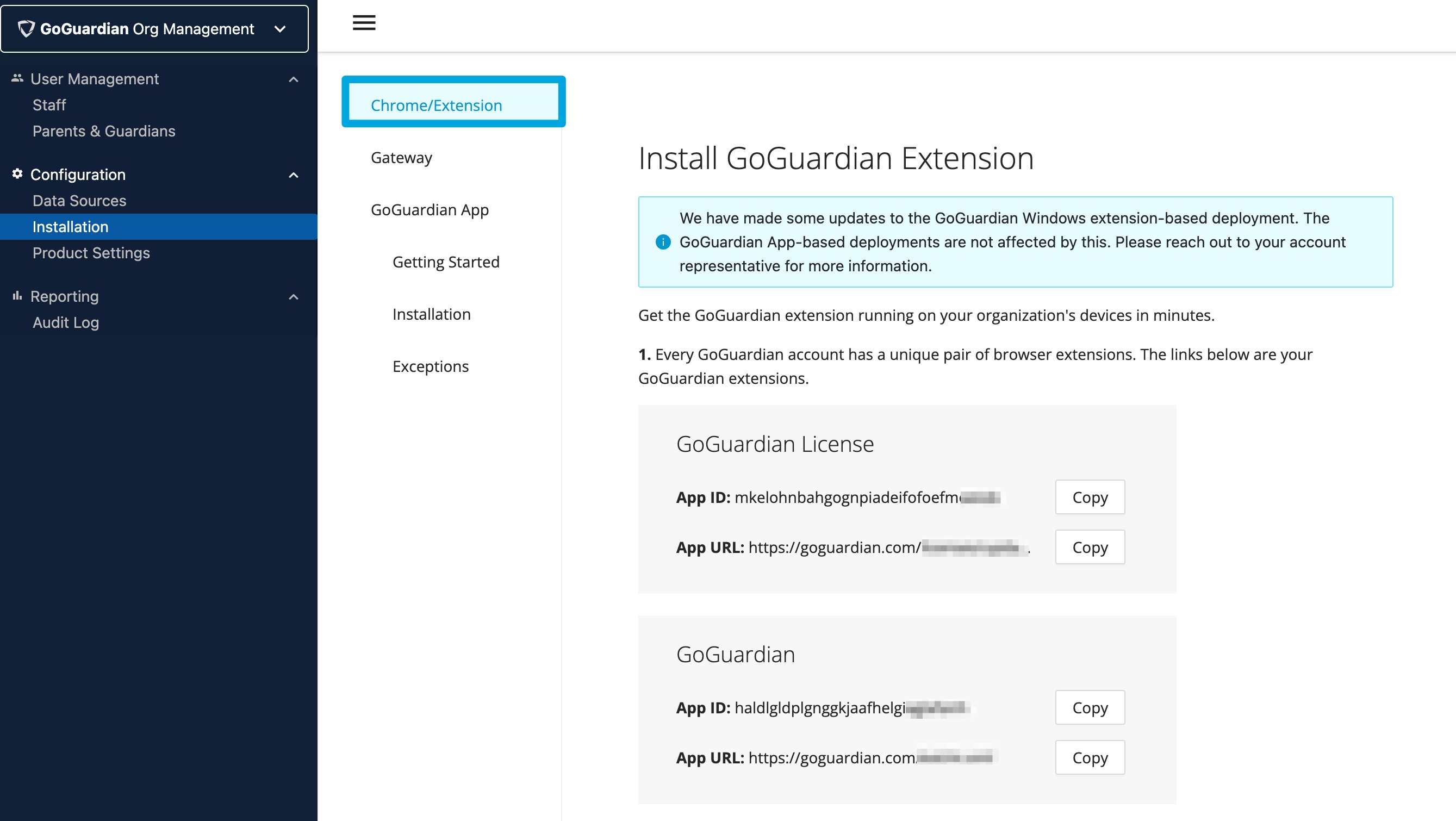
Every GoGuardian account has a unique pair of Chrome extensions. To find your organization's extensions, sign in to GoGuardian with your Super User credentials and open the [Org Management Installation page](https://manage.goguardian.com/installations/chrome). Keep this window open for the next step.
## Force-Install the Extensions
1. Using your Google Admin credentials, sign in to [admin.google.com](https://admin.google.com/).
2. In the left panel, click **Devices** → **Chrome** → **Apps & extensions** → **Users & browsers**.
3. Select the organizational unit or units that contain the student accounts you intend to filter and review.
4. To filter all users in the organization, including teachers and staff, select the domain-level (top-level) OU. Sub-OUs inherit extensions from their parent OU, but double-check each OU and sub-OU you intend to deploy to.
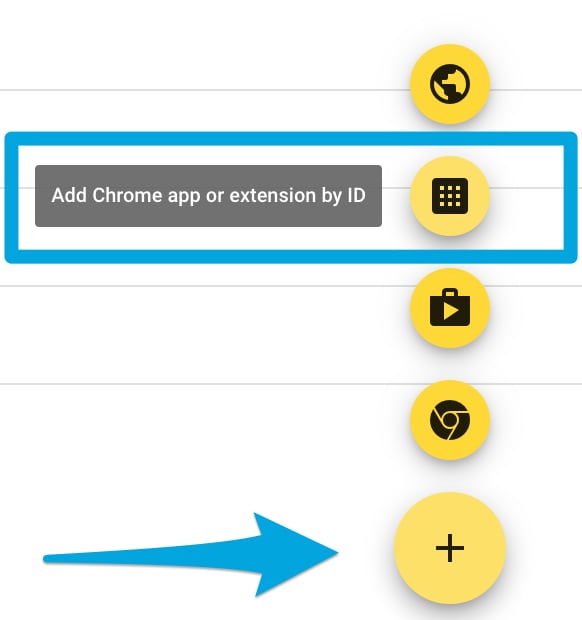
5. Hover over the plus sign near the bottom corner of the screen.
6. Click the waffle icon to add a Chrome app or extension by ID.
7. Click the drop-down menu and select **From a Custom URL**.
8. Refer back to the Chrome extension install page in Org Management for the App IDs and URLs.
9. Copy and paste the first App ID and URL pair into their fields, then click **Save**. Both extensions have unique installation URLs.
10. In the following window, open the **Installation policy** drop-down and select **Force install**, then select **Allow all permissions** under **Permissions and URL access**.
Repeat this process for both the **GoGuardian Extension** and the **GoGuardian License** extension.
 ## Configure User and Browser Settings
User and browser settings control Chrome browser behavior and apply to signed-in managed accounts. From the Google Admin home screen, click **Devices** → **Chrome** → **Settings** → **Users & browsers**, select the OU that contains the user accounts you are deploying to, and configure the following policies. Use the Find tool (Command+F on Mac, Ctrl+F on Windows) to locate policies quickly.
| Policy | Value | Priority | Notes |
| -------------------------------------------- | -------------------------------------------------------------------- | ------------------ | --------------------------------------------------------------------------------------------------------------------------------------------------------------------------------- |
| Incognito Mode | Disallow Incognito Mode | Required | |
| Screenshot | Allow users to take screenshots | Required | Disabling screenshots causes problems with GoGuardian Teacher and Smart Alerts. |
| Developer Tools | Never allow the use of built-in developer tools | Required | Developer tools can be used to disable extensions. |
| Allowed types of apps and extensions | Extension type must be checked | Required | Unchecking a type prevents that type from being installed. GoGuardian requires the "Extension" box checked. |
| User management of installed CA certificates | Disallow users from managing certificates | Required | Prevents users from tampering with certificates GoGuardian requires. |
| Chrome Management for Signed-in Users | Apply all user policies when users sign into Chrome | Optional (caution) | "Do Not Apply" prevents GoGuardian from working on non-ChromeOS devices. |
| Restricted Mode for YouTube | No policy set | Optional | Google's policy is enforced first but can be avoided if users sign out of YouTube. Use GoGuardian policies for YouTube filtering, which apply whether or not a user is signed in. |
| Task Manager | Block users from ending processes with the Chrome task manager | Recommended | |
| Safe Browsing | Always enable Safe Browsing | Recommended | |
| SafeSearch and Restricted Mode | Always use SafeSearch | Recommended | |
| SSL error override | Block users from clicking through SSL warnings | Recommended | Prevents filtering bypass through custom DNS mappings. |
| URL Blocking | Set `javascript://*` as a block rule | Recommended | JavaScript can manipulate URLs and affect GoGuardian filtering. |
| Side panel search history | Disable showing recent Google Search results in a browser side panel | Recommended | The side panel can open a Google Search that cannot be reviewed in GoGuardian Teacher or filtered by Scenes or policies. |
## Configure App Settings
From the Google Admin Console home screen, go to **Devices** → **Chrome** → **Apps & extensions** → **User app settings**.
* **Allowed types of apps and extensions** (Required): the **Extension** type must be checked. Unchecking a type prevents that type from being installed by admins or users.
* **Allow/block mode** (Recommended): **Block all apps; admin manages allowlist** for both the Play Store and Chrome Web Store. Some third-party apps and extensions can bypass GoGuardian if they contain a built-in browser that is not Chrome or Edge, or that does not require sign-in. Block all other apps and extensions and manage an approved list on the **Apps & Extensions** → **Overview** page.
* **Permissions and URLs** (Required): both GoGuardian extensions require that the following permissions are **not** blocked — alarms, detect idle, notifications, memory metadata, identity, storage, web requests, geolocation, CPU metadata, native messaging, and block web requests.
## Configure Device Settings
From the Google Admin home screen, click **Devices** → **Chrome** → **Settings** → **Device settings**, select the OU that contains your Chromebooks, and configure the following.
| Policy | Value | Priority |
| -------------------- | ---------------------------------------------------- | ----------- |
| Forced Re-Enrollment | Force device to automatically re-enroll after wiping | Recommended |
| Guest Mode | Disable guest mode | Required |
| Verified Access | Enable for content protection | — |
| Verified Mode | Require verified mode boot for verified access | — |
| Sign-in Restrictions | Restrict sign-in to a list of users | Required |
For **Sign-in Restrictions**, add your district's domain and subdomains preceded by a wildcard, separating multiple entries with commas — for example: `*@goguardian.com, *@students.goguardian.com, *@teachers.goguardian.com`.
If your campus has a restrictive firewall or additional content filter, you may need to open connections to GoGuardian services. Refer to GoGuardian's firewall and additional content-filter allowlist guidance.
## Enable Manifest V2
Manifest V3 is a Google change that limits the current GoGuardian extensions' ability to read user data. It affects the extension deployment for GoGuardian Admin, Teacher, and Beacon; The GoGuardian App, Gateway, and DNS are not affected. GoGuardian requires organizations to enable the Google Admin Console setting **Manifest V2 Extension Availability** to avoid service disruptions until the extensions are redesigned for Manifest V3. See [Manifest V2 Extension Support](/products/org-management/manifest-v2-extension-support) to learn more and enable the required setting.
## Import Your OU Structure
Importing organizational units maps students to an assigned OU in GoGuardian. OUs are used for two purposes:
**Teacher and admin permissions.** Super Users can grant all OU access or limit a user's OU permissions to control which student data that user can access. For GoGuardian Admin, Admin OU access controls which student data an admin can see and which filtering policies an admin can edit.
**GoGuardian features.** For GoGuardian Admin filtering, policies are applied to imported OUs to filter students granularly by org unit. For Smart Alerts, OUs configure Smart Alert Triggers, such as notifying and assigning school admins by the trigger's OUs. For GoGuardian Beacon, OUs create Beacon Deployments that can be customized with alert settings, school hours, parent notifications, and school counselors.
### Import or sync OUs
Set up the initial OU import and OU source on the [Data Sources → OU Settings](https://manage.goguardian.com/integrations/ou-settings) page in Org Management. Only one OU source can be selected at a time: Google Admin Console, Clever, ClassLink, Active Directory, or OneRoster.
1. For GoGuardian Admins, sign in to [admin.goguardian.com](https://admin.goguardian.com/). For Super Users, sign in to [manage.goguardian.com](https://manage.goguardian.com/).
2. Near the top corner of the page, click the circular-arrow icon.
3. Click **Sync Org Units with GAC** if Google Admin Console is the OU source.
4. Authorize the sync, enable each OU to be imported (not just new OUs), and complete the import.
### Automatic vs. force sync
Once imported, GoGuardian syncs the OU source each night and updates users' assigned OUs when they move between existing OUs. If new OUs are created, or existing OUs are renamed or reorganized, re-import the OU structure manually to add the new OUs.
A significant OU change can affect features that rely on the OU source. Policies may become unassigned if their OU is removed or changed, and Smart Alert Trigger OU assignments and Beacon Deployments may need updating. After a significant OU change, double-check your GoGuardian Admin policies, Smart Alert Triggers, and Beacon Deployments.
## Verify Extension Deployment
For GoGuardian products to work, both the **GoGuardian** and **GoGuardian License** extensions must be installed for each user you intend to filter and review. GoGuardian recommends creating a test account, such as `teststudent@schooldistrict.org`, in the same OU as your students.
1. Sign in to a test or student account that belongs to the OU the extensions were deployed to. If available, you can also check a student's device.
2. In Google Chrome, go to `chrome://extensions`.
3. Verify that both the **GoGuardian** and **GoGuardian License** extensions are present and enabled.
The extensions only need to be deployed one time.
## Identify GoGuardian Extensions by Icon
GoGuardian's Chrome client consists of two extensions. Their current icons:
* **GoGuardian** (formerly Chromium M) — light blue GoGuardian shield
* **GoGuardian License** (formerly Chromium License) — dark blue/gray GoGuardian shield
You can verify both are installed by opening `chrome://extensions` in a student account that has the extensions force-installed.
## Configure User and Browser Settings
User and browser settings control Chrome browser behavior and apply to signed-in managed accounts. From the Google Admin home screen, click **Devices** → **Chrome** → **Settings** → **Users & browsers**, select the OU that contains the user accounts you are deploying to, and configure the following policies. Use the Find tool (Command+F on Mac, Ctrl+F on Windows) to locate policies quickly.
| Policy | Value | Priority | Notes |
| -------------------------------------------- | -------------------------------------------------------------------- | ------------------ | --------------------------------------------------------------------------------------------------------------------------------------------------------------------------------- |
| Incognito Mode | Disallow Incognito Mode | Required | |
| Screenshot | Allow users to take screenshots | Required | Disabling screenshots causes problems with GoGuardian Teacher and Smart Alerts. |
| Developer Tools | Never allow the use of built-in developer tools | Required | Developer tools can be used to disable extensions. |
| Allowed types of apps and extensions | Extension type must be checked | Required | Unchecking a type prevents that type from being installed. GoGuardian requires the "Extension" box checked. |
| User management of installed CA certificates | Disallow users from managing certificates | Required | Prevents users from tampering with certificates GoGuardian requires. |
| Chrome Management for Signed-in Users | Apply all user policies when users sign into Chrome | Optional (caution) | "Do Not Apply" prevents GoGuardian from working on non-ChromeOS devices. |
| Restricted Mode for YouTube | No policy set | Optional | Google's policy is enforced first but can be avoided if users sign out of YouTube. Use GoGuardian policies for YouTube filtering, which apply whether or not a user is signed in. |
| Task Manager | Block users from ending processes with the Chrome task manager | Recommended | |
| Safe Browsing | Always enable Safe Browsing | Recommended | |
| SafeSearch and Restricted Mode | Always use SafeSearch | Recommended | |
| SSL error override | Block users from clicking through SSL warnings | Recommended | Prevents filtering bypass through custom DNS mappings. |
| URL Blocking | Set `javascript://*` as a block rule | Recommended | JavaScript can manipulate URLs and affect GoGuardian filtering. |
| Side panel search history | Disable showing recent Google Search results in a browser side panel | Recommended | The side panel can open a Google Search that cannot be reviewed in GoGuardian Teacher or filtered by Scenes or policies. |
## Configure App Settings
From the Google Admin Console home screen, go to **Devices** → **Chrome** → **Apps & extensions** → **User app settings**.
* **Allowed types of apps and extensions** (Required): the **Extension** type must be checked. Unchecking a type prevents that type from being installed by admins or users.
* **Allow/block mode** (Recommended): **Block all apps; admin manages allowlist** for both the Play Store and Chrome Web Store. Some third-party apps and extensions can bypass GoGuardian if they contain a built-in browser that is not Chrome or Edge, or that does not require sign-in. Block all other apps and extensions and manage an approved list on the **Apps & Extensions** → **Overview** page.
* **Permissions and URLs** (Required): both GoGuardian extensions require that the following permissions are **not** blocked — alarms, detect idle, notifications, memory metadata, identity, storage, web requests, geolocation, CPU metadata, native messaging, and block web requests.
## Configure Device Settings
From the Google Admin home screen, click **Devices** → **Chrome** → **Settings** → **Device settings**, select the OU that contains your Chromebooks, and configure the following.
| Policy | Value | Priority |
| -------------------- | ---------------------------------------------------- | ----------- |
| Forced Re-Enrollment | Force device to automatically re-enroll after wiping | Recommended |
| Guest Mode | Disable guest mode | Required |
| Verified Access | Enable for content protection | — |
| Verified Mode | Require verified mode boot for verified access | — |
| Sign-in Restrictions | Restrict sign-in to a list of users | Required |
For **Sign-in Restrictions**, add your district's domain and subdomains preceded by a wildcard, separating multiple entries with commas — for example: `*@goguardian.com, *@students.goguardian.com, *@teachers.goguardian.com`.
If your campus has a restrictive firewall or additional content filter, you may need to open connections to GoGuardian services. Refer to GoGuardian's firewall and additional content-filter allowlist guidance.
## Enable Manifest V2
Manifest V3 is a Google change that limits the current GoGuardian extensions' ability to read user data. It affects the extension deployment for GoGuardian Admin, Teacher, and Beacon; The GoGuardian App, Gateway, and DNS are not affected. GoGuardian requires organizations to enable the Google Admin Console setting **Manifest V2 Extension Availability** to avoid service disruptions until the extensions are redesigned for Manifest V3. See [Manifest V2 Extension Support](/products/org-management/manifest-v2-extension-support) to learn more and enable the required setting.
## Import Your OU Structure
Importing organizational units maps students to an assigned OU in GoGuardian. OUs are used for two purposes:
**Teacher and admin permissions.** Super Users can grant all OU access or limit a user's OU permissions to control which student data that user can access. For GoGuardian Admin, Admin OU access controls which student data an admin can see and which filtering policies an admin can edit.
**GoGuardian features.** For GoGuardian Admin filtering, policies are applied to imported OUs to filter students granularly by org unit. For Smart Alerts, OUs configure Smart Alert Triggers, such as notifying and assigning school admins by the trigger's OUs. For GoGuardian Beacon, OUs create Beacon Deployments that can be customized with alert settings, school hours, parent notifications, and school counselors.
### Import or sync OUs
Set up the initial OU import and OU source on the [Data Sources → OU Settings](https://manage.goguardian.com/integrations/ou-settings) page in Org Management. Only one OU source can be selected at a time: Google Admin Console, Clever, ClassLink, Active Directory, or OneRoster.
1. For GoGuardian Admins, sign in to [admin.goguardian.com](https://admin.goguardian.com/). For Super Users, sign in to [manage.goguardian.com](https://manage.goguardian.com/).
2. Near the top corner of the page, click the circular-arrow icon.
3. Click **Sync Org Units with GAC** if Google Admin Console is the OU source.
4. Authorize the sync, enable each OU to be imported (not just new OUs), and complete the import.
### Automatic vs. force sync
Once imported, GoGuardian syncs the OU source each night and updates users' assigned OUs when they move between existing OUs. If new OUs are created, or existing OUs are renamed or reorganized, re-import the OU structure manually to add the new OUs.
A significant OU change can affect features that rely on the OU source. Policies may become unassigned if their OU is removed or changed, and Smart Alert Trigger OU assignments and Beacon Deployments may need updating. After a significant OU change, double-check your GoGuardian Admin policies, Smart Alert Triggers, and Beacon Deployments.
## Verify Extension Deployment
For GoGuardian products to work, both the **GoGuardian** and **GoGuardian License** extensions must be installed for each user you intend to filter and review. GoGuardian recommends creating a test account, such as `teststudent@schooldistrict.org`, in the same OU as your students.
1. Sign in to a test or student account that belongs to the OU the extensions were deployed to. If available, you can also check a student's device.
2. In Google Chrome, go to `chrome://extensions`.
3. Verify that both the **GoGuardian** and **GoGuardian License** extensions are present and enabled.
The extensions only need to be deployed one time.
## Identify GoGuardian Extensions by Icon
GoGuardian's Chrome client consists of two extensions. Their current icons:
* **GoGuardian** (formerly Chromium M) — light blue GoGuardian shield
* **GoGuardian License** (formerly Chromium License) — dark blue/gray GoGuardian shield
You can verify both are installed by opening `chrome://extensions` in a student account that has the extensions force-installed.