> ## Documentation Index
> Fetch the complete documentation index at: https://docs.goguardian.com/llms.txt
> Use this file to discover all available pages before exploring further.
# Migrate Chromebooks to New Theft Recovery Extension
> Move existing Theft Recovery Chromebooks to the new extension after Google phased out support for Chrome apps.
Google has phased out support for Chrome apps, which affects the previous Theft Recovery extension. This article covers the migration process for existing Theft Recovery customers moving Chromebooks to the new extension.
These steps require administrator access to Google Admin Console. If you are setting up Theft Recovery for the first time, see [Set Up Theft Recovery](/products/admin/set-up-theft-recovery).
## Set Up Theft Recovery in Google Admin Console
### Configure Managed Guest Session Settings
1. Sign in to Google Admin Console as an administrator.
2. In the navigation menu, go to **Directory** > **Organizational units**.
3. Click **Create organizational unit** and name it **Lost Devices**.
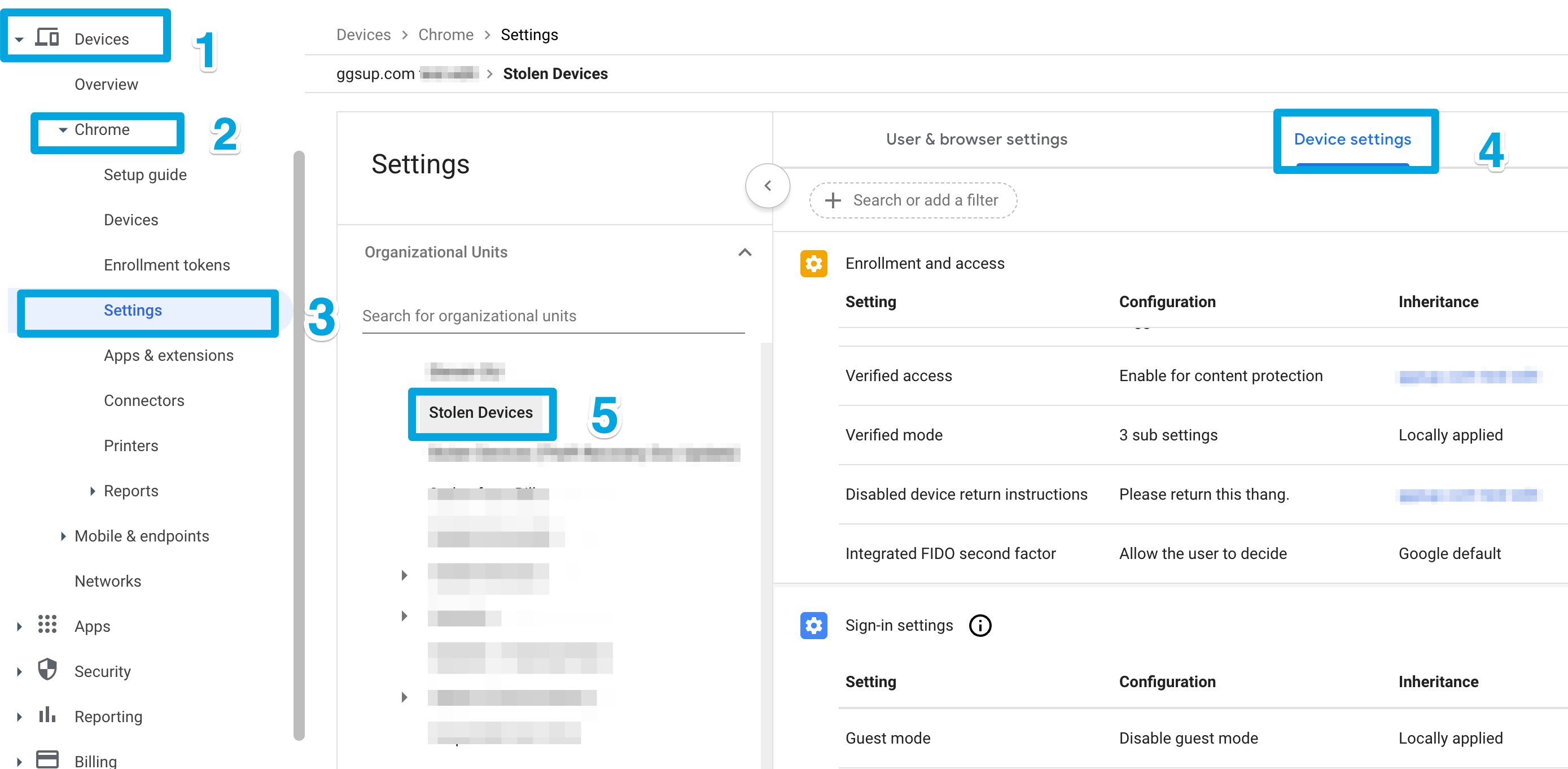
4. Open **Devices** > **Chrome** > **Settings** > **Managed guest session settings**.
5. Select the **Lost Devices** OU from the sidebar.
6. Apply the following settings:
**Managed guest session**
* Configuration: **Auto-launch managed guest session**
* Session name: **Guest**
* Auto-launch delay: **0**
**Incognito mode**: **Disallow incognito mode**
**Task manager**: **Block users from ending processes with the Chrome task manager**
**URL blocking**: `javascript://*`
**Screenshot**: **Allow users to take screenshots and video recordings**
**Developer tools**: **Never allow use of built-in developer tools**
7. Save your changes.
### Apply Device Restrictions
1. Go to **Devices** > **Chrome** > **Settings** > **Device settings**.
2. Select the **Lost Devices** OU from the sidebar.
3. Configure the following settings:
**Sign-in restriction**: **Do not allow any user to sign in**
**Guest mode**: **Disable guest mode**
**Forced re-enrollment**: **Force device to re-enroll after wiping**
4. Save your changes.
 ### Install the Theft Recovery Extension
1. Go to **Devices** > **Chrome** > **Apps & extensions** > **Managed guest sessions**.
2. Select the **Lost Devices** OU.
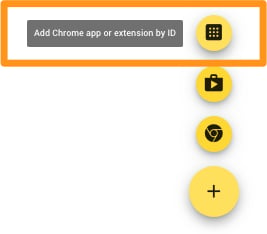
3. Click the **Add** icon and choose **Add Chrome app or extension by ID**.
4. Enter the following extension ID:
`ejblgkabfnkbdjmdkpfgojkohmgnpblh`
5. Select **From a custom URL**.
6. Enter the following URL:
`https://theft-recovery-ext.goguardian.com/production.xml`
7. Select **Force install**.
8. Save your changes.
9. Verify the result: On a target device, confirm that guest session mode is enabled on the login screen. After signing in as a guest, confirm that the Theft Recovery extension is installed in Chrome.
### Install the Theft Recovery Extension
1. Go to **Devices** > **Chrome** > **Apps & extensions** > **Managed guest sessions**.
2. Select the **Lost Devices** OU.
3. Click the **Add** icon and choose **Add Chrome app or extension by ID**.
4. Enter the following extension ID:
`ejblgkabfnkbdjmdkpfgojkohmgnpblh`
5. Select **From a custom URL**.
6. Enter the following URL:
`https://theft-recovery-ext.goguardian.com/production.xml`
7. Select **Force install**.
8. Save your changes.
9. Verify the result: On a target device, confirm that guest session mode is enabled on the login screen. After signing in as a guest, confirm that the Theft Recovery extension is installed in Chrome.
 ## Move Chromebooks to the New Organizational Unit
1. In the navigation menu, go to **Chrome** > **Devices**.
2. Select the organizational unit with the old Theft Recovery extension installed.
3. Select the devices you want to move.
4. Click **Move** in the toolbar.
5. Choose the **Lost Devices** OU created in the previous section.
6. Click **Move**.
## Move Chromebooks to the New Organizational Unit
1. In the navigation menu, go to **Chrome** > **Devices**.
2. Select the organizational unit with the old Theft Recovery extension installed.
3. Select the devices you want to move.
4. Click **Move** in the toolbar.
5. Choose the **Lost Devices** OU created in the previous section.
6. Click **Move**.
 ## Authorize and Sync in GoGuardian Admin
1. Sign in to GoGuardian Admin and go to **Theft Recovery**.
2. Click the three-dot menu and select **Settings** > **Authorize with Google**.
3. Log in with a Google Admin Super User account.
4. Click **Allow Access**.
5. In the three-dot menu, select **Sync Devices**.
6. Click **Sync Google Admin Console**.
7. Verify the result: Find the device in the list. Once the device successfully checks in, its status changes to **Detected** in the Theft Recovery dashboard.
## Resources
* [Understand Theft Recovery](/products/admin/theft-recovery)
* [Set Up Theft Recovery](/products/admin/set-up-theft-recovery)
* [Track a Missing Device](/products/admin/track-a-missing-device)
## Authorize and Sync in GoGuardian Admin
1. Sign in to GoGuardian Admin and go to **Theft Recovery**.
2. Click the three-dot menu and select **Settings** > **Authorize with Google**.
3. Log in with a Google Admin Super User account.
4. Click **Allow Access**.
5. In the three-dot menu, select **Sync Devices**.
6. Click **Sync Google Admin Console**.
7. Verify the result: Find the device in the list. Once the device successfully checks in, its status changes to **Detected** in the Theft Recovery dashboard.
## Resources
* [Understand Theft Recovery](/products/admin/theft-recovery)
* [Set Up Theft Recovery](/products/admin/set-up-theft-recovery)
* [Track a Missing Device](/products/admin/track-a-missing-device)