> ## Documentation Index
> Fetch the complete documentation index at: https://docs.goguardian.com/llms.txt
> Use this file to discover all available pages before exploring further.
# Site Not Blocked Unexpectedly
> Troubleshoot reports in GoGuardian Admin where a site that should be blocked is still accessible to students.
Use this page when a student can access a site that your filtering policy is intended to block.
Start by confirming the exact URL the student reached. A wildcard allow rule can match part of a URL and override a block rule on the same domain. See [Filter with Wildcards](/products/admin/filtering-with-wildcards) for how wildcard matching works.
## Check the Effective Result
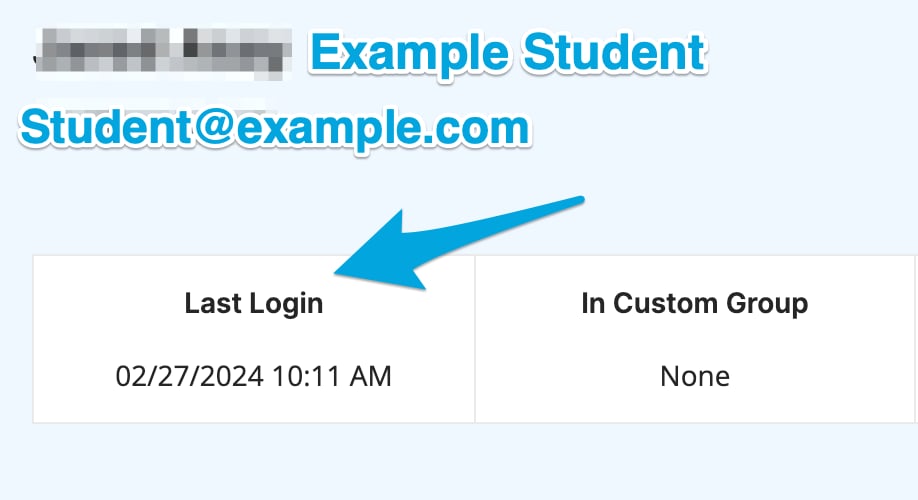
1. Look up the student's account in GoGuardian Admin by name or email. Check the **Last Login** field. If the student does not appear or the last login date is not recent, the GoGuardian extension may not be installed or the student may not be signed in to their managed account.
GoGuardian Admin filtering applies only to managed user accounts with the GoGuardian extension (or app) installed and active. If your organization deploys extensions through Google Admin Console, verify that the extension is deployed correctly using [Enable GoGuardian in Google Admin Console](/products/admin/enable-in-google-admin-console). For other deployment types, contact [GoGuardian Support](https://support.goguardian.com/s/contactsupport).
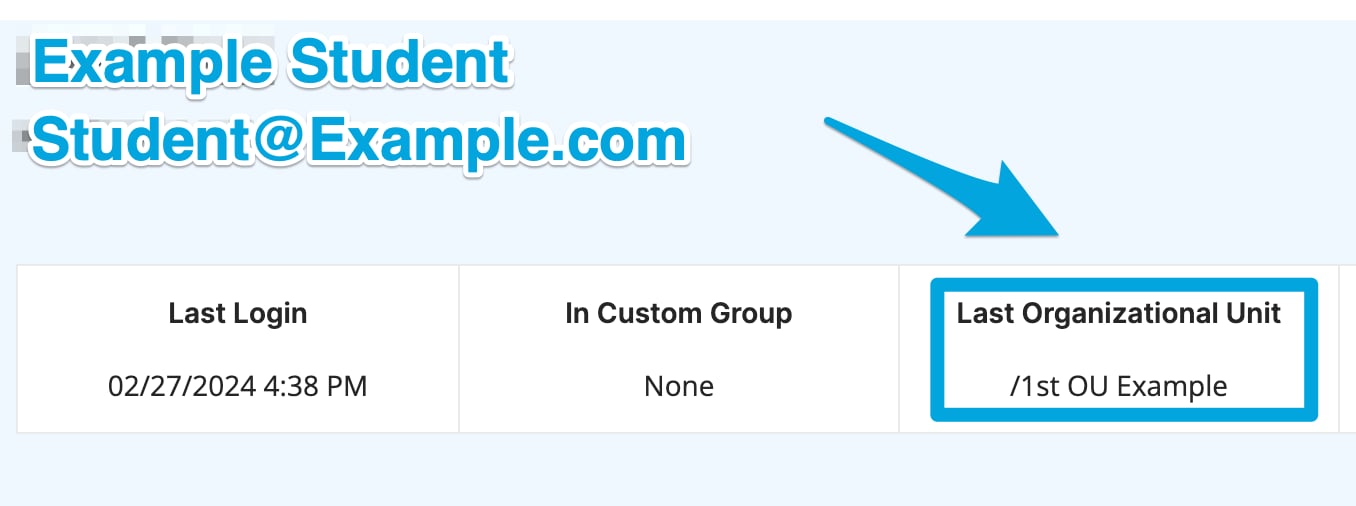
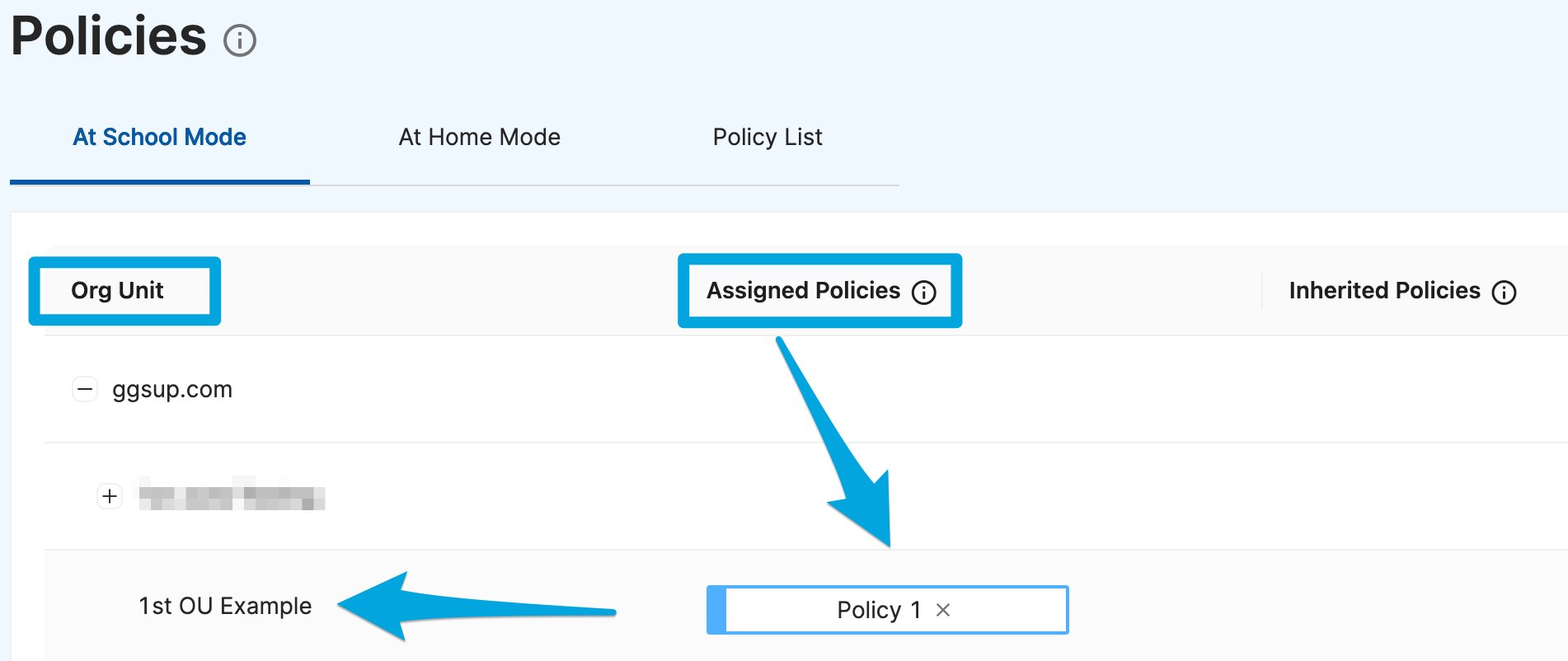
 2. Find the student's account and note their **Last Organizational Unit**. Go to **Filtering > Policies** and check whether an Assigned or Inherited policy covers that org unit.
If no policy is applied, assign a policy to the student's org unit, or to a parent org unit so the policy is inherited downward. See [Understand Filtering Policies](/products/admin/filtering-policies) for guidance on policy assignment.
2. Find the student's account and note their **Last Organizational Unit**. Go to **Filtering > Policies** and check whether an Assigned or Inherited policy covers that org unit.
If no policy is applied, assign a policy to the student's org unit, or to a parent org unit so the policy is inherited downward. See [Understand Filtering Policies](/products/admin/filtering-policies) for guidance on policy assignment.
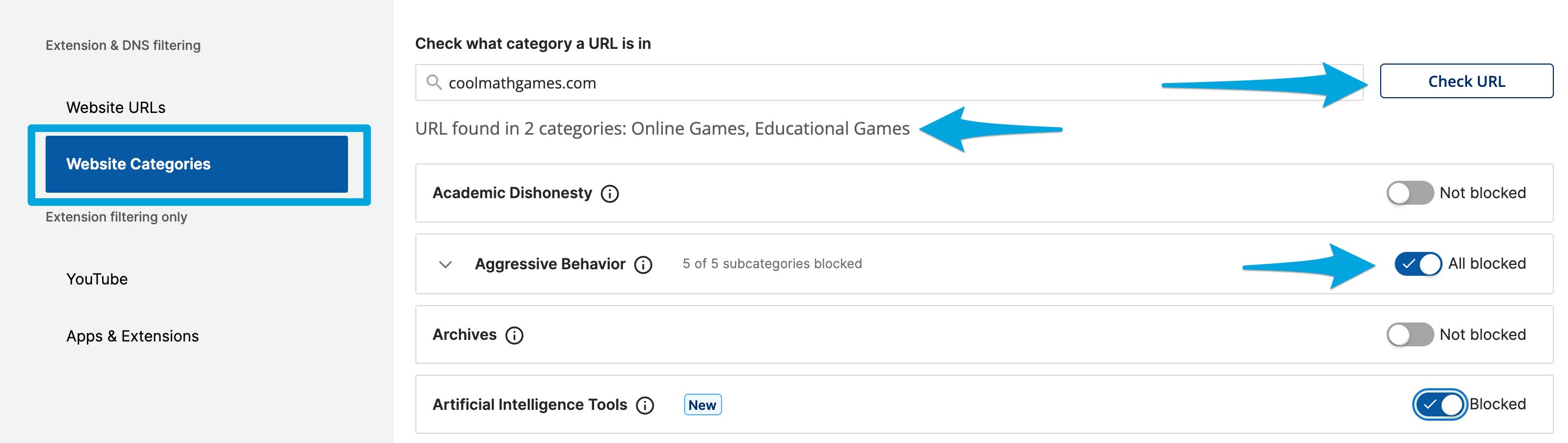
 3. Open the policy applied to the student's org unit. In the **Website URLs** section, confirm that a block rule exists for the domain. Check whether a wildcard rule is intended to block the site and review [Filter with Wildcards](/products/admin/filtering-with-wildcards) to confirm the pattern covers the URL in question.
To check category-based blocking, go to the **Website Categories** section and enter the domain in the **Check URL** field. Confirm that the category or sub-category assigned to that site is set to **Blocked**.
3. Open the policy applied to the student's org unit. In the **Website URLs** section, confirm that a block rule exists for the domain. Check whether a wildcard rule is intended to block the site and review [Filter with Wildcards](/products/admin/filtering-with-wildcards) to confirm the pattern covers the URL in question.
To check category-based blocking, go to the **Website Categories** section and enter the domain in the **Check URL** field. Confirm that the category or sub-category assigned to that site is set to **Blocked**.
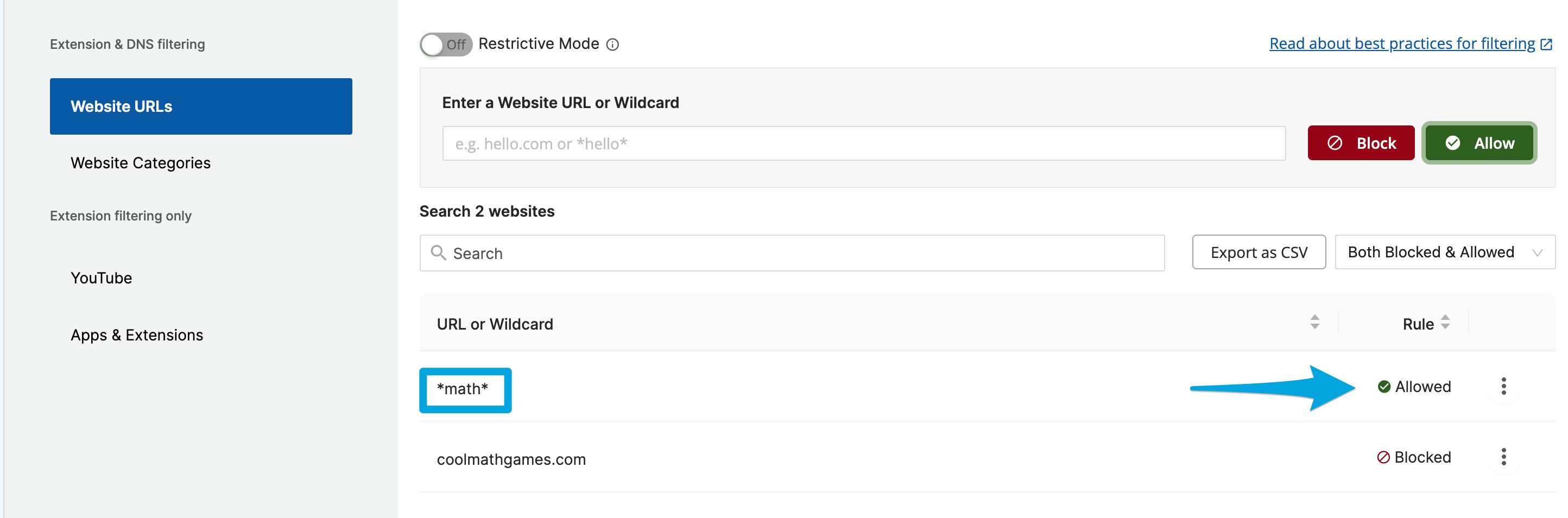
 4. In a single-policy setup, an explicit allow rule for a URL or domain overrides any block rule for the same site. In the **Website URLs** section of the policy, confirm that the domain is not listed with an allow action and that no wildcard allow rule matches any part of the URL.
Wildcard allow rules apply to the full URL string. A rule like `*math*` will allow access to any URL that contains "math," including a domain that is also listed with a block rule. Remove or narrow the allow rule to restore the block.
4. In a single-policy setup, an explicit allow rule for a URL or domain overrides any block rule for the same site. In the **Website URLs** section of the policy, confirm that the domain is not listed with an allow action and that no wildcard allow rule matches any part of the URL.
Wildcard allow rules apply to the full URL string. A rule like `*math*` will allow access to any URL that contains "math," including a domain that is also listed with a block rule. Remove or narrow the allow rule to restore the block.
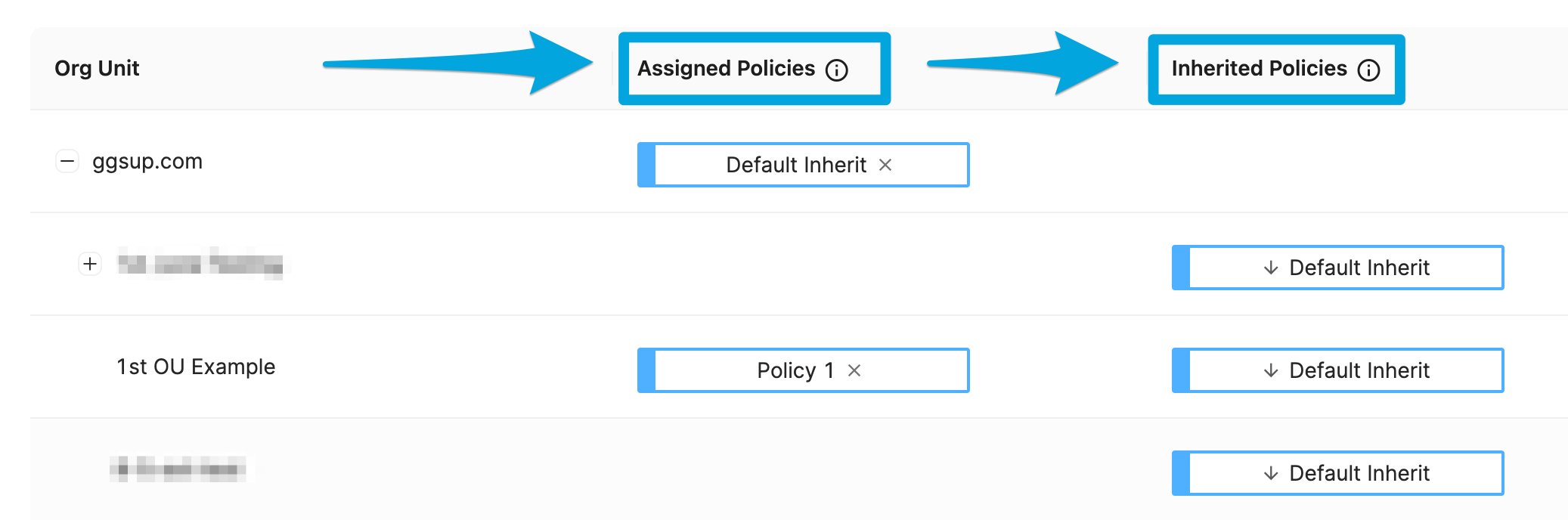
 5. When two or more policies at the same precedence level apply to the same org unit, an allow rule in one policy overrides a block rule in another. Find the student's org unit on the [Filtering > Policies](/products/admin/filtering-policies) page and check whether multiple policies are assigned or inherited at the same level.
Note that Assigned policies carry higher priority than Inherited policies at the same org unit. An allow rule in an Inherited policy does not override a block rule in an Assigned policy. See [Understand Policy Precedence](/products/admin/how-filtering-rules-interact) for the full priority order.
As a best practice, keep Default and Inherited policies less restrictive and apply more specific filtering rules at the Assigned level. This makes it easier to reason about which rules are active for a given org unit and reduces the chance of an allow rule in a lower-priority policy unexpectedly permitting access to a site you intend to block.
5. When two or more policies at the same precedence level apply to the same org unit, an allow rule in one policy overrides a block rule in another. Find the student's org unit on the [Filtering > Policies](/products/admin/filtering-policies) page and check whether multiple policies are assigned or inherited at the same level.
Note that Assigned policies carry higher priority than Inherited policies at the same org unit. An allow rule in an Inherited policy does not override a block rule in an Assigned policy. See [Understand Policy Precedence](/products/admin/how-filtering-rules-interact) for the full priority order.
As a best practice, keep Default and Inherited policies less restrictive and apply more specific filtering rules at the Assigned level. This makes it easier to reason about which rules are active for a given org unit and reduces the chance of an allow rule in a lower-priority policy unexpectedly permitting access to a site you intend to block.
 6. At Home Mode applies a separate set of filtering policies when students are off campus or outside configured school hours. If At Home Mode is enabled and a student is currently in an At Home state, they receive the At Home filtering policies instead of the in-school policies.
GoGuardian determines a student's At Home or At School status based on two factors: whether the current time falls within the configured In School Hours window, and whether the device's network IP address falls within the configured School IP Range. Both conditions must match for a student to be treated as At School. If either condition is not met, the student receives At Home filtering.
Go to the **At Home Mode** filtering section to review which policies apply outside school hours and whether those policies allow the site in question. Super Users can review or update At Home Mode settings in [manage.goguardian.com](https://manage.goguardian.com) under **Configuration > Products**.
GoGuardian checks a student's At Home or At School status every 15 minutes. If a student puts their device to sleep while in an At Home state, they may retain At Home filtering rules briefly when the device wakes up. This resolves on its own within a few minutes. The student can also enter `chrome://restart` or `edge://restart` in the address bar to force an immediate update.
Administrators can configure managed-device MDM policies, for example in Google Admin Console, to automatically sign users out when a device sleeps or the lid closes. This prevents a device from retaining a stale At Home or At School status after it wakes. Consult your MDM documentation for the relevant session or sign-out policy setting.
6. At Home Mode applies a separate set of filtering policies when students are off campus or outside configured school hours. If At Home Mode is enabled and a student is currently in an At Home state, they receive the At Home filtering policies instead of the in-school policies.
GoGuardian determines a student's At Home or At School status based on two factors: whether the current time falls within the configured In School Hours window, and whether the device's network IP address falls within the configured School IP Range. Both conditions must match for a student to be treated as At School. If either condition is not met, the student receives At Home filtering.
Go to the **At Home Mode** filtering section to review which policies apply outside school hours and whether those policies allow the site in question. Super Users can review or update At Home Mode settings in [manage.goguardian.com](https://manage.goguardian.com) under **Configuration > Products**.
GoGuardian checks a student's At Home or At School status every 15 minutes. If a student puts their device to sleep while in an At Home state, they may retain At Home filtering rules briefly when the device wakes up. This resolves on its own within a few minutes. The student can also enter `chrome://restart` or `edge://restart` in the address bar to force an immediate update.
Administrators can configure managed-device MDM policies, for example in Google Admin Console, to automatically sign users out when a device sleeps or the lid closes. This prevents a device from retaining a stale At Home or At School status after it wakes. Consult your MDM documentation for the relevant session or sign-out policy setting.
 7. If your organization has configured a bypass password, students can use it to gain temporary access to blocked sites. Go to **Advanced Config** > **Bypass Password Attempts** in GoGuardian Admin and check whether the student has recently used a bypass password to access the site.
Bypass password access is time-limited. When a student uses a bypass password, they receive access for a configured duration that can be set in minutes, hours, or days, not permanently. After the configured period expires, the site is blocked again under the active filtering policy.
If bypass passwords are being used more broadly than intended, review your bypass password configuration in [Configure Bypass Passwords](/products/admin/configure-bypass-passwords) and consider updating or removing passwords that are no longer needed.
7. If your organization has configured a bypass password, students can use it to gain temporary access to blocked sites. Go to **Advanced Config** > **Bypass Password Attempts** in GoGuardian Admin and check whether the student has recently used a bypass password to access the site.
Bypass password access is time-limited. When a student uses a bypass password, they receive access for a configured duration that can be set in minutes, hours, or days, not permanently. After the configured period expires, the site is blocked again under the active filtering policy.
If bypass passwords are being used more broadly than intended, review your bypass password configuration in [Configure Bypass Passwords](/products/admin/configure-bypass-passwords) and consider updating or removing passwords that are no longer needed.
 ## Identify Common Causes
| Cause | What to review |
| ------------------------------------------------------------------------- | ---------------------------------------------------------------------- |
| The GoGuardian extension is not installed or the student is not signed in | Student's Last Login in GoGuardian Admin and extension deployment |
| No policy is applied to the student's org unit | Policy assignment on the Filtering > Policies page |
| The block rule does not cover the exact URL or domain pattern | Website URLs section of the policy and wildcard syntax |
| A wildcard allow rule matches part of the blocked URL | Website URLs section, including any allow rules with wildcard patterns |
| A second policy at the same level contains a conflicting allow rule | Multiple policies applied to the same org unit |
| At Home Mode applies a less restrictive policy outside school hours | At Home Mode filtering policies and In School Hours configuration |
| A student used a bypass password to access the blocked site | Bypass Password Attempts page |
Do not remove a broad allow rule to fix a single-site issue without reviewing which other sites that rule covers. Removing a wildcard allow rule can block sites your organization intends to allow.
## Know When to Escalate
* The policy shows a block rule for the site but the student can still access it after the policy is confirmed and saved
* The issue occurs only on a specific device, platform, or network
* At Home Mode settings appear correct but the student is receiving the wrong filtering policy
* You cannot determine which policy is active for the student's org unit
Contact [GoGuardian Support](https://support.goguardian.com/s/contactsupport) and provide the student's name or email address and the URL of the site that should be blocked.
## Resources
Review the policy structure before making changes to block or allow rules.
Use this page when overlapping policies may be causing a conflict.
Use this troubleshooting page for the inverse problem, when a site is blocked but should be allowed.
Review bypass password settings and activity if students are gaining temporary access to blocked sites.
## Identify Common Causes
| Cause | What to review |
| ------------------------------------------------------------------------- | ---------------------------------------------------------------------- |
| The GoGuardian extension is not installed or the student is not signed in | Student's Last Login in GoGuardian Admin and extension deployment |
| No policy is applied to the student's org unit | Policy assignment on the Filtering > Policies page |
| The block rule does not cover the exact URL or domain pattern | Website URLs section of the policy and wildcard syntax |
| A wildcard allow rule matches part of the blocked URL | Website URLs section, including any allow rules with wildcard patterns |
| A second policy at the same level contains a conflicting allow rule | Multiple policies applied to the same org unit |
| At Home Mode applies a less restrictive policy outside school hours | At Home Mode filtering policies and In School Hours configuration |
| A student used a bypass password to access the blocked site | Bypass Password Attempts page |
Do not remove a broad allow rule to fix a single-site issue without reviewing which other sites that rule covers. Removing a wildcard allow rule can block sites your organization intends to allow.
## Know When to Escalate
* The policy shows a block rule for the site but the student can still access it after the policy is confirmed and saved
* The issue occurs only on a specific device, platform, or network
* At Home Mode settings appear correct but the student is receiving the wrong filtering policy
* You cannot determine which policy is active for the student's org unit
Contact [GoGuardian Support](https://support.goguardian.com/s/contactsupport) and provide the student's name or email address and the URL of the site that should be blocked.
## Resources
Review the policy structure before making changes to block or allow rules.
Use this page when overlapping policies may be causing a conflict.
Use this troubleshooting page for the inverse problem, when a site is blocked but should be allowed.
Review bypass password settings and activity if students are gaining temporary access to blocked sites.