> ## Documentation Index
> Fetch the complete documentation index at: https://docs.goguardian.com/llms.txt
> Use this file to discover all available pages before exploring further.
# Block Gaming Sites with Smart Alerts
> Create a Games Smart Alert Trigger in GoGuardian Admin to detect non-educational gaming content, block matching websites, and review alerts.
Create a Smart Alert Trigger in GoGuardian Admin that uses the **Games** category to detect likely non-educational gaming content and automatically block websites that generate matching alerts.
## Understand Games Detection
Smart Alerts for Games analyzes webpage content for signals associated with online games and game-hosting websites. This helps identify gaming content on new or uncategorized websites, including sites hosted on multipurpose platforms such as GitHub or Google Sites.
Games detection complements traditional category and URL filtering rather than replacing it.
The Games detection model does not run on websites categorized as **Educational** or **Appropriate**. This exclusion helps reduce unnecessary alerts for known instructional and appropriate content.
## Create Trigger to Block Games
1. Go to the [Smart Alerts page](https://admin.goguardian.com/smart-alerts) in GoGuardian Admin and select **Triggers**.
2. Click **Add New Trigger**.
3. Enter a name for the Trigger, such as “Middle School Games.”
4. Select the organizational units (OUs) to apply the Trigger to.
OU coverage cascades to child OUs. A Trigger applied to a parent OU also covers the child OUs beneath it. To apply the Trigger to all users in your organization, select the root OU, displayed as `/`.
5. In the category dropdown, select **Games**.
6. Select the confidence threshold for the Trigger. This determines how confident the detection must be before the Trigger’s Actions run.
| Level | Threshold | When to use |
| - | - | - |
| Medium | 50% | Respond at a lower confidence threshold, with a higher chance of inaccurate classifications |
| High | 70% | Respond to detections that are more likely to be classified accurately |
| Very High | 90% | Respond only to detections that are very likely to be accurate |
If the Trigger responds to too many inaccurate alerts, increase the confidence level.
7. Under **Choose an action**, select **Block Content** to automatically block the website that generated the matching alert. You can combine this with other Actions, such as **Notify and assign** or **Message student**. See [Understand Trigger Actions](/products/admin/configure-smart-alert-triggers#understand-trigger-actions) for details.
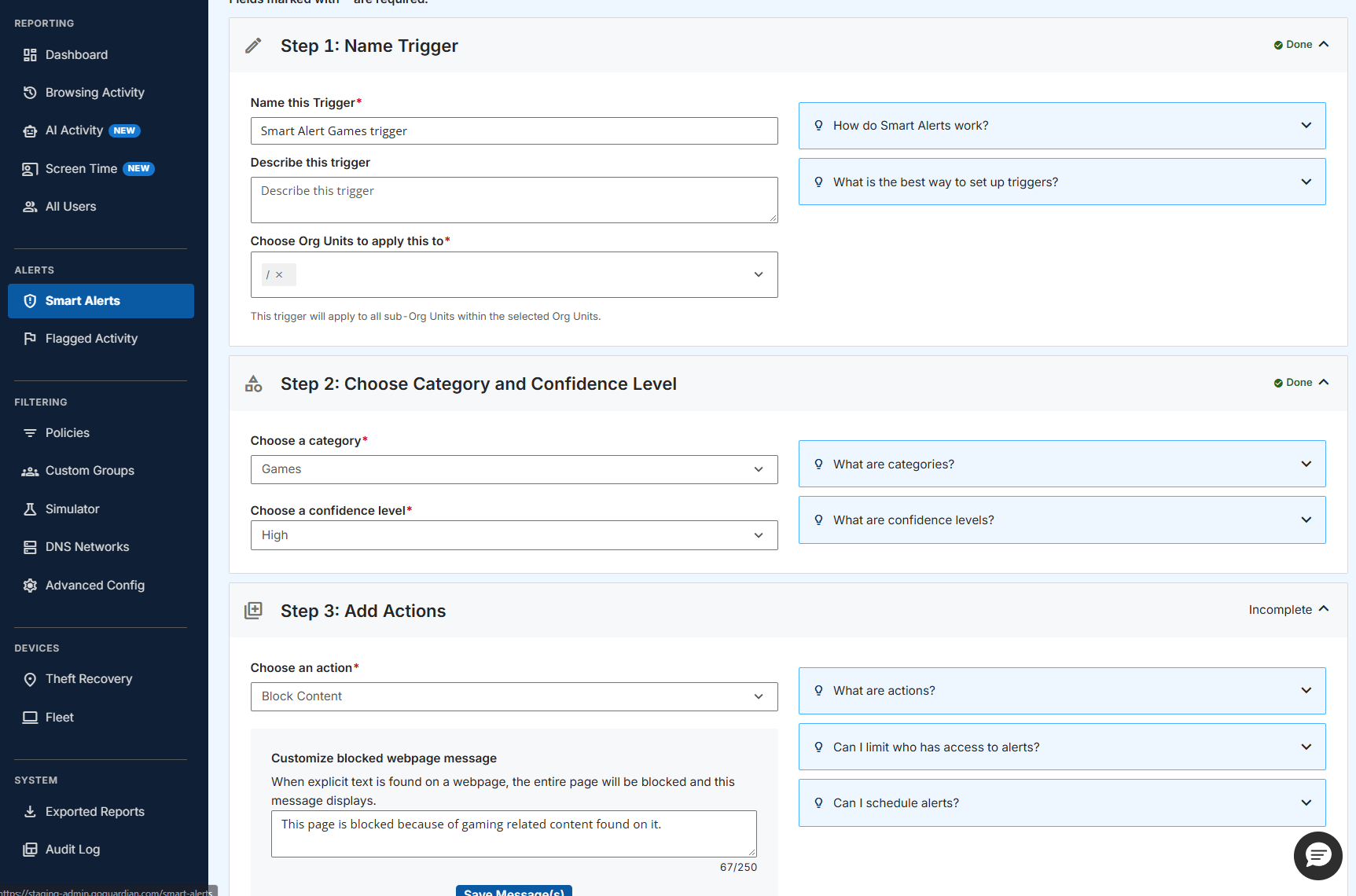 8. Click **Save** to activate the Trigger.
9. Verify the result: The new Trigger appears in the Triggers list with the selected OUs, **Games** category, and confidence level. Its configured Actions run when a Smart Alert matches those conditions.
## Review Games Alerts
1. Go to the Smart Alerts table.
2. In the **Category** filter, select **Games**.
8. Click **Save** to activate the Trigger.
9. Verify the result: The new Trigger appears in the Triggers list with the selected OUs, **Games** category, and confidence level. Its configured Actions run when a Smart Alert matches those conditions.
## Review Games Alerts
1. Go to the Smart Alerts table.
2. In the **Category** filter, select **Games**.
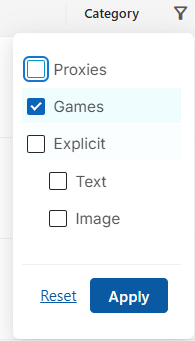 3. Click **Apply**.
4. Open a Games alert to review the student, website, timestamp, and other available details.
3. Click **Apply**.
4. Open a Games alert to review the student, website, timestamp, and other available details.
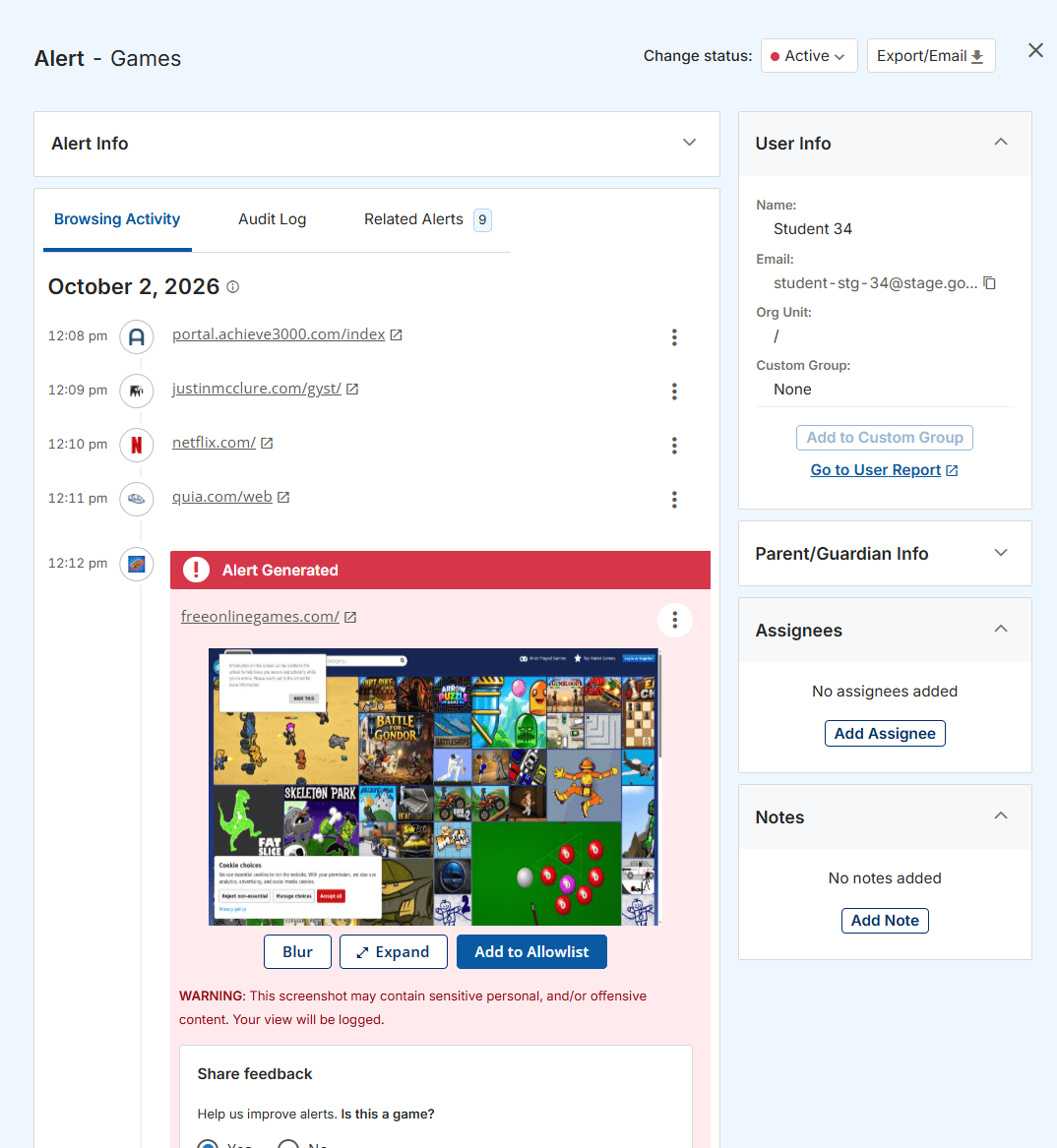 5. Under **Share feedback**, indicate whether the detected content is a game.
Smart Alerts are generated even when no Triggers are configured. To automatically block detected gaming content, configure a Games Trigger with the **Block Content** Action.
## Resources
* [Configure Smart Alert Triggers](/products/admin/configure-smart-alert-triggers)
* [Block Proxy Sites with Smart Alerts](/products/admin/smart-alerts-for-proxies)
This documentation is built and hosted on [Mintlify](https://mintlify.com), a developer documentation platform.
5. Under **Share feedback**, indicate whether the detected content is a game.
Smart Alerts are generated even when no Triggers are configured. To automatically block detected gaming content, configure a Games Trigger with the **Block Content** Action.
## Resources
* [Configure Smart Alert Triggers](/products/admin/configure-smart-alert-triggers)
* [Block Proxy Sites with Smart Alerts](/products/admin/smart-alerts-for-proxies)
This documentation is built and hosted on [Mintlify](https://mintlify.com), a developer documentation platform.