> ## Documentation Index
> Fetch the complete documentation index at: https://docs.goguardian.com/llms.txt
> Use this file to discover all available pages before exploring further.
# Smart Alerts Image Filtering
> How the Smart Alerts Explicit category flags and blocks sexually explicit images, how to enable image filtering on a Trigger, and how alerts appear to administrators.
The Smart Alerts Explicit category can automatically flag and block images containing sexually explicit content as students browse the web.
Key behavior to keep in mind:
* Images may take a few seconds to process, so they may not be blocked immediately.
* Image filtering does not scan websites GoGuardian categorizes as "Appropriate" or "Educational," including sites such as Google, Wikipedia, and YouTube.
* Image filtering does not run unless a Smart Alert Trigger is configured for the user's org unit.
## Enable Image Filtering
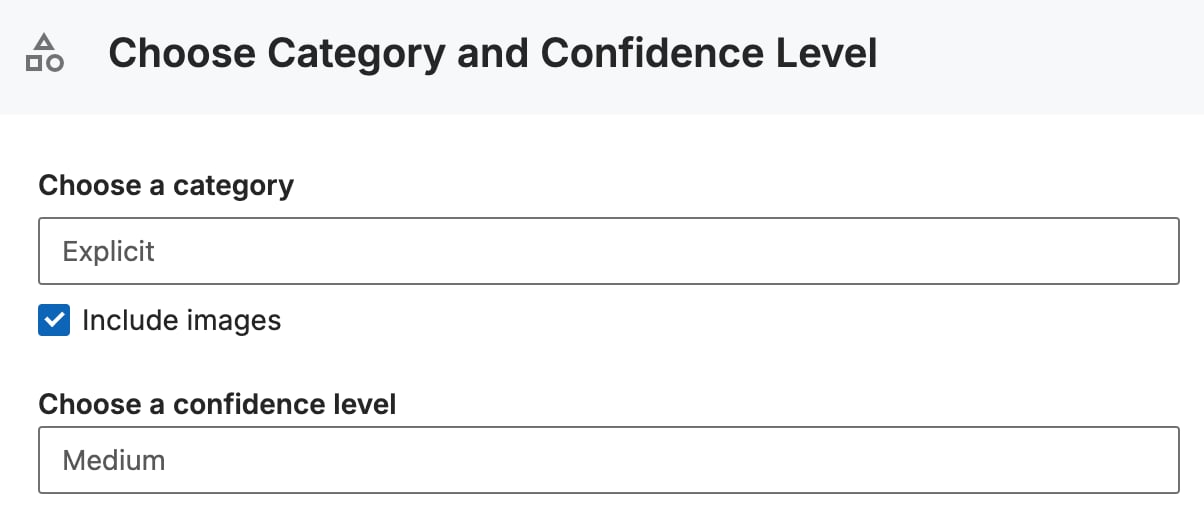
To enable image filtering on an existing Trigger, click **Edit** on the Trigger, then enable the **Include images** toggle under **Choose Category and Confidence Level**. To create a new Trigger, see [Configure Smart Alert Triggers](/products/admin/configure-smart-alert-triggers).
### Customize the block page message (optional)
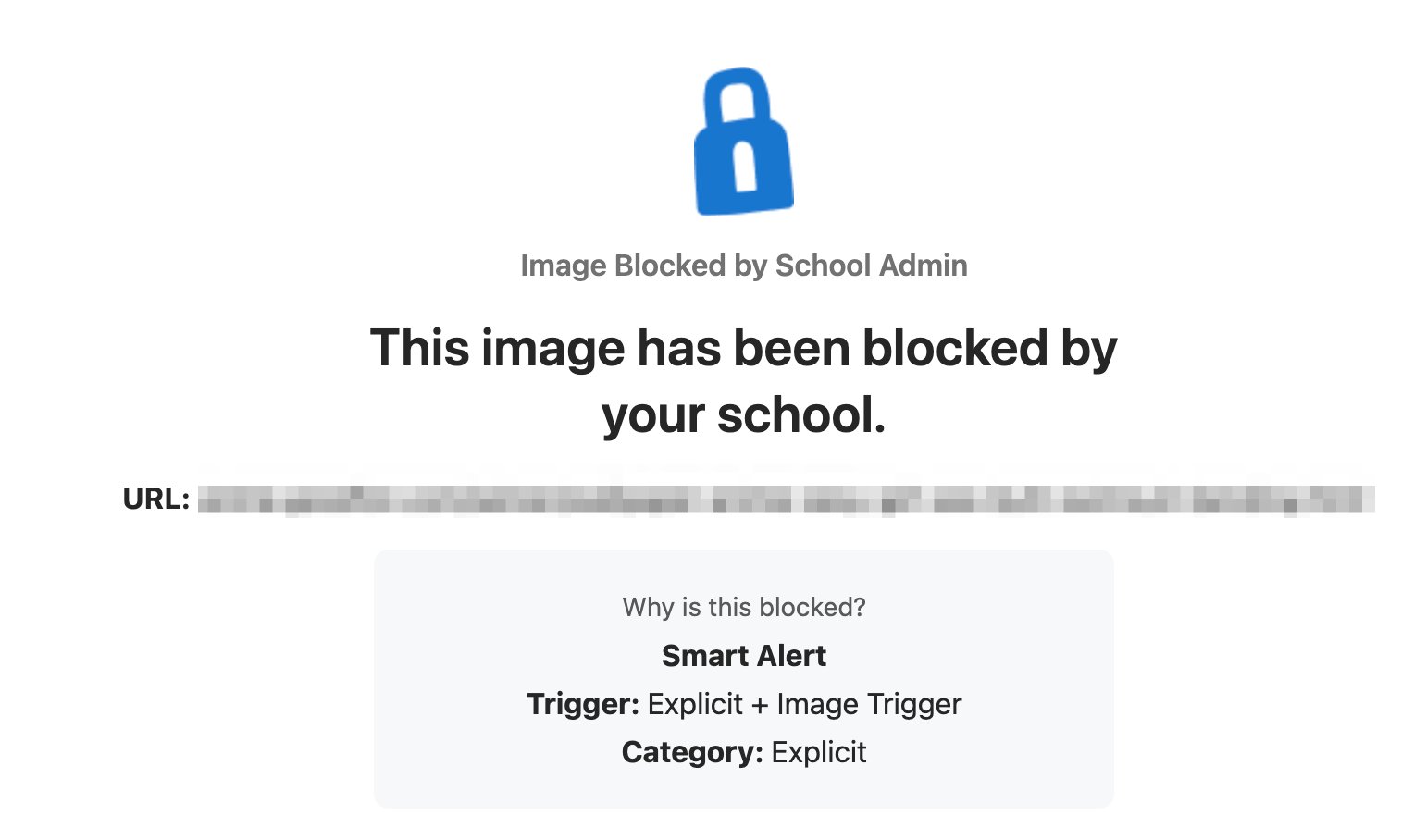
For Triggers that include the Block Content action, you can customize the block page text students see for blocked pages and blocked images separately.

 ## Review Alerts as an Administrator
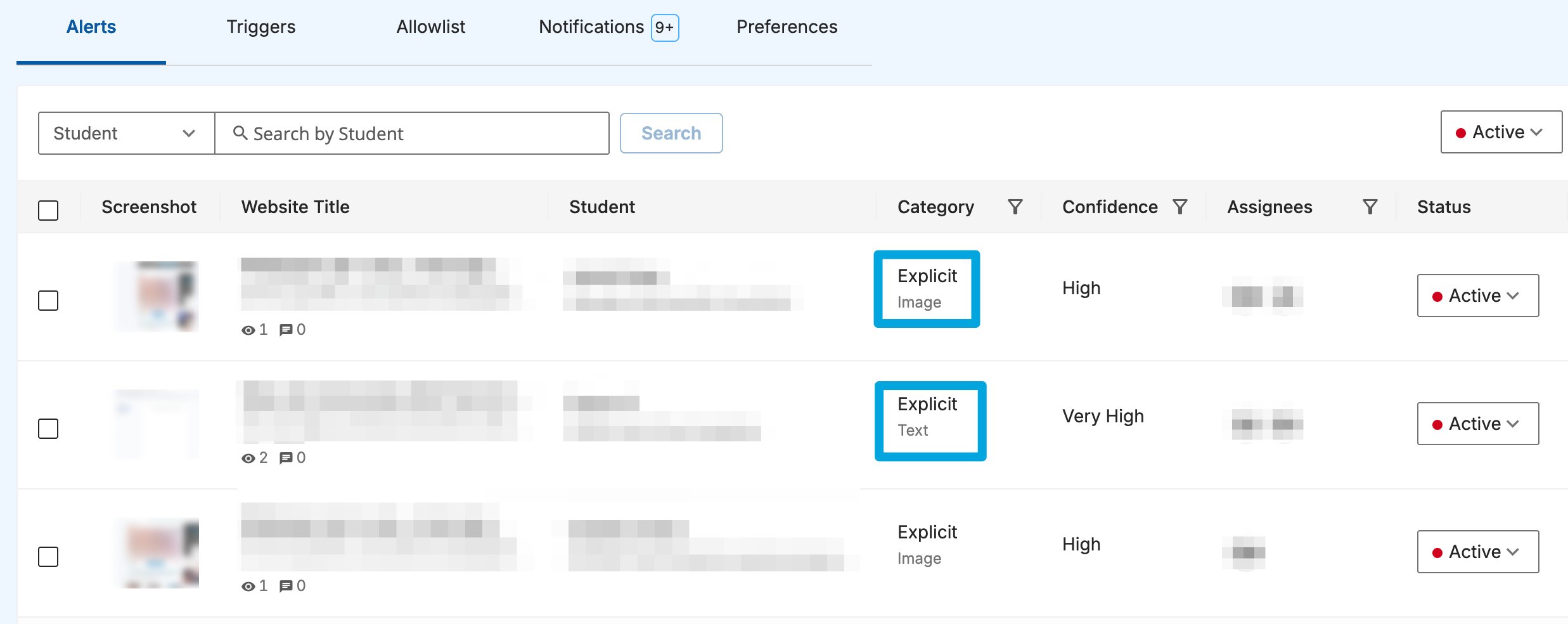
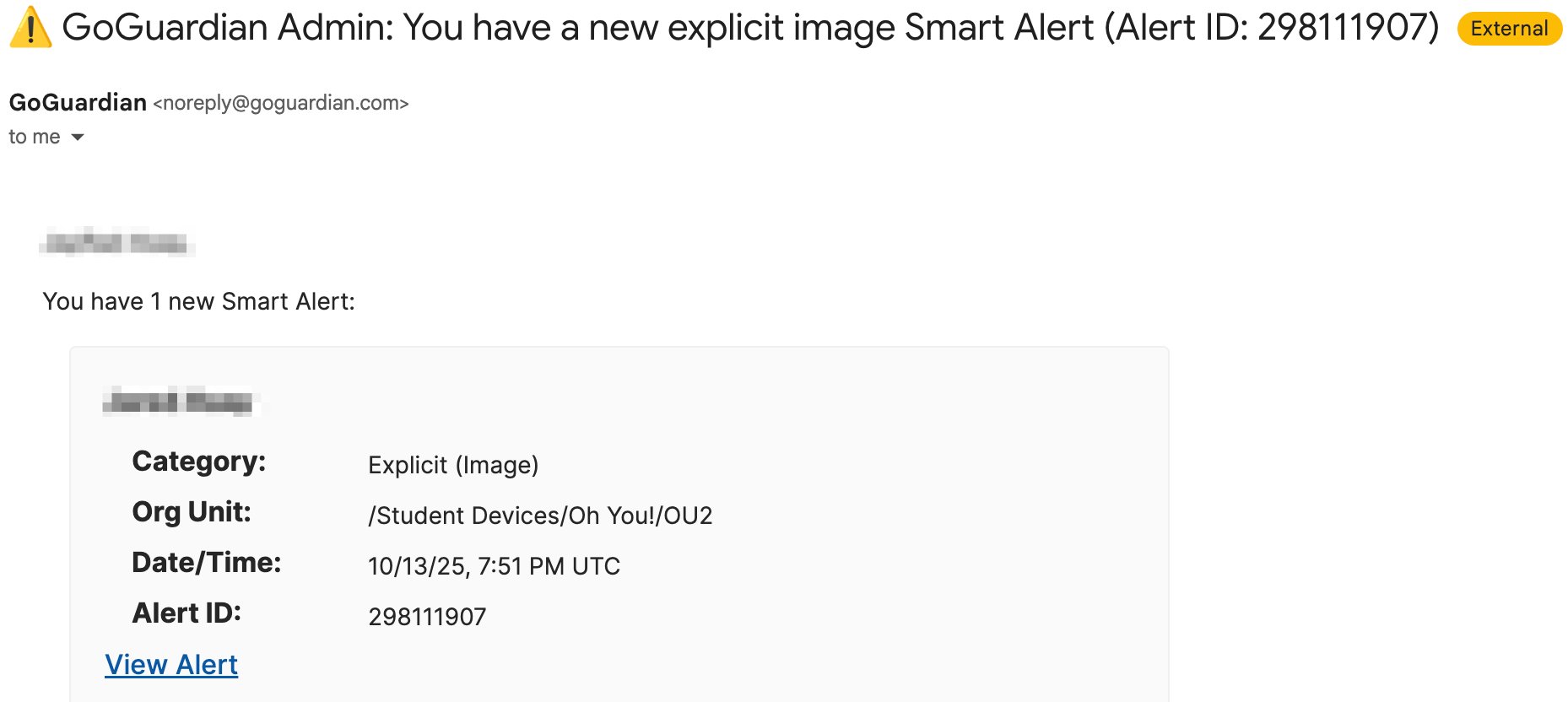
Once enabled, Smart Alerts containing explicit images appear in the Alerts section of the Smart Alerts page as they are generated. Explicit alerts carry a sub-category of "Image" or "Text" depending on the source, and you can filter alert types using the **Category** menu.
## Review Alerts as an Administrator
Once enabled, Smart Alerts containing explicit images appear in the Alerts section of the Smart Alerts page as they are generated. Explicit alerts carry a sub-category of "Image" or "Text" depending on the source, and you can filter alert types using the **Category** menu.