> ## Documentation Index
> Fetch the complete documentation index at: https://docs.goguardian.com/llms.txt
> Use this file to discover all available pages before exploring further.
# Compare Smart Alerts and Flagged Activity
> How Smart Alerts and Flagged Activity differ in GoGuardian Admin: how each detects content and what options each gives you for responding to alerts.
Use Flagged Activity and Smart Alerts (GoGuardian Admin's two alert systems) to identify concerning web content and respond automatically. Both scan page content and generate notifications, but they detect content differently and offer different response options.
## Understand Flagged Activity
Flagged Activity generates an alert when a word on a page's full HTML source matches an entry on your Flagged Terms list. The system scans the entire page source, not just visible text, which means a term can appear in metadata or code comments without the student ever seeing it. Flagged Activity alerts are never blocked.
Terms appearing in a Flagged Activity alert were not necessarily searched for or seen by the student. The alert reflects what appeared anywhere in the page source.
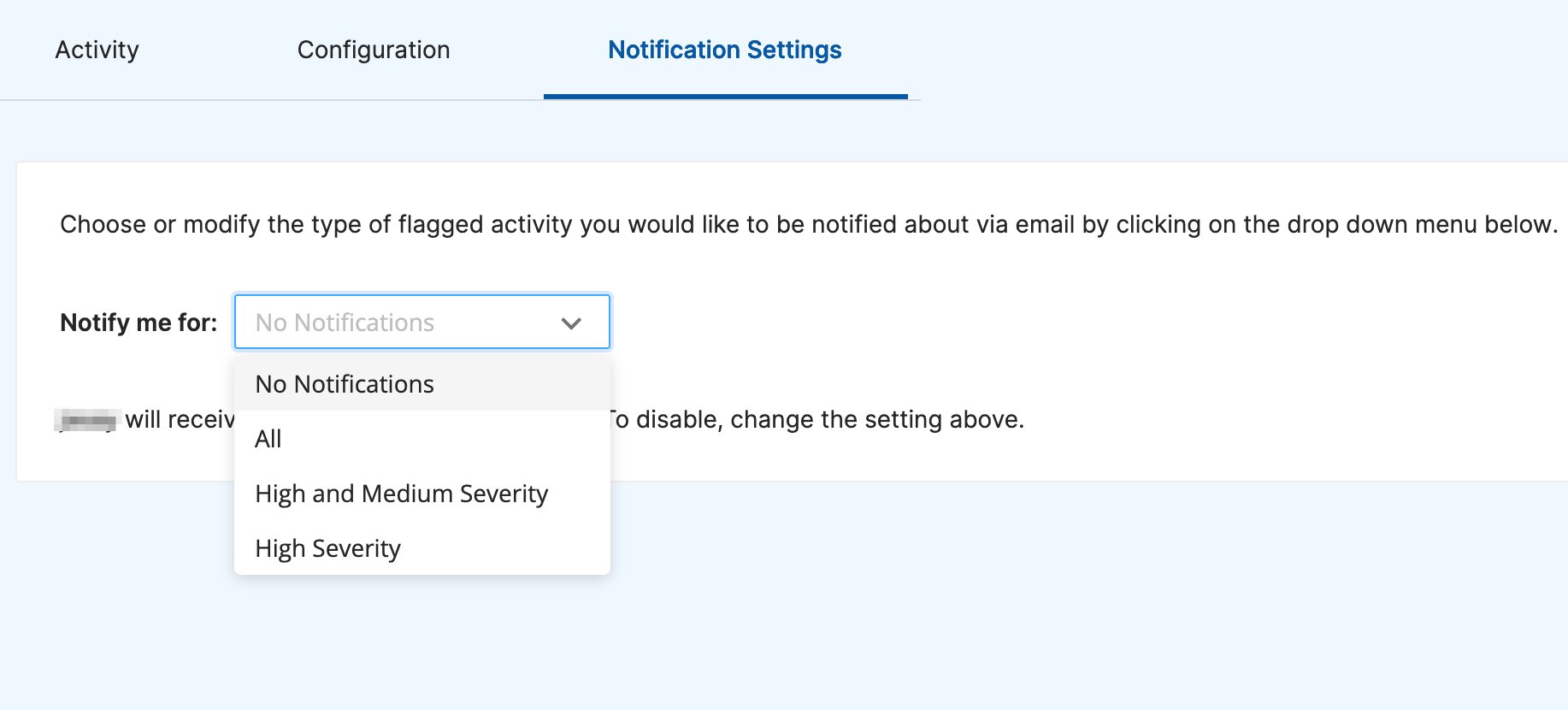
Each administrator controls their own notification settings for severity level. Options are: All, High and Medium Severity, or High Severity only. Severity levels are set per term in the Flagged Activity Configuration page in GoGuardian Admin.
Some Flagged Activity alert URLs may require sign-in to view (such as a student's email inbox) and may be inaccessible to the reviewing administrator. Use the Hostname dropdown in the Flagged Activity alert list to follow the link and review the page that generated the alert when direct access is available.

 ## Understand Smart Alerts
Smart Alerts uses GoGuardian's prediction model to determine whether a page contains explicit sexual or adult content, or signs of a web proxy, based on the page's text. Unlike Flagged Activity, Smart Alerts does not match specific terms. It analyzes the full content context. An alert is generated when the model reaches 50% confidence or higher.
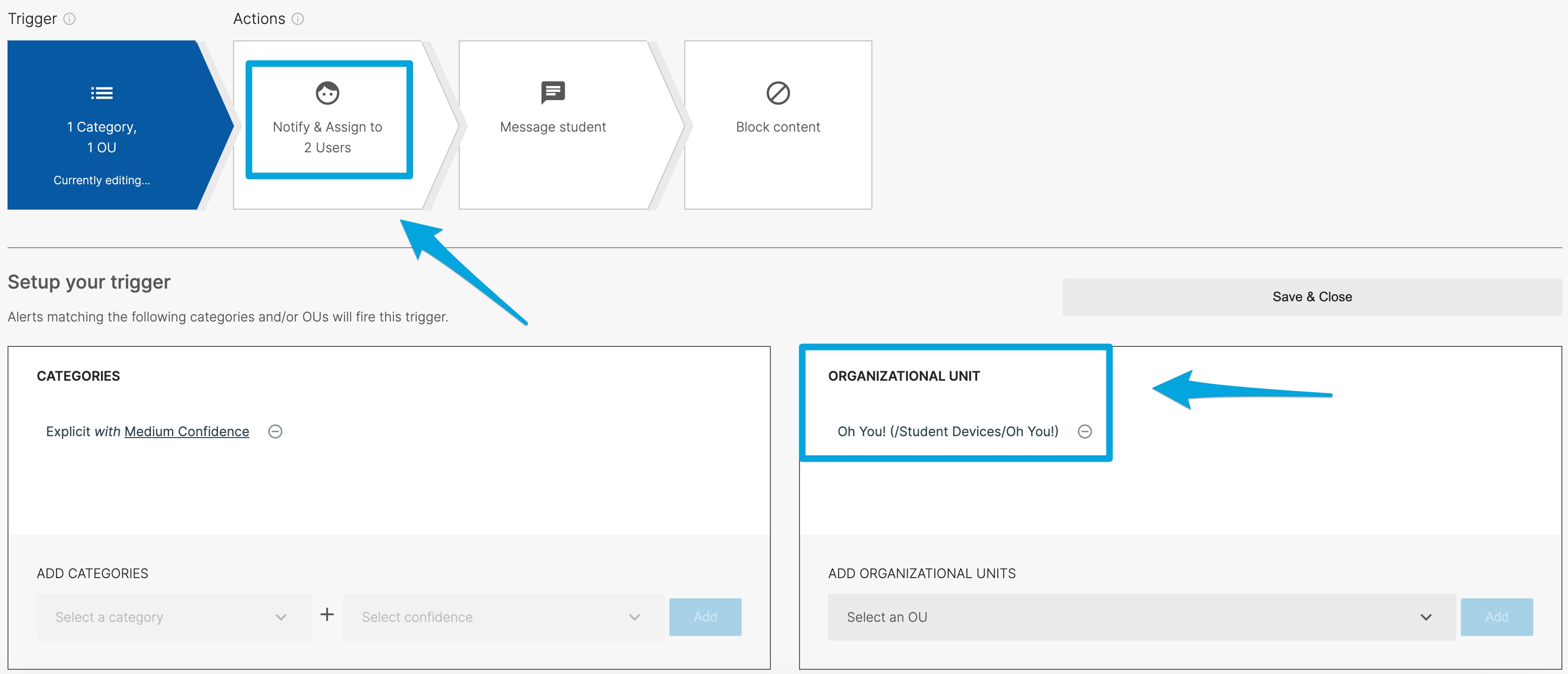
Smart Alerts Triggers extend the system's response capabilities. When a Smart Alert meets a Trigger's confidence threshold and matches a student's OU, the Trigger can automatically block content, notify administrators, message the student, or add the student to a Custom Group.
## Understand Smart Alerts
Smart Alerts uses GoGuardian's prediction model to determine whether a page contains explicit sexual or adult content, or signs of a web proxy, based on the page's text. Unlike Flagged Activity, Smart Alerts does not match specific terms. It analyzes the full content context. An alert is generated when the model reaches 50% confidence or higher.
Smart Alerts Triggers extend the system's response capabilities. When a Smart Alert meets a Trigger's confidence threshold and matches a student's OU, the Trigger can automatically block content, notify administrators, message the student, or add the student to a Custom Group.
 ## Compare the Two Systems
| | Flagged Activity | Smart Alerts |
| -------------------- | ----------------------------------------------------- | -------------------------------------------------------- |
| Detection method | Keyword matching against your Flagged Terms list | Algorithmic analysis of page text |
| Content covered | Any term you define | Explicit (sexual/adult) content and web proxies |
| Blocks content | No (generates alerts only) | Yes, when a Trigger with Block page action is configured |
| Default state | Off (requires adding terms to the Flagged Terms list) | On (Explicit and Proxy alerts are enabled by default) |
| Notification options | Per-severity level per administrator | Via Trigger Notify & Assign action |
## Resources
Review Smart Alert categories, the alert list, and notification preferences.
Set up automated responses to Smart Alerts by OU and confidence threshold.
## Compare the Two Systems
| | Flagged Activity | Smart Alerts |
| -------------------- | ----------------------------------------------------- | -------------------------------------------------------- |
| Detection method | Keyword matching against your Flagged Terms list | Algorithmic analysis of page text |
| Content covered | Any term you define | Explicit (sexual/adult) content and web proxies |
| Blocks content | No (generates alerts only) | Yes, when a Trigger with Block page action is configured |
| Default state | Off (requires adding terms to the Flagged Terms list) | On (Explicit and Proxy alerts are enabled by default) |
| Notification options | Per-severity level per administrator | Via Trigger Notify & Assign action |
## Resources
Review Smart Alert categories, the alert list, and notification preferences.
Set up automated responses to Smart Alerts by OU and confidence threshold.