> ## Documentation Index
> Fetch the complete documentation index at: https://docs.goguardian.com/llms.txt
> Use this file to discover all available pages before exploring further.
# Sync OUs from Google Admin Console
> Import and sync organizational units from Google Admin Console into GoGuardian Admin to map students to OUs for filtering, alerts, and Beacon deployments.
Organizational units (OUs) from Google Admin Console map students to groups that GoGuardian Admin uses for filtering policies, Smart Alert Triggers, and GoGuardian Beacon deployments. This article covers how to import OUs, how automatic nightly syncs work, how to force a sync, and what to do when your OU structure changes.
Importing OUs does not import student accounts. Student accounts are created automatically when students sign in with the GoGuardian extension or The GoGuardian App installed on their device.
## Understand What OUs Are Used For
Once imported, OUs are the organizational layer that drives three core GoGuardian Admin features:
* **Filtering policies**: Assign different filtering rules to different student groups based on OU assignment.
* **Smart Alert Triggers**: Scope Triggers to specific OUs so automated responses apply only to the right students.
* **GoGuardian Beacon deployments**: Restrict Beacon alert routing and coverage to defined OU groups.
GoGuardian Admin users without OU access to a student's assigned OU cannot view that student's information or edit policies assigned to that OU. GoGuardian Teacher users cannot see students in their classroom if the teacher's OU access does not match the student's assigned OU. For details on OU access and roles, see [Roles and Permissions](/products/org-management/user-roles-and-permissions).
## Review Google Account Requirements
The following permissions and conditions are required before you can import or sync OUs:
* **Admin API Privileges**, including:
* Domain Management
* Organizational Units (create, read, update, delete)
* Users (create, read, update, delete)
* At least 1 enrolled Chrome device in your domain
* At least 1 sub-OU in Google Admin Console
## Import OUs from Org Management
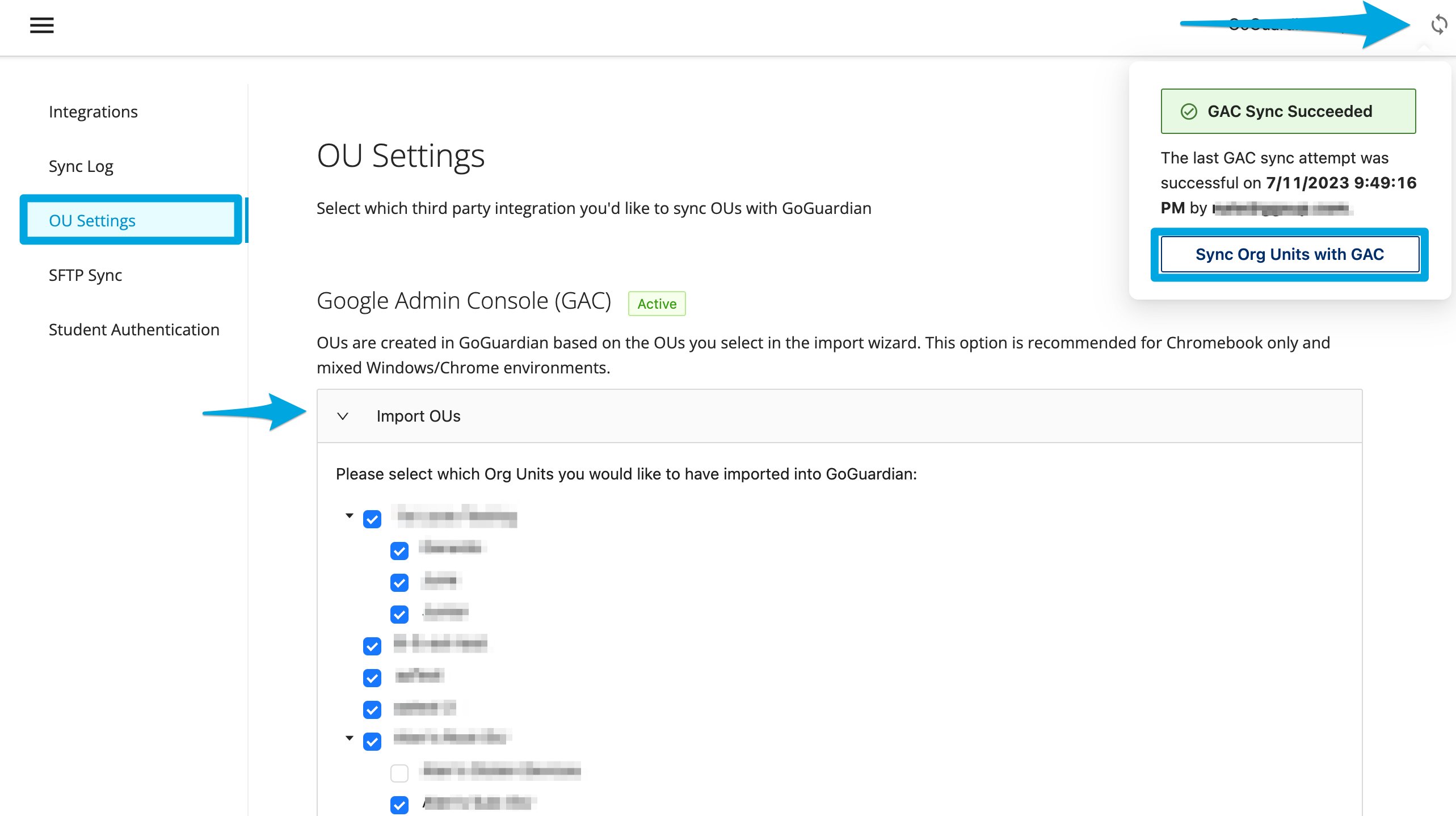
1. Go to [manage.goguardian.com](https://manage.goguardian.com).
2. Click the **Sync OUs** icon (two arrows forming a circle, to the left of the profile avatar) at the top of the page.
3. When prompted, select your Admin-level Google Admin Console account.
4. Choose the OUs to import into GoGuardian Admin. Select all OUs and sub-OUs you want GoGuardian Admin to recognize, not only new ones being added. OUs omitted from this step are removed from GoGuardian Admin's OU structure.
5. Click **Import**.
6. The selected OUs appear in the **OU Settings** tab. Confirm that all expected OUs and sub-OUs are listed. GoGuardian Admin is now updated to reflect your Google Admin Console OU structure.
After completing a manual OU sync, review the **Filtering > Policies** page in GoGuardian Admin and reapply any policies that may have been removed during the OU restructuring.
 ## Import OUs from GoGuardian Admin
1. Go to [admin.goguardian.com](https://admin.goguardian.com).
2. Click **Sync Org Units with GAC** at the top of the page.
3. When prompted, select your Admin-level Google Admin Console account.
4. Choose the OUs to import. Select all OUs and sub-OUs you want GoGuardian Admin to recognize, not only new ones.
5. Click **Import**.
## Import OUs from GoGuardian Admin
1. Go to [admin.goguardian.com](https://admin.goguardian.com).
2. Click **Sync Org Units with GAC** at the top of the page.
3. When prompted, select your Admin-level Google Admin Console account.
4. Choose the OUs to import. Select all OUs and sub-OUs you want GoGuardian Admin to recognize, not only new ones.
5. Click **Import**.
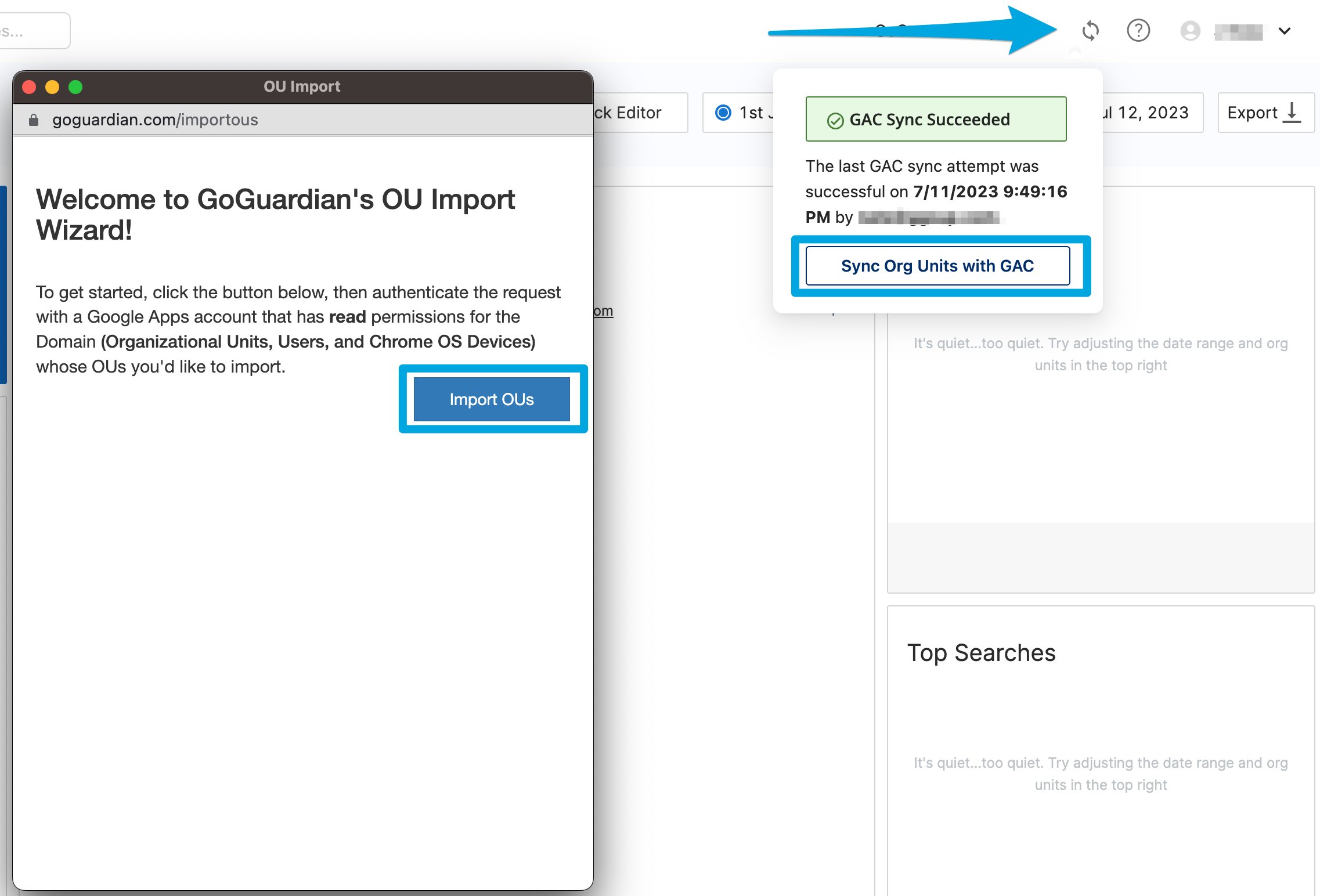 6. The selected OUs are now active in GoGuardian Admin. Review the **Filtering > Policies** page and reapply any policies that may have been removed.
## Adjust Active OUs in OU Settings
After the initial import, administrators can change which OUs are active at any time without running a full sync. This is useful when you want to narrow or expand the set of OUs that GoGuardian Admin recognizes, without modifying your Google Admin Console structure.
1. Go to [manage.goguardian.com](https://manage.goguardian.com) and open the **OU Settings** tab.
2. Check the box next to any OU you want to activate. Uncheck the box next to any OU you want to deactivate. Sub-OUs can be toggled independently of their parent OUs.
3. Click **Save**. A confirmation popup appears. Confirm the action for the changes to take effect.
4. Confirm that the OU list reflects your intended selections. Review any filtering policies, Smart Alert Triggers, or GoGuardian Beacon deployments that reference OUs you deactivated to make sure they are still correctly scoped.
Deactivating an OU removes it from GoGuardian Admin's active OU structure but does not delete it from Google Admin Console. Reactivate it at any time by checking its box and saving again.
## Understand Automatic Nightly Syncs
GoGuardian Admin automatically syncs your imported OUs once per day. Changes made in Google Admin Console, including students moving between OUs or new students added to an imported OU, are reflected in GoGuardian Admin by the following morning.
Automatic syncs update student-to-OU assignments within the OUs you have already imported. They do not add new OUs that were not selected during a manual import. For structural changes such as new OUs, renamed OUs, or deleted OUs, run a manual import.
## Troubleshoot a Sync Failure
If an OU sync fails, or if a student appears in the wrong OU after a sync, see [Troubleshoot Google OU Sync](/products/admin/troubleshoot-google-ou-sync) for causes and resolution steps.
## Manage OU Structure Changes
When your organization renames, adds, or deletes OUs in Google Admin Console, GoGuardian Admin does not pick up those structural changes automatically. Run a manual import from either GoGuardian Admin or Org Management to reflect the new structure.
After a structural reimport, review and update the following configurations to confirm they are still correctly assigned:
* **Filtering policies** in GoGuardian Admin: confirm policies are assigned to the correct OUs after any renaming or restructuring.
* **Smart Alert Triggers**: confirm each Trigger is scoped to the correct OUs.
* **GoGuardian Beacon deployments** (if applicable): confirm Beacon deployments are still associated with the intended OUs.
## Resources
Review how OU access interacts with GoGuardian Admin user roles and permissions.
Scope Smart Alert Triggers to specific OUs after your OU structure is imported.
6. The selected OUs are now active in GoGuardian Admin. Review the **Filtering > Policies** page and reapply any policies that may have been removed.
## Adjust Active OUs in OU Settings
After the initial import, administrators can change which OUs are active at any time without running a full sync. This is useful when you want to narrow or expand the set of OUs that GoGuardian Admin recognizes, without modifying your Google Admin Console structure.
1. Go to [manage.goguardian.com](https://manage.goguardian.com) and open the **OU Settings** tab.
2. Check the box next to any OU you want to activate. Uncheck the box next to any OU you want to deactivate. Sub-OUs can be toggled independently of their parent OUs.
3. Click **Save**. A confirmation popup appears. Confirm the action for the changes to take effect.
4. Confirm that the OU list reflects your intended selections. Review any filtering policies, Smart Alert Triggers, or GoGuardian Beacon deployments that reference OUs you deactivated to make sure they are still correctly scoped.
Deactivating an OU removes it from GoGuardian Admin's active OU structure but does not delete it from Google Admin Console. Reactivate it at any time by checking its box and saving again.
## Understand Automatic Nightly Syncs
GoGuardian Admin automatically syncs your imported OUs once per day. Changes made in Google Admin Console, including students moving between OUs or new students added to an imported OU, are reflected in GoGuardian Admin by the following morning.
Automatic syncs update student-to-OU assignments within the OUs you have already imported. They do not add new OUs that were not selected during a manual import. For structural changes such as new OUs, renamed OUs, or deleted OUs, run a manual import.
## Troubleshoot a Sync Failure
If an OU sync fails, or if a student appears in the wrong OU after a sync, see [Troubleshoot Google OU Sync](/products/admin/troubleshoot-google-ou-sync) for causes and resolution steps.
## Manage OU Structure Changes
When your organization renames, adds, or deletes OUs in Google Admin Console, GoGuardian Admin does not pick up those structural changes automatically. Run a manual import from either GoGuardian Admin or Org Management to reflect the new structure.
After a structural reimport, review and update the following configurations to confirm they are still correctly assigned:
* **Filtering policies** in GoGuardian Admin: confirm policies are assigned to the correct OUs after any renaming or restructuring.
* **Smart Alert Triggers**: confirm each Trigger is scoped to the correct OUs.
* **GoGuardian Beacon deployments** (if applicable): confirm Beacon deployments are still associated with the intended OUs.
## Resources
Review how OU access interacts with GoGuardian Admin user roles and permissions.
Scope Smart Alert Triggers to specific OUs after your OU structure is imported.