> ## Documentation Index
> Fetch the complete documentation index at: https://docs.goguardian.com/llms.txt
> Use this file to discover all available pages before exploring further.
# iFrame Filtering
> Identify and resolve blocked iFrame content in GoGuardian Admin when an embedded resource is blocked but the parent page is allowed.
Use this page when a page loads correctly but an embedded resource inside it is blocked, resulting in a partial block page.
 This article covers iFrame-specific filtering only. For a broader site block that affects the entire page, see [A Site Is Blocked Unexpectedly](/products/admin/site-blocked-unexpectedly).
## Understand iFrame Filtering
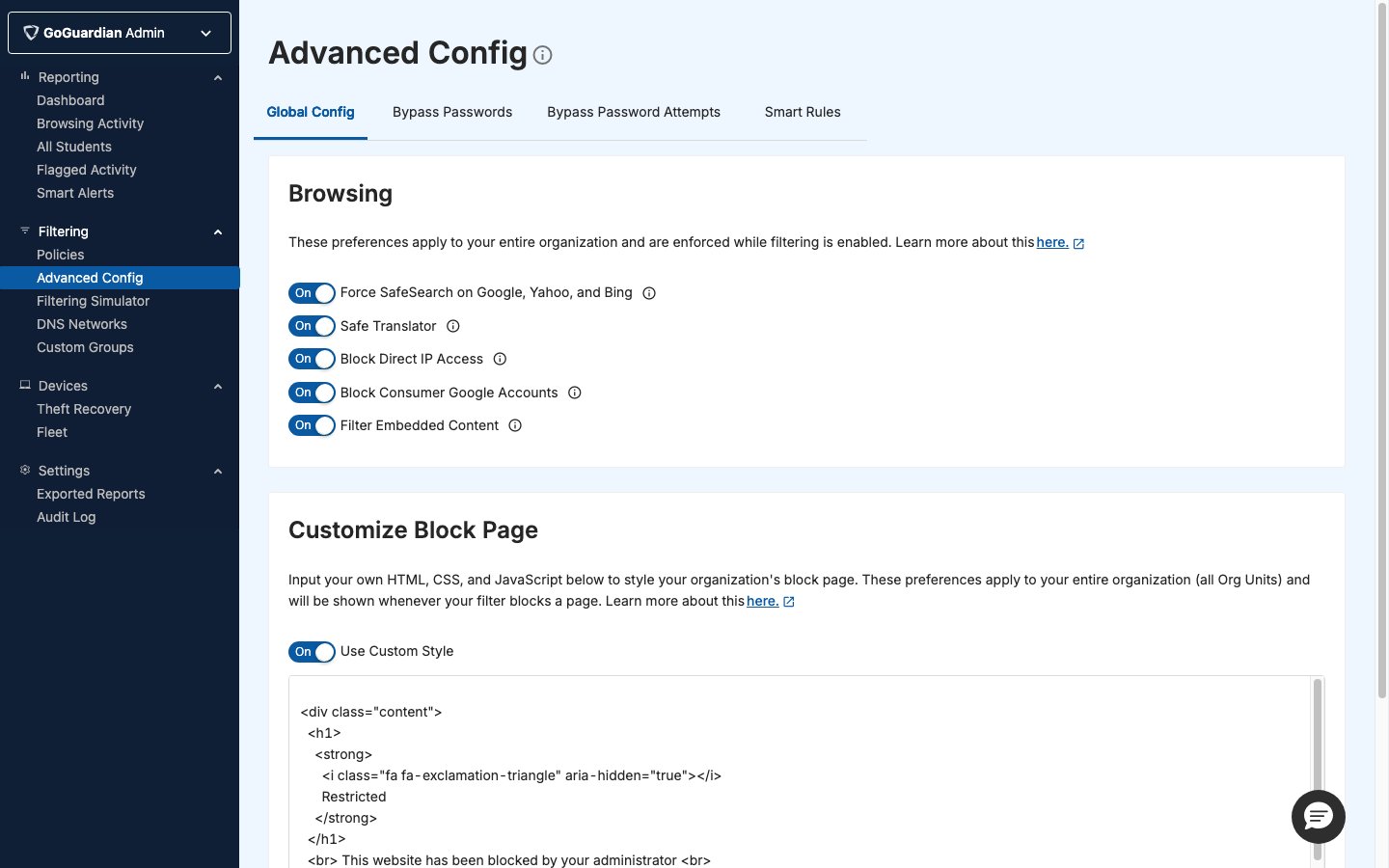
iFrame filtering is an optional setting in the **Advanced Config** section of GoGuardian Admin. When turned on, GoGuardian applies each user's policy filtering rules to embedded iFrame content on any webpage, not only to the parent page URL.
A student may see a partial block page: the surrounding page loads, but the embedded resource inside it is blocked. The blocked iFrame URL does not appear in a student's Detailed Browsing History in GoGuardian Admin.
The **Why was this blocked?** feature does not support iFrame filtering blocks. The two methods below are the supported ways to identify the blocked iFrame URL.
## Identify the Blocked iFrame URL
Because iFrame blocks do not appear in Detailed Browsing History, you must use one of the two methods below to find the source URL.
### Method 1: Use the Browser Inspect Tool
This method lets you find the iFrame source URL directly from the browser without requiring any student interaction.
1. Right-click the blocked area on the page and select **Inspect** from the context menu. The browser developer tools panel opens.
2. Select the **Elements** tab in the developer tools panel. Press **Ctrl+F** (Windows or ChromeOS) or **Command+F** (Mac) to open the search field, then enter `iframe` in the search field.
3. Look for a result that begins with `iframe src=` and includes an HTTPS web address. Hover over that result in the Elements tab to highlight the blocked area on the page and confirm you have found the correct element.
\ Confirm whether the Elements tab label and search shortcut appear exactly as described in the GoGuardian Admin context or in a standard Chromium browser.
4. Copy the URL from the `iframe src=` value. Go to GoGuardian Admin, open the policy assigned to the affected user, and add the iFrame source URL or domain as an allow rule. See [Block and Allow Websites](/products/admin/block-and-allow-websites) for the full steps.
### Method 2: Use the Bypass Password Attempts Log
This method uses an intentional failed bypass attempt to log the blocked iFrame URL in GoGuardian Admin. Use it when direct browser inspection is not practical.
1. Have the student navigate to the page with the blocked iFrame content. Ask the student to click the **Bypass** button on the block page and enter any password, then click **Submit**. The password does not need to be correct. The goal is only to log the blocked URL.
2. Go to [GoGuardian Admin](https://admin.goguardian.com) and navigate to **Advanced Config**, then select **Bypass Password Attempts**. Find the student's entry in the list.
3. Copy the URL from the bypass attempt record. Open the policy assigned to the affected student and add the URL or domain as an allow rule. See [Block and Allow Websites](/products/admin/block-and-allow-websites) for the full steps.
The bypass password method works even when the Bypass Password feature is not formally configured in your district. Any password entry logs the attempt and the URL.
## Contact Support
If neither method surfaces the blocked URL, or if the block persists after adding the allow rule, contact the GoGuardian support team. Include the full page URL, the affected student's name or email address, and the policy name.
[Contact GoGuardian Support](https://support.goguardian.com/s/contactsupport)
## Resources
Use this page for blocks affecting the entire page, not just embedded content.
Add an allow rule for the iFrame source domain after you identify it.
This article covers iFrame-specific filtering only. For a broader site block that affects the entire page, see [A Site Is Blocked Unexpectedly](/products/admin/site-blocked-unexpectedly).
## Understand iFrame Filtering
iFrame filtering is an optional setting in the **Advanced Config** section of GoGuardian Admin. When turned on, GoGuardian applies each user's policy filtering rules to embedded iFrame content on any webpage, not only to the parent page URL.
A student may see a partial block page: the surrounding page loads, but the embedded resource inside it is blocked. The blocked iFrame URL does not appear in a student's Detailed Browsing History in GoGuardian Admin.
The **Why was this blocked?** feature does not support iFrame filtering blocks. The two methods below are the supported ways to identify the blocked iFrame URL.
## Identify the Blocked iFrame URL
Because iFrame blocks do not appear in Detailed Browsing History, you must use one of the two methods below to find the source URL.
### Method 1: Use the Browser Inspect Tool
This method lets you find the iFrame source URL directly from the browser without requiring any student interaction.
1. Right-click the blocked area on the page and select **Inspect** from the context menu. The browser developer tools panel opens.
2. Select the **Elements** tab in the developer tools panel. Press **Ctrl+F** (Windows or ChromeOS) or **Command+F** (Mac) to open the search field, then enter `iframe` in the search field.
3. Look for a result that begins with `iframe src=` and includes an HTTPS web address. Hover over that result in the Elements tab to highlight the blocked area on the page and confirm you have found the correct element.
\ Confirm whether the Elements tab label and search shortcut appear exactly as described in the GoGuardian Admin context or in a standard Chromium browser.
4. Copy the URL from the `iframe src=` value. Go to GoGuardian Admin, open the policy assigned to the affected user, and add the iFrame source URL or domain as an allow rule. See [Block and Allow Websites](/products/admin/block-and-allow-websites) for the full steps.
### Method 2: Use the Bypass Password Attempts Log
This method uses an intentional failed bypass attempt to log the blocked iFrame URL in GoGuardian Admin. Use it when direct browser inspection is not practical.
1. Have the student navigate to the page with the blocked iFrame content. Ask the student to click the **Bypass** button on the block page and enter any password, then click **Submit**. The password does not need to be correct. The goal is only to log the blocked URL.
2. Go to [GoGuardian Admin](https://admin.goguardian.com) and navigate to **Advanced Config**, then select **Bypass Password Attempts**. Find the student's entry in the list.
3. Copy the URL from the bypass attempt record. Open the policy assigned to the affected student and add the URL or domain as an allow rule. See [Block and Allow Websites](/products/admin/block-and-allow-websites) for the full steps.
The bypass password method works even when the Bypass Password feature is not formally configured in your district. Any password entry logs the attempt and the URL.
## Contact Support
If neither method surfaces the blocked URL, or if the block persists after adding the allow rule, contact the GoGuardian support team. Include the full page URL, the affected student's name or email address, and the policy name.
[Contact GoGuardian Support](https://support.goguardian.com/s/contactsupport)
## Resources
Use this page for blocks affecting the entire page, not just embedded content.
Add an allow rule for the iFrame source domain after you identify it.