> ## Documentation Index
> Fetch the complete documentation index at: https://docs.goguardian.com/llms.txt
> Use this file to discover all available pages before exploring further.
# Update Multiple Policies with Quick Editor
> Add website URL allow and block rules to 1 or more GoGuardian Admin filtering policies from a single workspace.
Use Quick Editor to prepare website URL allow and block rules, then add them to 1 or more filtering policies in GoGuardian Admin. Use it when the same website rule belongs in several policies or when you want to collect URLs from Browsing Activity before applying them.
You need **Filter & Monitor** or **Full Access** permissions. You can only select policies assigned to organizational units within your Admin OU access.
Quick Editor supports website URLs only. Use the policy editor or CSV import for other supported rule types.
## Add URLs Directly
1. In GoGuardian Admin, click **Quick Editor** near the top of the page.
2. Click **+ Enter a URL**.
3. Enter the website URL.
4. Repeat these steps for each URL you want to add.
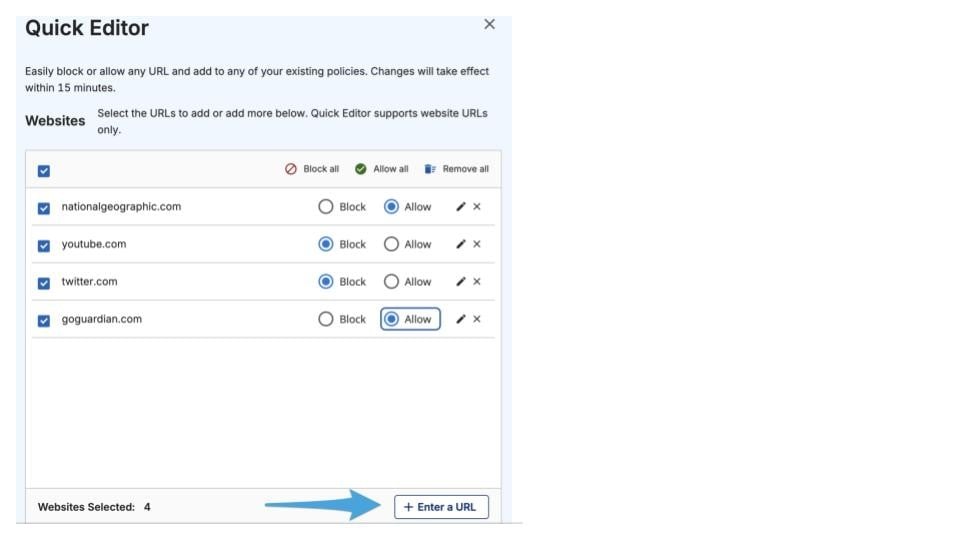 Before applying the rules, review [how GoGuardian Admin interprets URL entries](/products/admin/block-and-allow-websites#understand-url-rule-basics). A domain rule includes paths under that domain but does not automatically include its subdomains.
### Add URLs from Browsing Activity
1. Go to [Browsing Activity](https://admin.goguardian.com/activity) in GoGuardian Admin.
2. Find the website activity you want to use.
3. Open the activity details, then click **Add to Quick Editor** for the URL.
Before applying the rules, review [how GoGuardian Admin interprets URL entries](/products/admin/block-and-allow-websites#understand-url-rule-basics). A domain rule includes paths under that domain but does not automatically include its subdomains.
### Add URLs from Browsing Activity
1. Go to [Browsing Activity](https://admin.goguardian.com/activity) in GoGuardian Admin.
2. Find the website activity you want to use.
3. Open the activity details, then click **Add to Quick Editor** for the URL.
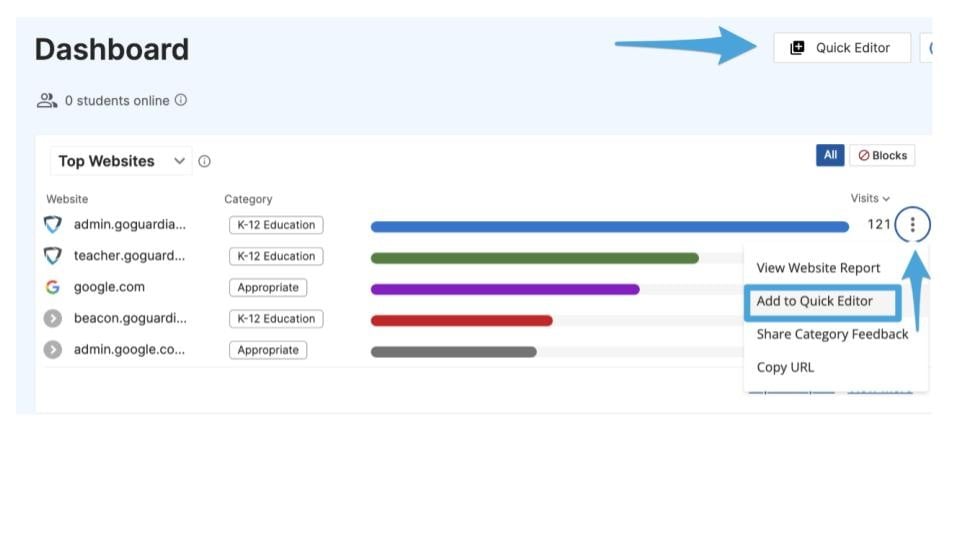 4. Open **Quick Editor** to review the URL before applying it to policies.
## Set Rule Actions
1. For each URL in Quick Editor, select **Block** or **Allow**.
2. To set every URL to Allow, click **Allow all**. To clear the list, click **Remove all**.
3. Review each URL and action before continuing. An allow rule can create an exception to a blocked website category, and policy assignment and precedence can affect the final result.
## Apply Rules to Policies
1. Continue to the policy selection page.
2. Select each policy that needs the URL rules.
Quick Editor may hide policies because of your permissions. If a policy is missing, confirm that your account has **Filter & Monitor** or **Full Access** and Admin OU access to the organizational unit where the policy is assigned.
3. Click **Continue** to add the rules to the selected policies.
4. Open **Quick Editor** to review the URL before applying it to policies.
## Set Rule Actions
1. For each URL in Quick Editor, select **Block** or **Allow**.
2. To set every URL to Allow, click **Allow all**. To clear the list, click **Remove all**.
3. Review each URL and action before continuing. An allow rule can create an exception to a blocked website category, and policy assignment and precedence can affect the final result.
## Apply Rules to Policies
1. Continue to the policy selection page.
2. Select each policy that needs the URL rules.
Quick Editor may hide policies because of your permissions. If a policy is missing, confirm that your account has **Filter & Monitor** or **Full Access** and Admin OU access to the organizational unit where the policy is assigned.
3. Click **Continue** to add the rules to the selected policies.
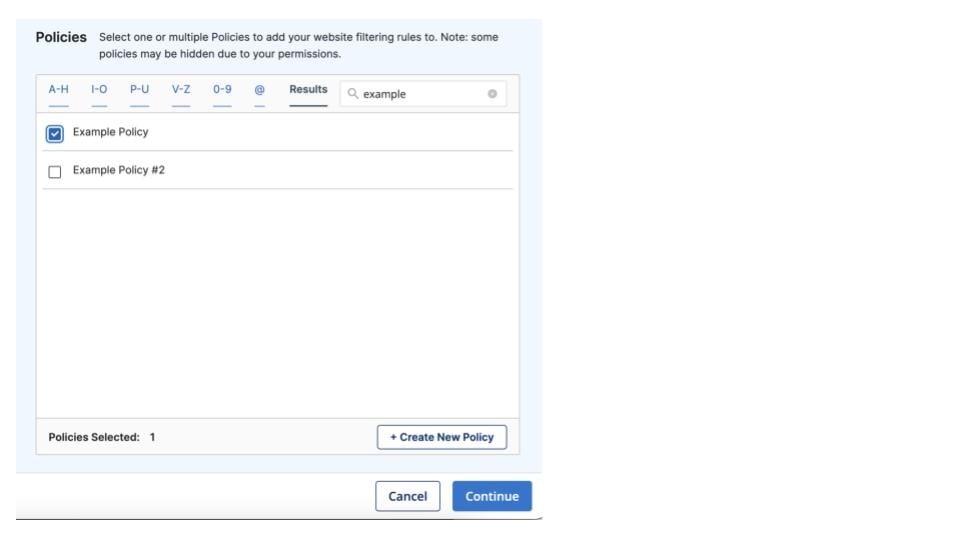 4. Verify the result: Open each selected policy and confirm that the rules appear in its **Website URLs** list. Allow up to 15 minutes for the changes to take effect, then test the affected URL with a user who receives the policy. If the result differs from what you expect, use [Why Was This Blocked?](/products/admin/troubleshoot-blocked-websites#use-why-was-this-blocked-feature) or [Simulate Policies](/products/admin/filtering-simulator) to identify the effective rule.
## Create Policy from Quick Editor
1. After setting each URL to **Block** or **Allow**, continue to the policy selection page.
2. Click **+ Create New Policy**.
3. Complete the policy setup, then confirm that the Quick Editor rules appear in the new policy's **Website URLs** list.
4. Verify the result: Allow up to 15 minutes for the changes to take effect. Assign the new policy to its intended organizational unit or supported filtering context, then test the affected URLs before wider rollout. See [Create a Filtering Policy](/products/admin/create-a-filtering-policy) for assignment, policy configuration, and validation guidance.
## Resolve Common Problems
* **A policy is missing or unavailable**: Confirm your GoGuardian Admin permissions and Admin OU access. A Super User can update both in Org Management.
* **A rule does not appear in a selected policy**: Open the policy and review its **Website URLs** list. Try the change again. If the rule is still missing, [contact Support](/support/contact-support) with the URL and policy name.
* **Filtering does not match the new rule**: Confirm that the user receives the policy, then review policy precedence, Restrictive Mode, categories, and other filtering layers. See [Understand How Filtering Rules Interact](/products/admin/how-filtering-rules-interact).
* **Quick Editor does not open or controls do not respond**: Refresh GoGuardian Admin and try again. If the problem continues, [contact Support](/support/contact-support) and include the page where the problem occurred.
## Resources
Review URL formats, rule behavior, wildcards, and CSV imports.
Review permissions, assignment, inheritance, and precedence.
Find website activity and investigate filtering results.
Identify the policy or filtering layer responsible for a block.
4. Verify the result: Open each selected policy and confirm that the rules appear in its **Website URLs** list. Allow up to 15 minutes for the changes to take effect, then test the affected URL with a user who receives the policy. If the result differs from what you expect, use [Why Was This Blocked?](/products/admin/troubleshoot-blocked-websites#use-why-was-this-blocked-feature) or [Simulate Policies](/products/admin/filtering-simulator) to identify the effective rule.
## Create Policy from Quick Editor
1. After setting each URL to **Block** or **Allow**, continue to the policy selection page.
2. Click **+ Create New Policy**.
3. Complete the policy setup, then confirm that the Quick Editor rules appear in the new policy's **Website URLs** list.
4. Verify the result: Allow up to 15 minutes for the changes to take effect. Assign the new policy to its intended organizational unit or supported filtering context, then test the affected URLs before wider rollout. See [Create a Filtering Policy](/products/admin/create-a-filtering-policy) for assignment, policy configuration, and validation guidance.
## Resolve Common Problems
* **A policy is missing or unavailable**: Confirm your GoGuardian Admin permissions and Admin OU access. A Super User can update both in Org Management.
* **A rule does not appear in a selected policy**: Open the policy and review its **Website URLs** list. Try the change again. If the rule is still missing, [contact Support](/support/contact-support) with the URL and policy name.
* **Filtering does not match the new rule**: Confirm that the user receives the policy, then review policy precedence, Restrictive Mode, categories, and other filtering layers. See [Understand How Filtering Rules Interact](/products/admin/how-filtering-rules-interact).
* **Quick Editor does not open or controls do not respond**: Refresh GoGuardian Admin and try again. If the problem continues, [contact Support](/support/contact-support) and include the page where the problem occurred.
## Resources
Review URL formats, rule behavior, wildcards, and CSV imports.
Review permissions, assignment, inheritance, and precedence.
Find website activity and investigate filtering results.
Identify the policy or filtering layer responsible for a block.