> ## Documentation Index
> Fetch the complete documentation index at: https://docs.goguardian.com/llms.txt
> Use this file to discover all available pages before exploring further.
# Beacon 24/7 Alert Card Anatomy
> Beacon 24/7 alert cards include a Status Bar and result badges that show the Safety Support Team's review progress and outcome.
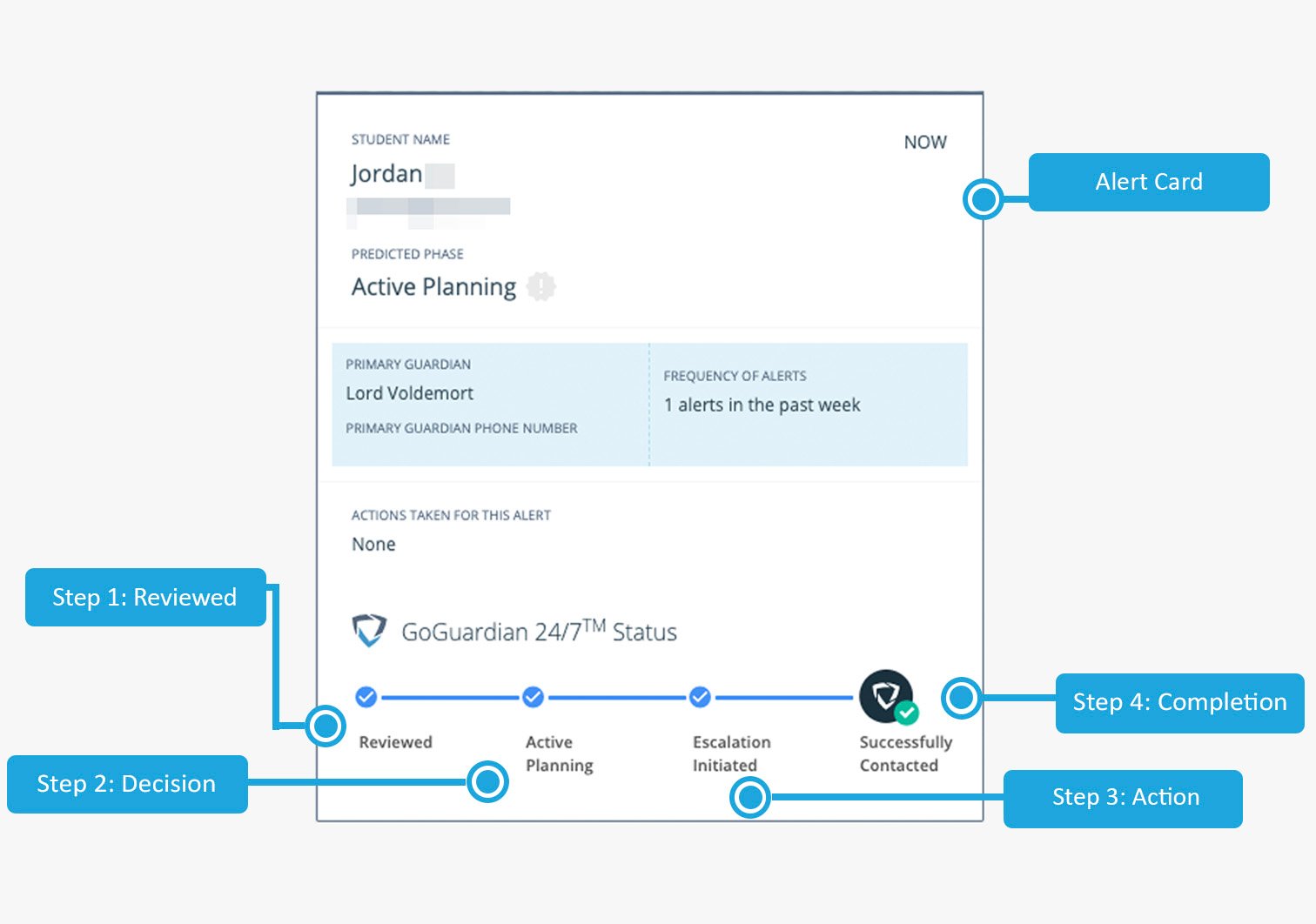
GoGuardian Beacon 24/7 alert cards display the same fields as Beacon Core alert cards, with the addition of a **Status Bar** that shows the Safety Support Team's review progress. All Beacon 24/7 alerts must be reviewed in Beacon, and any messages from the Safety Support Team must be viewed and confirmed.
## Review the Status Bar
The Status Bar tracks the Safety Support Team's review through four stages.
| Stage | Description |
| ---------------- | ------------------------------------------------------------------------------------------------------------------------------------------------------------------------------------------------------------------------------------------------------------------ |
| **Alert Review** | The alert has been received and is under review by the Safety Support Team. |
| **Decision** | The Safety Support Team is verifying whether the alert is associated with the Active Planning phase. |
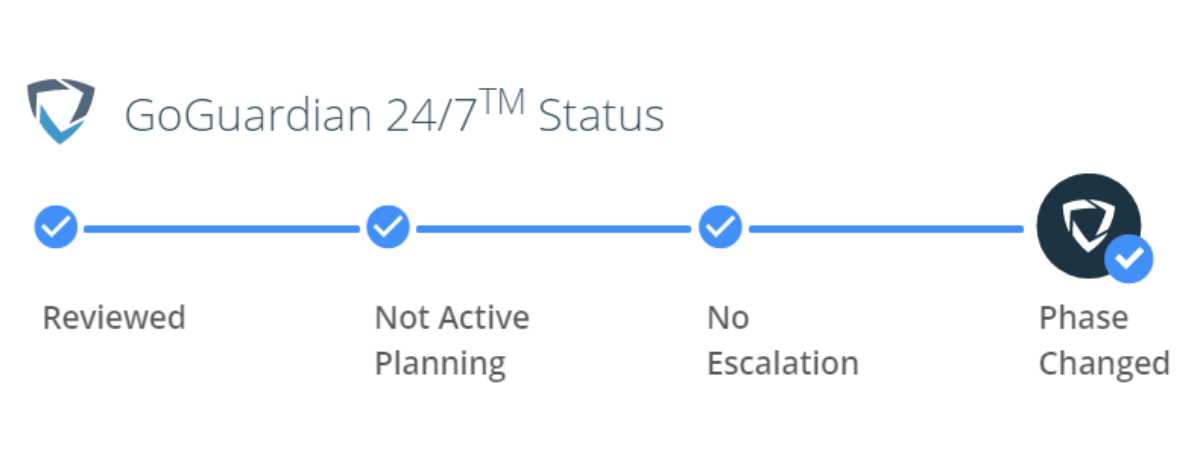
| **Action** | If the alert is confirmed as Active Planning, the Safety Support Team initiates the escalation protocol and begins contacting members of your Escalation List according to scheduled coverage. Alerts re-categorized to a different phase display "No Escalation." |
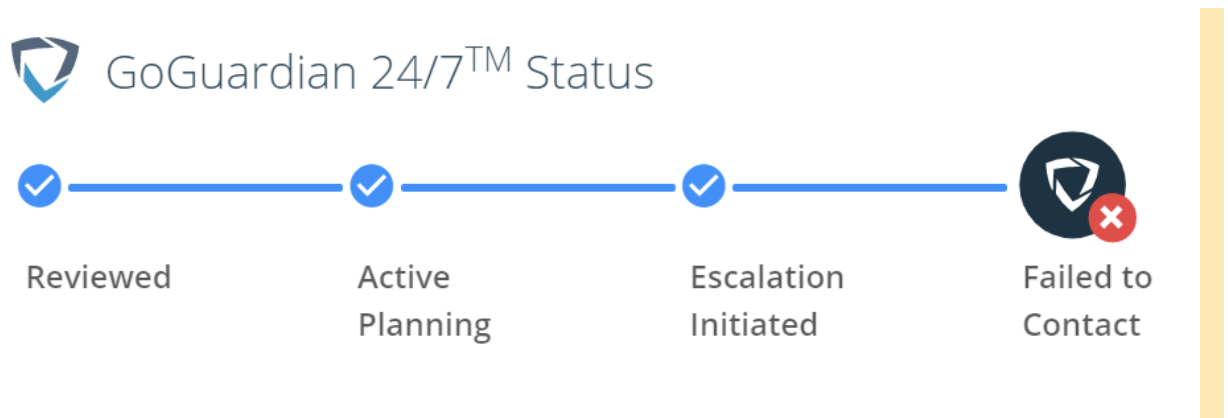
| **Completion** | The Safety Support Team's review is complete. A result badge is assigned based on the outcome. |

 ## Review Result Badges
Result badges appear at the Completion stage and indicate the final outcome of the Safety Support Team's review.
| Badge | Color | Meaning |
| -------------------------- | ----- | ------------------------------------------------------------------------------------------------------------------------------------------------------------------------------- |
| **Successfully Contacted** | Green | The Safety Support Team escalated the alert and reached a member of the Escalation List. |
| **Phase Changed** | Blue | The Safety Support Team determined a different phase better described the alert. Beacon users are notified based on Staff Notification settings for non-Active Planning phases. |
| **Failed to Contact** | Red | The Safety Support Team escalated the alert but could not reach anyone on the Escalation List, including the Last Responder. These alerts require immediate attention. |
A red "Failed to Contact" badge means the Safety Support Team could not reach anyone on the Escalation List. Review the alert immediately and follow your school's response protocol.
***
Reference for standard Beacon alert card fields.
Steps for reviewing and resolving an alert from an email notification.
How the Rationale tab explains why Beacon generated an alert.
Deployment- and student-level alert data across your organization.
## Review Result Badges
Result badges appear at the Completion stage and indicate the final outcome of the Safety Support Team's review.
| Badge | Color | Meaning |
| -------------------------- | ----- | ------------------------------------------------------------------------------------------------------------------------------------------------------------------------------- |
| **Successfully Contacted** | Green | The Safety Support Team escalated the alert and reached a member of the Escalation List. |
| **Phase Changed** | Blue | The Safety Support Team determined a different phase better described the alert. Beacon users are notified based on Staff Notification settings for non-Active Planning phases. |
| **Failed to Contact** | Red | The Safety Support Team escalated the alert but could not reach anyone on the Escalation List, including the Last Responder. These alerts require immediate attention. |
A red "Failed to Contact" badge means the Safety Support Team could not reach anyone on the Escalation List. Review the alert immediately and follow your school's response protocol.
***
Reference for standard Beacon alert card fields.
Steps for reviewing and resolving an alert from an email notification.
How the Rationale tab explains why Beacon generated an alert.
Deployment- and student-level alert data across your organization.