> ## Documentation Index
> Fetch the complete documentation index at: https://docs.goguardian.com/llms.txt
> Use this file to discover all available pages before exploring further.
# Alert Card Anatomy
> Each field on a Beacon alert card surfaces key information about the student, the alert, and the actions taken.
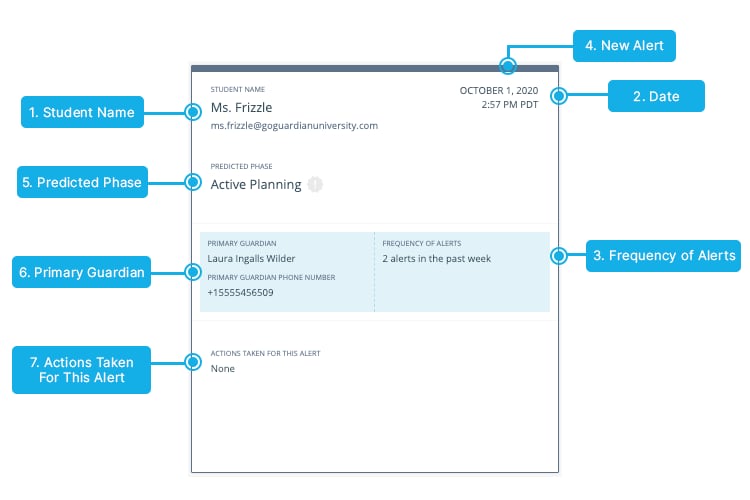
The GoGuardian Beacon alert card quick view displays the most important information about an alert without opening the full record. The fields below are listed in clockwise order beginning with the student name.
| Field | Description |
| -------------------------------- | --------------------------------------------------------------------------------------------------------------------------------------------------------- |
| **Student Name** | Name and email address of the student who generated the alert. |
| **Date** | Date and time the alert was generated. |
| **Frequency of Alerts** | Total number of recent alerts generated by this student. |
| **New Alert** | New, unread alerts are indicated by a dark outline and light blue highlighting. |
| **Predicted Phase** | Beacon's classification of the detected online activity. Possible phases: Active Planning, Suicide Ideation, Self Harm, Help & Support, Suicide Research. |
| **Primary Guardian** | Contact information for the student's primary parent or guardian. Open the alert card for full guardian details. |
| **Actions Taken For This Alert** | Actions recorded by counselors within the alert details page (for example, In-Person Conversation, Guardian Contacted, Plan Devised). |
 Alerts that have not had an action taken on them appear with a dark outline on the alert card list view.
***
Status bar and result badges specific to Beacon 24/7 alerts.
How the Rationale tab explains why Beacon generated an alert.
Steps for reviewing and resolving an alert from an email notification.
Alerts that have not had an action taken on them appear with a dark outline on the alert card list view.
***
Status bar and result badges specific to Beacon 24/7 alerts.
How the Rationale tab explains why Beacon generated an alert.
Steps for reviewing and resolving an alert from an email notification.