> ## Documentation Index
> Fetch the complete documentation index at: https://docs.goguardian.com/llms.txt
> Use this file to discover all available pages before exploring further.
# Alert Preferences
> Choose which GoGuardian Beacon alert phases generate dashboard cards and staff notifications for your school.
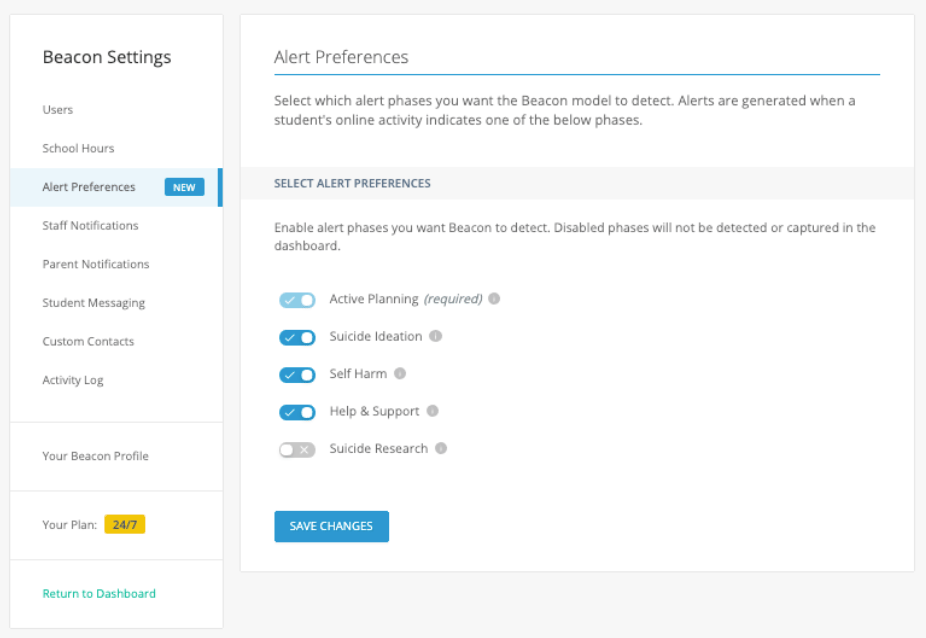
Alert preferences in GoGuardian Beacon control which phases generate alert cards on the dashboard and which phases trigger staff notifications. Super Counselors and Super Users can configure these settings.
Beacon identifies five phases of self-harm-related behavior: **Active Planning**, **Suicide Ideation**, **Self Harm**, **Help & Support**, and **Suicide Research**. By default, all phases are toggled on. Active Planning alerts and notifications are always on and cannot be disabled.
This feature is not available on Beacon Starter. Beacon Starter generates Active Planning alerts only.
Each phase can be set to one of three states:
| State | What it does |
| --------------------------------- | ---------------------------------------------------------------------------------------------------------------------------------------------------- |
| **Alert Cards and Notifications** | Alert cards appear on the dashboard, and the escalation list receives email and text notifications. |
| **Alert Cards only** | Alert cards appear on the dashboard. No notifications are sent. Configure this in **Staff Notifications** by disabling notifications for the phase. |
| **Off** | No alert cards and no notifications are generated for this phase. The phase is grayed out in **Staff Notifications** and cannot be toggled on there. |
## Modify Alert Preferences
1. Go to `beacon.goguardian.com` and sign in.
2. Click **Settings** in the navigation menu.
3. Select **Alert Preferences**.
4. Turn on or turn off each phase according to your school's needs.
5. Click **Save Changes** at the bottom of the page.
 ## Modify Staff Notifications
Staff notifications determine whether the escalation list receives email and text messages for each enabled phase. Turning off a phase in **Alert Preferences** automatically disables it in **Staff Notifications**.
1. Go to `beacon.goguardian.com` and sign in.
2. Click **Settings** in the navigation menu.
3. Select **Staff Notifications**.
4. Turn on or turn off the phases your staff should be notified about via email and text message.
5. Scroll to the bottom of the page and click **Save Changes**.
## Resources
Set the school hours that control when notifications are sent.
Turn on alert categories for Threats and Violence behavior.
Complete the full Beacon setup checklist.
Review definitions for Threats and Violence alert categories.
## Modify Staff Notifications
Staff notifications determine whether the escalation list receives email and text messages for each enabled phase. Turning off a phase in **Alert Preferences** automatically disables it in **Staff Notifications**.
1. Go to `beacon.goguardian.com` and sign in.
2. Click **Settings** in the navigation menu.
3. Select **Staff Notifications**.
4. Turn on or turn off the phases your staff should be notified about via email and text message.
5. Scroll to the bottom of the page and click **Save Changes**.
## Resources
Set the school hours that control when notifications are sent.
Turn on alert categories for Threats and Violence behavior.
Complete the full Beacon setup checklist.
Review definitions for Threats and Violence alert categories.