> ## Documentation Index
> Fetch the complete documentation index at: https://docs.goguardian.com/llms.txt
> Use this file to discover all available pages before exploring further.
# Beacon Dashboard Overview
> The Beacon dashboard aggregates alert data at the deployment and student levels, giving staff a centralized view of alert trends across their organization.
The GoGuardian Beacon dashboard is available to Beacon Core and Beacon 24/7 customers. It is not available on Beacon Starter.
Staff see data for deployments where they have been added as a user. Super Users see data for all deployments across the organization.
## Filter the Dashboard
The dashboard supports filtering by deployment, date range, theme, and phase. By default, all deployments, all themes, and a 30-day time frame are applied.
After changing any filter, click **Apply Filters** to update the dashboard. Applied filters persist until you change them manually.
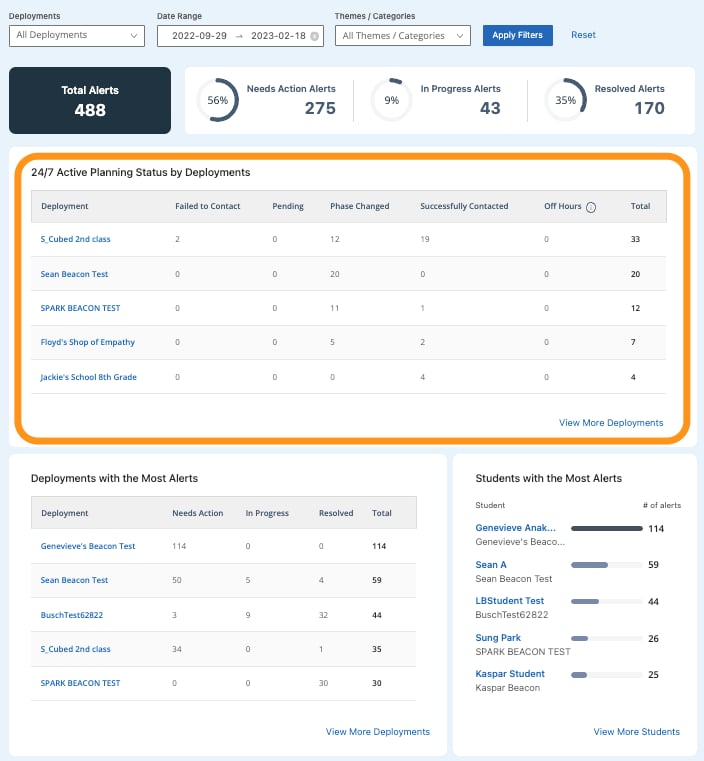
 ## Review 24/7 Active Planning Status by Deployment
This table is available to Beacon 24/7 customers only. It shows alert outcomes for all alerts originally designated as Active Planning, after review by the Safety Support Specialists (SSS) team.
| Status | Description |
| -------------------------- | --------------------------------------------------------------------------------------------------------------------------- |
| **Pending** | An Active Planning alert is currently under review by the SSS team. |
| **Successfully Contacted** | The SSS team escalated the alert and reached a member of the Escalation List. |
| **Failed to Contact** | The SSS team escalated the alert but could not reach anyone on the Escalation List. |
| **Phase Changed** | The SSS team determined a different phase better described the alert. No phone calls were made. |
| **Off Hours** | The alert was generated outside scheduled coverage hours. It was not reviewed by the SSS team and no phone calls were made. |
The table displays the top five deployments by total count. Click **View More Deployments** to see all deployments within the selected filters. A CSV download is available from that expanded view.
## Review 24/7 Active Planning Status by Deployment
This table is available to Beacon 24/7 customers only. It shows alert outcomes for all alerts originally designated as Active Planning, after review by the Safety Support Specialists (SSS) team.
| Status | Description |
| -------------------------- | --------------------------------------------------------------------------------------------------------------------------- |
| **Pending** | An Active Planning alert is currently under review by the SSS team. |
| **Successfully Contacted** | The SSS team escalated the alert and reached a member of the Escalation List. |
| **Failed to Contact** | The SSS team escalated the alert but could not reach anyone on the Escalation List. |
| **Phase Changed** | The SSS team determined a different phase better described the alert. No phone calls were made. |
| **Off Hours** | The alert was generated outside scheduled coverage hours. It was not reviewed by the SSS team and no phone calls were made. |
The table displays the top five deployments by total count. Click **View More Deployments** to see all deployments within the selected filters. A CSV download is available from that expanded view.
 ## Deployments with Most Alerts
This table shows alert breakdown by deployment, organized by resolution status: **Needs Action**, **In Progress**, and **Resolved**.
The table displays the top five deployments by total count. Click **View More Deployments** to see all deployments. A CSV download is available from the expanded view.
## Deployments with Most Alerts
This table shows alert breakdown by deployment, organized by resolution status: **Needs Action**, **In Progress**, and **Resolved**.
The table displays the top five deployments by total count. Click **View More Deployments** to see all deployments. A CSV download is available from the expanded view.
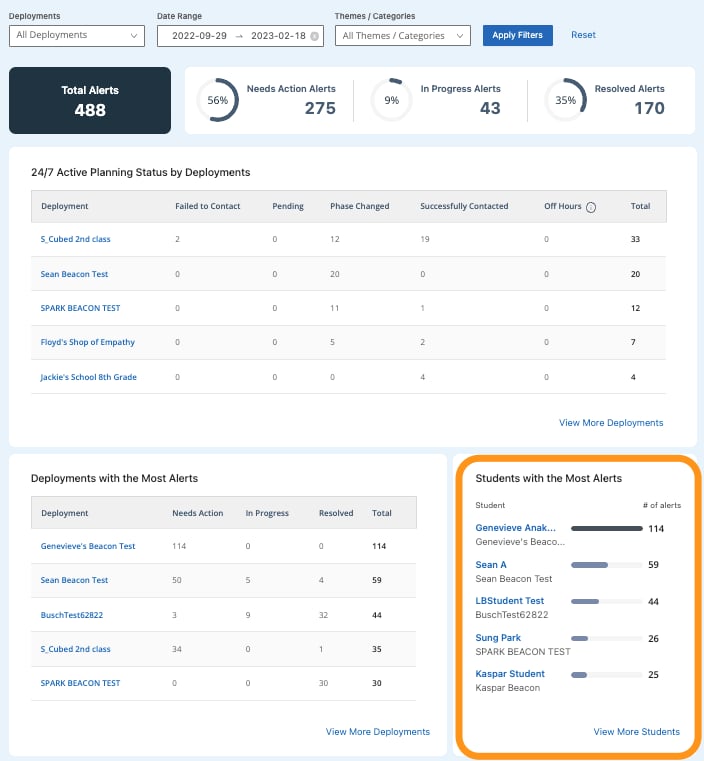
 ## Review Students with the Most Alerts
This table shows the students who have generated the most alerts within the selected filters.
The table displays the top five students by total count. Click **View More Students** to see all students. A CSV download is available from the expanded view.
***
Reference for every field on a Beacon alert card.
Status bar and result badges specific to Beacon 24/7 alerts.
Track all changes made to Beacon settings.
How Beacon determines why an alert was generated.
## Review Students with the Most Alerts
This table shows the students who have generated the most alerts within the selected filters.
The table displays the top five students by total count. Click **View More Students** to see all students. A CSV download is available from the expanded view.
***
Reference for every field on a Beacon alert card.
Status bar and result badges specific to Beacon 24/7 alerts.
Track all changes made to Beacon settings.
How Beacon determines why an alert was generated.