> ## Documentation Index
> Fetch the complete documentation index at: https://docs.goguardian.com/llms.txt
> Use this file to discover all available pages before exploring further.
# Enable Google Docs Coverage in GoGuardian Beacon
> Set up Google Docs coverage so GoGuardian Beacon can review content written or edited in Google Docs and generate alerts when it identifies concerning content.
Google Docs coverage allows GoGuardian Beacon to review content written or edited in Google Docs files. When a student contributes concerning content to a Docs file, Beacon generates an alert. Coverage applies to any file where a student has signed in with a school email address, regardless of device.
Google Docs coverage requires Beacon Core or Beacon 24/7 licensing. On Beacon Starter, Beacon reviews Google Docs content by document scraping rather than API. Screenshots and browsing history are not available on Google Docs alert cards.
## Enable Google Docs Coverage
Setup requires configuration in both Org Management and Google Admin Console.
### Step 1: Select Google Docs in Org Management
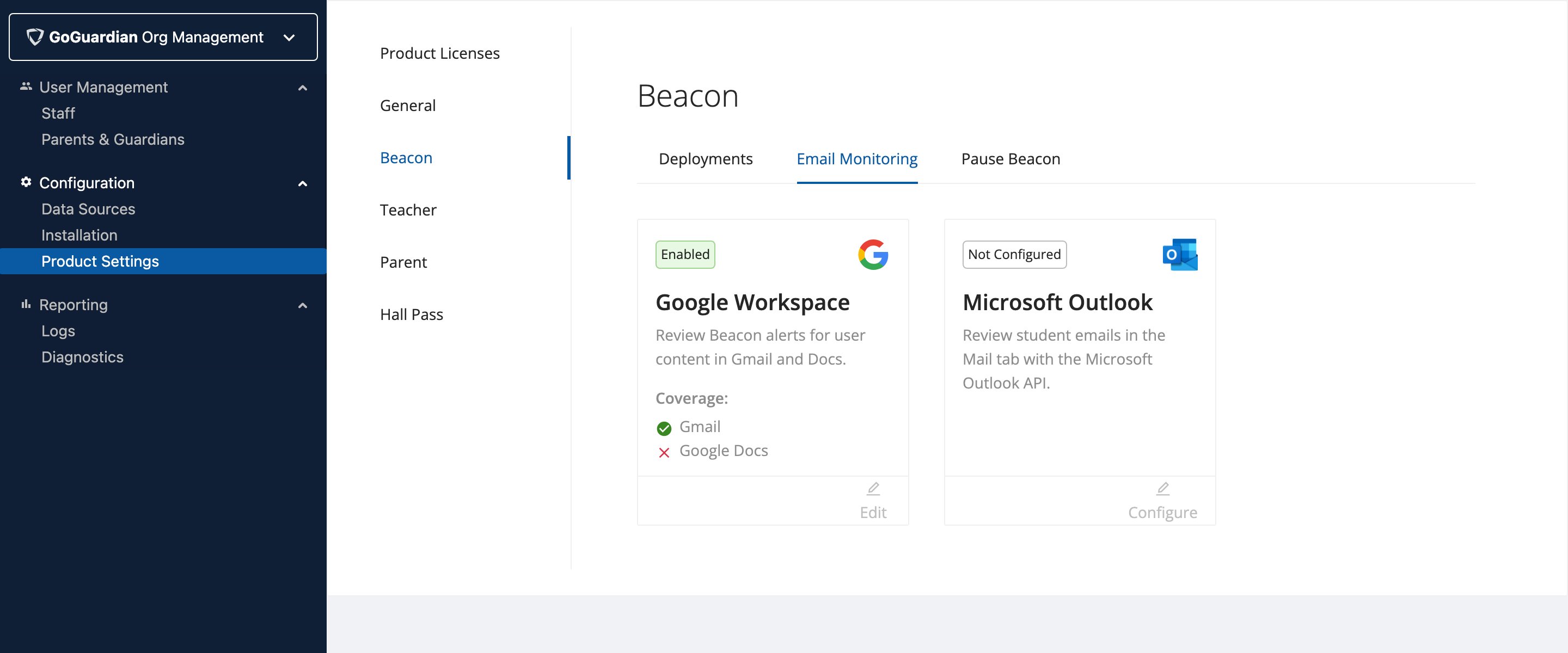
1. Log in to [Org Management](https://manage.goguardian.com) as a Super User. Navigate to **Configuration** > **Product Settings** > **Beacon** > **Email Monitoring**. Click **Configure** on the **Google Workspace** card.
 2. Select the **Google Docs** checkbox to include content from document files.
3. Click **Next** to proceed to domain-wide delegation setup.
### Step 2: Add Domain-Wide Delegation in Google Admin Console
4. Click the **Google Admin console** link shown on screen to open the domain-wide delegation configuration page.
5. Enter the **First Client ID**, **Second Client ID**, and **OAuth Scope** values from Org Management into the corresponding fields in Google Admin console.
Domain-wide delegation changes can take up to 24 hours to propagate fully across your organization.
### Step 3: Validate and Enable
6. Return to Org Management. Select the confirmation checkbox to confirm the Google Admin console configuration is complete. Click **Next**.
7. Enter an email address for a user in the organizational unit (OU) where domain-wide delegation is enabled.
8. Click **Validate**.
9. Click **Next** to complete setup.
The **Google Workspace** card on the Product Settings page displays an **Enabled** status badge. GoGuardian Beacon will now review content in Google Docs files and generate alerts when concerning content is identified.
## Google Docs Alert Cards
Alerts from Google Docs content appear in the Beacon Alerts section alongside standard alerts. Each Google Docs alert card includes the following, in addition to student information, predicted category, and timestamp:
* **Google Docs badge:** The Google Docs logo appears next to the alert category to identify the source.
* **Tab:** The document tab where the student wrote the concerning content.
* **Content:** The text the student wrote or edited in the document.
GoGuardian Beacon reviews Google Docs files on any device where a student has signed in with a school email address, regardless of whether the device is managed.
## Frequently Asked Questions
**How long does it take for domain-wide delegation to update?**
Domain-wide delegation changes can take up to 24 hours to propagate fully across your organization.
**Can I enable Gmail and Google Docs coverage at the same time?**
Yes. Select both the **Gmail** and **Google Docs** checkboxes during Step 1 to enable coverage for both simultaneously.
## Resources
Set up Gmail API coverage for Beacon Core or Beacon 24/7.
Review the components of Gmail-generated alert cards in Beacon.
Overview of all Beacon configuration options in Org Management.
Complete all Beacon setup steps before going live.
2. Select the **Google Docs** checkbox to include content from document files.
3. Click **Next** to proceed to domain-wide delegation setup.
### Step 2: Add Domain-Wide Delegation in Google Admin Console
4. Click the **Google Admin console** link shown on screen to open the domain-wide delegation configuration page.
5. Enter the **First Client ID**, **Second Client ID**, and **OAuth Scope** values from Org Management into the corresponding fields in Google Admin console.
Domain-wide delegation changes can take up to 24 hours to propagate fully across your organization.
### Step 3: Validate and Enable
6. Return to Org Management. Select the confirmation checkbox to confirm the Google Admin console configuration is complete. Click **Next**.
7. Enter an email address for a user in the organizational unit (OU) where domain-wide delegation is enabled.
8. Click **Validate**.
9. Click **Next** to complete setup.
The **Google Workspace** card on the Product Settings page displays an **Enabled** status badge. GoGuardian Beacon will now review content in Google Docs files and generate alerts when concerning content is identified.
## Google Docs Alert Cards
Alerts from Google Docs content appear in the Beacon Alerts section alongside standard alerts. Each Google Docs alert card includes the following, in addition to student information, predicted category, and timestamp:
* **Google Docs badge:** The Google Docs logo appears next to the alert category to identify the source.
* **Tab:** The document tab where the student wrote the concerning content.
* **Content:** The text the student wrote or edited in the document.
GoGuardian Beacon reviews Google Docs files on any device where a student has signed in with a school email address, regardless of whether the device is managed.
## Frequently Asked Questions
**How long does it take for domain-wide delegation to update?**
Domain-wide delegation changes can take up to 24 hours to propagate fully across your organization.
**Can I enable Gmail and Google Docs coverage at the same time?**
Yes. Select both the **Gmail** and **Google Docs** checkboxes during Step 1 to enable coverage for both simultaneously.
## Resources
Set up Gmail API coverage for Beacon Core or Beacon 24/7.
Review the components of Gmail-generated alert cards in Beacon.
Overview of all Beacon configuration options in Org Management.
Complete all Beacon setup steps before going live.