> ## Documentation Index
> Fetch the complete documentation index at: https://docs.goguardian.com/llms.txt
> Use this file to discover all available pages before exploring further.
# Enhanced Gmail Alert Cards
> A reference for the extra details on Beacon alert cards generated from Gmail API coverage, including email content, recipients, and predicted phase.
Alert cards generated from Gmail API-based monitoring display additional information about the email that triggered the alert. This information is displayed prominently on the card and is easy to read and navigate.
Beacon's Gmail API is not available for Beacon Starter customers.
## Review the Quick-View Alert Card
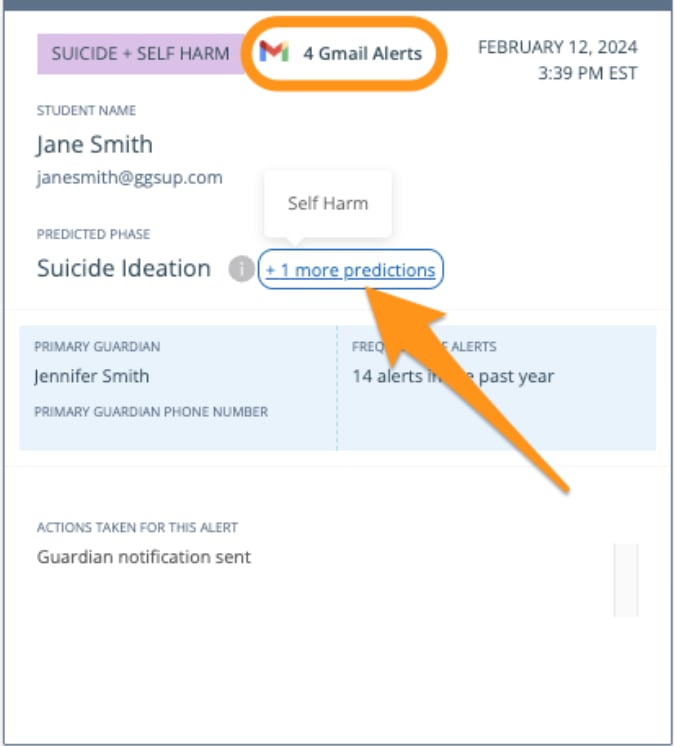
The Gmail symbol appears at the top of an alert card to indicate that it was generated from Gmail API-based monitoring. The card also shows the number of concerning emails the student sent within a particular email thread.
If the student sent multiple concerning emails in the same thread, additional predicted phases beyond the original are visible by hovering over **+ more predictions**.
 ## Review the Rationale Tab
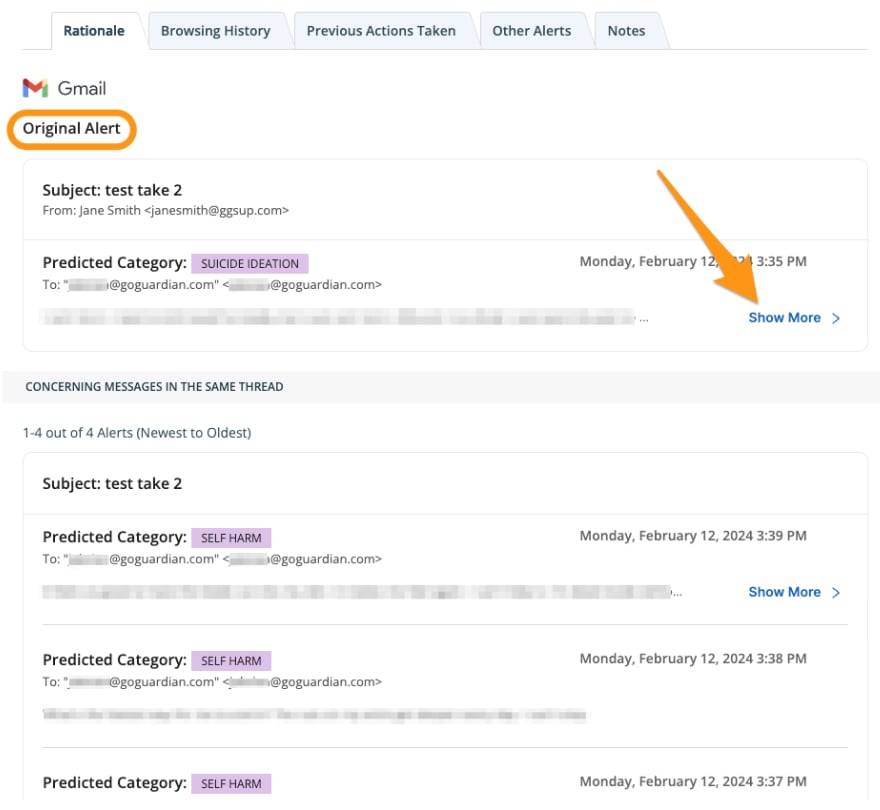
The **Rationale** tab on a Gmail alert card displays the following information:
* Student who sent the email
* Subject of the email or thread
* Recipients of the email
* Predicted phase of the content
* Body text of the email that was sent
To view the full body text of an email, click **Show More** where applicable. If multiple emails in the thread contain concerning content, they are displayed below the original email, with the most recent email appearing at the top.
Screenshots and browsing history are not available on Gmail API alert cards.
## Review the Rationale Tab
The **Rationale** tab on a Gmail alert card displays the following information:
* Student who sent the email
* Subject of the email or thread
* Recipients of the email
* Predicted phase of the content
* Body text of the email that was sent
To view the full body text of an email, click **Show More** where applicable. If multiple emails in the thread contain concerning content, they are displayed below the original email, with the most recent email appearing at the top.
Screenshots and browsing history are not available on Gmail API alert cards.
 ## Resources
Enable Gmail API monitoring for Beacon Core or 24/7.
Enable Outlook API monitoring for Beacon Core or 24/7.
Navigate the Beacon Alerts page and understand alert card layout.
Understand the components of a standard Beacon alert card.
## Resources
Enable Gmail API monitoring for Beacon Core or 24/7.
Enable Outlook API monitoring for Beacon Core or 24/7.
Navigate the Beacon Alerts page and understand alert card layout.
Understand the components of a standard Beacon alert card.