> ## Documentation Index
> Fetch the complete documentation index at: https://docs.goguardian.com/llms.txt
> Use this file to discover all available pages before exploring further.
# Configure Escalation Lists
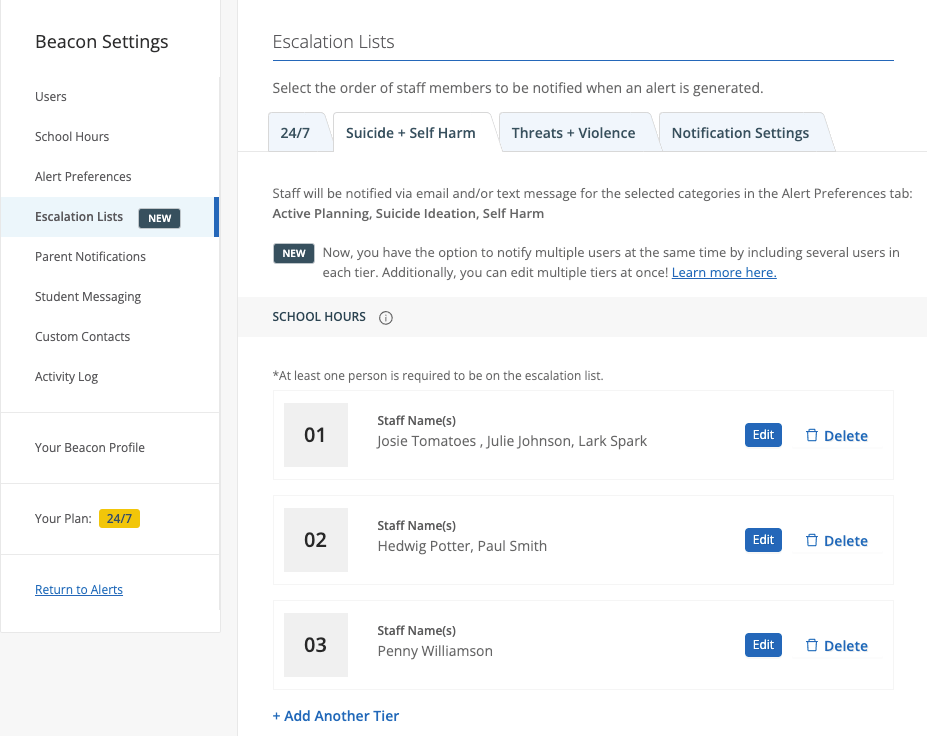
> Escalation lists in GoGuardian Beacon define which staff receive alert notifications, in what order, and whether contacts differ during and after school hours.
An escalation list is a prioritized list of staff contacts who receive notifications when a Beacon alert is generated. Contacts are organized into tiers. Tier 1 contacts are notified first. If no action is taken within the configured interval time, Beacon notifies the next tier. Beacon continues to send notifications to each tier based on the notification settings for that category.
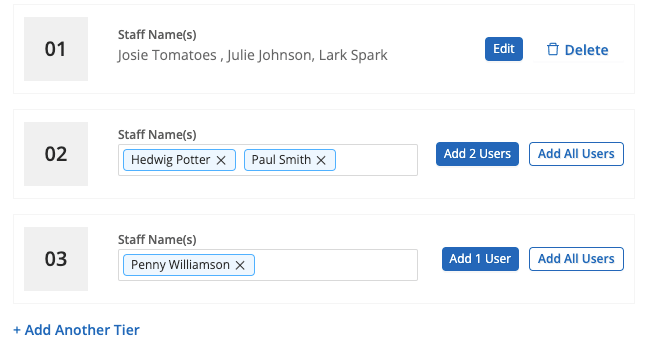
Multiple contacts can be assigned to a single tier. All contacts in a tier receive notifications at the same time.
Only Super Users and Super Counselors can configure escalation lists.
The ability to set separate escalation lists for during and after school hours requires a Beacon Core or Beacon 24/7 license.
## Set Up the Suicide and Self-Harm Escalation List
1. Go to [beacon.goguardian.com](https://beacon.goguardian.com) and sign in.
2. Click **Settings** from the navigation menu.
3. Select **Escalation Lists**.
4. Click the **Suicide + Self Harm** tab.
5. Type a name or email address to search for a user. Select the user when their name appears. Add as many users to a tier as needed.
To add all current Beacon users to a tier at once, click **Add All Users**.
6. Click **Save Changes** at the bottom of the screen.
Any user with any Beacon permission level can be added to an escalation list.
With Beacon Starter, only the first position may be filled — with either one individual user or all users. Selecting all users notifies everyone in the deployment at the same time.
 ## Configure After-School Hours Notifications
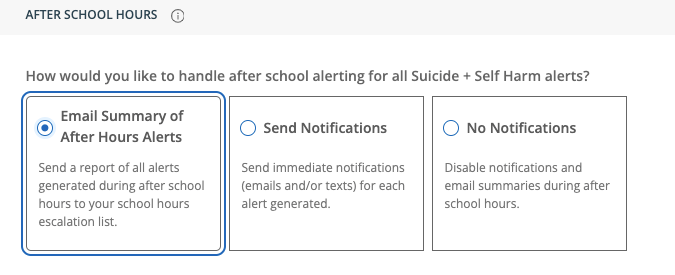
After-school notification behavior is set independently from school-hours notifications. Three options are available.
1. Select **Email Summary of After Hours Alerts**.
2. Click **Save Changes** at the bottom of the page.
The email summary is sent to all escalation list members configured for during school hours.
1. Select **Send Notifications**.
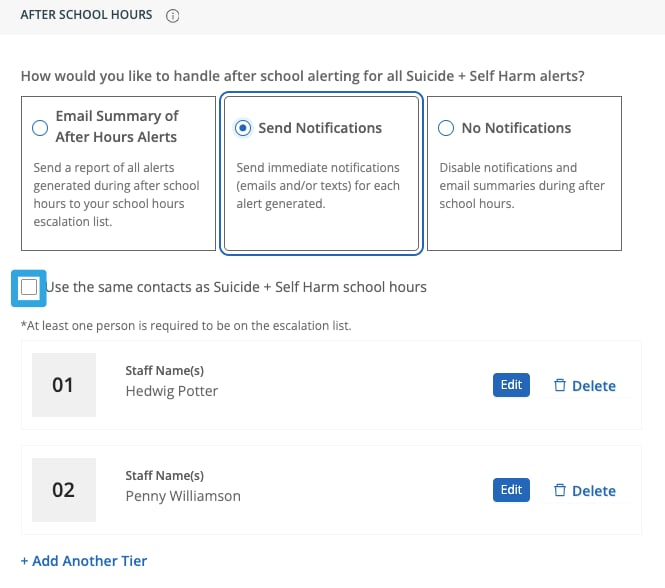
2. * To use the same escalation list as school hours, select **Use the same contacts as Suicide + Self Harm school hours**.
* To define a separate list for after-hours, clear **Use the same contacts as Suicide + Self Harm school hours** and configure the after-hours list.
3. Click **Save Changes** at the bottom of the page.
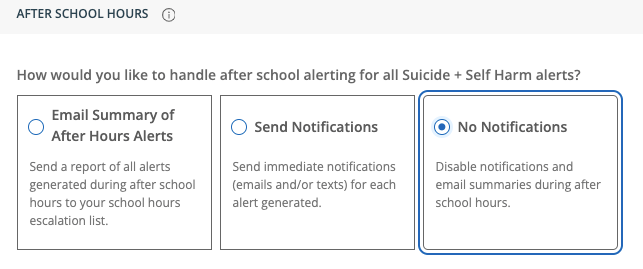
1. Select **No Notifications**.
2. Click **Save Changes** at the bottom of the page.
For Beacon 24/7 deployments, this setting does not affect your 24/7 phone call escalation list schedule.
## Configure After-School Hours Notifications
After-school notification behavior is set independently from school-hours notifications. Three options are available.
1. Select **Email Summary of After Hours Alerts**.
2. Click **Save Changes** at the bottom of the page.
The email summary is sent to all escalation list members configured for during school hours.
1. Select **Send Notifications**.
2. * To use the same escalation list as school hours, select **Use the same contacts as Suicide + Self Harm school hours**.
* To define a separate list for after-hours, clear **Use the same contacts as Suicide + Self Harm school hours** and configure the after-hours list.
3. Click **Save Changes** at the bottom of the page.
1. Select **No Notifications**.
2. Click **Save Changes** at the bottom of the page.
For Beacon 24/7 deployments, this setting does not affect your 24/7 phone call escalation list schedule.
 ## Set the Interval Time
{/* TECH-ACCURACY: verify 5-notification escalation cap is still current */}
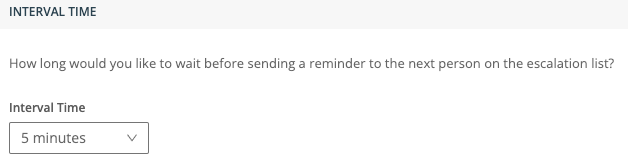
Interval time sets how long Beacon waits for a user to respond to an alert before notifying the next tier. In Beacon Starter, if no action is taken on the alert card within the interval time, a reminder email is sent to the user on the escalation list. This process repeats up to 5 times.
Configure the interval time under the **Interval Time** section of the **Escalation Lists** settings page.
## Set the Interval Time
{/* TECH-ACCURACY: verify 5-notification escalation cap is still current */}
Interval time sets how long Beacon waits for a user to respond to an alert before notifying the next tier. In Beacon Starter, if no action is taken on the alert card within the interval time, a reminder email is sent to the user on the escalation list. This process repeats up to 5 times.
Configure the interval time under the **Interval Time** section of the **Escalation Lists** settings page.
 ## Remove a User from an Escalation List
1. Go to **Settings**, then select **Escalation Lists**.
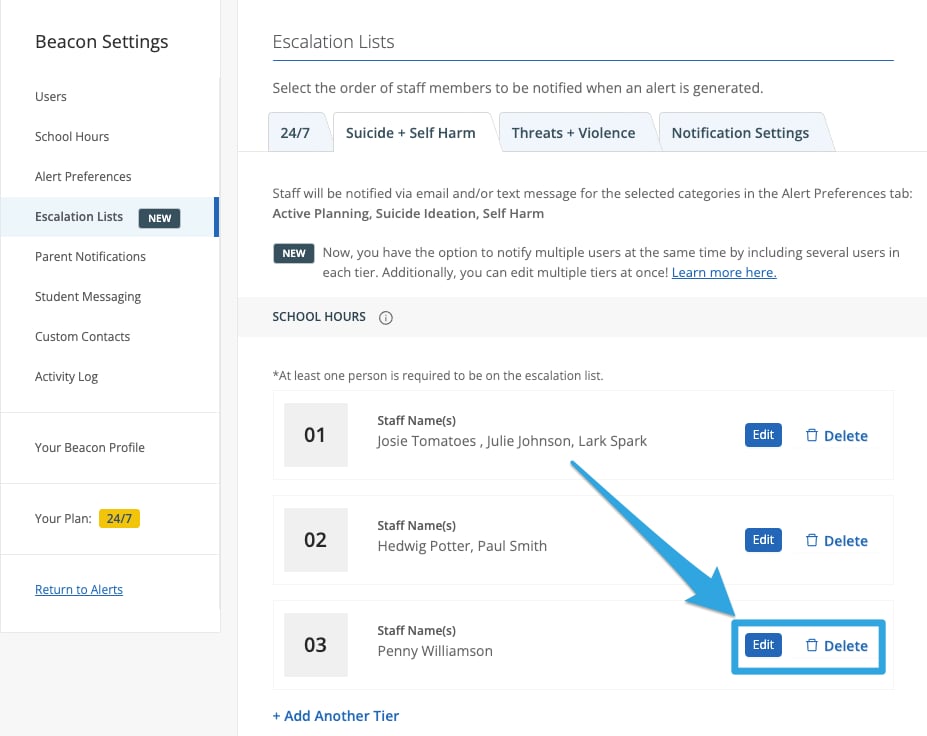
2. Click **Edit** next to the tier that contains the user.
3. Click the **X** next to the user's name to remove them from the tier.
4. Click **Save** at the bottom of the page.
## Remove a User from an Escalation List
1. Go to **Settings**, then select **Escalation Lists**.
2. Click **Edit** next to the tier that contains the user.
3. Click the **X** next to the user's name to remove them from the tier.
4. Click **Save** at the bottom of the page.
 To remove an entire tier, click **Delete** next to that tier.
At least one user must remain on the escalation list at all times. The final user on the list cannot be removed.
To remove an entire tier, click **Delete** next to that tier.
At least one user must remain on the escalation list at all times. The final user on the list cannot be removed.
 ## Update the Escalation List in Beacon Starter
In Beacon Starter, change the current escalation list user by replacing them directly.
1. Go to [beacon.goguardian.com](https://beacon.goguardian.com) and sign in.
2. Click **Settings** from the navigation menu.
3. Select **Staff Notifications**.
4. Click **Edit** next to the current user.
5. Click the **X** next to their name to remove them.
6. Type the name of the new user and click **Add 1 User**, or click **Add All Users** to add all current users in the deployment.
7. Click **Save Changes** at the bottom of the page.
## Update the Escalation List in Beacon Starter
In Beacon Starter, change the current escalation list user by replacing them directly.
1. Go to [beacon.goguardian.com](https://beacon.goguardian.com) and sign in.
2. Click **Settings** from the navigation menu.
3. Select **Staff Notifications**.
4. Click **Edit** next to the current user.
5. Click the **X** next to their name to remove them.
6. Type the name of the new user and click **Add 1 User**, or click **Add All Users** to add all current users in the deployment.
7. Click **Save Changes** at the bottom of the page.
 ## Resources
Format and upload a CSV file for Beacon 24/7 phone call escalations.
Review which roles can manage escalation lists.
Add users to a deployment before adding them to an escalation list.
Enable student names in all Beacon email alert notifications.
## Resources
Format and upload a CSV file for Beacon 24/7 phone call escalations.
Review which roles can manage escalation lists.
Add users to a deployment before adding them to an escalation list.
Enable student names in all Beacon email alert notifications.