> ## Documentation Index
> Fetch the complete documentation index at: https://docs.goguardian.com/llms.txt
> Use this file to discover all available pages before exploring further.
# Grouped Alerts
> Beacon groups related alerts from the same URL and phase within a 15-minute window so counselors can review and act on them together.
Grouped Alerts lets you review and take action on a set of related alerts at once, rather than processing each alert individually. Once an action is taken on a grouped alert, the group closes. Any subsequent activity matching the same URL and predicted phase combination forms a new group, ensuring continued detection and notification.
## Understand Grouping Criteria
Beacon groups alerts together when all of the following conditions are met:
* Generated from the same URL
* Triggered the same predicted phase
* Occurred within a 15-minute window
Gmail and email inbox alerts may not be grouped due to technical complexities with determining similarity across a user's inbox.
Assigned users receive one notification per group. Additional alerts that meet the grouping criteria are added to the existing group. A new notification is sent only when a user takes action on the group, or when a completely separate alert is generated.
## Review Grouped Alert Views
Grouped alerts appear consistently across all areas of the Beacon interface.
### Dashboard
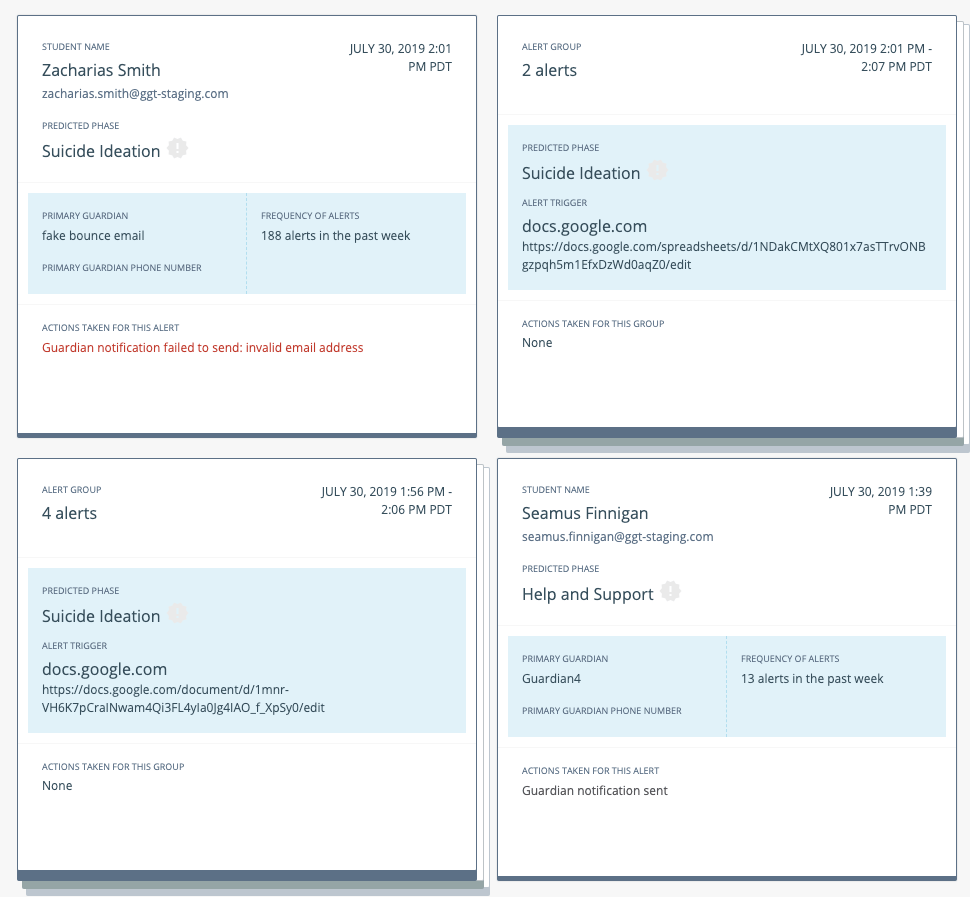
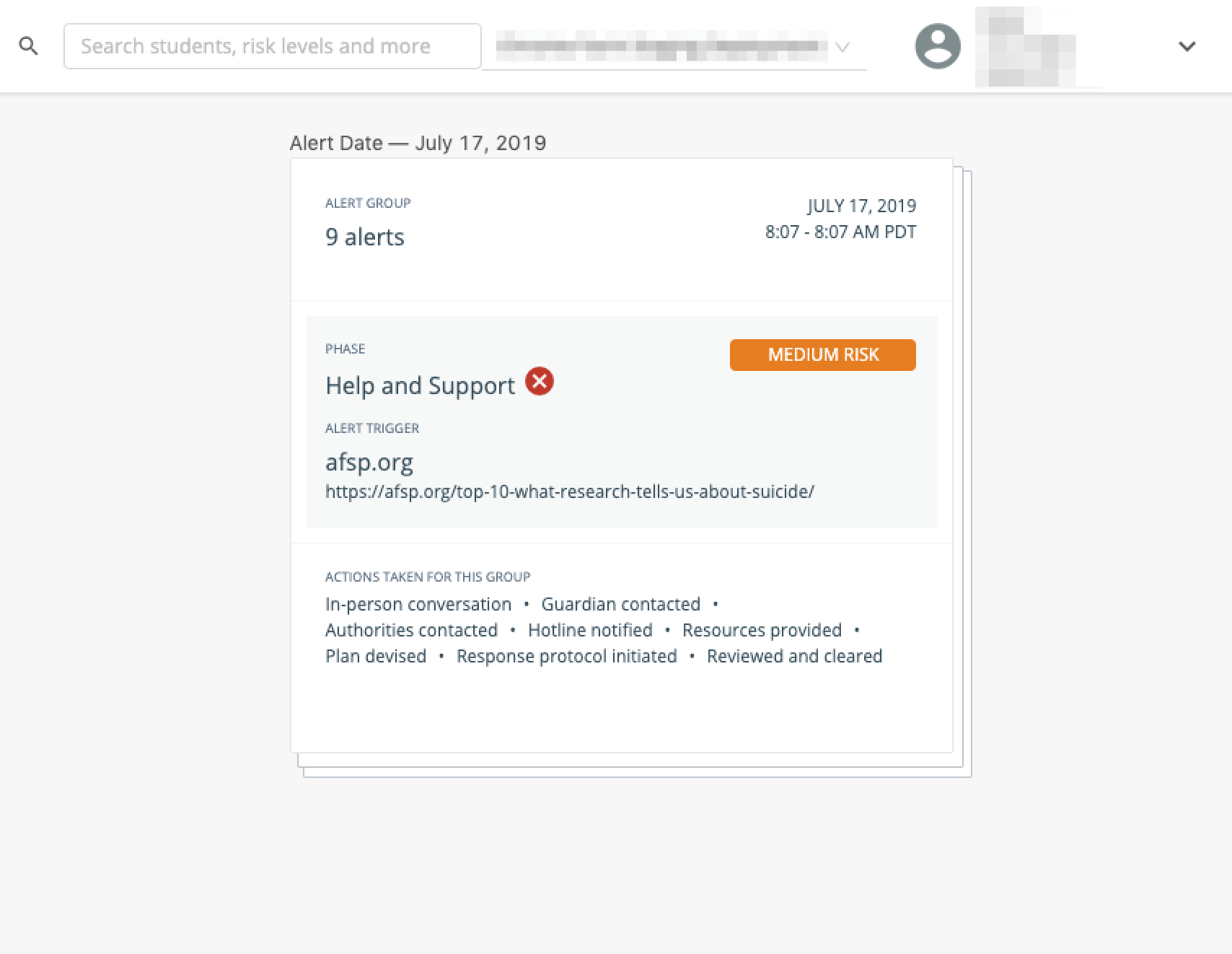
A grouped alert appears as a stack of cards in the Beacon dashboard. The card displays the phase, actions taken, and risk level for the entire group. It also shows the alert trigger (domain and full URL) and the time window over which the group was formed. Clicking a grouped alert card opens the detailed view.
### Search Results
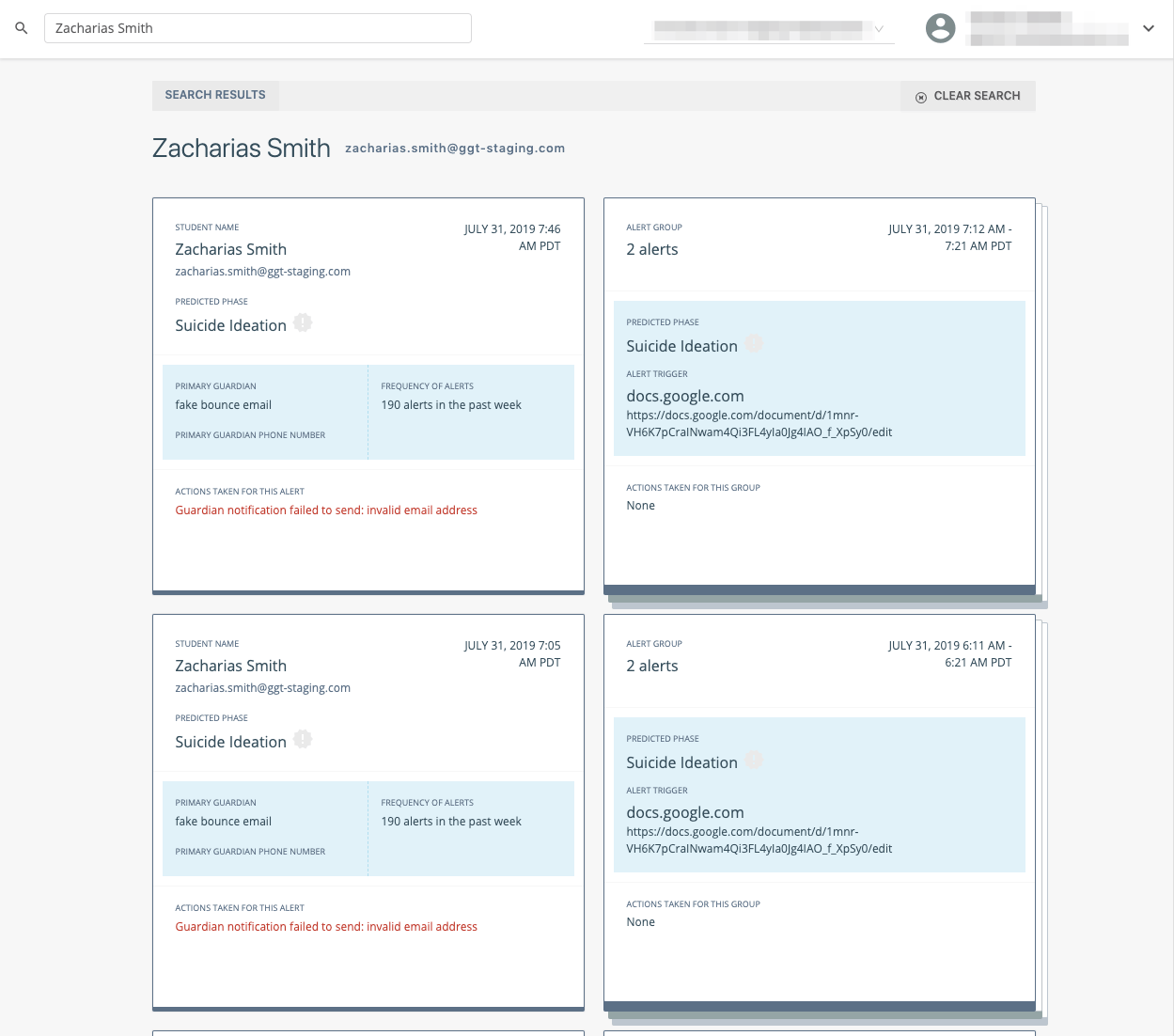
Searching by student name, risk level, phase, or any other criteria surfaces grouped alerts alongside individual alerts. Clicking a result in search opens the detail drawer.
### Quick View
Quick view uses the stacked card display to distinguish grouped alerts from individual alerts.
### Detailed View
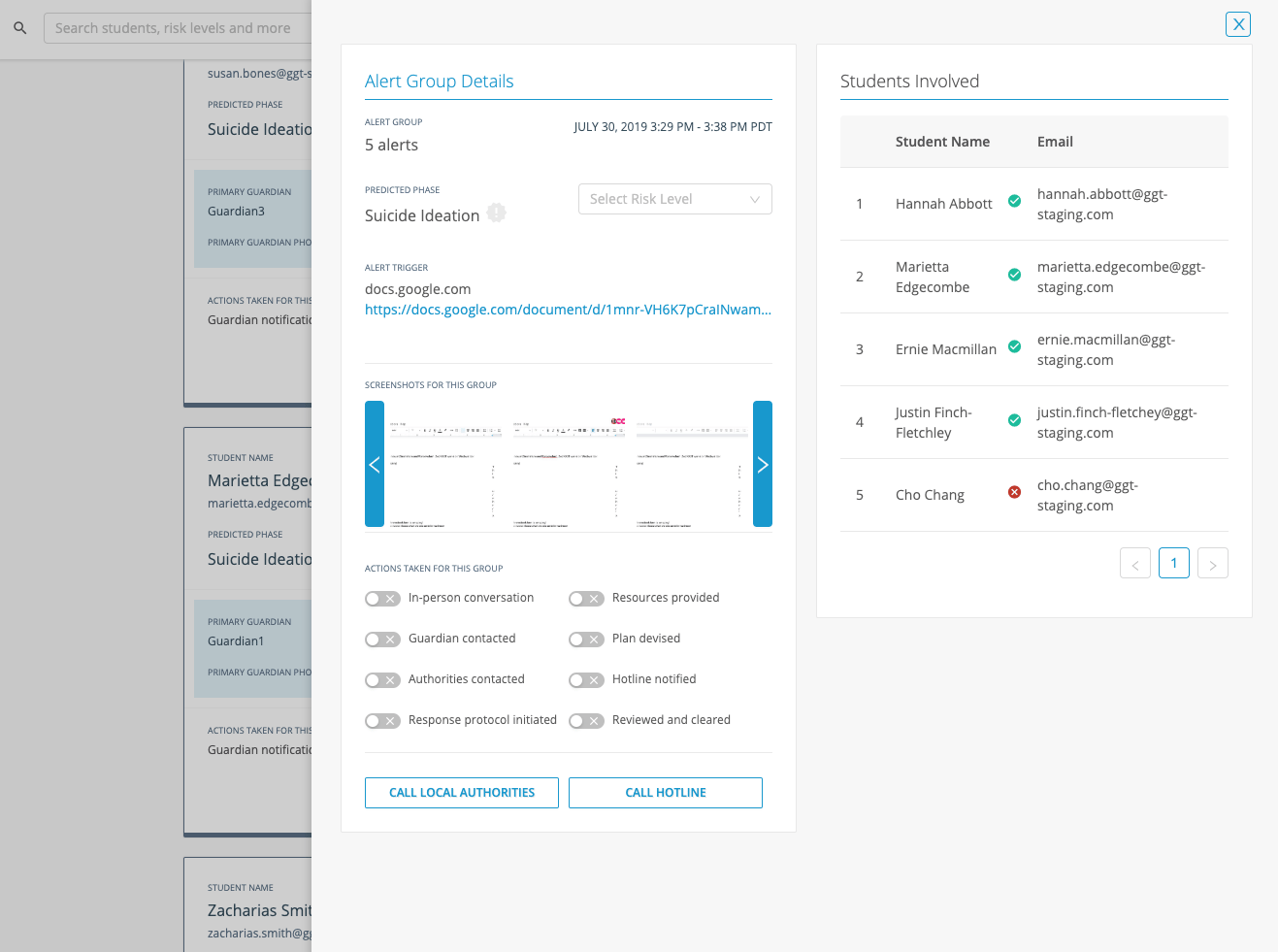
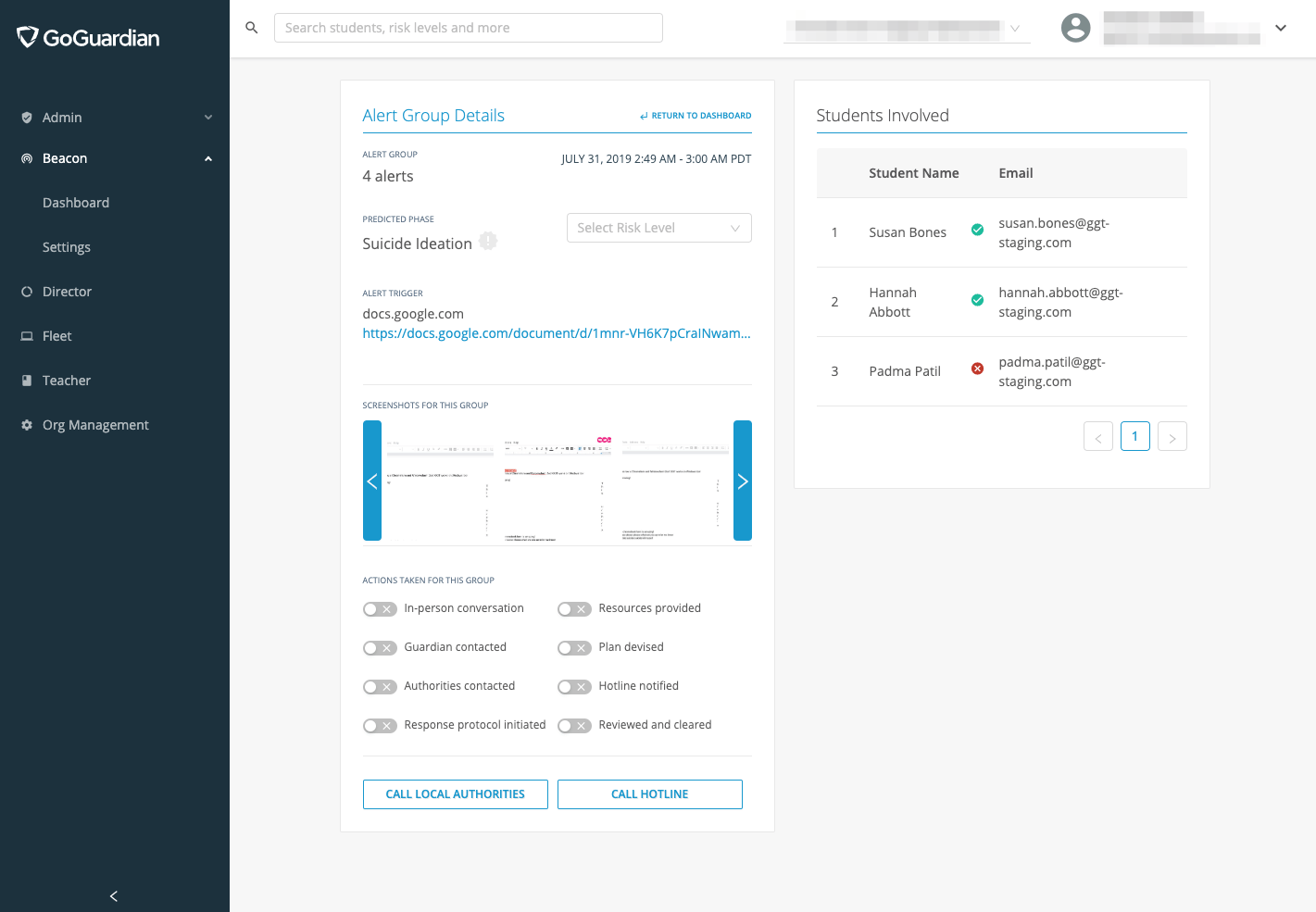
The detailed view for a group allows you to evaluate and act on the entire group in one place.
* A carousel displays every screenshot associated with the individual alerts in the group.
* A unique list of all students involved appears in the view.
* Clicking a screenshot in the carousel expands it to show additional details, including a timestamp and the associated student.
If parent notifications are enabled for your deployment, a green checkmark or red X appears next to each student's name to indicate whether a parent notification was successfully sent.

 ## Resources
Step-by-step instructions for accessing and resolving alerts.
Descriptions of each alert phase detected by Beacon.
How to assign and interpret risk levels on alert cards.
Overview of the Beacon alerts dashboard.
## Resources
Step-by-step instructions for accessing and resolving alerts.
Descriptions of each alert phase detected by Beacon.
How to assign and interpret risk levels on alert cards.
Overview of the Beacon alerts dashboard.