> ## Documentation Index
> Fetch the complete documentation index at: https://docs.goguardian.com/llms.txt
> Use this file to discover all available pages before exploring further.
# Include Student Names in Email Notifications
> GoGuardian Beacon Super Users can enable student names in all Beacon email alert notifications, not just Active Planning alerts, on a per-deployment basis.
By default, student names appear in email notifications for Active Planning alerts only. Super Users can enable student names in notifications for all Beacon alert categories. This setting must be enabled separately for each deployment.
This feature is not available on Beacon Starter. Beacon Starter generates Active Planning alerts only, and student names are always included in those notifications.
This setting only affects alert categories for which your school has already turned on staff notifications. If staff notifications for a category are turned off, enabling this setting does not affect those notifications.
## Enable Student Names in All Email Notifications
1. Go to [beacon.goguardian.com](https://beacon.goguardian.com) and sign in.
2. Click **Settings** from the navigation menu.
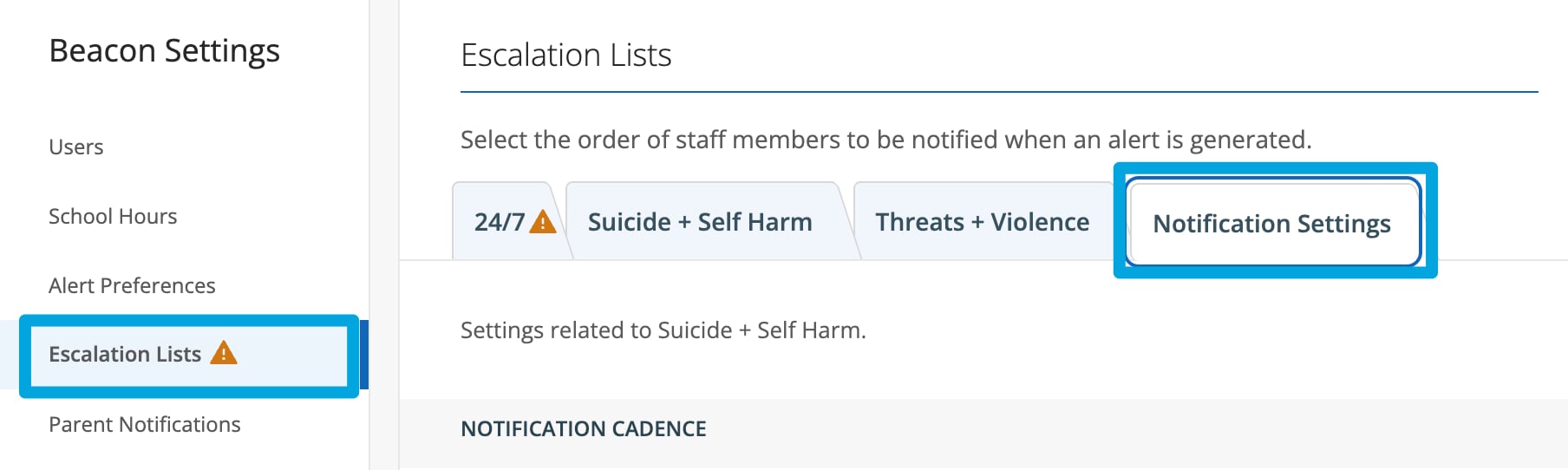
3. Select **Escalation Lists**.
4. Click the **Notification Settings** tab.
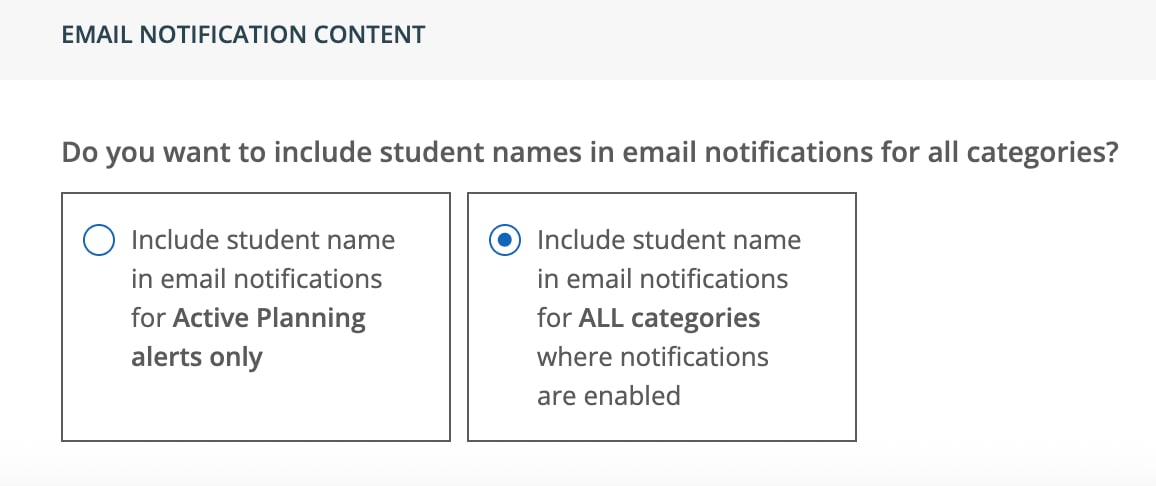
 5. Under **Email Notification Content**, select the option to include student names in all notifications.
6. If a confirmation prompt appears, complete it to confirm the change.
7. Click **Save Changes**.
5. Under **Email Notification Content**, select the option to include student names in all notifications.
6. If a confirmation prompt appears, complete it to confirm the change.
7. Click **Save Changes**.
 ## Resources
Configure which staff members receive alert notifications and in what order.
Add users to a deployment and configure their notification preferences.
Review which roles can manage notification settings.
Format and upload a CSV file for Beacon 24/7 phone call escalations.
## Resources
Configure which staff members receive alert notifications and in what order.
Add users to a deployment and configure their notification preferences.
Review which roles can manage notification settings.
Format and upload a CSV file for Beacon 24/7 phone call escalations.