> ## Documentation Index
> Fetch the complete documentation index at: https://docs.goguardian.com/llms.txt
> Use this file to discover all available pages before exploring further.
# Add and Manage Beacon Users
> Add users to a GoGuardian Beacon deployment, update their permissions and notification preferences, and remove users when needed.
Super Users and Super Counselors can add users to a Beacon deployment. Before adding a user, the user must have an existing GoGuardian account in your organization and have Beacon access enabled for their account. For instructions on creating and managing accounts, see [Create and Manage User Accounts](/products/org-management/create-manage-user-accounts).
If a user's name does not appear in the search list when you attempt to add them, they may not have a GoGuardian account in Org Management or may not have Beacon access enabled.
## Add a User to Beacon
1. Go to **Settings** from the navigation menu, then select **Users**.
2. Under **Add New User**, enter the user's email address.
3. Click **Add User**.
4. Optionally, enter the user's cell phone number and turn on text message notifications.
5. Click **Save Changes**.
After a user is added, you have the option to send them a welcome email with information about the Beacon deployment.
Text and email notifications are only sent to users on the Escalation List.
## Edit an Existing User
Super Users can edit any user's permission level, phone number, and notification preferences.
1. Go to **Settings** from the navigation menu, then select **Users**.
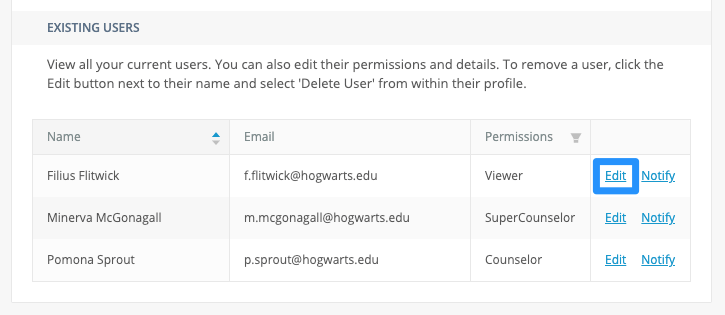
2. Click **Edit** next to the user's name.
3. Update any of the following:
* **Cell Phone Number**
* **Permissions**
* **Notification Preferences**
4. Click **Save Changes** at the bottom of the page.
Each user can also edit their own cell phone number and text message notification preferences under the **Your Beacon Profile** setting.
 ## Remove a User from Beacon
Super Users and Super Counselors can remove users from a Beacon deployment. Removing a user from Beacon does not delete their account from Org Management.
1. Go to **Settings** from the navigation menu, then select **Users**.
2. Click **Edit** next to the user's name.
3. Scroll down, then click **Delete User**.
To fully disable a user's account, contact your Super User.
## Resources
Review what each Beacon role can and cannot do.
Configure which users receive alert notifications and in what order.
Enable student names in all Beacon email alert notifications.
Overview of how Beacon works and its role in a school safety program.
## Remove a User from Beacon
Super Users and Super Counselors can remove users from a Beacon deployment. Removing a user from Beacon does not delete their account from Org Management.
1. Go to **Settings** from the navigation menu, then select **Users**.
2. Click **Edit** next to the user's name.
3. Scroll down, then click **Delete User**.
To fully disable a user's account, contact your Super User.
## Resources
Review what each Beacon role can and cannot do.
Configure which users receive alert notifications and in what order.
Enable student names in all Beacon email alert notifications.
Overview of how Beacon works and its role in a school safety program.