> ## Documentation Index
> Fetch the complete documentation index at: https://docs.goguardian.com/llms.txt
> Use this file to discover all available pages before exploring further.
# Enable Enhanced Microsoft Outlook Monitoring
> Enable the Enhanced Microsoft Outlook Monitoring feature in Beacon to analyze emails sent from managed Outlook accounts across all devices.
Enhanced Microsoft Outlook Monitoring improves GoGuardian Beacon's ability to analyze emails sent through Outlook accounts, producing more accurate alerts with fewer false positives. When enabled, Beacon can analyze emails sent from managed Outlook accounts regardless of the device used to send them — including personal devices.
Enhanced Microsoft Outlook Monitoring requires Beacon Core or Beacon 24/7 licensing.
## Enable Enhanced Outlook Monitoring
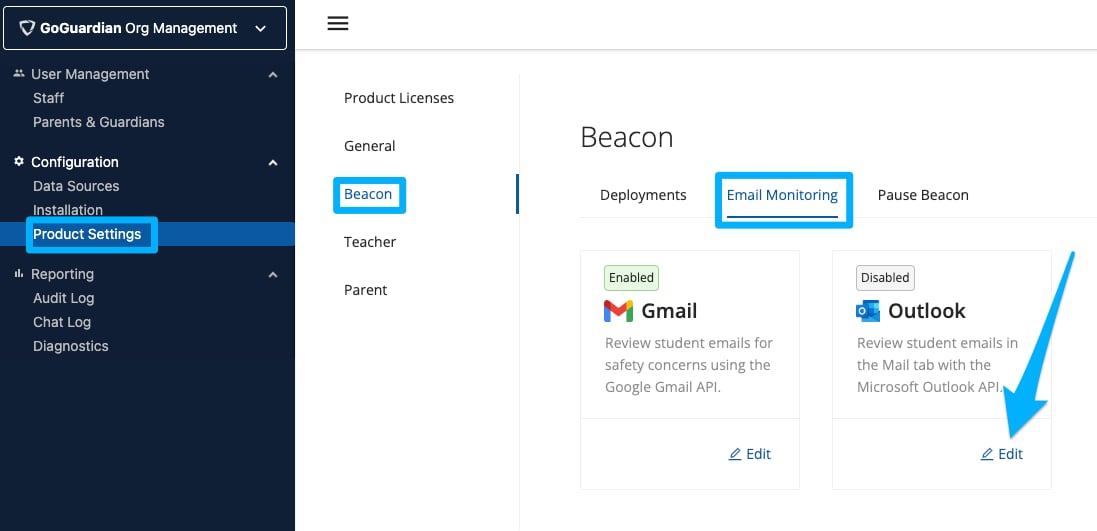
1. Log in to Org Management at [manage.goguardian.com](https://manage.goguardian.com) as a Super User. Navigate to **Configuration** > **Product Settings** > **Beacon** > **Email Monitoring**. Click **Edit** under the Outlook option.
2. Navigate to [Microsoft Entra Admin Center](https://entra.microsoft.com/#view/Microsoft_AAD_IAM/TenantOverview.ReactView) with a Microsoft administrator account. Copy your **Tenant ID** from the **Properties** tab. Paste the Tenant ID into the field in Org Management and click **Submit**.
3. Click the link with a URL customized for your Tenant ID, provided in Org Management. Sign in to your Microsoft account. Click **Accept** when prompted to grant GoGuardian Outlook API permission. Check the confirmation box once you have completed this step.
4. Enter a user's email address from your Microsoft tenant into the validation field. Click **Start Validation**. Confirm that you understand what enabling Outlook API for Beacon does.
5. Toggle the **Outlook API** switch to **ON** to complete setup.


 ## Resources
Understand alert cards generated from Gmail API-based monitoring.
Review the full Beacon configuration checklist.
Configure which alert phases generate dashboard cards and notifications.
Complete all Beacon setup steps before going live.
## Resources
Understand alert cards generated from Gmail API-based monitoring.
Review the full Beacon configuration checklist.
Configure which alert phases generate dashboard cards and notifications.
Complete all Beacon setup steps before going live.