> ## Documentation Index
> Fetch the complete documentation index at: https://docs.goguardian.com/llms.txt
> Use this file to discover all available pages before exploring further.
# Parent and Guardian Notifications
> Beacon can automatically notify parents and guardians after school hours when a student may need support. Configure, customize, and maintain these settings.
GoGuardian Beacon includes an optional feature that sends after-school email notifications to a student's parent or guardian when Beacon identifies content that may indicate the student needs support. This feature is designed to help families connect with their school's support resources.
Parent and guardian notifications are not available on Beacon Starter. This feature requires Beacon Core or Beacon 24/7.
Consistent with guidance from the American Foundation for Suicide Prevention and the American Association of Suicidology, the notification does not include details about what triggered the alert. This protects student safety. Parents and guardians who receive a notification should contact the school for more information.
## Review What the Notification Includes
The parent or guardian notification includes:
* The student's name
* A customizable message with school-provided resources and contact information
It does not include details about the specific content or activity that generated the alert.
## Educate Parents and Guardians First
Before enabling parent and guardian notifications, inform and educate parents and guardians about your school or district's adoption of Beacon. Cover what they can expect to see in a Beacon notification, suicide prevention strategies, and the resources and next steps available if they receive a notification or otherwise suspect that their child may be at risk of suicide.
## Set Up Parent and Guardian Notifications
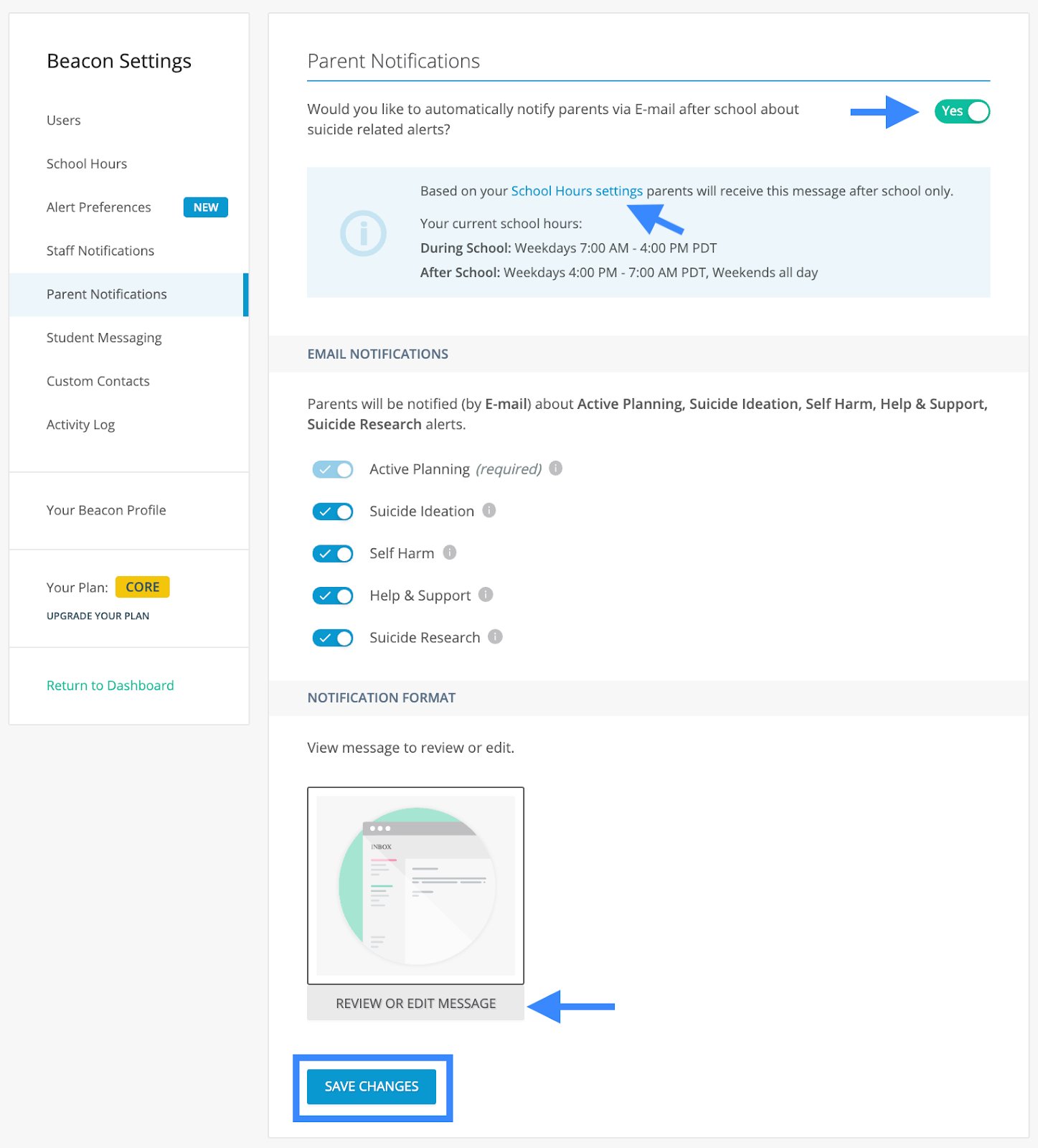
1. Go to [beacon.goguardian.com](https://beacon.goguardian.com) and sign in.
2. Go to **Settings** > **Parent Notifications**.
3. Turn on parent and guardian notifications for after-school hours.
4. Edit the notification message to include your school or district's contact information and any parent resources you want to provide.
5. Click **Save Changes**.
Include at least one school point of contact in the notification message. Parents and guardians need to know who to call or email when they receive the notification.
 ## Maintain Accurate Parent and Guardian Contact Information
Beacon sends notifications to the contact information associated with the student in Org Management. Inaccurate or outdated contact information will prevent notifications from reaching the right people.
* Upload and update parent or guardian contact information at [manage.goguardian.com/guardians](https://manage.goguardian.com/guardians).
* Remind parents and guardians to notify the school if their contact information changes.
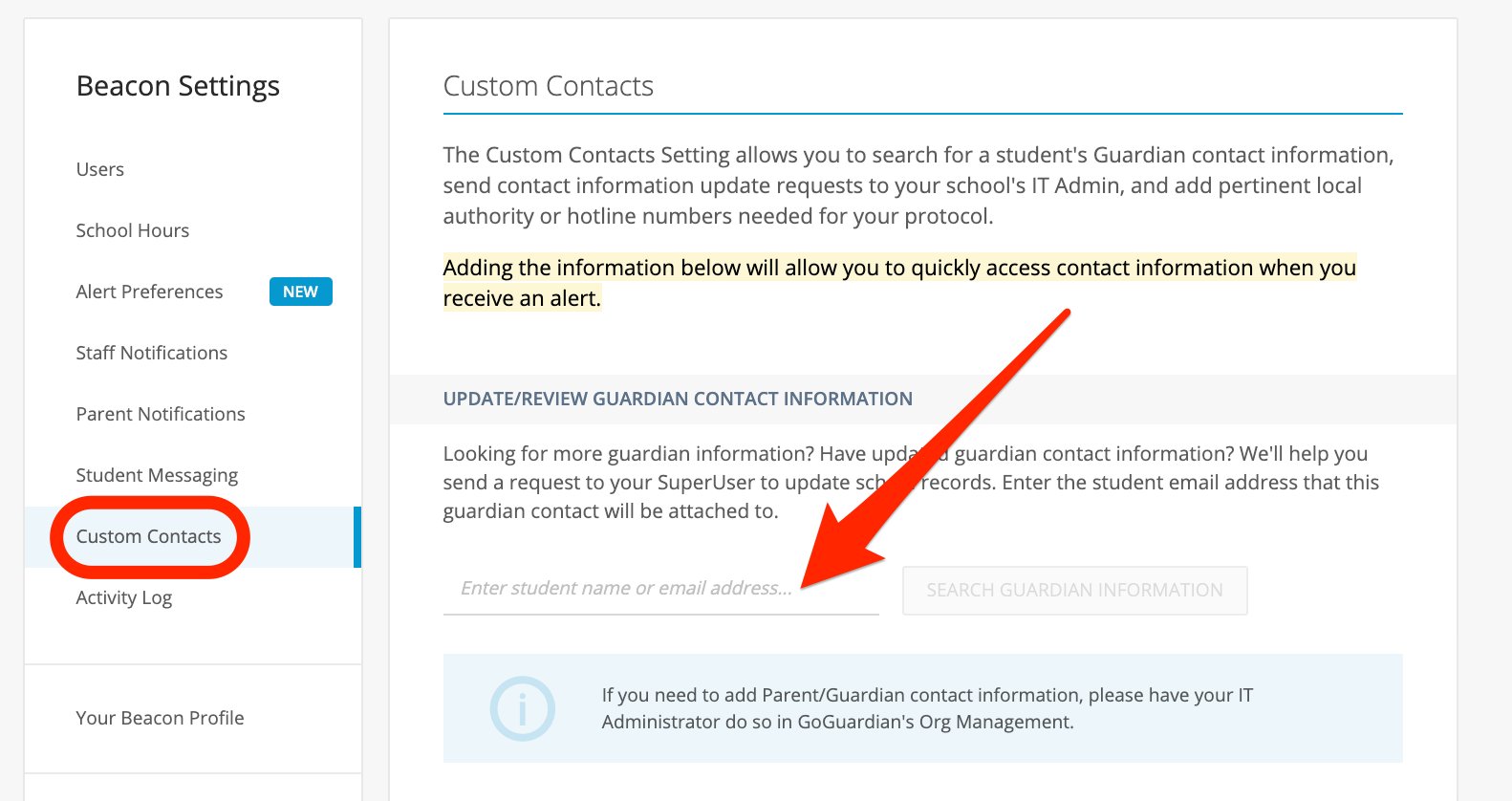
* Super Counselors can submit a request to update parent or guardian information by going to **Custom Contacts** > **Update/Review Guardian Contact Information**. Super Users must approve the change.
## Maintain Accurate Parent and Guardian Contact Information
Beacon sends notifications to the contact information associated with the student in Org Management. Inaccurate or outdated contact information will prevent notifications from reaching the right people.
* Upload and update parent or guardian contact information at [manage.goguardian.com/guardians](https://manage.goguardian.com/guardians).
* Remind parents and guardians to notify the school if their contact information changes.
* Super Counselors can submit a request to update parent or guardian information by going to **Custom Contacts** > **Update/Review Guardian Contact Information**. Super Users must approve the change.
 ## Verify a Parent Notification Was Sent
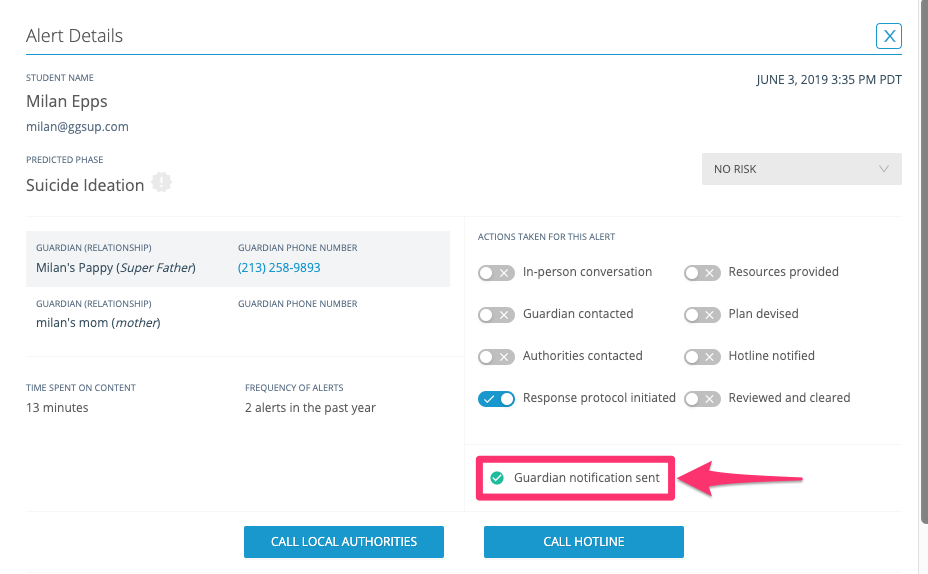
1. Go to [beacon.goguardian.com](https://beacon.goguardian.com) and click the relevant alert card.
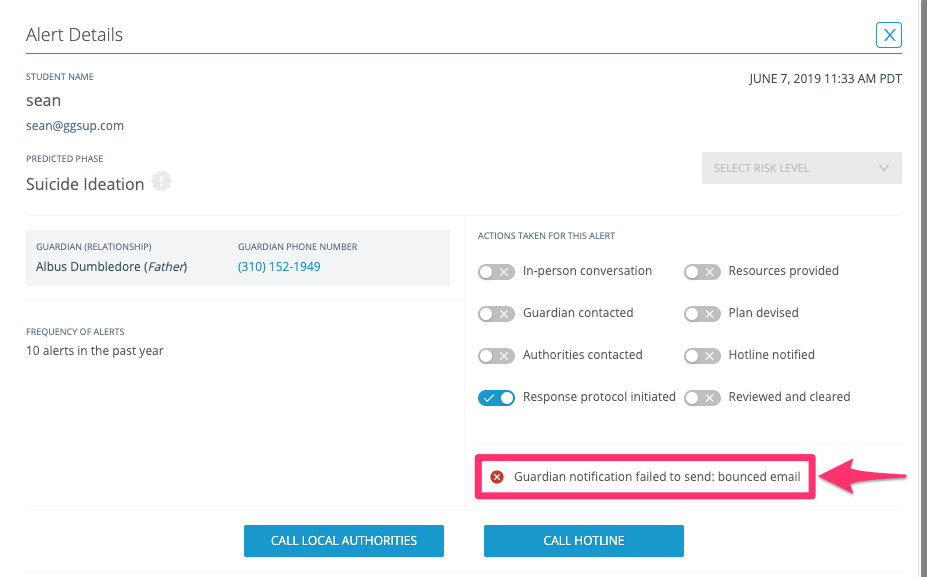
2. Look in the lower right area of the alert card. A confirmation message indicates whether the parent or guardian notification was sent successfully.
3. If the notification failed to send, confirm with the parent or guardian that the email address on file in Org Management is current and free of spelling errors.
## Verify a Parent Notification Was Sent
1. Go to [beacon.goguardian.com](https://beacon.goguardian.com) and click the relevant alert card.
2. Look in the lower right area of the alert card. A confirmation message indicates whether the parent or guardian notification was sent successfully.
3. If the notification failed to send, confirm with the parent or guardian that the email address on file in Org Management is current and free of spelling errors.
 ## Find Answers for Parents and Guardians
If you have received a notification or have questions about GoGuardian Beacon, contact your child's school or district directly for more information.
If you or someone you know may be struggling, support is available. Call or text **988** to reach the Suicide and Crisis Lifeline. Text **TALK** to **741741** to reach the Crisis Text Line. For emergencies, call **911**.
Set up your personal notification preferences for email and SMS.
Configure interval times and reminder frequency for staff alert notifications.
Add and manage users who can access Beacon alerts and settings.
Navigate the Beacon dashboard and alert feed.
## Find Answers for Parents and Guardians
If you have received a notification or have questions about GoGuardian Beacon, contact your child's school or district directly for more information.
If you or someone you know may be struggling, support is available. Call or text **988** to reach the Suicide and Crisis Lifeline. Text **TALK** to **741741** to reach the Crisis Text Line. For emergencies, call **911**.
Set up your personal notification preferences for email and SMS.
Configure interval times and reminder frequency for staff alert notifications.
Add and manage users who can access Beacon alerts and settings.
Navigate the Beacon dashboard and alert feed.