> ## Documentation Index
> Fetch the complete documentation index at: https://docs.goguardian.com/llms.txt
> Use this file to discover all available pages before exploring further.
# Review a Beacon 24/7 Alert
> Beacon 24/7 alerts are reviewed and escalated by the GoGuardian Safety Support team — this article explains how to access, review, and resolve those alerts.
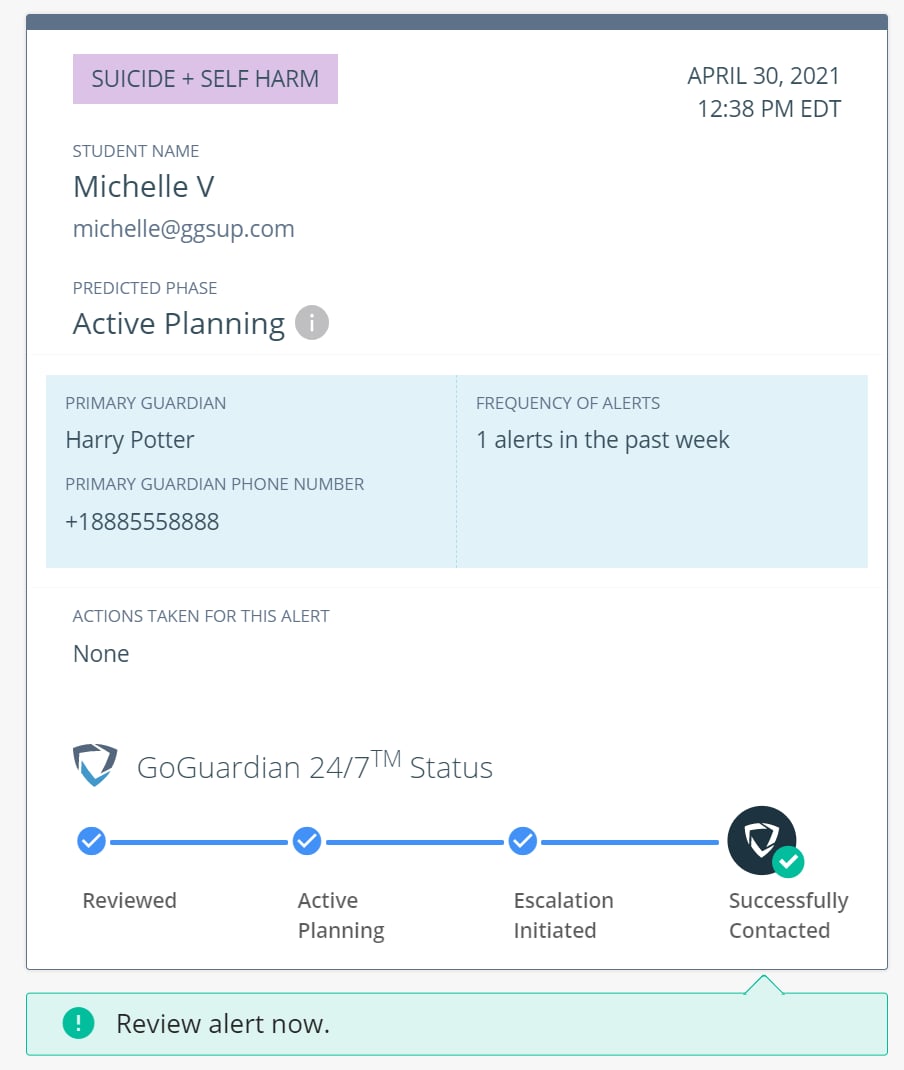
Beacon 24/7 escalated alerts are student-triggered events that the GoGuardian Safety Support team has reviewed and escalated because the online behavior or content demonstrated methodologies, suicide notes, or similar indicators. You can review these alerts from the **Alerts** page in GoGuardian Beacon. Refer to your school's suicide prevention policy to help determine what actions your users take at this stage.
The content that triggered the alert is not included in the notification email. Use the link in the email to access the full alert card, which contains browsing history, rationale, and screenshots.
## Access Alert from Email
When Beacon detects activity associated with self-harm or suicide, an email notification is sent from **[beacon-noreply@goguardiannotifications.com](mailto:beacon-noreply@goguardiannotifications.com)** to all members on the Escalation List. The email includes the student's name, deployment, and the current Escalation List in call order.
1. Click the login link in the Beacon Alert Notification email.
2. If prompted, sign in to GoGuardian Beacon.
3. The alert card opens automatically. Review the alert content before taking action.
## Review Alert on Alerts Page
Alert cards with a colored border require attention. Click any alert card to open the full detail view.
1. Click the alert card on the **Alerts** page.
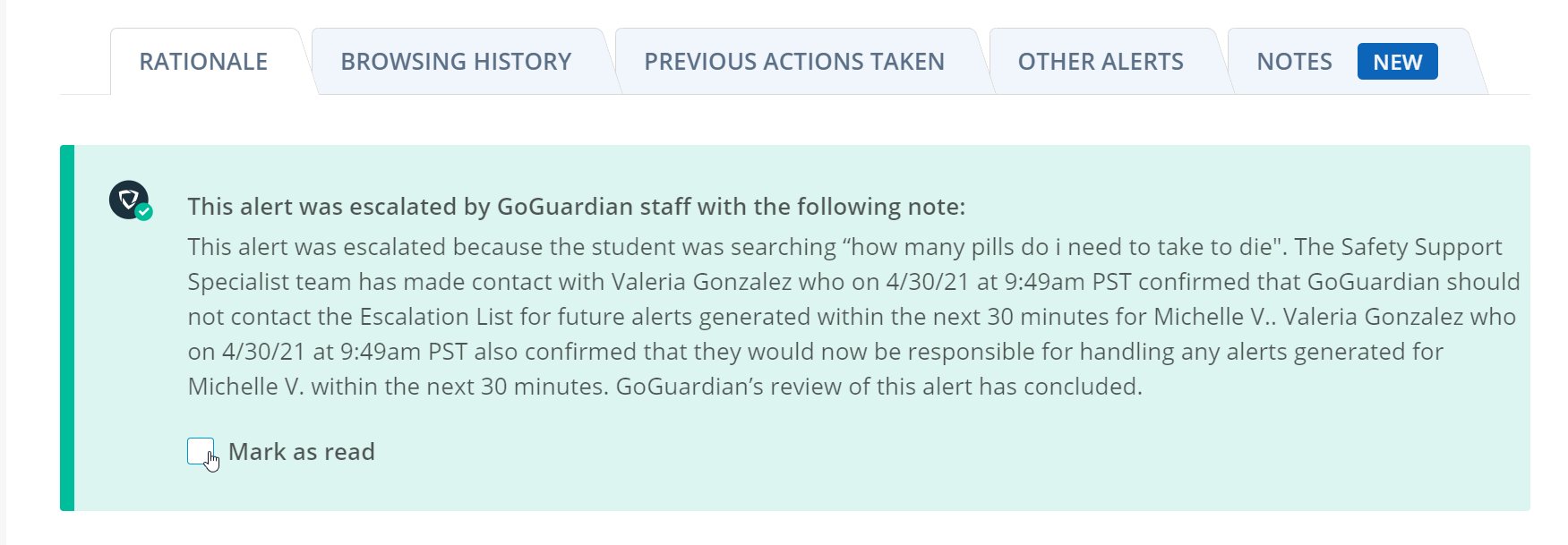
2. The **Rationale** tab contains:
* Screenshots highlighting the content that triggered the alert
* DOM text highlighting specific terms associated with the alert
3. The **Browsing** tab displays screenshots, direct URL links, the time of the alert, and the phase or category.
4. Select the **Mark as Read** checkbox inside the **Rationale** tab.
 ## Resolve Alert
1. Click the alert card on the **Alerts** page.
2. Read through all available information before taking action.
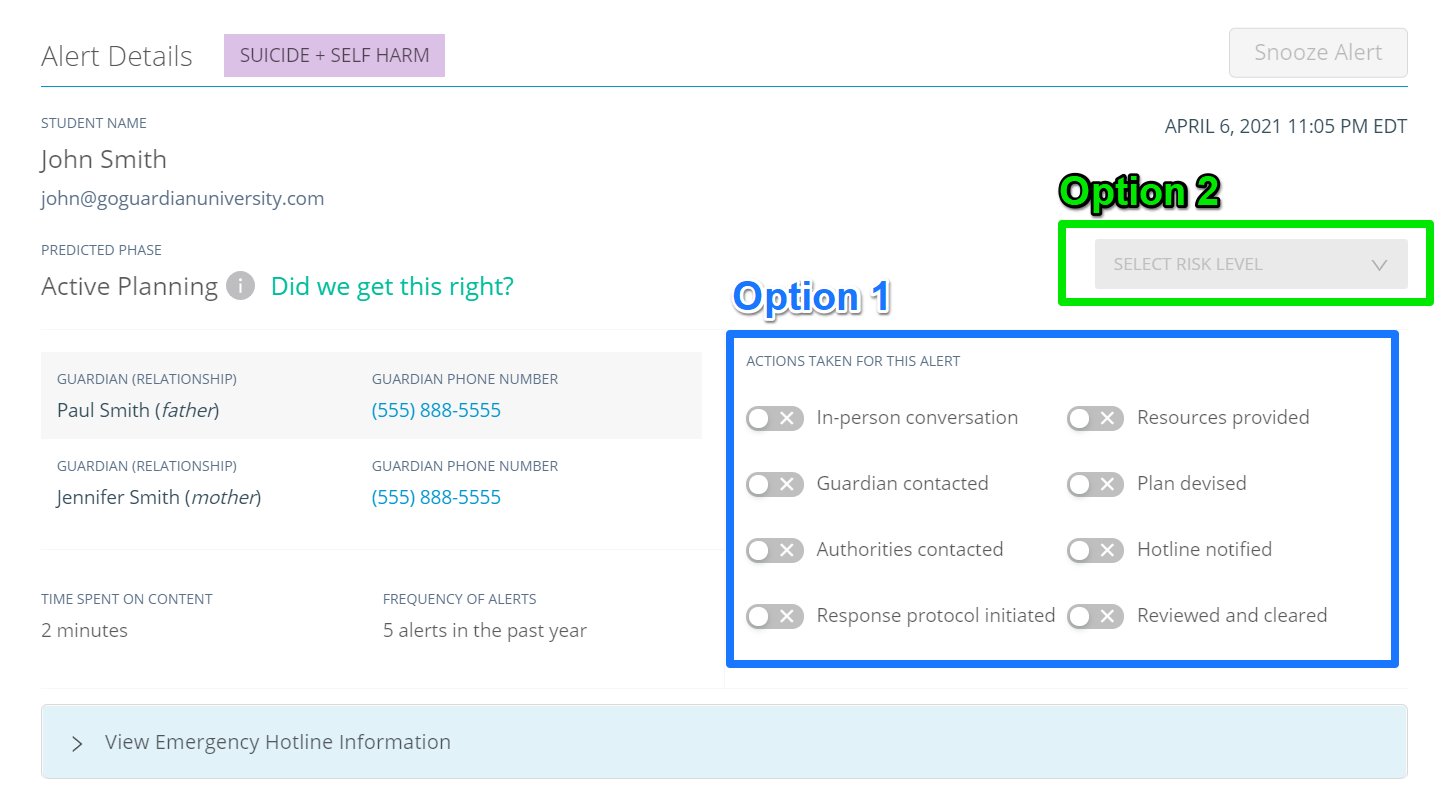
3. Toggle each action taken for this alert under **Actions Taken for This Alert**.
4. Select the appropriate risk level for the student.
5. Under the **Rationale** tab, a summary from the Safety Support team notes whether contact with an Escalation List member was successfully made.
6. Select the **Mark as Read** checkbox to complete the alert. Toggling all required actions also removes the colored border from the alert card.
The **Previous Actions Taken** section displays the date, time, and actions recorded for previous alerts associated with the same student.
## Resolve Alert
1. Click the alert card on the **Alerts** page.
2. Read through all available information before taking action.
3. Toggle each action taken for this alert under **Actions Taken for This Alert**.
4. Select the appropriate risk level for the student.
5. Under the **Rationale** tab, a summary from the Safety Support team notes whether contact with an Escalation List member was successfully made.
6. Select the **Mark as Read** checkbox to complete the alert. Toggling all required actions also removes the colored border from the alert card.
The **Previous Actions Taken** section displays the date, time, and actions recorded for previous alerts associated with the same student.
 ## Resources
Answers to common questions about the Beacon 24/7 service.
Descriptions of each alert phase detected by Beacon.
How to assign and interpret risk levels on alert cards.
Configure who receives Beacon 24/7 escalation calls.
## Resources
Answers to common questions about the Beacon 24/7 service.
Descriptions of each alert phase detected by Beacon.
How to assign and interpret risk levels on alert cards.
Configure who receives Beacon 24/7 escalation calls.