> ## Documentation Index
> Fetch the complete documentation index at: https://docs.goguardian.com/llms.txt
> Use this file to discover all available pages before exploring further.
# Risk Levels
> Risk levels are manually assigned to Beacon alert cards by counselors or administrators to help prioritize follow-up actions.
Alerts are generated without an assigned risk level. Counselors and administrators assign risk levels manually to help colleagues prioritize alerts and delegate follow-up actions. Assigning a risk level is optional.
## Review Risk Level Values
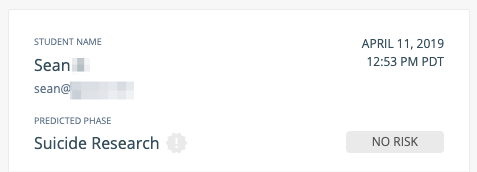
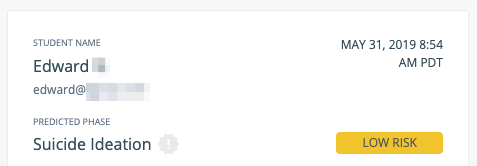
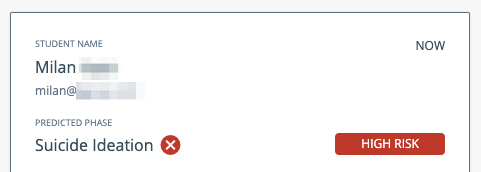
| Risk level | Color indicator |
| ----------- | --------------- |
| No Risk | Grey |
| Low Risk | Yellow |
| Medium Risk | Orange |
| High Risk | Red |
A fifth value, **Select Risk Level**, is the default for all newly generated alerts. It indicates that no risk level has been assigned yet.
 ## Assign Risk Level
Open an alert card from the **Alerts** page. Select the appropriate risk level from the risk level dropdown on the alert card. The selection is saved automatically.
Setting a risk level is optional, but doing so helps all Beacon users on your team understand the urgency of each alert and prioritize their responses.
## Assign Risk Level
Open an alert card from the **Alerts** page. Select the appropriate risk level from the risk level dropdown on the alert card. The selection is saved automatically.
Setting a risk level is optional, but doing so helps all Beacon users on your team understand the urgency of each alert and prioritize their responses.
 ## Resources
Step-by-step instructions for reviewing and resolving alerts.
Descriptions of each phase that Beacon detects.
How Beacon groups related alerts for batch review.
Overview of the Beacon alerts dashboard.
## Resources
Step-by-step instructions for reviewing and resolving alerts.
Descriptions of each phase that Beacon detects.
How Beacon groups related alerts for batch review.
Overview of the Beacon alerts dashboard.