> ## Documentation Index
> Fetch the complete documentation index at: https://docs.goguardian.com/llms.txt
> Use this file to discover all available pages before exploring further.
# Save an Alert as PDF
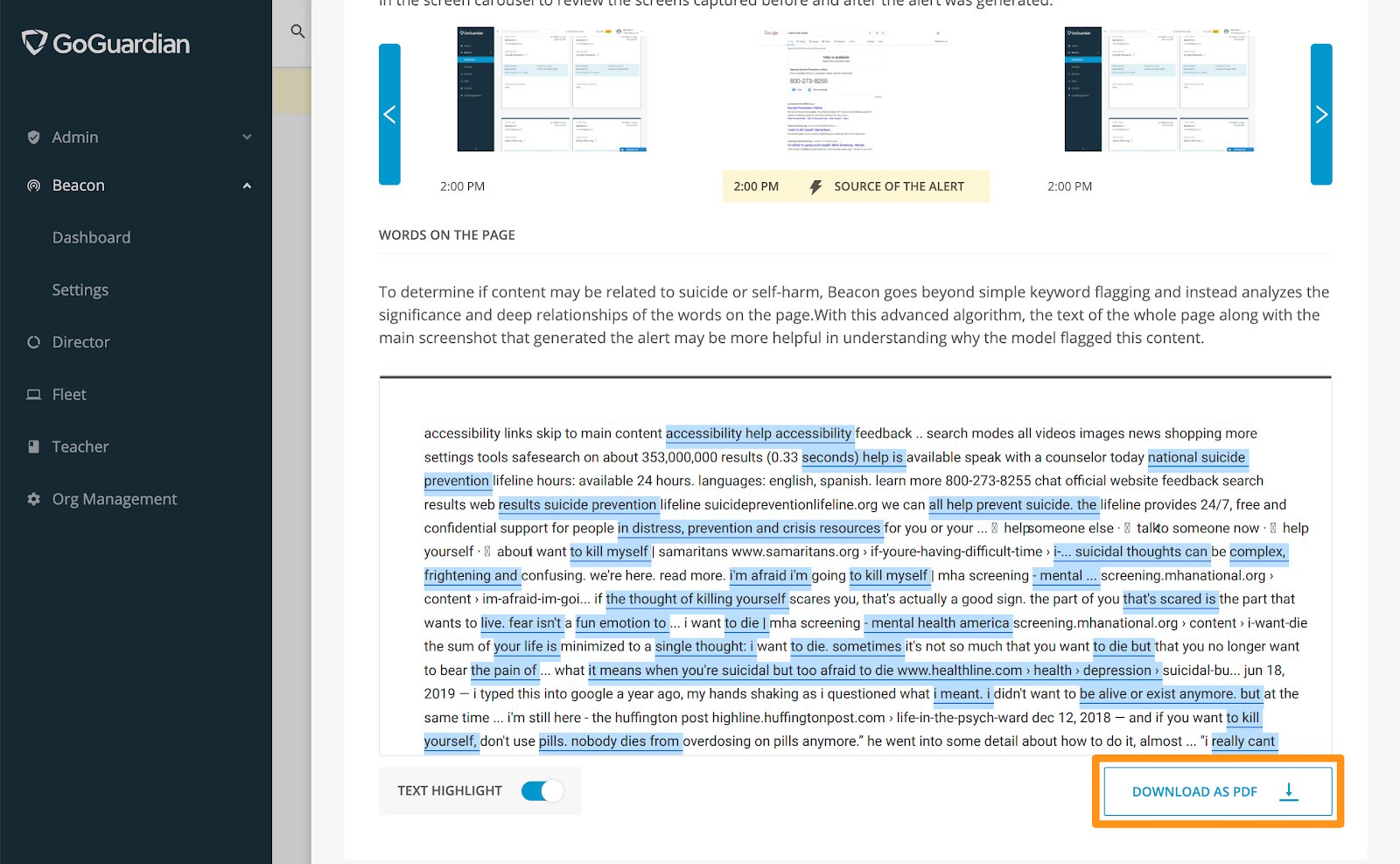
> Any Beacon alert card can be downloaded as a PDF file directly from the Rationale tab.
GoGuardian Beacon allows users to download any alert card as a PDF file for sharing or record-keeping.
## Download the PDF
1. Go to [beacon.goguardian.com](https://beacon.goguardian.com) and sign in.
2. From the **Alerts** page, click the alert card you want to save.
3. Select the **Rationale** tab within the alert card.
4. Scroll to the bottom of the page and click **Download as PDF**. The file downloads automatically.
 ## Review PDF Contents
The downloaded PDF includes the following information:
| Field | Description |
| -------------------------------- | ---------------------------------------------------------------------- |
| **Student Name** | Name of the student who generated the alert. |
| **Predicted Phase** | Beacon's classification of the detected activity. |
| **Risk Level** | The risk level assigned to the alert. |
| **Guardian Information** | Contact details for the student's primary guardian. |
| **Actions Taken For This Alert** | All actions recorded on the alert. |
| **Screenshot of Alert** | The source screenshot that triggered the alert. |
| **Pre-Activity Screenshots** | Screenshots captured before the alert was generated. |
| **Post-Activity Screenshots** | Screenshots captured after the alert was generated. |
| **Words on the Page** | All text Beacon analyzed on the page, with relevant terms highlighted. |
***
How the Rationale tab explains why Beacon generated an alert.
Reference for every field on a Beacon alert card.
Steps for reviewing and resolving an alert from an email notification.
## Review PDF Contents
The downloaded PDF includes the following information:
| Field | Description |
| -------------------------------- | ---------------------------------------------------------------------- |
| **Student Name** | Name of the student who generated the alert. |
| **Predicted Phase** | Beacon's classification of the detected activity. |
| **Risk Level** | The risk level assigned to the alert. |
| **Guardian Information** | Contact details for the student's primary guardian. |
| **Actions Taken For This Alert** | All actions recorded on the alert. |
| **Screenshot of Alert** | The source screenshot that triggered the alert. |
| **Pre-Activity Screenshots** | Screenshots captured before the alert was generated. |
| **Post-Activity Screenshots** | Screenshots captured after the alert was generated. |
| **Words on the Page** | All text Beacon analyzed on the page, with relevant terms highlighted. |
***
How the Rationale tab explains why Beacon generated an alert.
Reference for every field on a Beacon alert card.
Steps for reviewing and resolving an alert from an email notification.