> ## Documentation Index
> Fetch the complete documentation index at: https://docs.goguardian.com/llms.txt
> Use this file to discover all available pages before exploring further.
# Schedule a Pause
> Pause GoGuardian Beacon for a defined period so no alerts or notifications are generated — useful for school events, testing periods, or planned downtime.
Super Users can schedule a pause to stop GoGuardian Beacon from generating alerts and notifications for a specific period. During a pause, no alert cards are created and no notifications of any kind are sent. When the pause ends, Beacon resumes activity based on your deployment settings.
A scheduled pause applies to all deployments within the organization. Only Super Users can create, edit, or disable pauses.
The Scheduled Pause feature is available on Beacon Core and 24/7 only.
Any time a pause is scheduled, edited, disabled, beginning, or ending, Beacon sends an email notification to all Super Users in the organization.
## View Scheduled Pauses
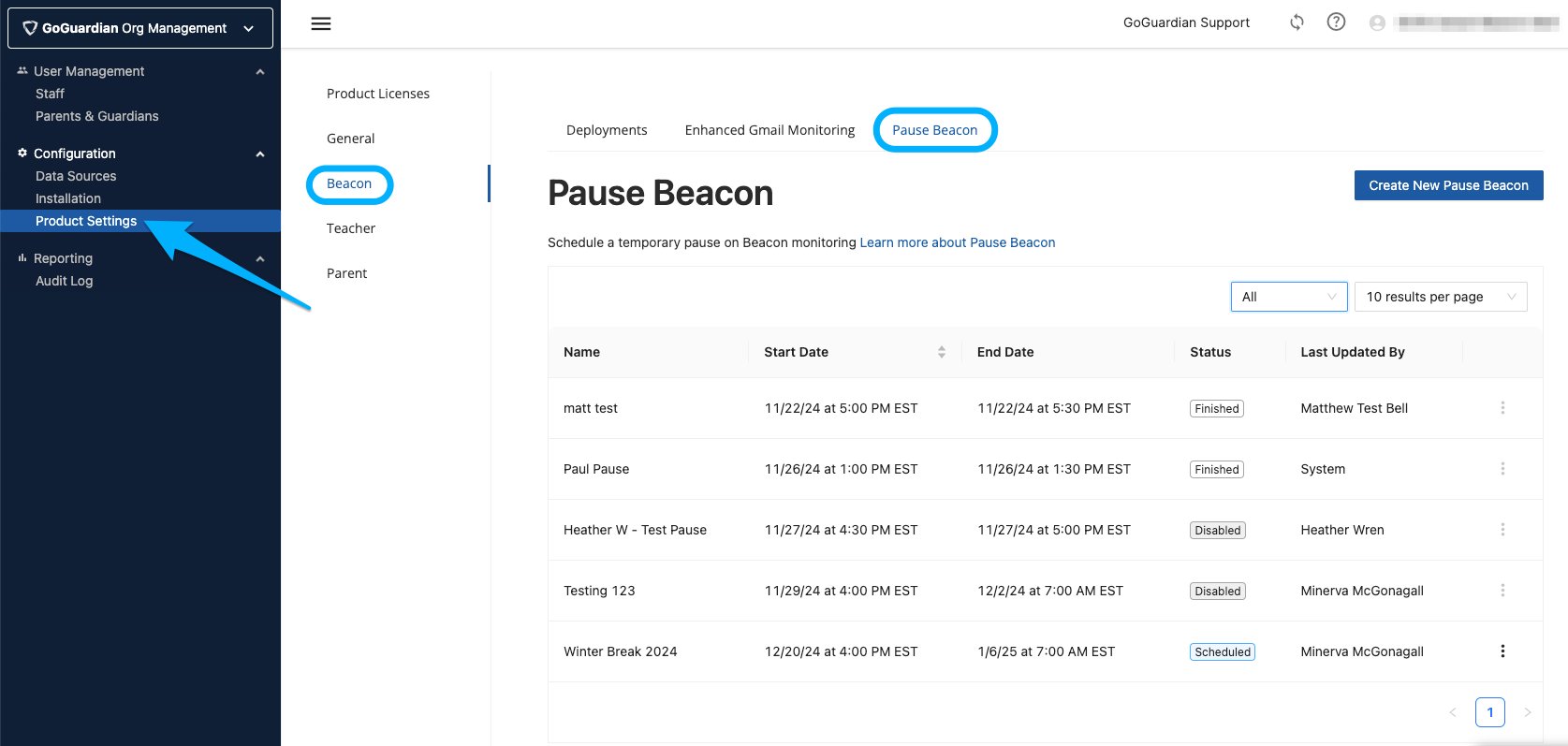
1. Go to `manage.goguardian.com` as a Super User.
2. Under **Configuration**, click **Product Settings**.
3. Select **Beacon**.
4. Click the **Pause Beacon** tab to view all scheduled, active, finished, and disabled pauses.
 ## Create a New Pause
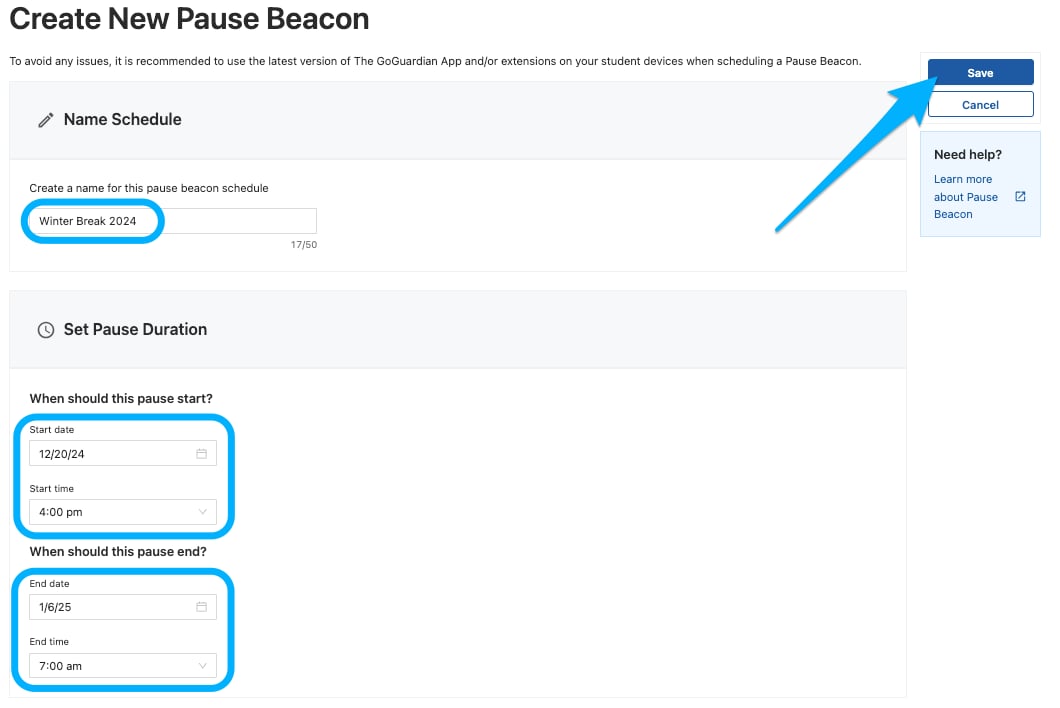
1. Follow the steps in View Scheduled Pauses to open the **Pause Beacon** tab.
2. Click **Create New Pause Beacon**.
3. Enter a name for the scheduled pause.
4. Define the date and time the pause should begin.
5. Define the date and time the pause should end.
6. Click **Save**.
A pause must be scheduled at least 30 minutes before its start time.
## Create a New Pause
1. Follow the steps in View Scheduled Pauses to open the **Pause Beacon** tab.
2. Click **Create New Pause Beacon**.
3. Enter a name for the scheduled pause.
4. Define the date and time the pause should begin.
5. Define the date and time the pause should end.
6. Click **Save**.
A pause must be scheduled at least 30 minutes before its start time.
 ## Edit a Scheduled Pause
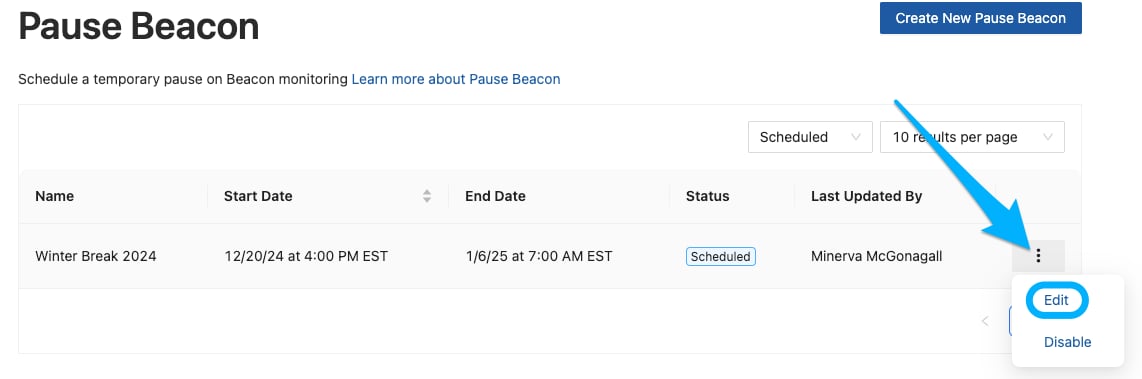
1. Find the pause you want to edit in the **Pause Beacon** tab.
2. Click the three vertical dots to the right of the pause.
3. Choose **Edit**.
4. Update the name, start date and time, or end date and time.
5. Click **Save**.
## Edit a Scheduled Pause
1. Find the pause you want to edit in the **Pause Beacon** tab.
2. Click the three vertical dots to the right of the pause.
3. Choose **Edit**.
4. Update the name, start date and time, or end date and time.
5. Click **Save**.
 ## Disable a Scheduled or In-Progress Pause
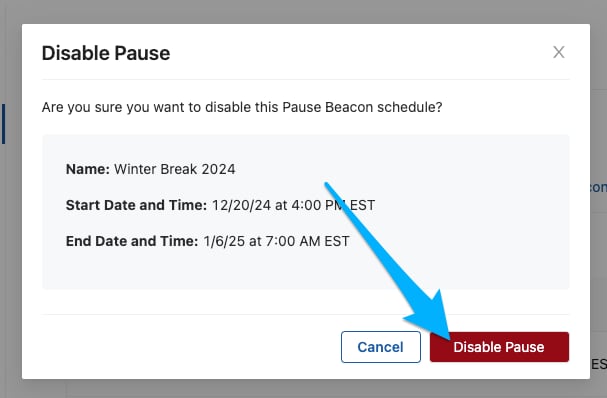
1. Find the pause you want to disable in the **Pause Beacon** tab.
2. Click the three vertical dots to the right of the pause.
3. Choose **Disable**.
4. Review the pause details and click **Disable Pause** to confirm.
## Disable a Scheduled or In-Progress Pause
1. Find the pause you want to disable in the **Pause Beacon** tab.
2. Click the three vertical dots to the right of the pause.
3. Choose **Disable**.
4. Review the pause details and click **Disable Pause** to confirm.
 ## Filter Pauses
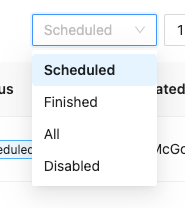
Use the filter options in the **Pause Beacon** tab to view pauses by status:
* **Scheduled** — Pauses that have not yet started
* **Finished** — Pauses that have ended
* **All** — All pauses regardless of status
* **Disabled** — Pauses that were manually disabled
In rare instances, you may still receive alerts during a pause. This can occur due to outdated versions of the GoGuardian app or extension, or unique technical conditions.
## Filter Pauses
Use the filter options in the **Pause Beacon** tab to view pauses by status:
* **Scheduled** — Pauses that have not yet started
* **Finished** — Pauses that have ended
* **All** — All pauses regardless of status
* **Disabled** — Pauses that were manually disabled
In rare instances, you may still receive alerts during a pause. This can occur due to outdated versions of the GoGuardian app or extension, or unique technical conditions.
 ## Resources
Complete the full Beacon setup checklist.
Set the school hours that control when notifications are sent.
Control which alert phases generate dashboard cards and notifications.
Add your phone number and choose your notification format.
## Resources
Complete the full Beacon setup checklist.
Set the school hours that control when notifications are sent.
Control which alert phases generate dashboard cards and notifications.
Add your phone number and choose your notification format.