> ## Documentation Index
> Fetch the complete documentation index at: https://docs.goguardian.com/llms.txt
> Use this file to discover all available pages before exploring further.
# Set Up Your Profile
> Add your phone number, verify your permissions, and choose your notification format in your GoGuardian Beacon profile.
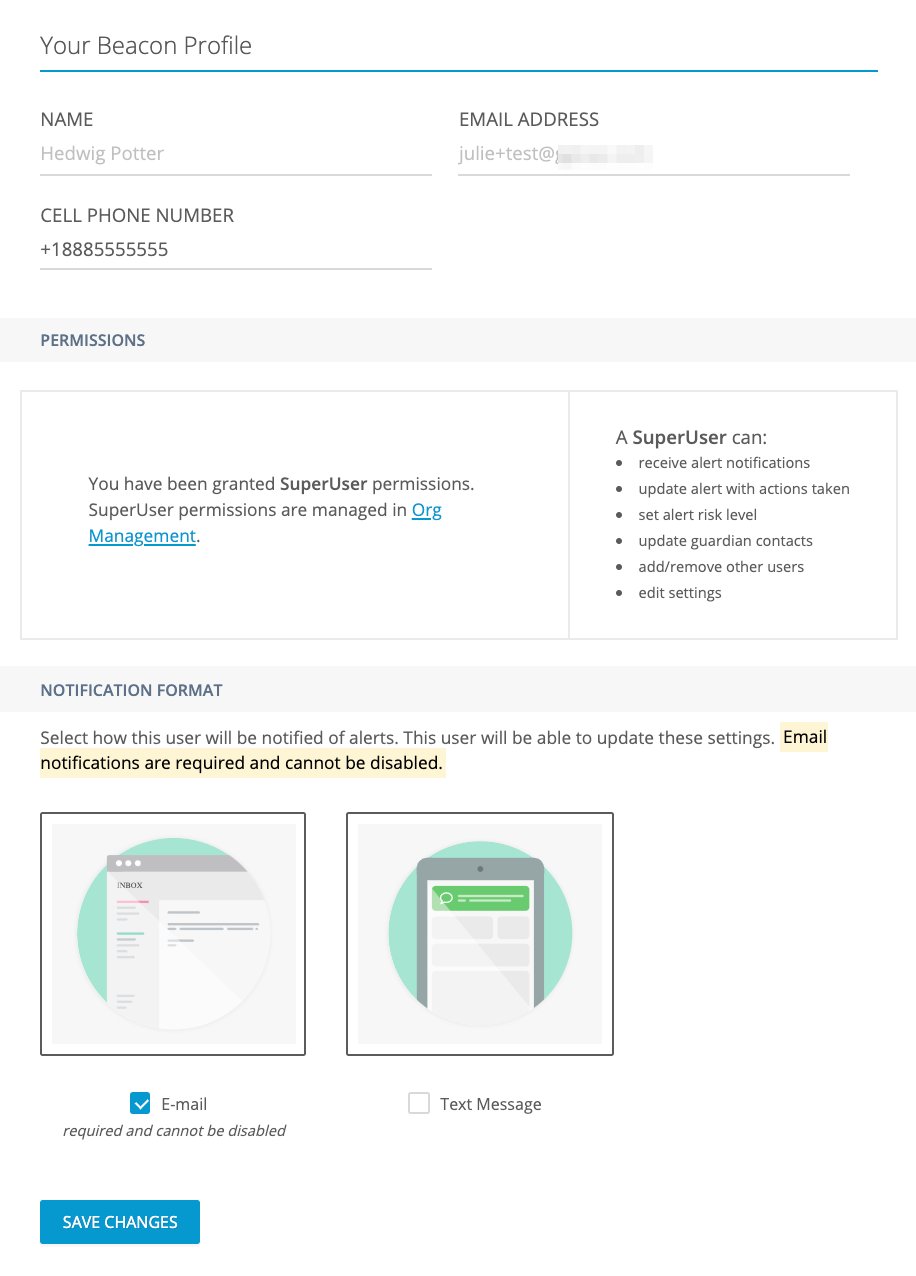
Every user with access to GoGuardian Beacon must set up their profile on first login. Your profile stores your cell phone number and notification preferences. Your name and email address are managed in Org Management by a Super User and cannot be changed from within Beacon.
1. Go to `beacon.goguardian.com` and sign in.
2. Click **Settings**, then select **Your Beacon Profile**.
3. Confirm that your name and email address are accurate. If either field is incorrect, contact your Super User to update the information in Org Management.
4. Enter your cell phone number if you want to receive text message notifications for Beacon alerts. This field is required to enable text notifications.
5. Review the **Permissions** section to confirm that your account has the correct access level. Contact your Super User if your permissions need to be adjusted.
6. Choose whether to receive notifications by email only, or by both email and text message. Email notifications are required and cannot be disabled. Text message notifications are optional.
7. Click **Save**.
Email and text message notifications are sent only to users on the escalation list.
## Review Profile Fields
### Name and Email Address
Your name and email address are set by your Super User in Org Management. These fields cannot be edited in Beacon. To update this information, send a request to your Super User.
### Cell Phone Number
The **Cell Phone Number** field enables Beacon's text message notification service. Enter your number here to make text notifications available. Text notifications for Active Planning alerts are required when enabled; all other phases are optional.
### Permissions
The **Permissions** section displays your account's access level and the actions available to you in Beacon. Only Super Users can modify permissions. For a full description of roles and permissions, see [Beacon User Roles and Permissions](/products/beacon/user-roles-and-permissions).
### Notification Format
Select how you want to be notified when Beacon identifies a student accessing self-harm-related content. Email notifications are required and cannot be turned off. Text message notifications are optional. For more information on how notifications are sent, see [Configure Beacon Settings](/products/beacon/configure-beacon-settings).
 ## Resources
Complete the full Beacon setup checklist.
Control which alert phases generate dashboard cards and notifications.
Set the school hours that control when notifications are sent.
Pause Beacon for a defined time period across all deployments.
## Resources
Complete the full Beacon setup checklist.
Control which alert phases generate dashboard cards and notifications.
Set the school hours that control when notifications are sent.
Pause Beacon for a defined time period across all deployments.