> ## Documentation Index
> Fetch the complete documentation index at: https://docs.goguardian.com/llms.txt
> Use this file to discover all available pages before exploring further.
# Stop Email Notifications
> Take action on a Beacon alert card to stop ongoing email notifications — select a risk level, log an action, create a note, or snooze the alert.
Beacon sends email notifications to escalation list members in tier order. If no action is taken within the configured interval time, the next escalation list member is notified. Notifications continue cycling through the escalation list until someone takes action or the notification limit is reached.
{/* TECH-ACCURACY: confirm correct alert email sender — legacy articles are contradicted: some say no-reply@goguardian.com, others say beacon-noreply@goguardiannotifications.com */}
Taking any of the following actions on the alert card stops further email notifications.
For Active Planning alerts on the Beacon 24/7 plan, phone calls will continue until a GoGuardian representative reaches an escalation list member and confirms appropriate actions are being taken.
## Stop Notifications from an Email
1. Click the **log in** link in the email notification. You will be taken directly to the alert card. Sign in with your GoGuardian credentials if prompted.
2. Complete at least one of the following:
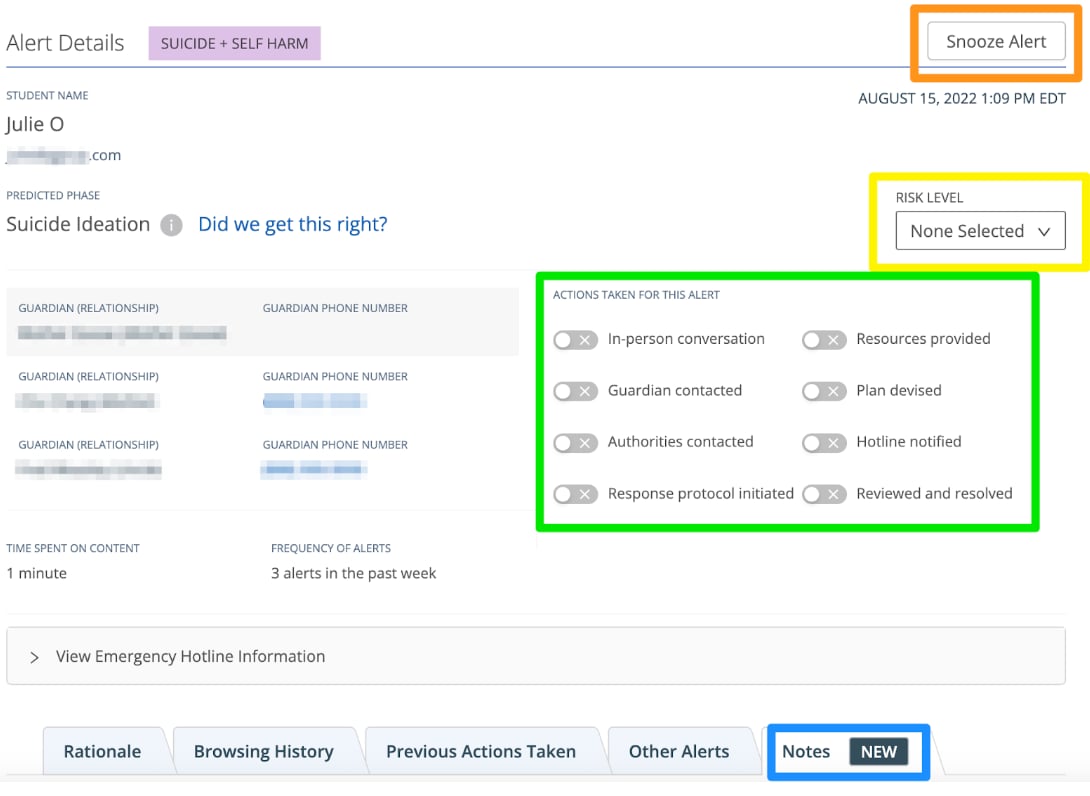
* Select a **Risk Level**
* Turn on an action under **Actions Taken**
* Create a **Note**
* Select **Snooze** (available for non-Active Planning alerts)
 ## Stop Notifications from the Beacon Alert Page
1. Go to [beacon.goguardian.com](https://beacon.goguardian.com) and sign in.
2. Click the relevant alert card.
3. Complete at least one of the following:
* Turn on an action under **Actions Taken**
* Create a **Note**
* Select **Snooze** (available for non-Active Planning alerts)
Selecting a **Risk Level** is also available from the alert page and will stop email notifications.
Configure the interval time and number of reminders for alert notifications.
Set up your personal notification preferences for email and SMS.
Learn how to respond to and act on a Beacon text message alert.
Navigate the Beacon dashboard and alert feed.
## Stop Notifications from the Beacon Alert Page
1. Go to [beacon.goguardian.com](https://beacon.goguardian.com) and sign in.
2. Click the relevant alert card.
3. Complete at least one of the following:
* Turn on an action under **Actions Taken**
* Create a **Note**
* Select **Snooze** (available for non-Active Planning alerts)
Selecting a **Risk Level** is also available from the alert page and will stop email notifications.
Configure the interval time and number of reminders for alert notifications.
Set up your personal notification preferences for email and SMS.
Learn how to respond to and act on a Beacon text message alert.
Navigate the Beacon dashboard and alert feed.