> ## Documentation Index
> Fetch the complete documentation index at: https://docs.goguardian.com/llms.txt
> Use this file to discover all available pages before exploring further.
# Threats and Violence Parent and Guardian Notifications
> Beacon can automatically notify parents and guardians by email when a student's activity triggers a Threats and Violence alert after school hours.
GoGuardian Beacon can send automated email notifications to parents and guardians when a student's activity triggers a Threats and Violence alert. Notifications are sent only after school hours, as defined in your school's School Hours setting.
This feature is not available on Beacon Starter. It is turned off by default. Only Super Users and Super Counselors can configure this setting.
## Review What the Notification Includes
The parent or guardian notification includes:
* The student's name
* A customizable message with parent resources
The notification does not include details about the content that triggered the alert. Parents and guardians must contact your school directly to obtain more information. For this reason, including school contact information in your notification message is strongly recommended.
## Enable Parent and Guardian Notifications
1. Go to [beacon.goguardian.com](https://beacon.goguardian.com) and sign in.
2. Click **Settings** from the navigation menu.
3. Select **Parent Notifications**.
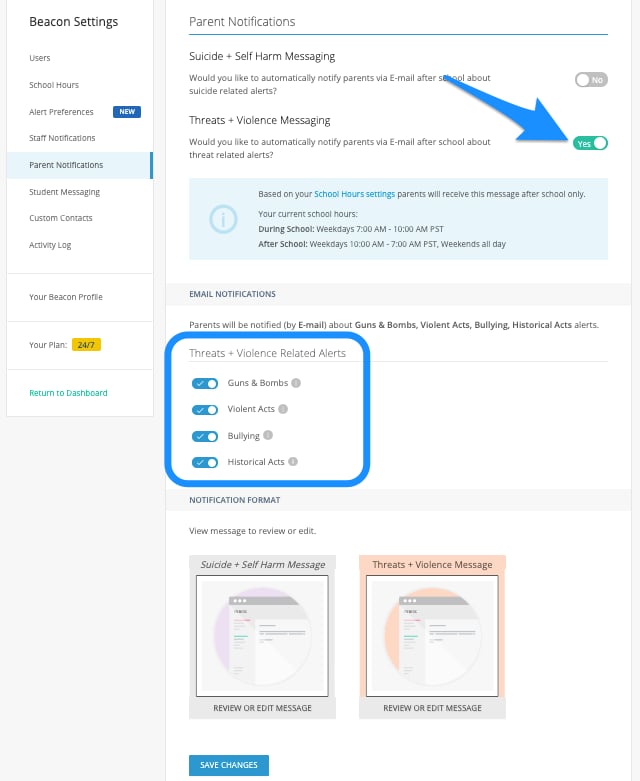
4. Toggle on the **Threats + Violence Parent/Guardian Notification**.
5. Toggle on each category for which you want parents and guardians to receive notifications.
6. Review the provided **Threats + Violence** template. Edit the message to include your school's contact information and any additional resources.
7. Click **Save Changes** at the bottom of the page, then confirm in the pop-up window.
 ## Review and Edit Notification Message
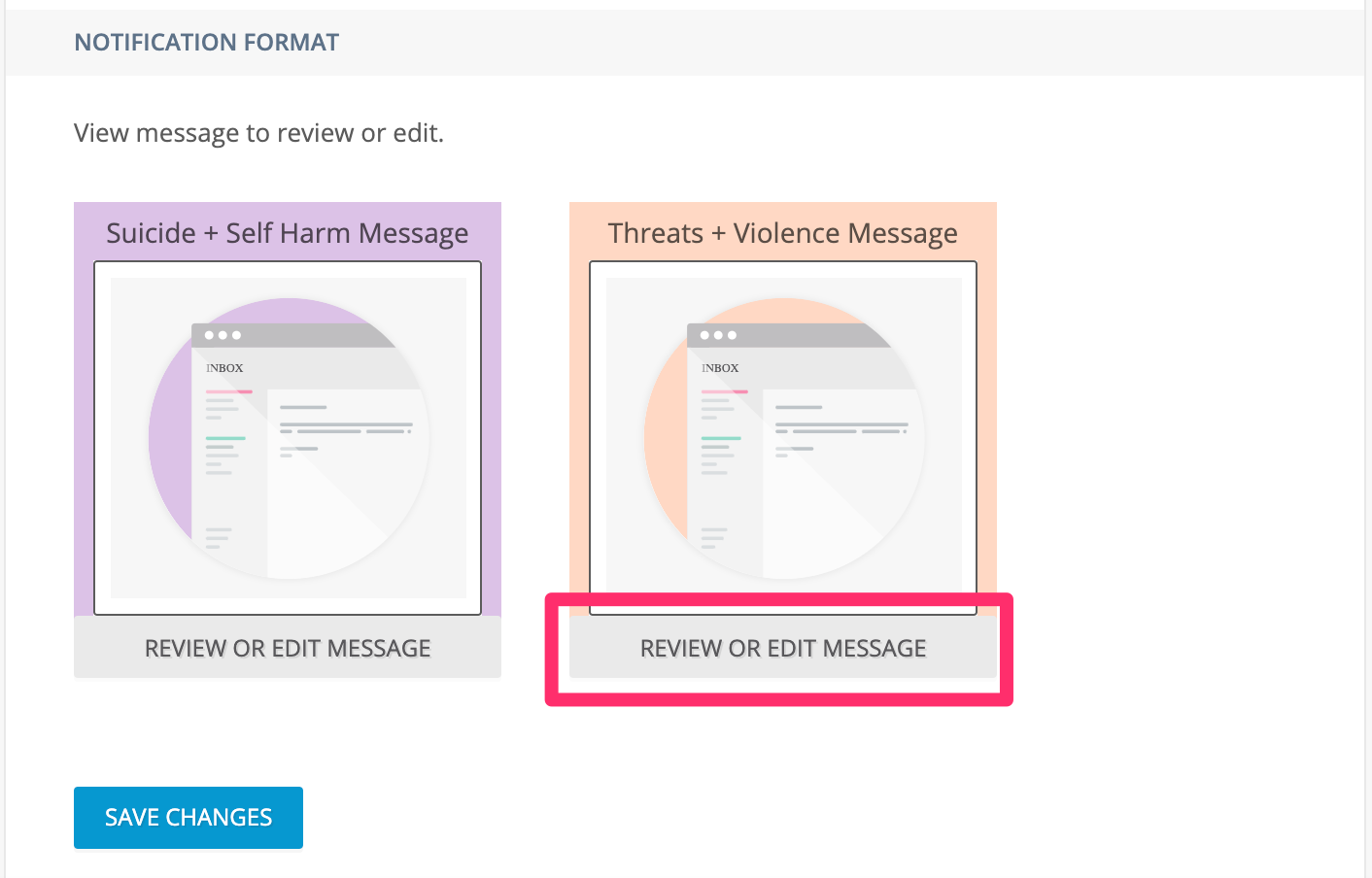 The notification message is customizable. The message does not include details about what triggered the alert. Add school contact information so parents and guardians know who to reach for follow-up.
## Maintain Parent and Guardian Contact Information
Notifications are sent to the contact information associated with each student in your school's system. Schools are responsible for maintaining current and active parent and guardian email addresses and phone numbers. Encourage parents and guardians to notify the school whenever their contact information changes so records can be updated.
Parent and guardian notifications are sent only during after-school hours as defined in the **School Hours** setting.
## Resources
Common questions about the Threats and Violence feature.
Display on-screen messages to students when Threats and Violence activity is detected.
Define the school hours window that governs notification timing.
Reference for Threats and Violence category names and descriptions.
The notification message is customizable. The message does not include details about what triggered the alert. Add school contact information so parents and guardians know who to reach for follow-up.
## Maintain Parent and Guardian Contact Information
Notifications are sent to the contact information associated with each student in your school's system. Schools are responsible for maintaining current and active parent and guardian email addresses and phone numbers. Encourage parents and guardians to notify the school whenever their contact information changes so records can be updated.
Parent and guardian notifications are sent only during after-school hours as defined in the **School Hours** setting.
## Resources
Common questions about the Threats and Violence feature.
Display on-screen messages to students when Threats and Violence activity is detected.
Define the school hours window that governs notification timing.
Reference for Threats and Violence category names and descriptions.