> ## Documentation Index
> Fetch the complete documentation index at: https://docs.goguardian.com/llms.txt
> Use this file to discover all available pages before exploring further.
# Threats and Violence Student Messaging
> Configure Beacon to display a customizable on-screen message to students when activity associated with Threats and Violence is detected.
Threats and Violence Student Messaging is an optional feature that displays a customizable message on a student's screen when Beacon detects activity associated with Threats and Violence categories. Only Super Users and Super Counselors can configure this setting.
This feature is not available on Beacon Starter. It is turned off by default.
## Review the Default Message
You can review and edit the message sent to your students in Beacon Settings. The default Threats and Violence message reads:
> It seems like you might be having thoughts related to threats or violence. We want you to know we care about you and want to help. Please consider reaching out to your parents, school counselors, or another trusted adult. If you need immediate help, call 911 or text HOME to 741741.
If you edit the default text, ensure that your revised message follows safe messaging guidelines before saving.
 ## Enable Student Messaging
1. Go to [beacon.goguardian.com](https://beacon.goguardian.com) and sign in.
2. Click **Settings** from the navigation menu.
3. Select **Student Messaging**.
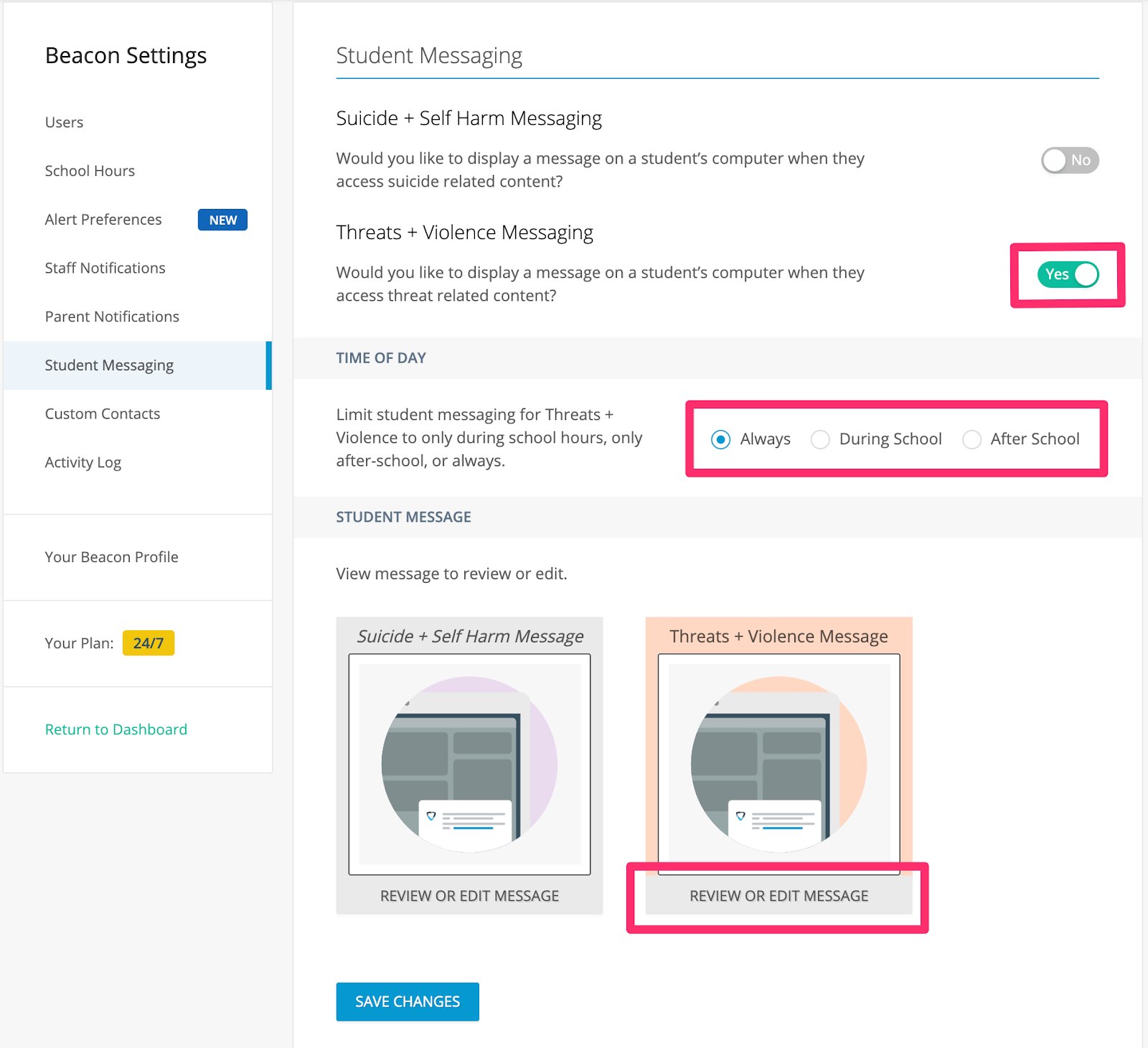
4. Toggle on the **Threats + Violence Student Messaging**.
5. Toggle on the time period during which you want students to receive messages when alerts are generated:
* **Always** — both during and after school
* **During School** — during the hours defined in your School Hours setting
* **After School** — outside of defined school hours
6. Review the provided **Threats + Violence** template and edit it as needed.
7. Click **Save Changes** at the bottom of the page.
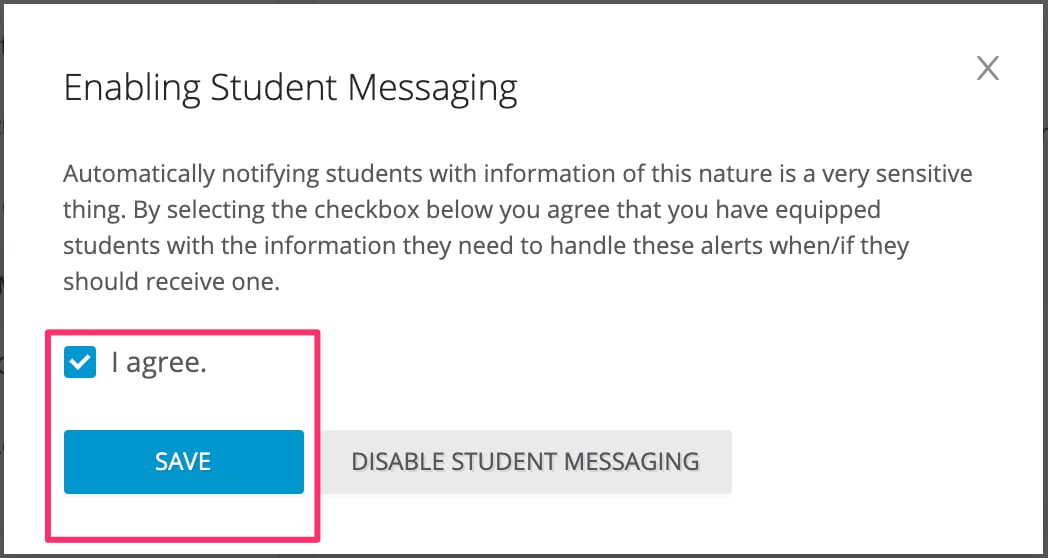
8. A confirmation window appears. Select the checkbox to confirm that students have been prepared to receive alerts of this nature, then click **Save**.
Before enabling student messaging, ensure that staff are prepared to support any student who receives a message. The confirmation step requires you to acknowledge that your school has equipped students with the information they need to respond.
## Enable Student Messaging
1. Go to [beacon.goguardian.com](https://beacon.goguardian.com) and sign in.
2. Click **Settings** from the navigation menu.
3. Select **Student Messaging**.
4. Toggle on the **Threats + Violence Student Messaging**.
5. Toggle on the time period during which you want students to receive messages when alerts are generated:
* **Always** — both during and after school
* **During School** — during the hours defined in your School Hours setting
* **After School** — outside of defined school hours
6. Review the provided **Threats + Violence** template and edit it as needed.
7. Click **Save Changes** at the bottom of the page.
8. A confirmation window appears. Select the checkbox to confirm that students have been prepared to receive alerts of this nature, then click **Save**.
Before enabling student messaging, ensure that staff are prepared to support any student who receives a message. The confirmation step requires you to acknowledge that your school has equipped students with the information they need to respond.
 ## Configure School Hours
School Hours are defined by a Super User or Super Counselor under **Beacon Settings > School Hours**. The time of day selection for student messaging uses those defined hours.
## Resources
Common questions about the Threats and Violence feature.
Configure parent and guardian notifications for Threats and Violence alerts.
Configure student messaging for Suicide and Self Harm alert phases.
Define the school hours window that governs notification and messaging timing.
## Configure School Hours
School Hours are defined by a Super User or Super Counselor under **Beacon Settings > School Hours**. The time of day selection for student messaging uses those defined hours.
## Resources
Common questions about the Threats and Violence feature.
Configure parent and guardian notifications for Threats and Violence alerts.
Configure student messaging for Suicide and Self Harm alert phases.
Define the school hours window that governs notification and messaging timing.