> ## Documentation Index
> Fetch the complete documentation index at: https://docs.goguardian.com/llms.txt
> Use this file to discover all available pages before exploring further.
# Format and Upload an Escalation List CSV
> Beacon 24/7 uses a CSV to schedule which staff receive phone calls when an Active Planning alert fires, based on each person's configured availability.
GoGuardian Beacon 24/7 uses an Escalation List CSV to determine which staff members are called when an Active Planning alert is generated. The CSV defines each contact's phone number, priority, and availability schedule.
You can update the CSV at any time. There is no limit to the number of uploads, but a correctly formatted CSV is required at all times.
## Review CSV Requirements
Each row in the CSV represents one escalation list contact. The following fields are required or optional as noted.
| Field | Required | Description |
| -------------- | -------------------------------- | ------------------------------------------------------------------------------------------------------------------------------------------------------------------------------------------------------------------------------ |
| Name | Required | Full name of the staff member. Example: `Wally GoGuardian` |
| Email | Required | Must match an existing user in Org Management who is added to this Beacon deployment. Example: `wally@goguardian.com` |
| Phone Number | Required | Must be a direct number the contact will answer. Avoid general office numbers. Must match the number listed for this user in Org Management. |
| Priority | Required (except Last Responder) | Numeric priority. `1` is the highest priority and is contacted first. |
| Weekday Start | Optional | Start time of availability on weekdays. Use 24-hour format in your local timezone. Example: `15:30` |
| Weekday End | Optional | End time of availability on weekdays. Use 24-hour format in your local timezone. Example: `23:30` |
| Weekend Start | Optional | Start time of availability on weekends. Use 24-hour format in your local timezone. Example: `08:15` |
| Weekend End | Optional | End time of availability on weekends. Use 24-hour format in your local timezone. Example: `20:00` |
| Last Responder | Optional | Set to `1` for the contact to call if no other escalation list member can be reached. All other rows must have a value of `0` or leave this field blank. The Last Responder's priority and schedule fields must be left blank. |
## Understand Scheduling Notes
* It is recommended that your escalation list covers a full 24-hour period on both weekdays and weekends, though this is not required.
* A start time can be later than the end time to represent an overnight shift. For example, a start time of `20:00` and an end time of `08:00` means the contact is available from 20:00 to midnight, and again from midnight to 08:00.
* To schedule a contact for a full 24 hours, set the start time to `00:00` and the end time to `24:00`.
* It is recommended that the escalation list include at least two contacts.
* Escalation lists are for school staff only. Parents cannot be added to a school escalation list.
## Upload the CSV
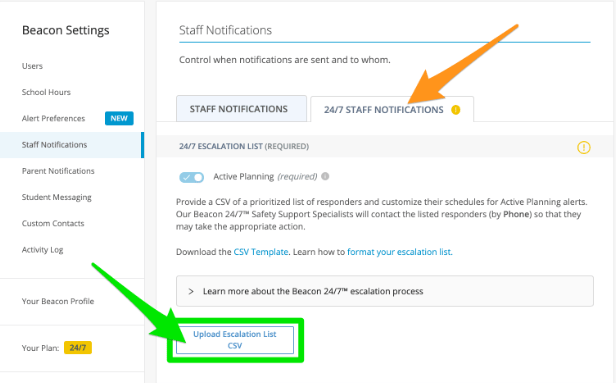
1. Go to **Settings**, then select **Staff Notifications**.
2. Click the **24/7 Staff Notifications** tab.
3. Click **Upload Escalation List CSV**. A popup window appears. Select your CSV file to upload it.

 If the CSV contains formatting errors, Beacon displays detailed information about what needs to be corrected before the upload can proceed.
## Upload Status States
After uploading, Beacon displays one of three status states:
| Status | Meaning |
| ----------- | ----------------------------------------------------------------------------------------------------------------------------------------------------------------------------------------------------------------------- |
| **EMPTY** | The uploaded CSV contains no coverage. A warning banner appears at the top of your Beacon page until a CSV with at least partial coverage is uploaded. |
| **PARTIAL** | The CSV was uploaded successfully but does not cover the full 24-hour period. A notification appears on the **Staff Notifications** settings page. Phone call escalations will function for the hours that are covered. |
| **FULL** | The CSV covers the full required period. No warnings are displayed. Phone call escalations are fully operational. |
## Download CSV Templates
Use the following resources to build and validate your CSV:
* [CSV Template](https://docs.google.com/spreadsheets/d/1Vcnw2RVRSI95llZLli497e5qvee16s0hnovqfiQJXGk/edit#gid=0)
* [CSV Examples](https://docs.google.com/spreadsheets/d/1WrDsdvMzErTGbgZbD20y0XRIW-IzsFgbqbscxKwmbXw/edit#gid=186864018)
## Resources
Configure tier-based escalation lists for email and text notifications.
Add users to a deployment before adding them to an escalation list.
Review which roles can manage escalation lists and upload CSV files.
Enable student names in all Beacon email alert notifications.
If the CSV contains formatting errors, Beacon displays detailed information about what needs to be corrected before the upload can proceed.
## Upload Status States
After uploading, Beacon displays one of three status states:
| Status | Meaning |
| ----------- | ----------------------------------------------------------------------------------------------------------------------------------------------------------------------------------------------------------------------- |
| **EMPTY** | The uploaded CSV contains no coverage. A warning banner appears at the top of your Beacon page until a CSV with at least partial coverage is uploaded. |
| **PARTIAL** | The CSV was uploaded successfully but does not cover the full 24-hour period. A notification appears on the **Staff Notifications** settings page. Phone call escalations will function for the hours that are covered. |
| **FULL** | The CSV covers the full required period. No warnings are displayed. Phone call escalations are fully operational. |
## Download CSV Templates
Use the following resources to build and validate your CSV:
* [CSV Template](https://docs.google.com/spreadsheets/d/1Vcnw2RVRSI95llZLli497e5qvee16s0hnovqfiQJXGk/edit#gid=0)
* [CSV Examples](https://docs.google.com/spreadsheets/d/1WrDsdvMzErTGbgZbD20y0XRIW-IzsFgbqbscxKwmbXw/edit#gid=186864018)
## Resources
Configure tier-based escalation lists for email and text notifications.
Add users to a deployment before adding them to an escalation list.
Review which roles can manage escalation lists and upload CSV files.
Enable student names in all Beacon email alert notifications.