> ## Documentation Index
> Fetch the complete documentation index at: https://docs.goguardian.com/llms.txt
> Use this file to discover all available pages before exploring further.
# Manage App Approval Details
> Record an app approval decision, add supporting context and documents, and control which approval details appear in Shared Views.
Use GoGuardian Discover to keep an app's approval decision, supporting context, and documents together. You can update approval details from the app details page and choose which details appear in Shared Views.
Your Discover role needs **Edit/View** access for **App Approvals** to change approval details. You also need **Edit/View** access for **Shared Views** to create or update a Shared View.
## Update App Approval Details
1. Go to **Discover** and select **App Catalog**.
2. Find the app you want to review, then select its name.
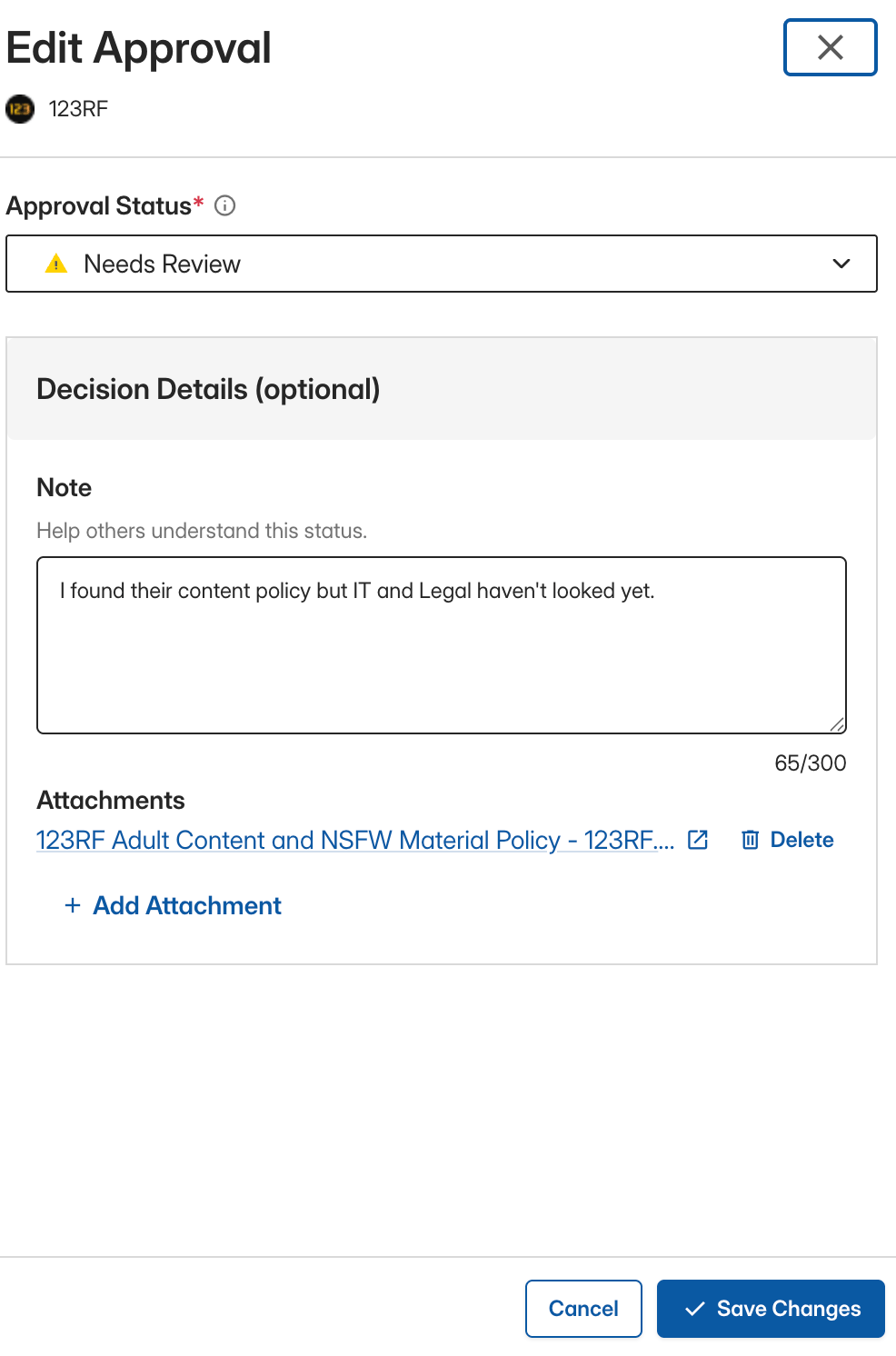
3. In the **Approval** section, click **Edit**.
4. Select an **Approval Status**.
5. Add any optional decision details your district needs:
* **Note:** Explain the decision or record what still needs review.
* **Approval Date:** Record when the app was approved.
* **Expiration Date:** Record when the approval needs another review.
6. To include supporting documentation, click **Add Attachment** and select a supported file from your device. Discover accepts CSV, XLS, XLSX, PDF, TXT, DOC, DOCX, RTF, and ODT files up to 20 MB each.
7. Click **Save Changes**.
8. Verify the result: The **Approval** section shows the saved status and details. **Last updated by** identifies the user who made the most recent change.
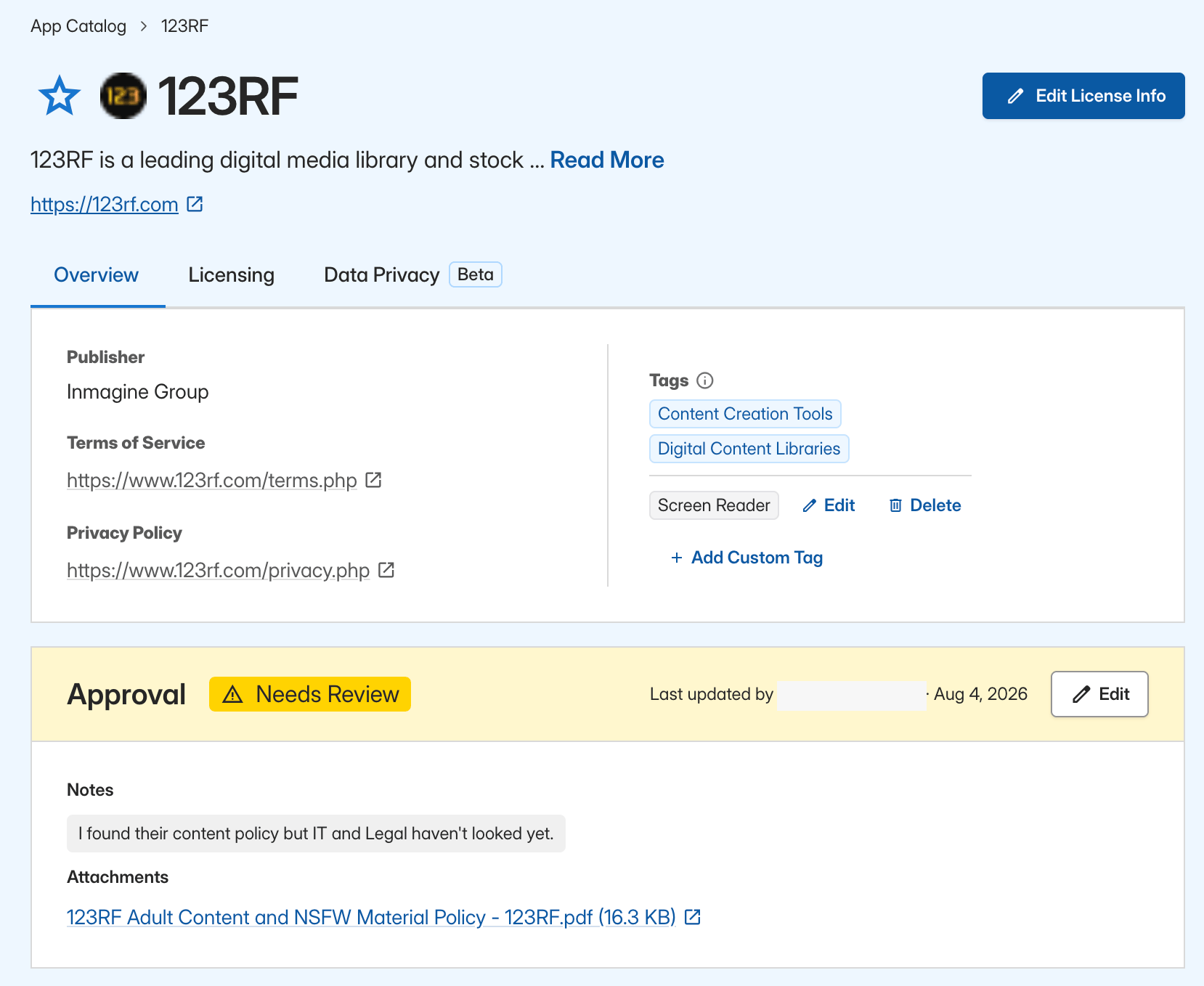 Discover updates **Last updated by** automatically when any approval detail changes, including when an attachment is added or removed.
## Manage Approval Attachments
* Each attachment can be up to 20 MB.
* Supported file types are CSV, XLS, XLSX, PDF, TXT, DOC, DOCX, RTF, and ODT.
* When attachments have the same filename, deleting one attachment removes only the selected file.
* Select an attachment name to open or download it.
* Attachments appear in a Shared View only when **Attachments** is included in that view.
## Choose App Approval Status
Approval status communicates where an app is in the district's review process.
| Status | Use It When |
| ------------ | --------------------------------------------------------------- |
| Not Reviewed | Your district has not started reviewing the app. |
| Approved | Your district completed its review and approved the app. |
| Needs Review | Your district flagged the app for further review. |
| In Review | Your district is actively evaluating the app. |
| Not Approved | Your district completed its review and did not approve the app. |
## Find Approval Details in App Catalog
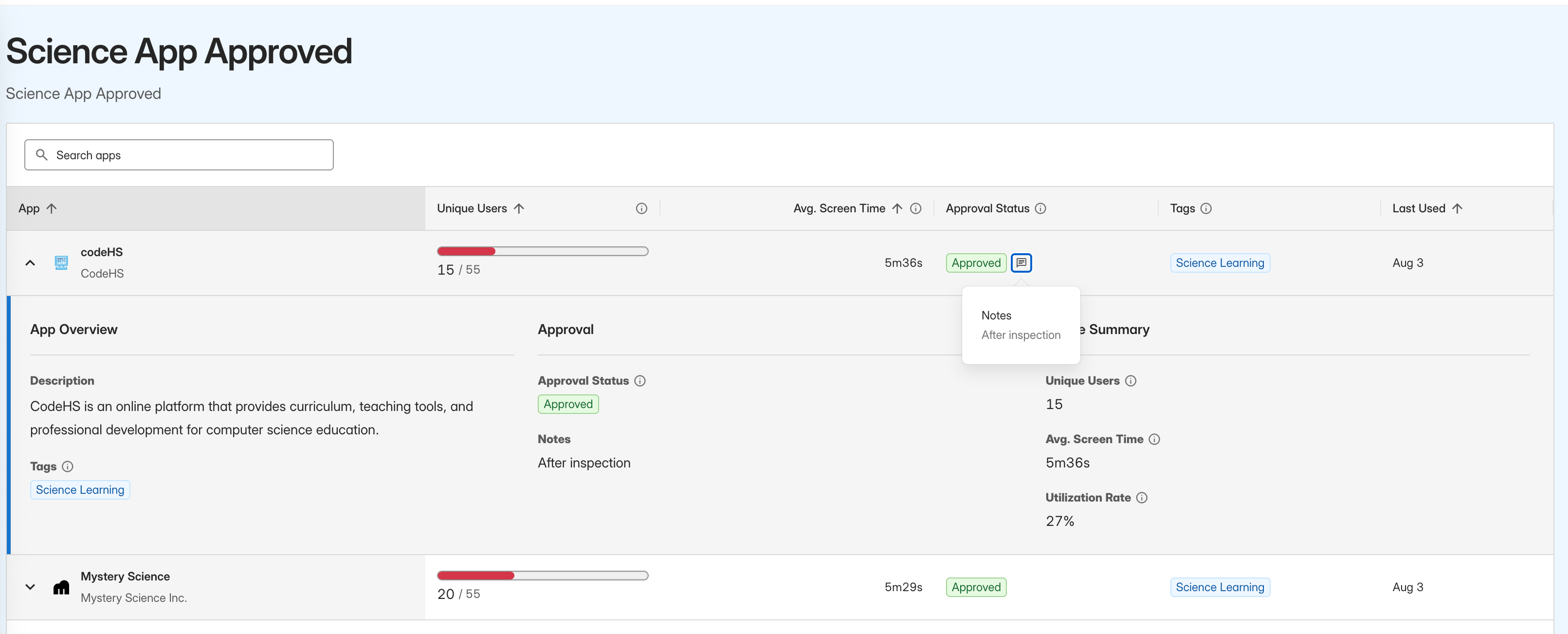
The **Approval Status** column shows each app's current status. Approval-detail indicators in an app row identify additional context, such as a note or attachment.
Expand an app row to review its **Approval** section alongside **App Overview** and **Usage Summary**. You can also select the app name to see the approval details on the app details page.
Use the **Approval Status** App Catalog filter to show apps with a specific status. The filter includes **Not Reviewed**, **Approved**, **Needs Review**, **In Review**, and **Not Approved**.
## Control Approval Details in Shared Views
Shared Views let your district show approval information to educators and other stakeholders. Each Shared View can expose a different set of approval details.
1. Go to **Shared Views** and open the view you want to update.
2. Edit the fields included in the view.
3. Keep **Approval Status** selected. Every Shared View that includes approval information requires this field.
4. Select any additional approval fields you want to share:
* **Note**
* **Approval Date**
* **Expiration Date**
* **Attachments**
5. Save your changes.
6. Verify the result: Open the shared link and confirm that approval status and only the selected approval details appear.
Discover updates **Last updated by** automatically when any approval detail changes, including when an attachment is added or removed.
## Manage Approval Attachments
* Each attachment can be up to 20 MB.
* Supported file types are CSV, XLS, XLSX, PDF, TXT, DOC, DOCX, RTF, and ODT.
* When attachments have the same filename, deleting one attachment removes only the selected file.
* Select an attachment name to open or download it.
* Attachments appear in a Shared View only when **Attachments** is included in that view.
## Choose App Approval Status
Approval status communicates where an app is in the district's review process.
| Status | Use It When |
| ------------ | --------------------------------------------------------------- |
| Not Reviewed | Your district has not started reviewing the app. |
| Approved | Your district completed its review and approved the app. |
| Needs Review | Your district flagged the app for further review. |
| In Review | Your district is actively evaluating the app. |
| Not Approved | Your district completed its review and did not approve the app. |
## Find Approval Details in App Catalog
The **Approval Status** column shows each app's current status. Approval-detail indicators in an app row identify additional context, such as a note or attachment.
Expand an app row to review its **Approval** section alongside **App Overview** and **Usage Summary**. You can also select the app name to see the approval details on the app details page.
Use the **Approval Status** App Catalog filter to show apps with a specific status. The filter includes **Not Reviewed**, **Approved**, **Needs Review**, **In Review**, and **Not Approved**.
## Control Approval Details in Shared Views
Shared Views let your district show approval information to educators and other stakeholders. Each Shared View can expose a different set of approval details.
1. Go to **Shared Views** and open the view you want to update.
2. Edit the fields included in the view.
3. Keep **Approval Status** selected. Every Shared View that includes approval information requires this field.
4. Select any additional approval fields you want to share:
* **Note**
* **Approval Date**
* **Expiration Date**
* **Attachments**
5. Save your changes.
6. Verify the result: Open the shared link and confirm that approval status and only the selected approval details appear.
 Review the Shared View before distributing its link. Notes, attachments, and other enabled approval fields are visible to people who can access the view.
## Resources
* [Browse App Catalog](/products/discover/browse-app-catalog)
* [Review App Catalog Fields](/products/discover/review-app-catalog-fields)
* [Create and Manage Shared Views](/products/discover/create-manage-shared-views)
* [Review App Policy and Terms](/products/discover/review-app-policy-and-terms)
* [Review User Roles and Permissions](/products/org-management/user-roles-and-permissions)
Review the Shared View before distributing its link. Notes, attachments, and other enabled approval fields are visible to people who can access the view.
## Resources
* [Browse App Catalog](/products/discover/browse-app-catalog)
* [Review App Catalog Fields](/products/discover/review-app-catalog-fields)
* [Create and Manage Shared Views](/products/discover/create-manage-shared-views)
* [Review App Policy and Terms](/products/discover/review-app-policy-and-terms)
* [Review User Roles and Permissions](/products/org-management/user-roles-and-permissions)