> ## Documentation Index
> Fetch the complete documentation index at: https://docs.goguardian.com/llms.txt
> Use this file to discover all available pages before exploring further.
# Review DNS Traffic Data
> Filter DNS Traffic by date and network in GoGuardian DNS, review frequently accessed domains, and understand what network-level DNS data can show.
Use the DNS Traffic page in GoGuardian Admin to review allowed and blocked DNS requests by date, network, category, and domain. GoGuardian DNS reviews traffic for the public IP addresses configured for your DNS Networks.
GoGuardian DNS reviews activity at the network level. It does not identify the individual user or physical device that generated a request, unless your district has deployed [DNS Precision Filtering](/products/admin/dns-precision-filtering).
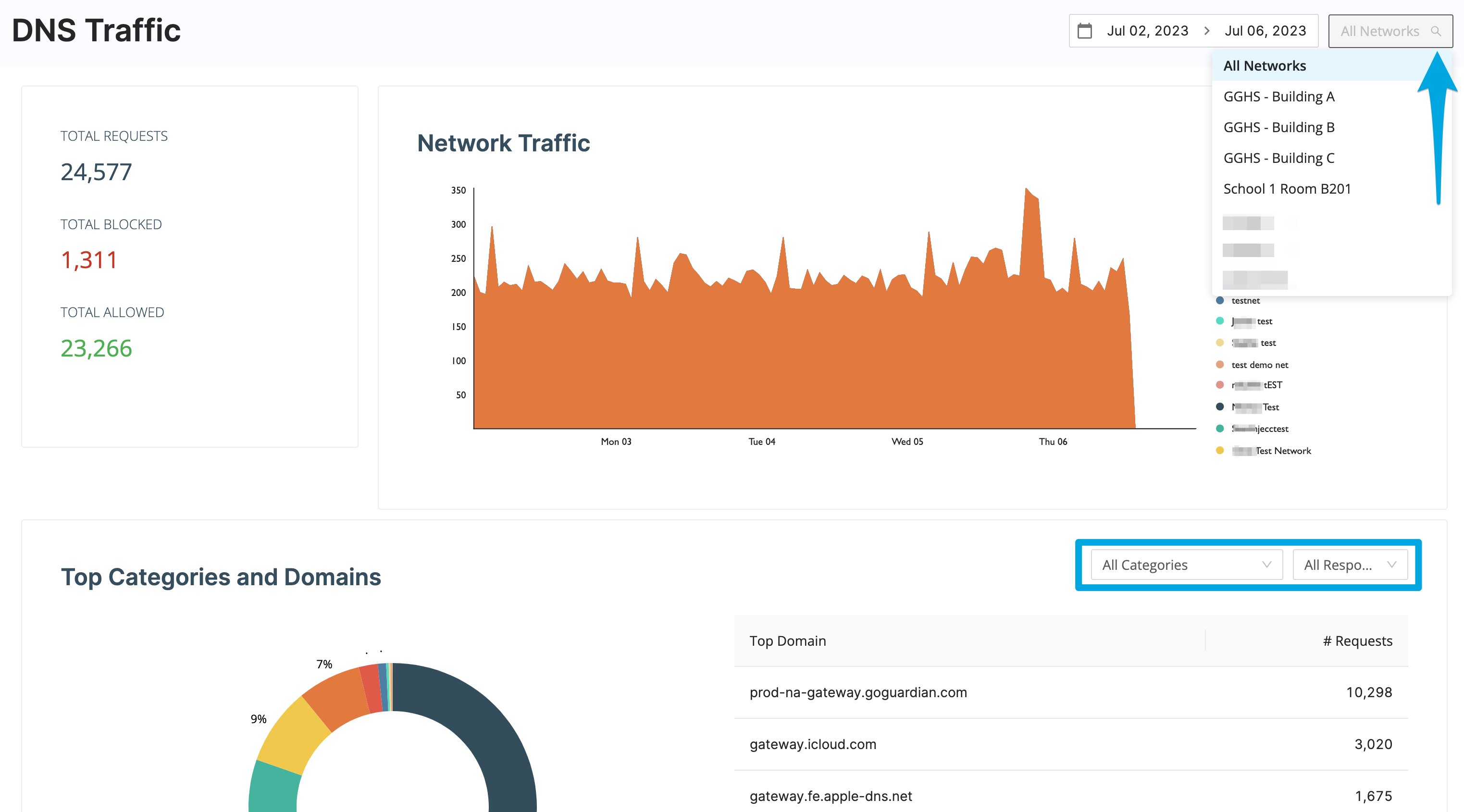 ## Filter DNS Traffic by Date
1. Go to GoGuardian Admin and select **DNS Traffic**.
2. Select **Date Range**.
3. Select the period you want to review.
4. Verify the result: DNS Traffic updates to show requests from the selected date range.
You can review up to 1 month of DNS traffic at a time.
## Filter DNS Traffic by Network
1. Select **All Networks** in the upper-right corner of the page.
2. Select the DNS Network you want to review.
3. Verify the result: The page updates to show traffic for the selected network.
## Review Top Categories and Domains
The Top Categories and Domains section displays the 8 most-accessed domains and the number of requests to each domain. Select **All Categories** to narrow the results to a specific GoGuardian Website Category.
## Search Recent DNS Activity
Recent Activity Search displays the 20 most recent domain requests. Each result includes:
* The domain
* The time of the request
* Whether the request was allowed or blocked
* The GoGuardian Website Category, when available
Recent Activity Search does not provide a complete historical export of every request. Use the date and network filters to narrow the page before you review recent activity.
## Understand What DNS Traffic Can Identify
| Question | Available in DNS Traffic? |
| ------------------------------------------------- | ---------------------------------------------- |
| Which configured DNS Network handled the request? | Yes |
| Which domain was requested? | Yes |
| Was the request allowed or blocked? | Yes |
| Which category was assigned to the domain? | Yes, when a category is available |
| Which individual user made the request? | No, unless DNS Precision Filtering is deployed |
| Which physical device made the request? | No, unless DNS Precision Filtering is deployed |
| Which student account made the request? | No, unless DNS Precision Filtering is deployed |
A public IP address configured for a DNS Network identifies the network connection that sends DNS traffic to GoGuardian. It does not identify an individual device or user behind that connection.
Districts that deploy [DNS Precision Filtering](/products/admin/dns-precision-filtering) get per-student reporting with GoGuardian DNS, instead of the network-level-only behavior described above. Contact your GoGuardian Account Manager to learn whether DNS Precision Filtering is available for your deployment.
## Contact GoGuardian Support About Unexpected DNS Data
Contact GoGuardian Support when:
* The expected network does not appear in DNS Traffic.
* Requests do not appear after you confirm DNS resolver connectivity.
* A report shows an IP address that does not match the district's configured network IP addresses.
* You need help distinguishing DNS network activity from account-based browsing activity.
Include the DNS Network name, the configured public IP address, the approximate request time, and the domain involved.
## Resources
* [Set Up GoGuardian DNS](/products/dns/set-up-goguardian-dns)
* [Fix DNS Resolver Connectivity](/products/dns/troubleshoot-dns-resolvers)
* [Understand GoGuardian DNS](/products/dns/understand-goguardian-dns)
* [Review Browsing Activity](/products/admin/browsing-activity)
## Filter DNS Traffic by Date
1. Go to GoGuardian Admin and select **DNS Traffic**.
2. Select **Date Range**.
3. Select the period you want to review.
4. Verify the result: DNS Traffic updates to show requests from the selected date range.
You can review up to 1 month of DNS traffic at a time.
## Filter DNS Traffic by Network
1. Select **All Networks** in the upper-right corner of the page.
2. Select the DNS Network you want to review.
3. Verify the result: The page updates to show traffic for the selected network.
## Review Top Categories and Domains
The Top Categories and Domains section displays the 8 most-accessed domains and the number of requests to each domain. Select **All Categories** to narrow the results to a specific GoGuardian Website Category.
## Search Recent DNS Activity
Recent Activity Search displays the 20 most recent domain requests. Each result includes:
* The domain
* The time of the request
* Whether the request was allowed or blocked
* The GoGuardian Website Category, when available
Recent Activity Search does not provide a complete historical export of every request. Use the date and network filters to narrow the page before you review recent activity.
## Understand What DNS Traffic Can Identify
| Question | Available in DNS Traffic? |
| ------------------------------------------------- | ---------------------------------------------- |
| Which configured DNS Network handled the request? | Yes |
| Which domain was requested? | Yes |
| Was the request allowed or blocked? | Yes |
| Which category was assigned to the domain? | Yes, when a category is available |
| Which individual user made the request? | No, unless DNS Precision Filtering is deployed |
| Which physical device made the request? | No, unless DNS Precision Filtering is deployed |
| Which student account made the request? | No, unless DNS Precision Filtering is deployed |
A public IP address configured for a DNS Network identifies the network connection that sends DNS traffic to GoGuardian. It does not identify an individual device or user behind that connection.
Districts that deploy [DNS Precision Filtering](/products/admin/dns-precision-filtering) get per-student reporting with GoGuardian DNS, instead of the network-level-only behavior described above. Contact your GoGuardian Account Manager to learn whether DNS Precision Filtering is available for your deployment.
## Contact GoGuardian Support About Unexpected DNS Data
Contact GoGuardian Support when:
* The expected network does not appear in DNS Traffic.
* Requests do not appear after you confirm DNS resolver connectivity.
* A report shows an IP address that does not match the district's configured network IP addresses.
* You need help distinguishing DNS network activity from account-based browsing activity.
Include the DNS Network name, the configured public IP address, the approximate request time, and the domain involved.
## Resources
* [Set Up GoGuardian DNS](/products/dns/set-up-goguardian-dns)
* [Fix DNS Resolver Connectivity](/products/dns/troubleshoot-dns-resolvers)
* [Understand GoGuardian DNS](/products/dns/understand-goguardian-dns)
* [Review Browsing Activity](/products/admin/browsing-activity)