> ## Documentation Index
> Fetch the complete documentation index at: https://docs.goguardian.com/llms.txt
> Use this file to discover all available pages before exploring further.
# Import Devices
> How to format a CSV file for GoGuardian Fleet, bulk import device information, and understand what happens when you import a device that already exists.
GoGuardian Fleet uses CSV files to bulk import or update device information. A correctly formatted CSV lets you set serial numbers, asset IDs, OUs, locations, and student assignments for many devices at once.
## Understand the CSV Format
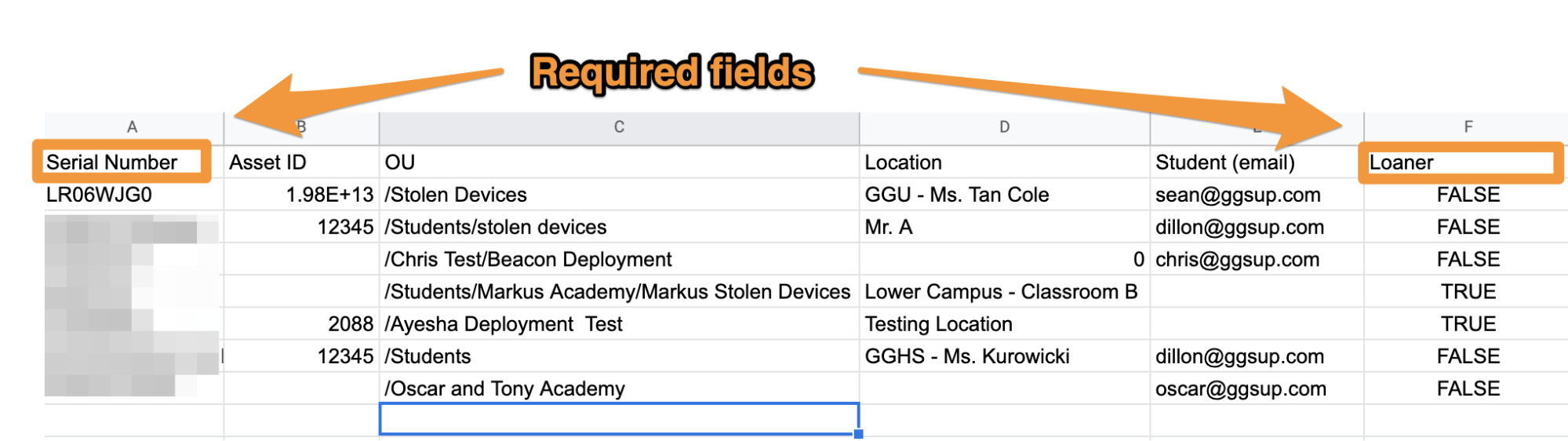
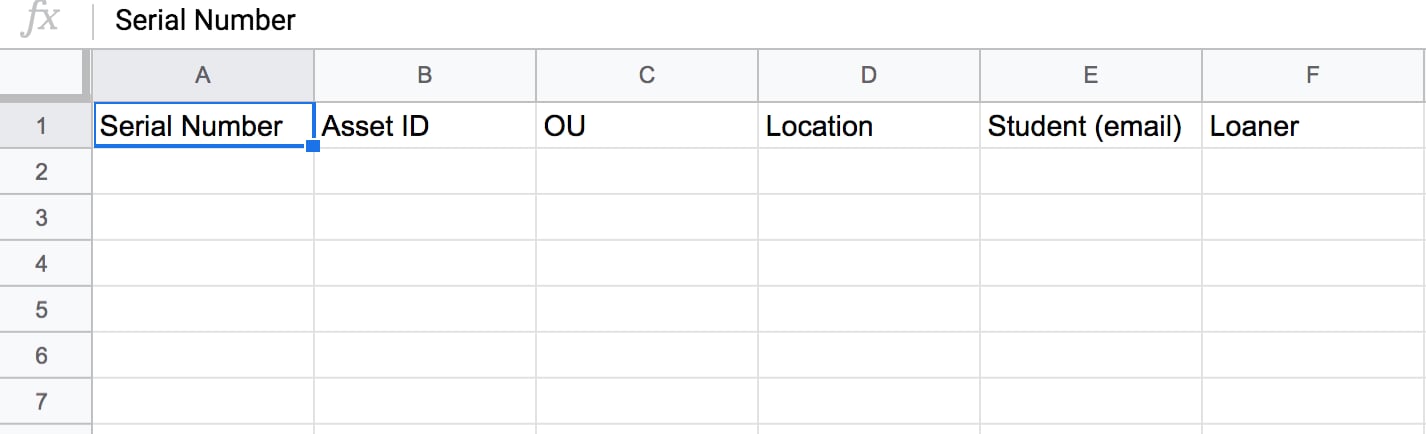
Fleet CSV files must include all 6 column headers, in this exact order and with these exact names:
| Column | Required | Description |
| ----------------- | -------- | ------------------------------------------------------------------------------------------------------------------------------------------------------- |
| `Serial Number` | Yes | The device's serial number |
| `Asset ID` | No | Your organization's ID for this device |
| `OU` | No | The Organizational Unit the device belongs to. Must start with `/` and match an existing OU name in your organization — for example, `/Students/Grade9` |
| `Location` | No | The assigned location for this device |
| `Student (email)` | No | The email address of the user assigned to this device |
| `Loaner` | Yes | Whether the device is a loaner. Enter `true` or `1` for loaner, `false` or `0` for non-loaner |
**Blank cells:** Blank cells are treated as null. For most columns, a blank cell preserves the existing value in Fleet. The `Loaner` column is the exception — it must always contain `true/1` or `false/0`.
**Importing an existing device:** If a device with the same serial number already exists in Fleet, the CSV values overwrite the values in Fleet. For example, if Fleet shows `user@school.edu` for a device but the CSV shows `newuser@school.edu`, Fleet updates to `newuser@school.edu`. The new email must be a valid, existing address in your domain.
## Create a Fleet CSV File
1. Open [Google Sheets](https://sheets.google.com) and create a new blank spreadsheet.
2. In row 1, enter the column headers in order: `Serial Number`, `Asset ID`, `OU`, `Location`, `Student (email)`, `Loaner`.
3. Add device data in the rows below. Only `Serial Number` and `Loaner` are required for each row.
4. Select **File** → **Download** → **Comma-separated values (.csv, current sheet)**.
5. Verify the result: A `.csv` file downloads to your computer.
 ## Import Devices into Fleet
1. Go to [fleet.goguardian.com](https://fleet.goguardian.com) and select the **Devices** tab.
2. Click **Update Device Data**.
3. Drag and drop your CSV file into the upload panel, or click inside the panel to browse and select the file.
4. Click **Upload CSV**.
5. Verify the result: Devices appear in the Devices tab. See [Sync with Google Admin Console](/products/fleet/sync-with-google-admin-console) to confirm counts match.
## Sync GAC Data into Fleet via CSV
When Google Admin Console has updated values (such as OU or Asset ID) that are not yet reflected in Fleet, use this method to force GAC values into Fleet:
1. Export devices from Google Admin Console: go to `admin.google.com` → **Devices** → **Chrome Devices**, select all organizational units, and export to CSV.
2. Delete all columns except: serial number, orgunitpath, annotatedAssetId, annotatedUser, annotatedLocation.
3. Rename the column headers to match the Fleet format: `Serial Number`, `Asset ID`, `OU`, `Location`, `Student (email)`, `Loaner`.
4. Add the `Loaner` column with appropriate `true`/`false` values.
5. Make 2 copies of this file.
6. In one copy, set the values you want to reset to blank or zero (for example, set all OUs to `/`). Upload this copy to Fleet — this "zeros out" the fields.
7. Upload the original copy with the correct GAC values — this pushes the correct values into both Fleet and Google Admin Console.
## Resources
* [Sync with Google Admin Console](/products/fleet/sync-with-google-admin-console)
* [Search and Filter Devices](/products/fleet/search-and-filter-devices)
## Import Devices into Fleet
1. Go to [fleet.goguardian.com](https://fleet.goguardian.com) and select the **Devices** tab.
2. Click **Update Device Data**.
3. Drag and drop your CSV file into the upload panel, or click inside the panel to browse and select the file.
4. Click **Upload CSV**.
5. Verify the result: Devices appear in the Devices tab. See [Sync with Google Admin Console](/products/fleet/sync-with-google-admin-console) to confirm counts match.
## Sync GAC Data into Fleet via CSV
When Google Admin Console has updated values (such as OU or Asset ID) that are not yet reflected in Fleet, use this method to force GAC values into Fleet:
1. Export devices from Google Admin Console: go to `admin.google.com` → **Devices** → **Chrome Devices**, select all organizational units, and export to CSV.
2. Delete all columns except: serial number, orgunitpath, annotatedAssetId, annotatedUser, annotatedLocation.
3. Rename the column headers to match the Fleet format: `Serial Number`, `Asset ID`, `OU`, `Location`, `Student (email)`, `Loaner`.
4. Add the `Loaner` column with appropriate `true`/`false` values.
5. Make 2 copies of this file.
6. In one copy, set the values you want to reset to blank or zero (for example, set all OUs to `/`). Upload this copy to Fleet — this "zeros out" the fields.
7. Upload the original copy with the correct GAC values — this pushes the correct values into both Fleet and Google Admin Console.
## Resources
* [Sync with Google Admin Console](/products/fleet/sync-with-google-admin-console)
* [Search and Filter Devices](/products/fleet/search-and-filter-devices)