> ## Documentation Index
> Fetch the complete documentation index at: https://docs.goguardian.com/llms.txt
> Use this file to discover all available pages before exploring further.
# Manage Fleet Users
> How to add GoGuardian user accounts, grant or revoke Fleet access, and resolve authorization errors.
Each person who needs access to GoGuardian Fleet must have their own GoGuardian account with Fleet access enabled. User accounts and access are managed through [GoGuardian Org Management](https://manage.goguardian.com).
## Add a User Account
1. Go to [manage.goguardian.com](https://manage.goguardian.com) and select **User Management**.
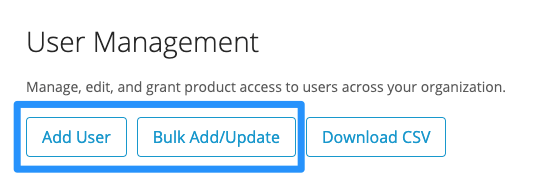
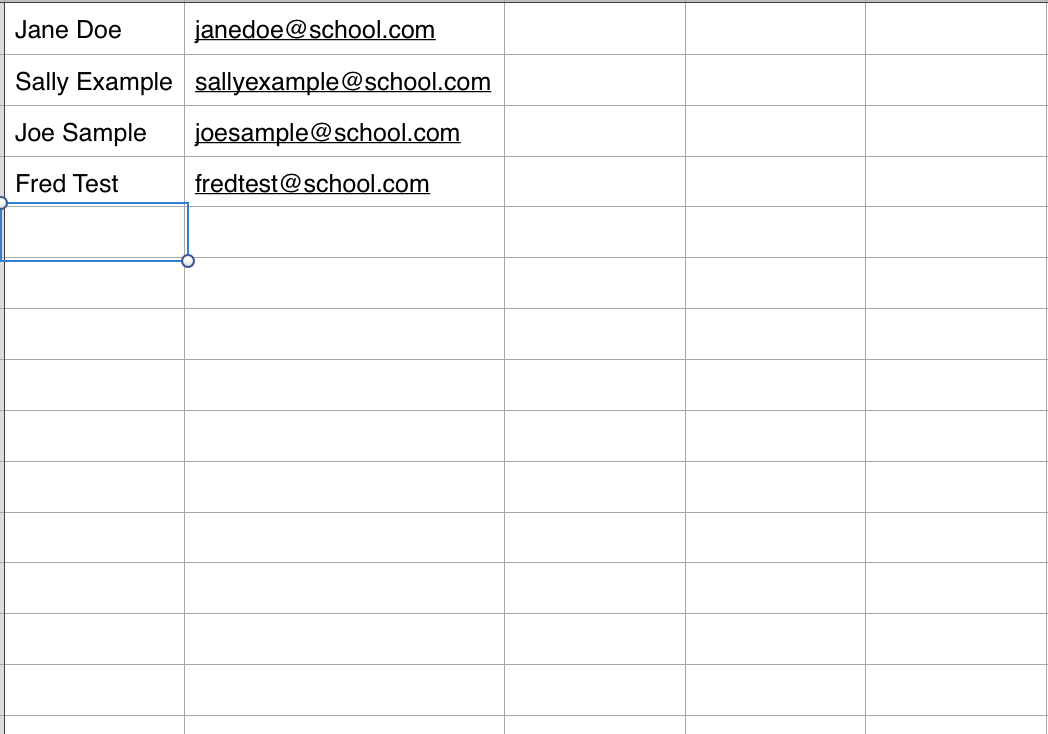
2. Click **Add User** to add a single user, or **Bulk Add/Update** to add multiple users via CSV. For bulk add, place user names in the first column and email addresses in the second column.
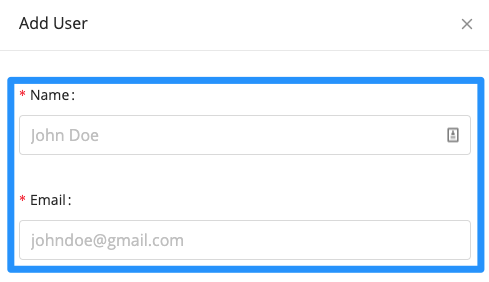
3. Enter the user's name and email address.
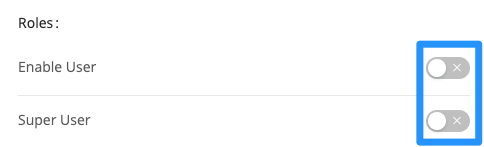
 4. Turn on **Enable User** to activate the account. By default, new users are disabled.
5. Optional: Turn on **Super User** to give the user full administrative control, including the ability to add, modify, and remove other users.
6. Optional: Assign OU access if the user needs access to GoGuardian Admin for specific organizational units.
7. Click **Add User**.
8. Verify the result: The user receives an email prompting them to set a password and complete account setup.
4. Turn on **Enable User** to activate the account. By default, new users are disabled.
5. Optional: Turn on **Super User** to give the user full administrative control, including the ability to add, modify, and remove other users.
6. Optional: Assign OU access if the user needs access to GoGuardian Admin for specific organizational units.
7. Click **Add User**.
8. Verify the result: The user receives an email prompting them to set a password and complete account setup.
 ## Grant Fleet Access to a User
1. Go to [manage.goguardian.com](https://manage.goguardian.com) and select **User Management**.
2. Find the user and click **Edit**.
3. Click the dropdown next to **GoGuardian Fleet** and select **Enabled**.
4. Click **Save User**.
5. Verify the result: The user can now sign in at [fleet.goguardian.com](https://fleet.goguardian.com).
## Revoke Fleet Access from a User
1. Go to [manage.goguardian.com](https://manage.goguardian.com) and select **User Management**.
2. Find the user and click **Edit**.
3. Click the dropdown next to **Fleet** and select **Disabled**.
4. Click **Save User**.
5. Verify the result: The user can no longer access GoGuardian Fleet.
## Fix an Authorization Error
An authorization error in Fleet means the account being used does not have Fleet access enabled.
**If all users lost Fleet access at once** (can happen during initial Fleet setup):
1. Go to [manage.goguardian.com](https://manage.goguardian.com) using an administrator-level account and select **User Management**.
2. Find each affected user and click **Edit**.
3. Set the dropdown next to **GoGuardian Fleet** to **Enabled**.
4. Click **Save User**. Repeat for each affected user.
**If one account cannot access Fleet** (signed up with a different account than the Google Admin Console administrator):
1. Go to [manage.goguardian.com](https://manage.goguardian.com) and select **User Management**.
2. Click **Add User**.
3. Enter the name and email address of the account that needs Fleet access. In the Roles section, set **GoGuardian Fleet** to **Enabled**.
4. Click **Add User**.
5. Verify the result: The new account can sign in to Fleet at [fleet.goguardian.com](https://fleet.goguardian.com).
If the Force Sync feature in Fleet stops working, re-authorize your Google account by visiting [fleet.goguardian.com/connect](https://fleet.goguardian.com/connect).
## Resources
* [Understand GoGuardian Fleet](/products/fleet/understand-goguardian-fleet)
* [Import Devices](/products/fleet/import-devices)
## Grant Fleet Access to a User
1. Go to [manage.goguardian.com](https://manage.goguardian.com) and select **User Management**.
2. Find the user and click **Edit**.
3. Click the dropdown next to **GoGuardian Fleet** and select **Enabled**.
4. Click **Save User**.
5. Verify the result: The user can now sign in at [fleet.goguardian.com](https://fleet.goguardian.com).
## Revoke Fleet Access from a User
1. Go to [manage.goguardian.com](https://manage.goguardian.com) and select **User Management**.
2. Find the user and click **Edit**.
3. Click the dropdown next to **Fleet** and select **Disabled**.
4. Click **Save User**.
5. Verify the result: The user can no longer access GoGuardian Fleet.
## Fix an Authorization Error
An authorization error in Fleet means the account being used does not have Fleet access enabled.
**If all users lost Fleet access at once** (can happen during initial Fleet setup):
1. Go to [manage.goguardian.com](https://manage.goguardian.com) using an administrator-level account and select **User Management**.
2. Find each affected user and click **Edit**.
3. Set the dropdown next to **GoGuardian Fleet** to **Enabled**.
4. Click **Save User**. Repeat for each affected user.
**If one account cannot access Fleet** (signed up with a different account than the Google Admin Console administrator):
1. Go to [manage.goguardian.com](https://manage.goguardian.com) and select **User Management**.
2. Click **Add User**.
3. Enter the name and email address of the account that needs Fleet access. In the Roles section, set **GoGuardian Fleet** to **Enabled**.
4. Click **Add User**.
5. Verify the result: The new account can sign in to Fleet at [fleet.goguardian.com](https://fleet.goguardian.com).
If the Force Sync feature in Fleet stops working, re-authorize your Google account by visiting [fleet.goguardian.com/connect](https://fleet.goguardian.com/connect).
## Resources
* [Understand GoGuardian Fleet](/products/fleet/understand-goguardian-fleet)
* [Import Devices](/products/fleet/import-devices)