> ## Documentation Index
> Fetch the complete documentation index at: https://docs.goguardian.com/llms.txt
> Use this file to discover all available pages before exploring further.
# Start a Device Repair in GoGuardian Fleet
> Create a repair record in GoGuardian Fleet: find the device, set the damage type and repair status, add notes, and optionally assign a loaner or send a notification.
1. In GoGuardian Fleet, click the **Repairs** tab.
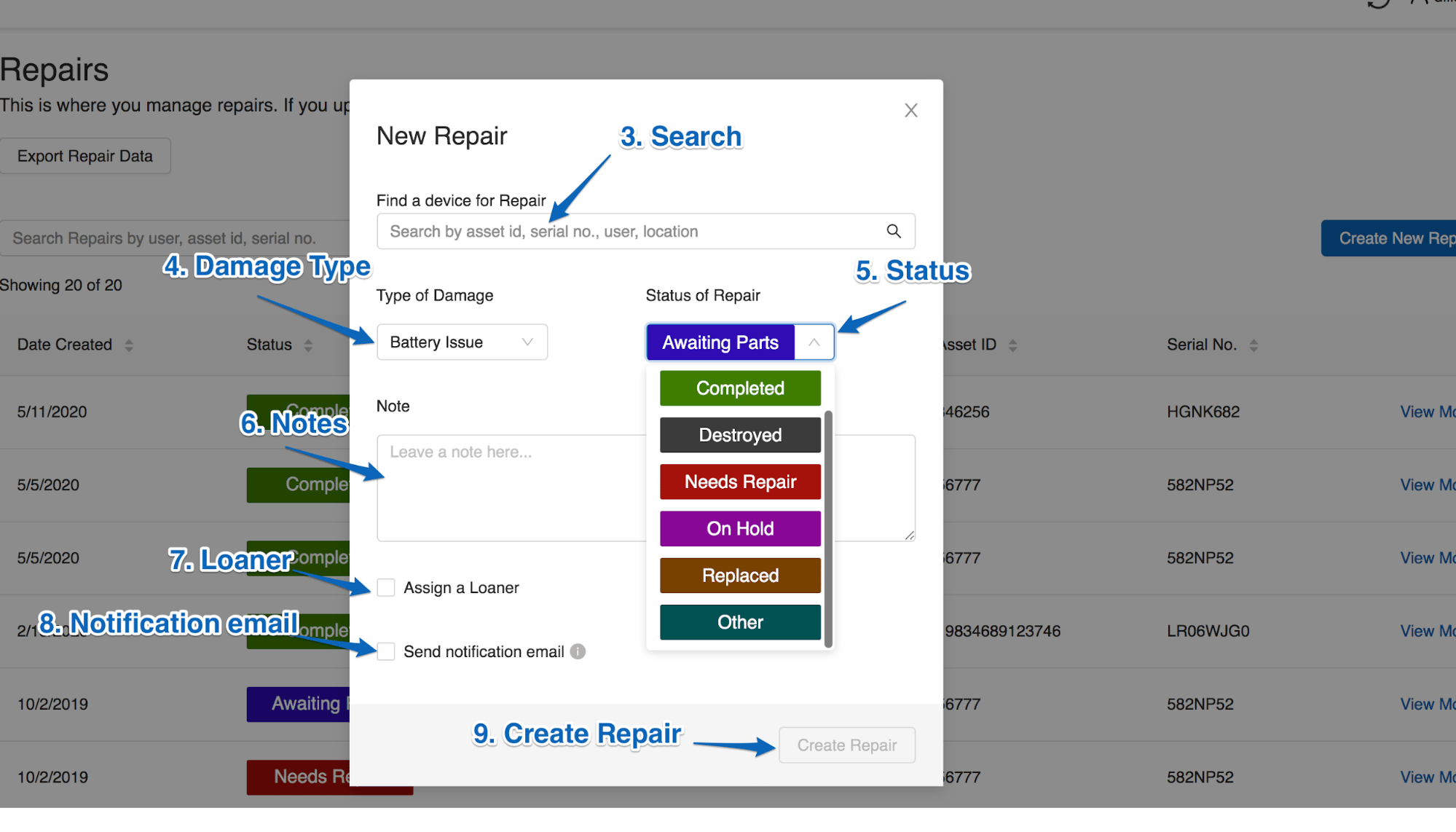
2. Click **Create New Repair**.
3. Click the search field and enter the serial number, asset ID, user, or location of the device.
4. Select the **Type of Damage**. If the repair is not one of the available options, select **Other Issue** and describe it in the **Notes** field.
5. Select the **Status of Repair**. Devices typically start at the **Needs Repair** or **Destroyed** phase.
6. Enter any relevant **Notes**.
7. (Optional) Check **Assign a Loaner** to display available loaner devices.
8. (Optional) Check **Send notification email** to notify a specified address that the repair process has started.
9. Click **Create Repair**.